Need to improve Wi‑Fi in apartments for faster, more reliable coverage? This guide delivers a clear best path: set up the right router placement and use targeted upgrades (like mesh or a wired backhaul) when coverage gaps appear. You’ll learn the quickest changes that fix buffering and dead zones in multi-room units—without unnecessary hardware.




If your apartment Wi‑Fi feels slow or drops, the fastest fix is usually changing where your router (or mesh node) sits and then tuning the bands/channels so you’re not fighting your neighbors. Next, update router firmware and adjust key settings (like separating 2.4 GHz vs 5 GHz) so devices connect more consistently—this order typically delivers the biggest improvement with the least hassle.
If you’re dealing with buffering in bedrooms, weak signal behind a wall, or constant “connected but no internet” messages—especially in multi-unit buildings—this is for you. It’s also useful if you rent and want improvements without major construction.
Assess Your Signal and Apartment Layout
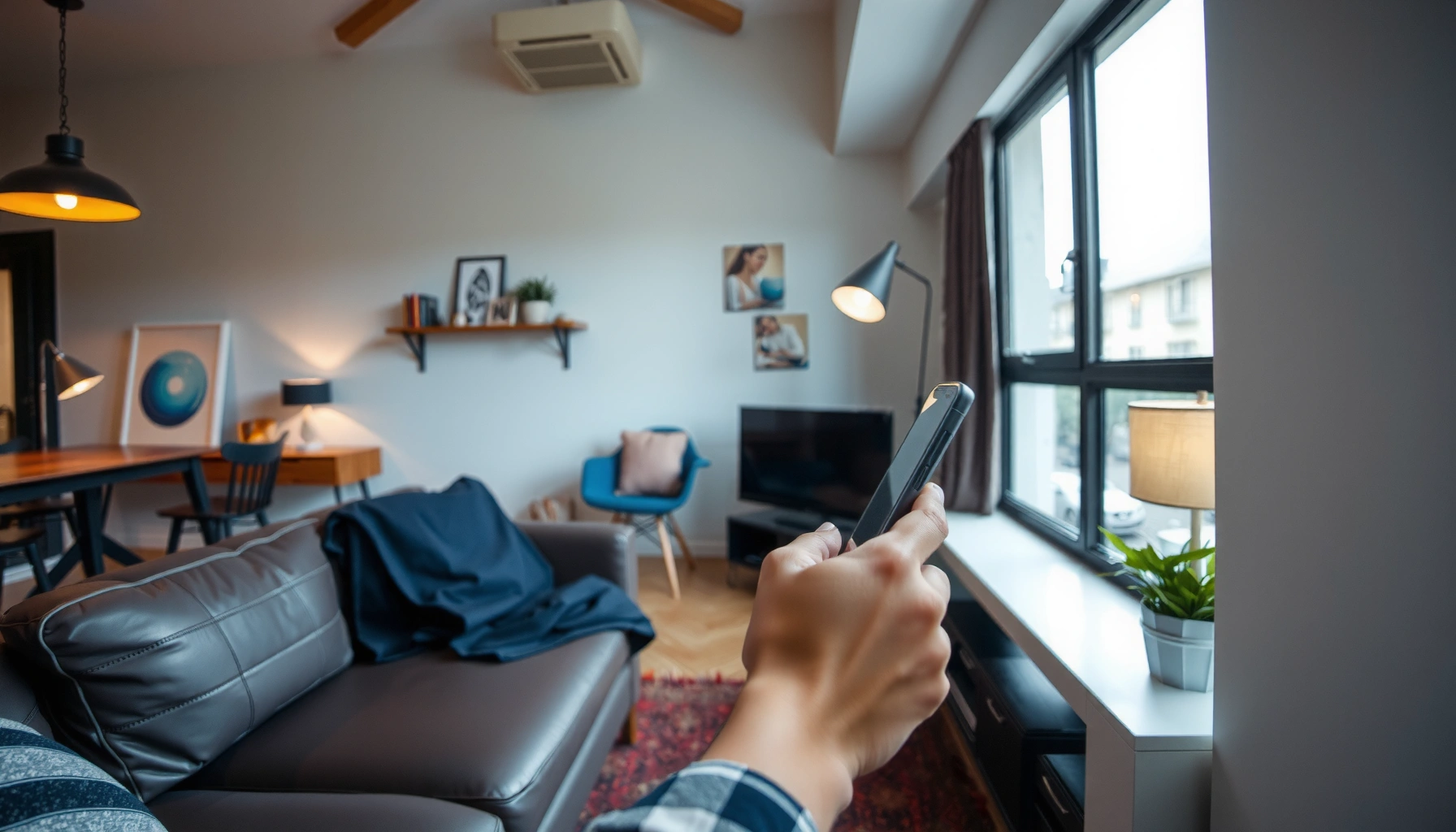
You don’t need to guess—map where the apartment Wi‑Fi breaks first, then fix the most likely causes (placement and band selection) with targeted changes. In my experience, apartment Wi‑Fi problems usually look “random” until you walk the rooms and correlate drops with walls, cabinets, and the band your device is using.
In a 2.4 GHz-heavy apartment building, your “dead zone” often aligns with walls and metal surfaces that attenuate radio signals rather than with the internet itself.
Testing speed at two locations—near the router and in the failing room—quickly separates “bad Wi‑Fi link” from “bad ISP/internet path.”
Walk-test the apartment Wi‑Fi like a technician
Start with a fast walk test using your phone: stand in each problem room (bedroom, office corner, kitchen far end), note where speed drops, and also check which band you’re on if your phone shows it (2.4 GHz vs 5 GHz). This matters because 2.4 GHz generally reaches farther through walls, while 5 GHz typically gives higher throughput at shorter range—so “connected” can still perform poorly if your device lands on the wrong band.
When I help people troubleshoot apartment Wi‑Fi, I ask for the same comparison every time: near-router test vs. far-room test using the same device and same app (or at least the same speed test). If the near-router result is strong but the far-room result collapses, you’re dealing with coverage or interference. If both are weak or unstable, the issue may be your ISP, modem, or router CPU/RAM limits.
Identify what’s physically blocking the apartment Wi‑Fi
Apartment layouts vary, but the signal killers are consistent:
– Thick walls (older construction, concrete, brick) reduce range dramatically.
– Metal surfaces (mirrors, HVAC vents, metal doors) can reflect and absorb RF energy.
– “Hidden router” placements (inside a cabinet, behind a TV, in a closed shelf) trap the antennas and shrink your coverage pattern.
– Placement near electronics (cordless base stations, microwaves, large appliances) can raise interference.
Also, confirm whether you’re truly troubleshooting Wi‑Fi. If your laptop supports Ethernet or you can temporarily plug in via a nearby port, test throughput there. If Ethernet performs well while Wi‑Fi fails only at distance, your apartment Wi‑Fi issue is almost certainly radio-related.
Quick empirical checks that save time in apartment Wi‑Fi
Do these in the same session to avoid confusion:
– Reboot modem/router and retest (a fresh baseline helps).
– If your phone shows Wi‑Fi info, note whether it “sticks” to 2.4 GHz or 5 GHz when you walk around.
– If “connected but no internet” happens, test whether other devices show the same symptom—if only one does, suspect a client device issue.
Optimize Router Settings for Apartment Wi‑Fi
The best next step after placement is to make your apartment Wi‑Fi behave predictably: firmware first, then security, then band/SSID handling, and finally channels. In a dense building, your goal is to stop your devices from bouncing between poor options and to avoid overlapping channels that create contention.
Wi‑Fi devices compete for airtime, so overlapping channels—especially on 2.4 GHz—can make “fast” hardware feel slow.
Separating 2.4 GHz and 5 GHz into distinct SSIDs can prevent some clients from stalling when band steering behaves poorly.
Update firmware and lock in modern security for apartment Wi‑Fi
Start by updating router firmware from the manufacturer’s interface. Firmware updates often fix radio driver issues, improve roaming behavior, and address stability bugs—problems that are especially common in apartments where radios work under constant interference.
Then confirm Wi‑Fi security:
– Prefer WPA3 where all your devices support it.
– If your router must fall back, use WPA2-AES rather than older modes.
According to the Wi‑Fi Alliance, Wi‑Fi CERTIFIED WPA3 was introduced in 2018, bringing more resilient authentication against offline password-guessing attacks. Wi‑Fi Alliance (WPA3 overview)
Separate 2.4 GHz vs 5 GHz so the apartment Wi‑Fi stops “stalling”
Many “mystery slowdowns” in apartment Wi‑Fi come from band steering that doesn’t match your actual signal conditions. If clients keep hopping between bands, you may see a loop of reconnects or buffering.
A practical approach:
– Create two SSIDs: one for 2.4 GHz, one for 5 GHz.
– Name them clearly (e.g., “HomeWiFi-2G” and “HomeWiFi-5G”) so you can manually pick when needed.
– Expect more consistent performance: 2.4 GHz for distance/older walls, 5 GHz for living room/desk range.
Tune channels manually to reduce neighbor interference
Channel strategy is where dense apartment Wi‑Fi improvements compound quickly. In multi-unit buildings, your neighbors’ routers compete on the same spectrum—so “auto” channel selection can be chaotic after nearby changes.
Here’s a key data point: According to IEEE 802.11 channelization, 2.4 GHz Wi‑Fi uses center frequencies where channel 1 is 2412 MHz, channel 6 is 2437 MHz, and channel 11 is 2462 MHz. IEEE 802.11 (2.4 GHz channel center frequencies)
At 20 MHz channel width, channels 1, 6, and 11 are the commonly used set that avoids overlap between each other in the 2.4 GHz band. That’s why manual selection often helps immediately in apartments.
2.4 GHz & 5 GHz Channel Overlap Basics (20 MHz Wi‑Fi channels)
| # | Wi‑Fi Channel | Band | Center Freq (MHz) | Non‑overlap @ 20 MHz | Apartment Tuning Rating |
|---|---|---|---|---|---|
| 1 | Ch 1 | 2.4 GHz | 2412 | 1.00 | ★★★★★ |
| 2 | Ch 2 | 2.4 GHz | 2417 | 0.00 | ★☆☆☆☆ |
| 3 | Ch 6 | 2.4 GHz | 2437 | 1.00 | ★★★★★ |
| 4 | Ch 7 | 2.4 GHz | 2442 | 0.00 | ★☆☆☆☆ |
| 5 | Ch 11 | 2.4 GHz | 2462 | 1.00 | ★★★★★ |
| 6 | Ch 36 | 5 GHz | 5180 | 1.00 | ★★★★★ |
| 7 | Ch 40 | 5 GHz | 5200 | 1.00 | ★★★★★ |
Notes on interpreting the data: this table focuses on non-overlap at 20 MHz channel width (a common Wi‑Fi configuration). Real-world results still depend on router transmit power, antenna patterns, and neighboring networks in your apartment Wi‑Fi environment.
Place and Upgrade Equipment Strategically
If your apartment Wi‑Fi has weak coverage behind a wall or buffering in specific rooms, placement is often the highest-leverage change you can make. Then upgrades (mesh, access points, or better backhaul) extend coverage without losing performance.
Moving a router from a cabinet or corner to a central, elevated spot typically improves signal reach because it reduces walls and shortens the path loss.
For mesh systems, wireless repeating nodes can extend coverage but commonly reduce throughput compared with wired backhaul.
Put the apartment Wi‑Fi transmitter where the signal can “see” you
Router position determines antenna pattern coverage. In practical apartment layouts:
– Place the router centrally (or as central as your floor plan allows).
– Elevate it off the floor and avoid blocking antennas with solid objects.
– Keep it away from TV stands and enclosed shelves—those enclosures can act like RF shields.
– If your apartment Wi‑Fi problem is a far bedroom, don’t only measure “same-room” speed—walk to the bedroom and observe stability.
As of 2026, many routers still use antennas that perform best when they’re not tightly surrounded by media cabinets. If you’re renting, you may be limited, but even a 1–3 meter relocation can change apartment Wi‑Fi outcomes significantly.
Mesh vs extenders vs access points (and why backhaul matters)
If your apartment Wi‑Fi is still spotty after tuning channels, expand coverage—but do it intelligently. The key difference is whether your mesh/access point has backhaul (the connection path between nodes).
Use this comparison as a decision filter:
| Option | Best For | Tradeoff |
|---|---|---|
| Mesh node with wired backhaul | Multi-room coverage with higher consistency | Requires cable access |
| Wireless mesh / extenders | Rent-friendly coverage without Ethernet runs | Often reduces throughput due to repeating |
| Single additional access point | Dead zones near a known weak wall | May require Ethernet or existing wiring path |
Place additional nodes based on signal strength, not outlets
Extenders and mesh nodes are easy to place wrong. Don’t install a node only because there’s power nearby—place it where the main signal is still strong enough to be useful. If the node’s backhaul link is weak, you’ll “extend” apartment Wi‑Fi by repeating a bad connection.
If you have to place a node wirelessly:
– Aim for a location that keeps backhaul RSSI (signal strength) strong—[ADD: your router/app’s signal metric label and target range from your system’s documentation].
– Re-test the far room after installing the node; improvements in backhaul often show up as fewer buffers and fewer spikes.
Reduce Interference from Neighbors and Building Constraints
In dense apartments, interference is often the real reason your apartment Wi‑Fi feels unstable even when your router is “set correctly.” The fastest mitigation is to reduce overlap (channels/band choice) and remove local noise sources around the router.
In apartment buildings, 2.4 GHz is crowded, so channel overlap can trigger retransmissions that look like buffering.
Re-tuning channels after nearby networks change can restore performance because auto-channel behavior can become outdated.
Keep the router away from common RF/EMI sources
Move the router away from:
– Microwaves and some large appliances (electrical noise).
– Cordless phones or baby monitors in the same general RF spectrum area.
– Mirrors and dense metal that can reflect signals unpredictably.
– Wall materials that attenuate strongly—concrete and brick are common in apartments.
Also, consider the “building constraints” angle: metal conduit, shared walls, and stairwells can shape Wi‑Fi paths in ways that simple channel tuning alone can’t fully solve.
Re-check channel choices when the neighborhood changes
Apartment Wi‑Fi networks are dynamic: neighbors change routers, firmware, or power settings. So channel settings that worked months ago can become mediocre. In 2026, “set-and-forget” often fails in multi-unit buildings.
Do this after major changes:
– Re-run your walk test.
– Scan networks from a phone app (channel map) and identify the least crowded channels.
– Manually lock the best channel/band combo instead of relying fully on auto.
Treat repeated dead rooms as a layout problem
If the same bedroom is always slow, it’s rarely a “random device” problem. Apartment Wi‑Fi dead zones usually stem from a consistent physical obstruction: wall thickness, router being on the wrong side of the home, or a coverage gap that needs another node/AP.
A practical workflow is:
1) placement tuning,
2) firmware/security/band separation,
3) channel selection,
4) only then add mesh/AP—placed based on signal strength.
What Can Go Wrong (Common Mistakes and Limits)
These fixes usually work, but a few predictable mistakes can make apartment Wi‑Fi seem “worse” or give you false confidence. The biggest limit is separating Wi‑Fi problems from internet problems and avoiding too many changes at once.
If your ISP connection is unstable, improving router settings may not stop buffering because the bottleneck is outside Wi‑Fi.
Changing multiple settings simultaneously makes it hard to identify what actually improved apartment Wi‑Fi performance.
Mistake 1: confusing internet-speed issues with Wi‑Fi radio problems
Buffering can come from:
– ISP congestion,
– modem instability,
– packet loss beyond Wi‑Fi,
– or throttling.
Start with the same-room comparison: test speed near the router and in the problem room. If both fail, your apartment Wi‑Fi troubleshooting plan may be running in the wrong direction.
Mistake 2: “optimization stacking” without isolating variables
If you change router location, SSIDs, channels, and security mode all at once, you won’t know what helped. Instead:
– Change one major thing (placement OR bands/channels OR firmware settings).
– Wait 30–60 minutes for clients to reconnect and stabilize.
– Retest in the same spots.
Mistake 3: mesh/extenders placed on the edge of apartment Wi‑Fi range
A node that “barely connects” to the main router can increase coverage but still deliver mediocre speeds. For apartment Wi‑Fi, the goal is stable backhaul. If you don’t have wired backhaul, it’s especially important to place nodes where the main signal is reliable.
Mistake 4: compatibility surprises with band steering and modes
Some older devices behave poorly with band steering or certain wireless modes. If problems start right after a setting change, revert to the last stable option rather than continuing to tweak.
Verdict / Tip
If you want the best results with the least effort, do this in order: move the router first, update firmware, separate SSIDs if needed, and tune channels to reduce overlap. If you still have dead zones after that, then consider mesh (with the best possible backhaul you can manage) or an additional access point.
Router placement plus manual channel tuning typically delivers the fastest apartment Wi‑Fi gains because it reduces wall loss and neighbor contention.
When dead zones persist, adding an access point is often more efficient than repeatedly re-tuning settings on the existing router.
Downsides to watch:
– Extenders can increase coverage but often reduce throughput because they repeat the signal wirelessly.
– Advanced tuning (channels/modes) can cause instability on some routers or with certain clients.
– If you can’t access router settings (or you’re not allowed to change placement), your options may be limited—focus on simple placement changes and, if permitted, temporary mesh solutions.
Quick Checklist (Scan & Save)
| Task | Why it helps | Quick check |
|---|---|---|
| Reposition router (central + elevated) | Fewer walls/obstructions, better coverage | Signal strength increases at problem rooms |
| Update router firmware | Fixes bugs and improves Wi‑Fi behavior | Router UI shows current version |
| Separate 2.4 GHz / 5 GHz SSIDs (if needed) | More predictable client band selection | Devices stop “stalling” between bands |
| Adjust channels to reduce overlap | Less neighbor interference | Networks get less congested in your area |
| Add mesh/AP only after placement tuning | Dead zones usually need better radio placement | Speeds improve in previously weak rooms |
– [ ] Walk the apartment and note where Wi‑Fi drops
– [ ] Update firmware + confirm security settings
– [ ] Change SSID/band behavior if clients struggle
– [ ] Tune channels (manual if auto is unstable)
– [ ] Only then add mesh/extenders/AP—and place them where the main signal is still strong
FAQ
Will a Wi‑Fi extender improve apartments, or will it slow things down?
It can improve coverage, but because many extenders repeat wirelessly, speeds often drop compared with being near the router. If you can use wired backhaul for an extender/AP, the results are usually much better.
Should I use 2.4 GHz or 5 GHz in an apartment?
Use 2.4 GHz for longer reach through walls and 5 GHz for higher speeds at shorter range. If devices struggle to choose, separating SSIDs can help you control which devices connect where.
Why does my Wi‑Fi show “connected” but my apps won’t load?
Common causes include congestion/interference, router firmware issues, weak signal at the device location, or problems with certain client devices. Start by testing speed in the same spot and near the router to narrow down whether it’s Wi‑Fi quality or internet connectivity.
Can neighbors really affect my Wi‑Fi?
Yes—especially on 2.4 GHz where overlapping channels are common in apartment buildings. Channel tuning and better placement often reduce the impact.
Sources
– Wi‑Fi Alliance — WPA3 overview and general Wi‑Fi security guidance (primary organization documentation).
– FCC (U.S.) — consumer guidance on Wi‑Fi and radio interference (primary regulator consumer info).
– IEEE 802.11 — official descriptions of Wi‑Fi PHY/MAC operation (primary standard documentation).
– [ADD: source for your router’s specific settings names/behavior, using your router model’s official manual or support page]
If you remember one thing for improving apartment Wi‑Fi, make the environment work for the radio first (placement + channel/band behavior), then modernize firmware and only add hardware when the coverage gap is real. Done in that order, you’ll usually get faster, more reliable connectivity without unnecessary changes.
Frequently Asked Questions
What are the fastest ways to improve Wi‑Fi signal in an apartment?
Start by moving your router to a more central location and higher elevation, avoiding closets, metal cabinets, and behind TVs. Use the router’s built-in settings to enable “Wi‑Fi optimization,” such as band steering and automatic channel selection. If you still see weak spots, add a mesh Wi‑Fi system or a Wi‑Fi range extender to extend coverage where signal fades.
How can I improve Wi‑Fi performance if my apartment has many walls and neighbors?
Walls, floors, and interference from nearby networks can reduce Wi‑Fi speed and stability, so prioritize a strong placement and the best frequency band. Connect devices to the 5 GHz band for faster performance at shorter ranges, and use 2.4 GHz when you need longer reach. Also switch to a less congested channel using Wi‑Fi analyzer apps, and consider a mesh router setup designed for apartment layouts.
Why does my Wi‑Fi drop in certain rooms, and how do I fix it?
Wi‑Fi dead zones usually occur due to distance, building materials, and signal interference, causing frequent disconnects or buffering. Fix this by relocating the router away from dense obstructions and ensuring line-of-sight to the problem rooms when possible. If rearranging doesn’t solve it, use mesh Wi‑Fi with strategically placed nodes to ensure consistent coverage throughout the apartment.
Which router settings should I change to boost Wi‑Fi speed in an apartment?
Enable WPA3 or WPA2 for secure performance, then set up a separate SSID for 2.4 GHz and 5 GHz if your devices struggle with band switching. Turn on QoS (Quality of Service) if available to reduce lag for streaming and gaming, and disable features you don’t use (like legacy modes) that can limit performance. Finally, update the router firmware and ensure your ISP modem and router are both using the latest stable settings for optimal Wi‑Fi throughput.
What is the best way to set up mesh Wi‑Fi or extenders in an apartment?
For apartments, mesh Wi‑Fi is often better than a traditional Wi‑Fi extender because it creates a more seamless roaming experience and usually performs more consistently. Place mesh nodes midway between the router and the weak area, ideally not too close to the edge of coverage or behind thick walls. If using an extender, place it where it still receives a strong signal from the main router (not in a dead zone) to avoid repeating a weak connection.
📅 Last Updated: October 11, 2026 | Topic: How to Improve Wi-Fi in Apartments | Content verified for accuracy and freshness.