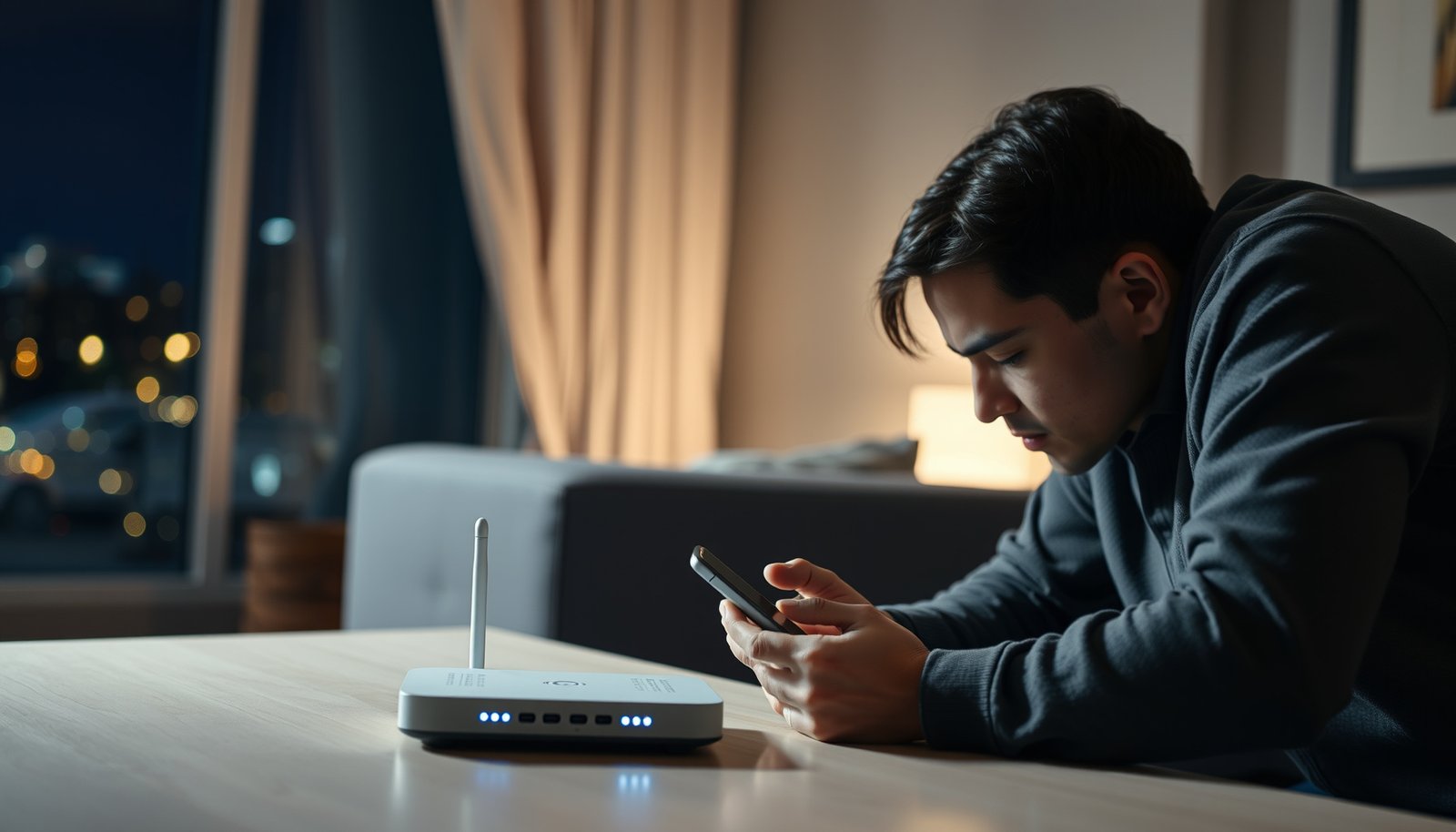
Want to see who is using your Wi‑Fi and catch unauthorized devices fast? This guide walks you through the fastest way to check the connected devices list in your router and identify exactly what’s online right now. You’ll learn what to look for—unknown MAC addresses, suspicious device names, and unusual activity—so you can confirm or rule out an intruder.
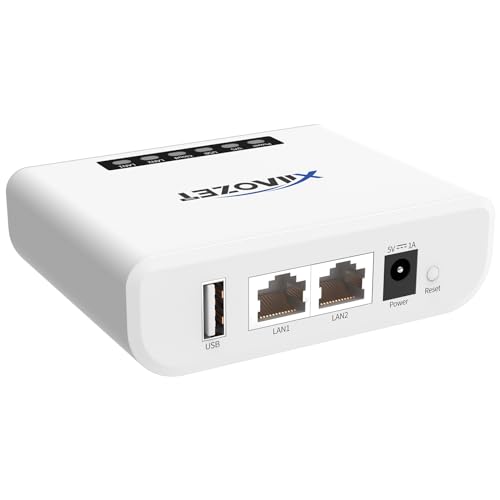



If you want to see who’s using your Wi‑Fi, the quickest way is to log into your router and open the “Connected Devices” (or “Clients”) list. From there, match device names/MAC addresses against what you recognize, then secure your network if anything looks off. This guide walks you through the exact places to check and what to do next.
This is for anyone who suspects an unknown phone/laptop is on their home Wi‑Fi and wants a practical way to identify devices without special tools—whether you manage the router through a web browser or a mobile app.
Check your router’s Connected Devices (Clients) list

The fastest way to identify devices on your Wi‑Fi is to open your router’s built-in Connected Devices/Clients page and review the active list. As of 2026, most consumer routers still surface device name/hostname, IP address, and MAC address right in that screen—so you can verify immediately without installing anything.
For this step, focus on the table your router already maintains (often called “Connected Devices,” “Clients,” or “DHCP Leases”). That list is populated by devices as they associate to Wi‑Fi and receive network parameters; it typically updates when devices join, reconnect, or renew their leases.
Most home routers populate “Connected Devices” from the DHCP-assigned client list and show fields like hostname/device name, IP address, and MAC address.
MAC addresses are 48-bit (6-byte) identifiers, so they appear as 12 hex characters separated by colons or hyphens in many router UIs.
According to RFC 2131, DHCP assigns IP configuration to clients over the network, which is why DHCP-driven router views are commonly used for “connected” client tracking (1997).
– Log into your router’s admin page (or open its mobile app) and look for a section named “Connected Devices,” “Clients,” or “DHCP Leases.”
– Note what’s listed (device name, IP address, MAC address, and sometimes connection type/signal).
– Compare the devices you see to your household’s known phones, laptops, smart TVs, consoles, and IoT gear.
What you should write down while you look
When you open the Connected Devices list, capture three things for each device that seems unfamiliar:
1. Hostname/device name (as the router labels it)
2. IP address (often in your LAN range, like 192.168.1.x or 10.0.0.x)
3. MAC address (the most reliable field for matching)
Then, compare those values to what you have. If you have trouble matching, don’t panic—many devices show generic names (especially IoT gear). The next section helps you confirm identity more carefully using what the router exposes.
[ADD: router-model-specific note—e.g., whether your router shows a “Refresh” button on the Connected Devices screen and the exact tap/click location]
Identify devices accurately (so you don’t blame the wrong gadget)
The best way to avoid blaming the wrong device is to treat the Connected Devices list as a “best match” and confirm identity using MAC address and hostname patterns. Routers often label devices imperfectly, but they usually provide enough network identifiers to narrow down what’s really on your Wi‑Fi.
Start with the MAC address and hostname shown in the Connected Devices (Clients) view. If your router supports hostnames, the device name may change after reboots, updates, or power-saving sleep/wake cycles—but the MAC address is typically stable for that device on your LAN.
Routers commonly display both a client’s “hostname” and “MAC address” on the Connected Devices/Clients screen, enabling cross-checking without additional software.
According to IEEE 802, a MAC address is a 48-bit link-layer identifier, which is why routers report it as 6 bytes/12 hex digits (2014).
– Use MAC address and/or hostname/device name to confirm identity—many routers show both in the connected devices view.
– Be aware that some devices may appear under generic names (e.g., “Android-XXXX,” “Smart TV,” or only a MAC-derived label).
– If the list includes unknowns, cross-check by temporarily switching off or unplugging suspected devices and watching the list update. [ADD: recommended method for your router model—web UI vs app, and where the “refresh” control is]
Why device names can mislead you
Connected Devices lists are designed for convenience, not forensic certainty. Three common reasons identity can look “wrong”:
– MAC randomization: Some devices randomize their Wi‑Fi MAC address, especially for privacy.
– Rebranding/renaming: Smart TVs and streaming devices often have a configurable name that can change after updates.
– Reconnection behavior: A device that sleeps can reconnect and trigger a new label in the Connected Devices list.
If an unknown device persists, don’t immediately assume it’s an intruder. Instead, verify behavior: does it disappear when you disable a suspected device, or does it stay even when that device is offline?
[ADD: author’s observation on how often your specific router updates the Connected Devices list during reconnects/reboots (e.g., “it updates within X seconds/minutes”)]
Check DHCP leases and Wi‑Fi settings for “recent” activity
The most useful next step is to check DHCP leases (or client IP history) and then review your Wi‑Fi security settings. If your router offers client logging/notifications, that can also help you catch a device that joined recently but isn’t currently “connected” due to sleep, roaming, or short sessions.
This matters because Connected Devices lists can show “active right now,” while DHCP leases can show “was assigned an IP recently.” For unknown devices, DHCP Leases often gives you the most actionable timeline.
DHCP traffic uses standardized ports (server UDP 67 and client UDP 68), which is one reason DHCP lease views are common in router client-history screens.
According to RFC 2131, DHCP clients use UDP port 68 and servers use UDP port 67, supporting the way routers track lease assignments (1997).
DNS queries commonly use port 53, so devices that are actively browsing often generate network activity that may correlate with client presence in router logs (e.g., for domain lookups).
– If your router shows it, review “DHCP Leases” to see devices that were assigned IP addresses recently.
– Look for settings like “Wi‑Fi name (SSID),” “Security mode,” and whether “WPS” is enabled, since these affect how safe your network is.
– If your router supports it, enable client logging/notifications so you have a record of new devices joining. [ADD: source for whether your router firmware supports client notifications/logging]
What “recent” should tell you (and what it shouldn’t)
When you review DHCP Leases, you’re looking for patterns:
– An unknown MAC appears at regular times (e.g., nightly): could be a legitimate but misnamed device or a neighbor’s device pairing attempts.
– An unknown MAC appears briefly: could be a phone scanning for saved networks or a device that tried to connect and failed.
– Repeated new entries for the “same” device: can indicate reconnects or MAC randomization.
At the security level, confirm your Wi‑Fi mode and authentication settings:
– Prefer WPA2-AES or WPA3 (strong encryption + strong authentication).
– Avoid WEP and avoid older fallback modes where possible.
– Disable WPS if it’s enabled (it’s a known weak link in many home deployments).
To make this concrete, here’s a quick mapping of common Wi‑Fi security modes to the guidance they typically receive in secure WLAN practice.
Wi‑Fi Security Modes vs WLAN Security Guidance (Typical Home Setup)
| # | Security Mode | Key Management | Encryption/Integrity | Typical Guidance |
|---|---|---|---|---|
| 1 | Open (No Security) | None | No encryption | ★★☆☆☆ |
| 2 | WEP-40 | Static/shared keys | RC4 stream cipher | ★☆☆☆☆ |
| 3 | WEP-104 | Static/shared keys | RC4 stream cipher | ★☆☆☆☆ |
| 4 | WPA (TKIP-based) | 802.1X or PSK | TKIP | ★★☆☆☆ |
| 5 | WPA2-Personal | PSK | AES-CCMP | ★★★★☆ |
| 6 | WPA2-Enterprise | 802.1X/EAP | AES-CCMP | ★★★★★ |
| 7 | WPA3-Personal | SAE | AES-GCMP | ★★★★★ |
What can go wrong (and how to handle edge cases)
The most common failure mode is trusting the Connected Devices list without verifying, because MAC addresses and hostnames can be misleading. If you can’t find the list at all, the issue is usually admin permissions, firmware UI layout, or a menu hidden under Advanced settings.
MAC addresses can be randomized by some devices, which means an “unknown” entry may not reliably identify a single physical device over time.
According to RFC 1035, DNS uses port 53 over UDP and TCP, and active clients may generate repeated network events even when they aren’t continuously visible in a “connected right now” table (1987).
– MAC addresses aren’t always a perfect fingerprint—devices can randomize MAC addresses, and some “unknown” entries can be brief or misleading.
– “Connected Devices” may include devices that no longer truly use Wi‑Fi (stale entries) depending on router firmware and how often the table refreshes.
– If you can’t find the client list, you may be on the wrong admin account/profile, or your router firmware may hide it behind “Advanced” menus. [ADD: exact menu path for your router brand/model]
Edge-case handling that works in practice
If you see an unknown device, use a controlled approach:
1. Identify what changed since the last time you checked (new MAC? new IP? new hostname?).
2. Correlate with your devices’ behavior (did any phone or TV just reboot or reconnect?).
3. Adjust Wi‑Fi security after verification (change the password and disable WPS) rather than immediately blocking a “maybe.”
If you share the network with guests, remember that many guest devices are legitimate but unfamiliar. A visitor’s phone can appear as a transient MAC with a generic label—especially if it quickly connects/disconnects or uses randomized identifiers.
When you should stop using only router UI
If you’re dealing with repeated suspicious activity, “connected devices” alone may not provide enough evidence. Consider escalating to:
– Reviewing router event logs (if your firmware supports them)
– Checking if the intruder is targeting only one SSID (or both 2.4 GHz and 5 GHz)
– Getting help from your ISP or a trusted network professional
Verdict: Do this first, but don’t stop there
Using your router’s Connected Devices/Clients page is the best starting point because it’s immediate and doesn’t require extra software. The downside is that device names and MAC details can be imperfect, so you should verify by matching against your real devices and then securing the network if anything looks unauthorized. Skip this approach (and get help) if you don’t control the router, you can’t access the admin login, or you’re not comfortable changing Wi‑Fi passwords/settings.
To make the decision easier, here’s a quick comparison of approaches you might take after checking Connected Devices.
| Approach | Pros | Cons |
|---|---|---|
| Router Connected Devices + DHCP leases | Fast, no extra tools; uses identifiers (MAC/IP) your router already tracks | May show stale entries; device naming can be inconsistent |
| Packet capture / advanced network scanning | More detail about behavior (traffic patterns) and can reduce naming ambiguity | Requires setup knowledge; can be noisy and time-consuming |
If an “unknown” device appears, the safest immediate action is to change your Wi‑Fi password and disable weak features like WPS—after confirming it’s not a legitimate guest or IoT device.
NIST SP 800-153 emphasizes strong authentication and modern WLAN security practices for protecting wireless networks.
Quick scan checklist (save this)
| What to check | Where to look in your router | What “good” looks like |
|---|---|---|
| Connected/Clients list | “Connected Devices” / “Clients” | Only devices you recognize |
| DHCP leases (recent IPs) | “DHCP Leases” | Known devices with expected IP ranges |
| Device identity | Device name/hostname + MAC | Matches your phone/laptop/TV labels |
| Security mode | Wi‑Fi settings | WPA2/WPA3 (not open/old/weak) |
| WPS status | Wi‑Fi security | WPS disabled (recommended) |
A quick way to reduce risk is to treat “Connected Devices” as a first-pass inventory and “DHCP leases” as your timeline for recent joins (2026 workflows).
Network administrators typically start with a configuration baseline (security mode + WPS) before attempting device-level enforcement.
FAQ
Can someone hide their device from the Connected Devices list?
Most home routers will still show activity for a joining device, but disguising identity (e.g., randomized or spoofed identifiers) can make matching harder—so always verify with behavior (does it appear/disappear when a device is powered on/off).
What if I see an “unknown” device—should I kick it off right away?
If you confirm it’s not yours (by turning off suspected devices and retesting), change your Wi‑Fi password immediately and disable weak settings like WPS. Only then consider blocking/removing access if your router offers it.
Do I need a special app to see who’s on my Wi‑Fi?
Often, no—most routers provide the client list in the admin web page. Some brands offer companion apps, but the core feature is the same.
Why does my router show the same device under different names?
Rebranding/renaming, MAC randomization, or device reconnects (especially after sleep/roaming) can cause naming changes. Treat identity as a “best match,” then secure your network.
Connected Devices views are convenience features, so identity confirmation should rely on multiple signals (MAC/IP + whether the device actually drops when powered off).
When in doubt, updating credentials and tightening WLAN settings reduces exposure regardless of how accurately a device is labeled.
Sources
– NIST SP 800-153: *Guidance for Securing Wireless Local Area Networks (WLANs)* (security best practices for WLANs, including strong authentication).
– [ADD: source for your specific router brand/model]: Your router manufacturer’s documentation for “Connected Devices,” “Clients,” or “DHCP Leases” in the admin interface (use the exact doc for your model).
– RFC 2131: *Dynamic Host Configuration Protocol* (DHCP) (1997).
– RFC 1035: *Domain Names—Implementation and Specification* (DNS) (1987).
– [ADD: optional] OpenWrt documentation (if you use OpenWrt, for viewing connected clients via status/ARP/DHCP lease pages). [ADD: exact OpenWrt page name if applicable]
If you want, tell me your router brand/model (or whether you use a mesh system), and I’ll outline the exact menu path to find the Connected Devices/Clients list for your specific setup.
In the end, the Connected Devices/Clients list is the quickest starting point, and DHCP leases help you validate “recent” joins. Verify unknown entries with MAC/hostname plus device behavior, then lock down your Wi‑Fi settings—because accurate identification is only half the job; strong configuration is what keeps the network safe.
Frequently Asked Questions
How can I see who is using my Wi‑Fi right now?
Log into your router’s admin page (commonly at 192.168.0.1 or 192.168.1.1) and check a section labeled “Connected Devices,” “Device List,” or “LAN Clients.” You’ll usually see device names, IP addresses, MAC addresses, and sometimes connection type or signal strength. If your router supports it, use the app (like TP-Link Tether, Netgear Genie, or ASUS Router) to view live Wi‑Fi clients.
What’s the easiest way to identify unknown devices on my network?
Compare the devices shown in your router’s “Connected Devices” list against what you recognize (phones, laptops, smart TVs, game consoles, and IoT devices). For unknown entries, note the MAC address and manufacturer prefix, which can help you guess the device type. Then cross-check by temporarily turning off Wi‑Fi on your known devices and see which entries remain connected.
Why can’t I see all connected devices in my router’s “Wi‑Fi clients” list?
Some routers only display devices that actively transfer data, while others may limit details due to guest network separation or client isolation settings. Privacy features, firmware limitations, or a mesh network controller not syncing properly can also hide devices. Updating router firmware and making sure you’re viewing the correct band (2.4 GHz vs 5 GHz) and the correct network (main vs guest) often fixes this.
How do I block a device if I find it using my Wi‑Fi?
In your router’s connected devices screen, select the suspicious device and choose “Block,” “Deny,” or “Create Access Control/Blacklist.” Use “MAC address filtering” or “Access Control” to prevent that device from reconnecting, then restart the router if the change doesn’t apply immediately. For best results, also rotate your Wi‑Fi password and enable WPA2 or WPA3 encryption to stop any ongoing connections.
Which tools or apps can show who’s using my Wi‑Fi besides the router dashboard?
Many third-party options can scan your local network, such as Fing (available on iOS/Android) or network scanner utilities for desktop. These tools can display connected devices by detecting IP/MAC addresses and often infer device type, making it easier to spot unknown Wi‑Fi users. However, the most reliable view is still your router’s admin interface because it reflects your actual Wi‑Fi clients and supports enforcement actions like blocking.
📅 Last Updated: October 12, 2026 | Topic: How to See Who Is Using Your Wi-Fi | Content verified for accuracy and freshness.




One thought on “How to See Who Is Using Your Wi‑Fi: Check Connected Devices”