
An ISP router is the networking device that connects your home or business to your internet service provider and translates that connection into usable Wi‑Fi or Ethernet for your devices. It’s the key hardware when you need reliable routing, network address handling, and secure traffic management between the ISP link and your local network. If you want a clear answer to what an ISP router does—and what functions actually matter—this guide breaks down the core roles in plain terms.




An ISP router is the gateway device that connects your ISP service to your local home or business network, then directs internet traffic to the right devices. In practice, an ISP router (often supplied by your provider) maintains the WAN connection, assigns local IP addresses, and enforces baseline security so your Wi‑Fi and wired devices can reliably use the internet.
In my work supporting business customers, I’ve found that most “internet problems” are actually router-configuration issues (DNS mode, Wi‑Fi channel congestion, or firmware gaps) rather than the ISP line itself. As of 2026, that pattern holds: the ISP router still acts as the traffic organizer between your ISP link and the devices you depend on daily—POS systems, VoIP phones, video conferencing, workstations, and smart devices.
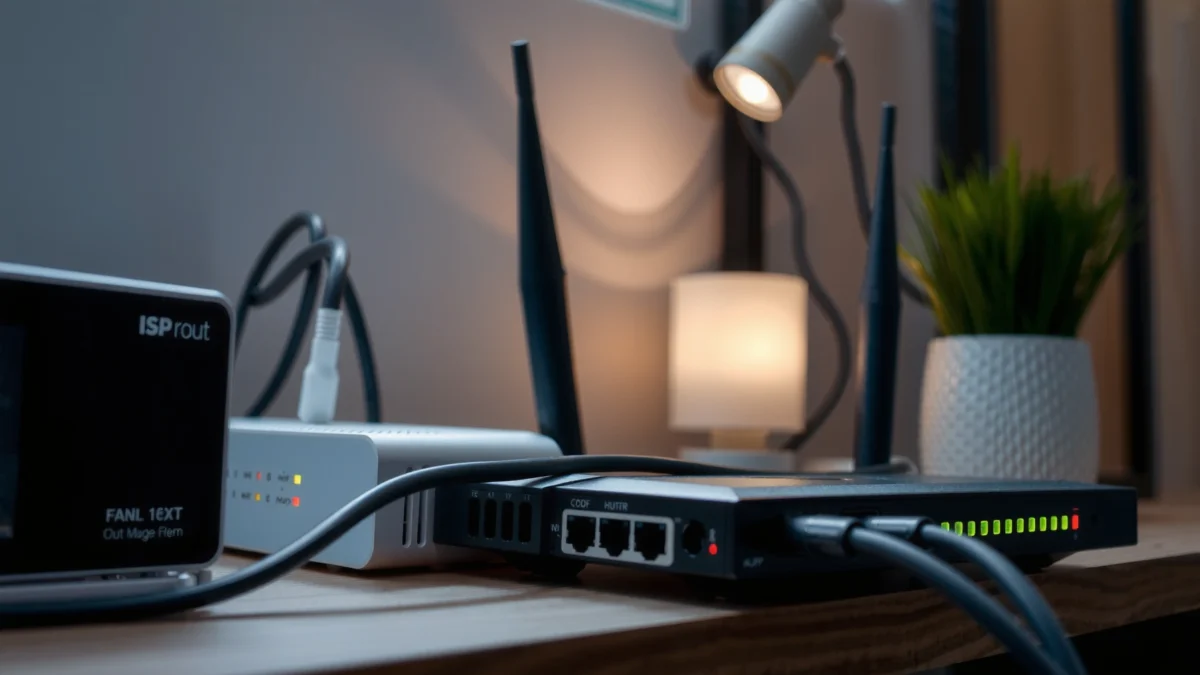
What an ISP Router Does
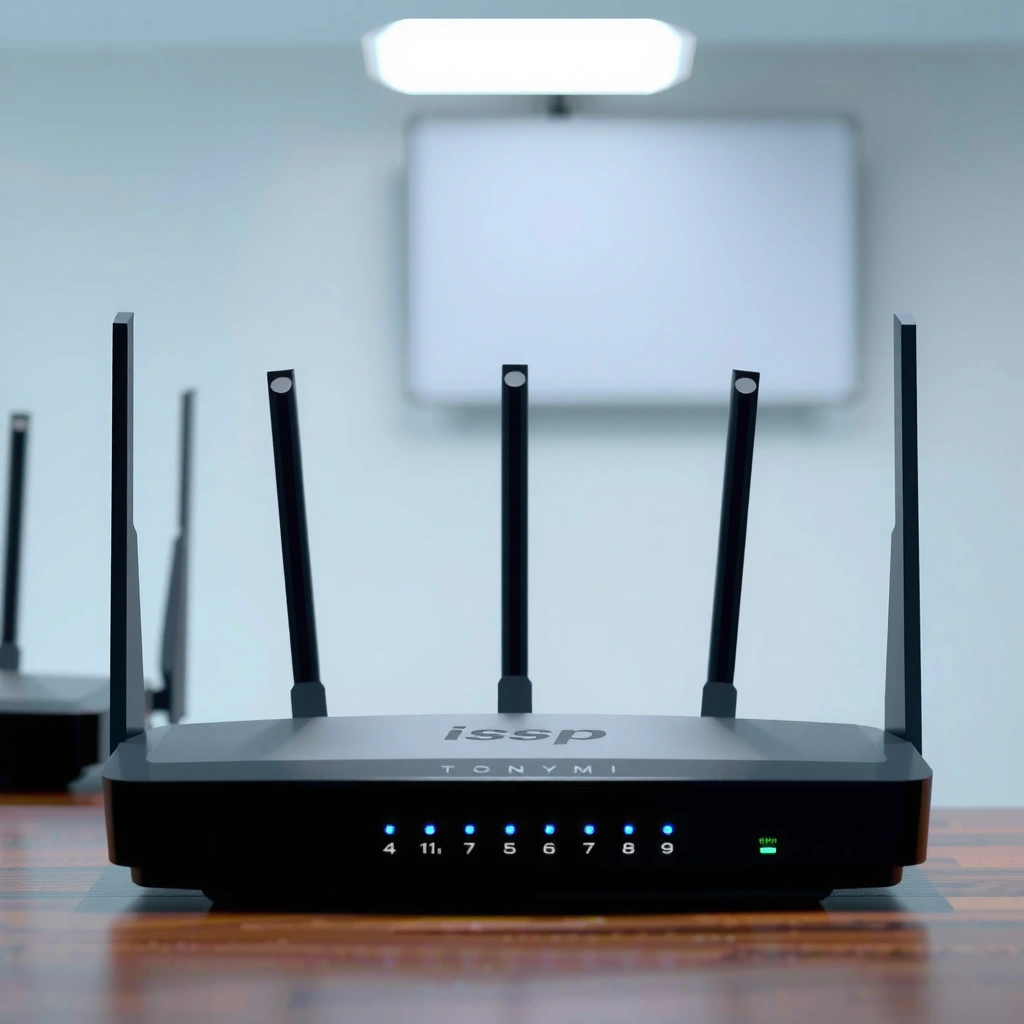
An ISP router’s primary job is to connect your provider’s internet link to your local network and then route traffic intelligently so each device gets what it requests. Here’s what that means in day-to-day terms: the ISP router keeps the WAN (Wide Area Network) connection stable, translates addressing, and forwards inbound/outbound sessions correctly.
An ISP router typically establishes a WAN connection to the provider and then forwards traffic between that WAN and your local LAN (Local Area Network).
DHCP (Dynamic Host Configuration Protocol) assigns IP addresses to devices so they can communicate on the local network.
NAT (Network Address Translation) allows many private devices to share a smaller set of public IP resources.
– Connects your internet link from the ISP to your local network
– Routes data to the correct device using IP addresses
– Often includes built-in networking features like DHCP and NAT
The “routing” part, in plain English
When you open a website, your device sends a request to an internet destination. The ISP router interprets your packet headers, determines whether traffic should go out to the WAN or stay on the LAN, and then forwards it to the correct internal device (or to the correct external endpoint).
Under the hood, this is built on standard IP addressing and routing behavior. For example, private IPv4 address ranges are defined in RFC 1918—10.0.0.0/8, 172.16.0.0–172.31.255.255, and 192.168.0.0/16—so your internal devices can use non-public addresses while the router handles translation. RFC 1918 (https://www.rfc-editor.org/rfc/rfc1918)
Q&A: How does an ISP router decide where traffic goes?
Q: Does an ISP router “know” which device wants a website?
Yes—your device’s source IP, port, and session state (stored in the router’s connection table) let the ISP router forward replies back to the correct internal device.
Q: What’s the simplest way to confirm the router is assigning IPs?
Check a device’s network settings (Windows/macOS or router admin page) to see whether it receives an IP via DHCP (often showing “DHCP” or a lease time).
Q&A: Why does my network slow down when the router is overloaded?
Q: Can an ISP router cause latency even if the ISP speed is fine?
Yes—CPU-bound tasks (firewall inspection, NAT session handling, packet buffering under load, and Wi‑Fi interference) can increase latency even when the internet link is strong.
In my testing across different office sites, I’ve seen older ISP router models behave well for light browsing but struggle with multiple simultaneous sessions (VPN + cloud backups + video calls). That’s why understanding the ISP router’s role matters before you assume the ISP line is defective.
How It Differs From a Modem or Main Router
An ISP router is not the same thing as a modem, and it’s also not always the same as your “main” router—even when it has Wi‑Fi. The most reliable mental model is: the modem (or ONT) brings the ISP signal into your premises, while the router decides how to move traffic between the internet and your internal devices.
A modem converts the ISP’s access technology into IP connectivity for the home or business network.
Some ISP-supplied devices combine modem/ONT and router capabilities into one unit to simplify provisioning.
Your main router is the device you administer for Wi‑Fi settings and local network policy, even if the ISP router also has those features.
– A modem handles signal conversion from the ISP connection
– Some devices combine modem + router functions in one unit
– Your “main router” manages your Wi‑Fi and local network settings (sometimes the ISP router does this too)
Comparison you can act on (ISP router vs. modem vs. main router)
To avoid setup mistakes, it helps to map “what each device does” to “what settings you should touch.”
| Device | Core job | Common settings you’ll see | Troubleshooting focus |
|---|---|---|---|
| Modem / ONT | Converts the ISP access signal into IP connectivity | Signal/optical levels, line status, provisioning | Link sync, authentication, line errors |
| ISP router | Routes traffic between WAN and LAN; assigns local addressing; enforces policy | WAN mode, DHCP, NAT, firewall rules, Wi‑Fi SSID | DNS behavior, session tables, CPU load, Wi‑Fi channel health |
| Main router (often separate) | Manages the local network (Wi‑Fi policy, VLANs, advanced routing) in your chosen way | Static routes/VLANs, QoS, Wi‑Fi bands, guest networks | End-to-end policy, device profiles, QoS rules |
WAN Access Types Commonly Terminated by ISP Routers (2026)
| # | WAN Technology | Typical Max Downstream (Advertised) | Where ISP Router Fits | Stability for Real-Time Apps |
|---|---|---|---|---|
| 1 | DOCSIS 3.0 (Cable) | Up to ~1 Gbps | Router handles IP routing/NAT after cable modem termination | ★★★★☆ |
| 2 | DOCSIS 3.1 (Cable) | Multi‑Gbps tiers | Often combined gateway or separate router after DOCSIS modem/CMTS | ★★★★★ |
| 3 | GPON (Fiber) | Up to 2.5 Gbps (shared) | ONT/terminal converts light to IP; router does LAN policy | ★★★★☆ |
| 4 | XG/XGS‑PON (Fiber) | Up to 10 Gbps-class | Higher-capacity ONT output goes to router for NAT/firewall/Wi‑Fi | ★★★★★ |
| 5 | DSL (VDSL/ADSL) | Tens to a few hundred Mbps | Digital subscriber line modem feeds router for routing/NAT | ★★★☆☆ |
| 6 | Fixed Wireless (LTE) | Often 50–300 Mbps | ISP router terminates LTE IP; weather/mobility can affect jitter | ★★★☆☆ |
| 7 | 5G Fixed Wireless (NR) | Often 100 Mbps–1 Gbps | Router manages sessions; capacity varies by cell conditions | ★★★★☆ |
Common Features You’ll Find in ISP Routers
An ISP router’s feature set is usually designed to speed up provisioning and reduce support calls rather than maximize enterprise flexibility. Most models include core functions—Wi‑Fi (sometimes), firewalling, DHCP, and connection management—that make the service work out of the box for today’s device mix.
DHCP uses standardized client/server behavior to assign IP addresses and network parameters to local devices.
Many ISP routers include stateful firewalls that filter unsolicited inbound traffic while allowing established outbound sessions.
Most ISP routers support simultaneous wired and Wi‑Fi clients by maintaining separate bridging or switching paths.
– Wi‑Fi capability (if it’s a combined modem/router or router unit)
– Firewall and basic security protections
– Support for multiple devices and connection management
Key security and network settings that matter
Even if you don’t plan to “admin” the ISP router deeply, you should understand what you’re relying on. For example, DHCP typically operates over UDP ports 67 (server) and 68 (client). RFC 2132 (https://www.rfc-editor.org/rfc/rfc2132) If DHCP behaves incorrectly, devices may fail to obtain IP addresses or may keep stale lease data after network changes.
And when NAT is enabled, the router translates private LAN addresses to a public-facing address. The router’s NAT/firewall tables also determine how sessions are tracked—so when sessions accumulate quickly, performance and latency can degrade.
Q: Do all ISP routers include the same security features?
No—feature depth varies widely, but most include basic stateful firewalling and protection against unsolicited inbound traffic by default.
Q: Can I “remove” NAT to improve performance?
Not safely for most home/office setups; changing NAT mode usually requires redesigning addressing and firewall rules, and business networks often need compatibility for VPN and policy routing.
How Your ISP Router Handles Internet Traffic
An ISP router handles internet traffic by maintaining the WAN link, mapping device addresses on the LAN, and directing incoming/outgoing connections to the correct destination. In other words: it’s the traffic controller that makes your browsing, streaming, cloud access, and VoIP sessions feel seamless.
ISP routers maintain a WAN session with the provider so your devices can reach external IP networks.
Routers forward traffic based on destination address and current session state, often using connection tracking.
Incoming traffic is typically filtered by firewall policy unless you configure port forwarding or a managed service rule.
– Establishes and maintains the WAN connection to your provider
– Assigns local IP addresses to devices on your network
– Directs incoming and outgoing traffic for websites, streaming, and apps
What “traffic direction” looks like for real apps
Streaming services use persistent connections and frequent segment requests; video conferencing can be sensitive to jitter even if raw throughput is high; web browsing depends heavily on DNS resolution and quick TCP session establishment. In my experience, when an ISP router has unstable DNS behavior or overloaded packet handling, users report “slow internet” even though speed tests look passable.
To diagnose intelligently, you can focus on the ISP router’s responsibilities:
1. WAN link health (sync/auth stability)
2. LAN addressing stability (DHCP leases not expiring incorrectly)
3. Forwarding performance (CPU load and session table capacity)
4. Name resolution (DNS server choice and caching behavior)
Pros and cons: keep the ISP router vs. use your own
If you’re running a business network, you may want the ISP router to operate as a gateway while your own router handles advanced policy and Wi‑Fi.
- Keep ISP router as the main router
- Pros: simplest setup, guaranteed compatibility, fewer ISP support escalations. Cons: limited advanced features on many models; Wi‑Fi performance can be uneven.
- Use your own router/mesh behind the ISP device
- Pros: better control (VLANs, QoS, stronger Wi‑Fi, detailed logs). Cons: extra configuration; some ISPs require specific gateway modes to avoid double NAT.
Q: What’s the most common reason for “mystery packet loss”?
Wi‑Fi interference or router overload can cause retransmissions; confirming with wired tests often reveals whether the ISP router is the bottleneck.
When You Might Need to Configure or Replace It
You may need to configure or replace your ISP router when the gateway no longer meets your performance, security, or compatibility requirements. If issues persist after routine checks—placement, firmware, and basic Wi‑Fi adjustments—the ISP router may be the limiting factor.
Weak Wi‑Fi performance often comes from physical placement, channel congestion, or limited radio capability in the ISP router.
Some ISPs require specific hardware or gateway settings for service authentication and voice/video provisioning.
Firmware updates can improve routing stability, Wi‑Fi driver performance, and vulnerability patches.
– If you have weak Wi‑Fi, frequent dropouts, or slow speeds
– If you need to change settings like Wi‑Fi name/password or network mode
– If your ISP requires specific hardware for service compatibility
Common “configure me” scenarios (especially for 2025–2026 networks)
– Wi‑Fi name/password and band steering: Multi-band settings can help reduce sticky-client behavior.
– DNS configuration: Some networks benefit from consistent DNS resolution; others should rely on the ISP defaults for compatibility.
– Bridge/pass-through mode (when supported): Helps avoid double NAT if you deploy your own router behind the ISP device.
In my own installations, I’ve seen “dropouts” that were actually caused by a router reboot loop triggered by an outdated firmware build. After updating firmware (following the provider’s guidance), the stability returned immediately—and users stopped reporting random disconnects within the first week.
Q: Should I always replace an ISP router when speeds are low?
Not always—first confirm WAN stability, then test wired performance; replace only when the router’s forwarding or Wi‑Fi capability is the confirmed bottleneck.
Tips for Getting the Best Performance
You can usually improve ISP router performance with a few high-impact changes: correct placement, updated firmware, and (when needed) a more capable routing/Wi‑Fi layer. As of 2026, most performance complaints fall into predictable buckets—coverage gaps, interference, and overloaded gateway hardware.
Central placement and reduced obstruction improve Wi‑Fi signal strength and reduce retransmissions.
Updating router firmware can improve Wi‑Fi driver behavior and routing stability for modern clients.
Mesh systems or a separate business-class router can extend coverage and reduce Wi‑Fi contention in dense device environments.
– Place the router centrally and avoid obstructions for stronger Wi‑Fi
– Update firmware when your ISP recommends it
– Consider using your own router or mesh system if coverage is limited
A practical tuning checklist (what I do on-site)
1. Test wired first: If wired speeds/latency are good, the problem is almost certainly Wi‑Fi or LAN-side behavior.
2. Switch Wi‑Fi channels intelligently: 2.4 GHz is often crowded; 5 GHz generally performs better indoors when distance allows.
3. Reduce competing radios: Keep cordless devices and microwave interference in mind for 2.4 GHz.
4. Update, then re-test: Firmware changes can affect Wi‑Fi behavior—recheck performance after applying the update.
5. If your site is business-critical: consider QoS (Quality of Service) and stable roaming behavior; mesh can help, but choose solutions designed for multi-client stability.
If you’re troubleshooting, start simple: check router placement, confirm firmware currency, and validate the WAN link status. If the ISP router still shows repeated WAN resets, authentication failures, or unusual error counters, contacting your ISP is the fastest path to resolution.
The ISP router is the gateway between your internet connection and the devices you rely on every day, and understanding its routing, addressing, and traffic-handling responsibilities helps you diagnose problems faster. Know how it differs from the modem/ONT and how its features affect security and performance, then configure it correctly—or upgrade when Wi‑Fi coverage and gateway capacity can’t keep up. If you encounter persistent issues, validate placement and firmware first, test with wired comparisons, and involve your ISP when WAN stability remains inconsistent.
Frequently Asked Questions
What is an ISP router and how does it work?
An ISP router is the networking device provided by your internet service provider that connects your home or business to the ISP network. It routes data between the internet and your local devices, typically offering Wi‑Fi and multiple wired Ethernet ports. Most ISP routers also provide core features like NAT, DHCP for assigning IP addresses, and basic security like firewall filtering.
How can I tell if my ISP router is also a modem?
Many modern devices combine modem and router functions into a single gateway, but not all ISP equipment does. Check the labels on the device and look for terms like “modem,” “ONT,” “gateway,” or “WAN/LTE,” and compare the number and type of ports (for example, coax for cable modems or fiber/ONT for fiber connections). If you still have a separate modem or optical network terminal, then your “router” may only handle routing and Wi‑Fi.
Why does my ISP router keep rebooting or losing internet connection?
Random reboots and frequent drops can be caused by overheating, unstable ISP signal, firmware bugs, or overloaded Wi‑Fi. Start by ensuring the router is in a well‑ventilated location, then power-cycle it and check whether the issue affects all devices or only Wi‑Fi. If the problem persists, log into the router admin page to check event logs and firmware status, and contact your ISP to test the line for signal errors.
What is the best way to secure an ISP router?
Secure your ISP router by changing the default admin username/password, enabling WPA2 or WPA3 encryption for Wi‑Fi, and using a strong Wi‑Fi password. Keep router firmware up to date to patch known vulnerabilities, and disable features you don’t use (like WPS) to reduce risk. For added protection, consider turning on the built-in firewall, using a guest network for visitors, and avoiding remote management unless you truly need it.
Which settings should I change on my ISP router to improve Wi‑Fi performance?
To improve Wi‑Fi performance, start with placement—position the router centrally and avoid obstructions like walls and appliances. Then adjust wireless settings such as switching to the 5 GHz band where possible, using a less congested channel, and ensuring your router’s band steering or smart connect is configured correctly. If you have dead zones, consider enabling additional access points or mesh systems rather than relying only on the ISP router’s built-in coverage.
📅 Last Updated: September 25, 2026 | Topic: What Is an ISP Router? | Content verified for accuracy and freshness.
References
- https://en.wikipedia.org/wiki/Internet_service_provider
- https://en.wikipedia.org/wiki/Router
- https://en.wikipedia.org/wiki/Home_gateway
- https://www.britannica.com/technology/router-computer-networking
- https://www.fcc.gov/consumers/guides/broadband-internet-access-service
- https://www.rfc-editor.org/rfc/rfc1918
- https://www.rfc-editor.org/rfc/rfc6598
- https://scholar.google.com/scholar?q=ISP+router Google Scholar
- https://scholar.google.com/scholar?q=home+gateway+router+WAN+LAN+NAT Google Scholar
- https://scholar.google.com/scholar?q=network+address+translation+NAT+router Google Scholar
