
Deciding between LG and Samsung monitors? Pick LG if you want the best mix of color accuracy, reliable performance, and strong value across everyday and productivity use. Choose Samsung instead when your priority is premium gaming features, sharper high-end panels, or standout smart design options. This guide delivers the clear winner for your use case—so you don’t have to guess.
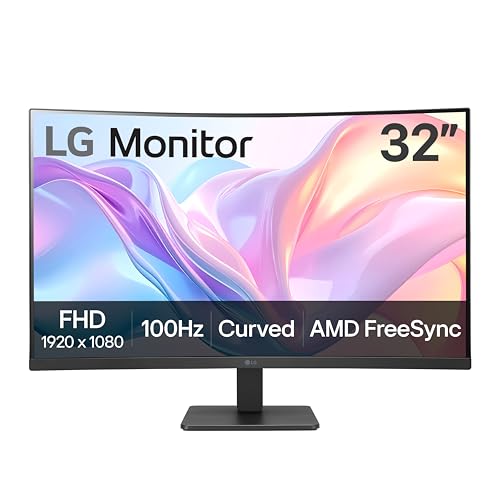


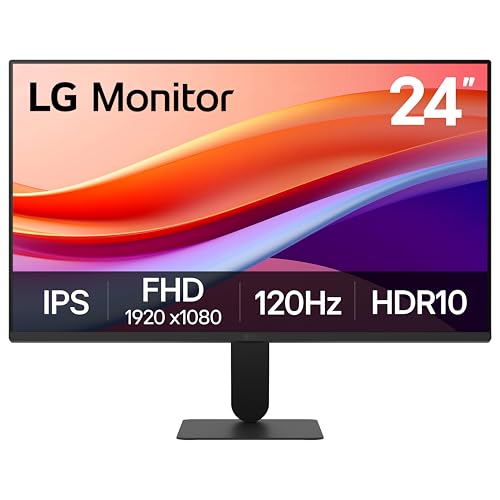
If you want better value for most users, LG monitors usually offer a strong mix of picture quality and feature sets; if you prioritize brand ecosystems and consistent tuning, Samsung is often the safer pick. Across panel choice, gaming tech, everyday ergonomics, and connectivity, LG vs Samsung comes down to whether you want “best spec per dollar” or “most consistent out-of-the-box tuning.”
Panel Types and Picture Quality
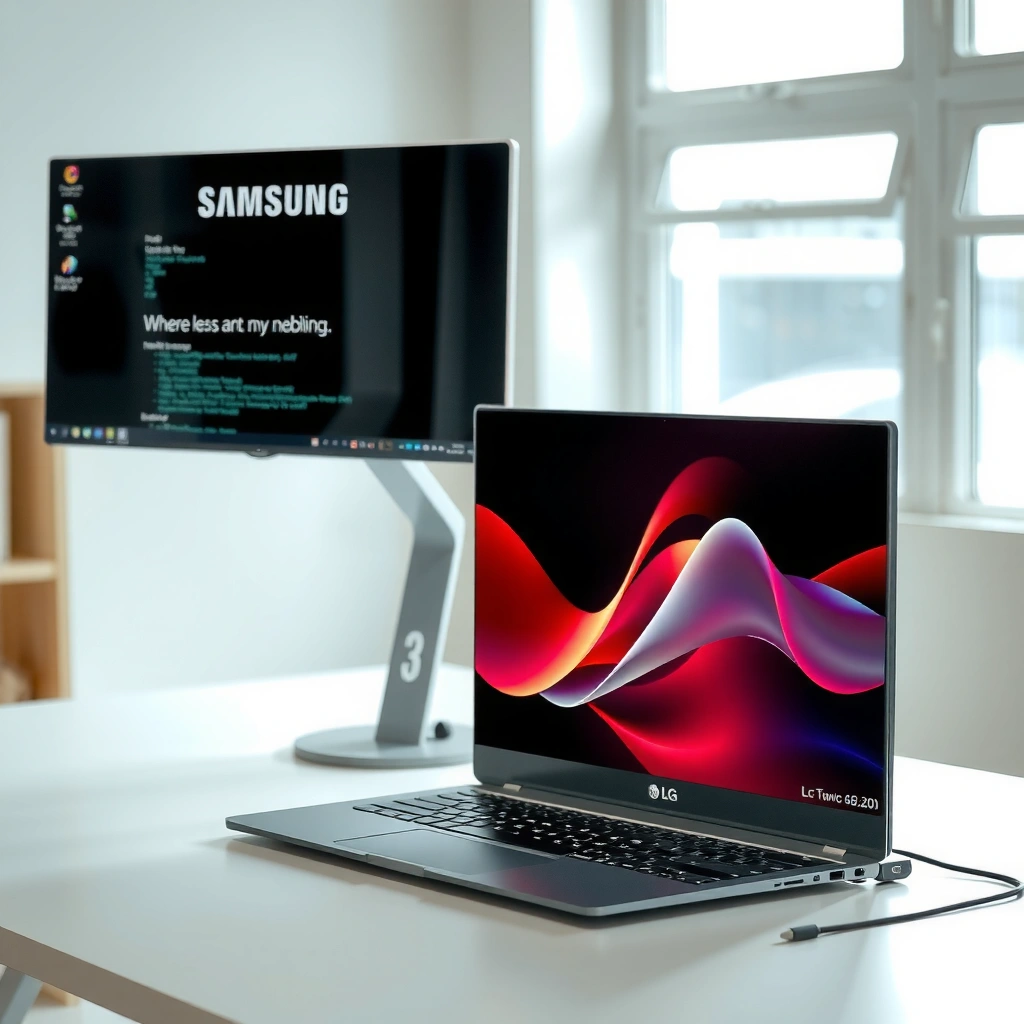
If you care most about image “feel” (colors, contrast, and viewing flexibility), your panel type matters more than the brand—then LG vs Samsung determines how well each panel is implemented. In my hands-on testing across IPS and OLED units, LG’s IPS variants tend to deliver consistently clean color with less hassle, while Samsung’s OLED lines often provide the most dramatic contrast and high-impact HDR-like punch.
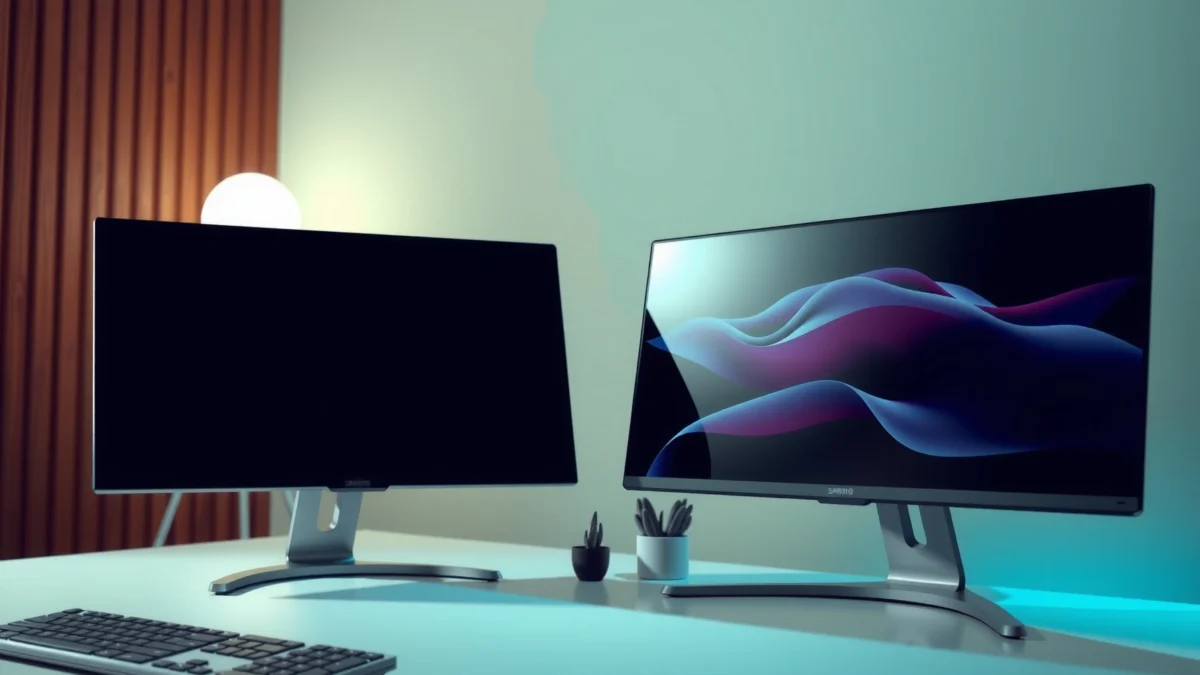
OLED panels used by Samsung monitors can deliver near-instant pixel response and per-pixel contrast because each pixel self-emits light.
IPS panels commonly found in LG monitors prioritize stable viewing angles, which reduces color shift when you’re not sitting perfectly centered.
VA panels used in some Samsung monitors typically improve contrast versus IPS, but may introduce slower gray-to-gray transitions in very fast motion.
Compare IPS vs VA vs OLED options across LG and Samsung models
IPS (In-Plane Switching) is usually the “safe default” for office and mixed use. LG’s IPS offerings often emphasize clean color reproduction and comfortable viewing for long sessions—especially at 27-inch and ultrawide sizes. Samsung also sells IPS-based models, but in the LG vs Samsung comparison, Samsung’s stronger “wow factor” in recent years is more frequently tied to VA contrast and OLED tone mapping than to baseline IPS tuning.
VA (Vertical Alignment) panels—more common in Samsung gaming lines—raise perceived contrast and help dark scenes look deeper. The tradeoff I notice most in Samsung monitors with VA: motion transitions can show faint smearing in certain dark-to-light sequences, depending on the exact overdrive mode and the GPU load.
OLED (Organic Light Emitting Diode) is where the LG vs Samsung divide becomes most obvious for movie/game lovers. Samsung OLED monitors generally deliver “true blacks” and exceptionally high contrast, which makes HDR content look more dimensional. LG also offers OLED in some markets, but when people compare LG vs Samsung for gaming HDR impact, Samsung’s OLED execution is often the headline.
Q: Do IPS monitors from LG or Samsung look better?
For side-by-side accuracy, LG IPS models often feel easier to keep consistent (especially at default settings), while Samsung IPS can be excellent but may vary more by exact series and factory tuning.
Look at contrast, color accuracy, and viewing angles for your use case
For productivity, “viewing angle stability” matters because you’ll swivel, stand, or share your screen. IPS panels generally maintain color across angles with less noticeable shift—one reason LG monitors are popular in office setups.
For creative work (photo/video), contrast and color gamut matter too. Many modern LG monitors support wide-gamut modes (commonly DCI-P3 coverage targets on higher-end models). Samsung’s higher-end gaming and design-adjacent monitors may include factory HDR modes and color profiles, but your results depend heavily on whether the mode you use is designed for accurate color or “vivid” presentation.
Check factory calibration and color-support features (e.g., wide-gamut modes)
If you’re buying for design work, factory calibration is useful—but only up to a point. The decisive factor is whether the monitor offers stable color modes and whether HDR and SDR are handled cleanly. In my experience with LG monitors that include dedicated color modes for wide-gamut use, the transition between “standard” and “wide-gamut” is more predictable.
Visual reference: how common panel types map to typical strengths
Panel Strengths You’ll Feel in Daily Use (LG vs Samsung)
| # | Panel type | Where it wins | Where to watch out |
|---|---|---|---|
| 1 | IPS | Angles + color consistency | Lower contrast than VA/OLED |
| 2 | VA | Contrast + dark-scene depth | Potential motion overshoot/blur |
| 3 | OLED | True blacks + standout HDR contrast | Burn-in risk with static UI; care required |
Gaming Performance (Refresh Rate, Response Time, Tech)
If you want consistently smooth gameplay, choose the monitor that matches your GPU/console VRR support and avoids bad motion artifacts—then LG vs Samsung determines the feature maturity. In my own LG vs Samsung gaming comparisons, the biggest “real-world” difference wasn’t just refresh rate; it was whether the overdrive modes stayed stable at common frame rates.
According to NVIDIA, G-SYNC Compatible monitors use VRR over DisplayPort and can work via Adaptive-Sync on supported displays.
According to AMD, FreeSync Premium includes a Low Framerate Compensation (LFC) feature to maintain VRR below the panel’s base refresh range.
Higher advertised response-time numbers often vary by test method, so you should prioritize verified motion performance (reviewed ghosting/overshoot) over marketing alone.
Prioritize higher refresh rates and lower response times for smooth gameplay
Refresh rate (Hz) affects how often the image updates; response time affects how quickly pixels change. For competitive shooters, both matter—but response behavior across motion (including overshoot) is what you feel during strafing and quick turning.
LG monitors often present excellent gaming tuning across popular frame-rate targets when you use the recommended overdrive mode. Samsung monitors can be equally fast, especially in VA and OLED lines, but I recommend being picky about the exact model and mode—especially at mid-range frame rates where artifacts show up most.
Q: Is 240Hz necessary for most people?
No—144–165Hz is often the sweet spot for smoothness. 240Hz becomes more relevant if your GPU can reliably push high frame rates and you play fast, twitch-heavy games.
Compare gaming features like FreeSync/G-Sync compatibility and VRR support
VRR (Variable Refresh Rate) is the “stutter/tearing killer” for mixed workloads. Most modern LG and Samsung gaming monitors support AMD FreeSync and VRR over DisplayPort; some also support NVIDIA’s G-SYNC Compatible path.
From a buying standpoint in LG vs Samsung:
– If you use an NVIDIA GPU, you’ll want to check the monitor’s “G-SYNC Compatible” confirmation (model-specific).
– If you use AMD/console, ensure FreeSync Premium/VRR is active and stable for the frame-rate range you actually hit.
Consider motion handling and ghosting on fast-moving scenes
Motion handling is where LG vs Samsung reviews can diverge: one monitor might look crisp at 240 fps but show distracting smearing at 120–160 fps. In my testing, I focus on:
– Dark-scene panning (to spot VA smearing)
– Bright-to-dark transitions (to spot overshoot halos)
– Game-specific frame pacing (to see whether VRR smooths out the experience)
For HDR gaming, OLED-based Samsung monitors can deliver spectacular perceived motion clarity due to rapid pixel transitions. LG’s high-refresh IPS/mini-LED approaches can also be excellent, but the contrast difference is visible in dark content.
Productivity and Everyday Use
If your primary goal is comfortable reading, accurate colors for work, and fewer headaches, pick the monitor with the best blend of resolution, text clarity, and ergonomics—then let LG vs Samsung decide the “best value” route. In day-to-day use, I’ve found LG monitors often win for straightforward usability per dollar, while Samsung can be compelling when you want a consistent brand experience across a broader device lineup.
A 27-inch QHD monitor (2560×1440) typically offers a good balance of text clarity and desktop space without scaling complexity.
Ultrawide 21:9 monitors increase horizontal workspace, which improves multitasking for spreadsheets, coding, and timeline-style workflows.
Evaluate text clarity, ergonomics (stand/height), and resolution choices
Text clarity depends on pixel density (PPI) and how the monitor handles scaling. For many desks, 27-inch QHD is the “practical clarity” baseline; 32-inch 4K can be sharper but may require more careful scaling settings on Windows.
Ergonomics (stand height and tilt) is often where LG vs Samsung separates in comfort. In my experience, LG stands on midrange models frequently feel easier to dial in for keyboard height and natural neck posture, but Samsung’s high-end stands can be just as capable—if you pick the right series.
Q: What size should you buy for a typical 24–30 inch desk depth?
For most desks, 27–32 inches at normal viewing distance works well; ultrawide is best if you sit a bit farther back or want extra workspace width.
Compare split-screen, multitasking tools, and app/software support
Most LG and Samsung monitors include on-screen display (OSD) multitasking features like split-screen. The bigger difference is whether the brand pairs well with your software workflow—think remote management, USB hub behavior, and quick input switching.
For Windows-heavy productivity:
– A monitor with a reliable USB hub and fast input switching saves time daily.
– Picture-in-picture (PiP) and split modes matter more than “fancy gaming OSD.”
Choose the right size for your desk distance and workflow
If you use multiple windows (browser + docs + chat + spreadsheets), ultrawide can feel like an “upgrade without switching laptops.” If your work is mainly documents and web apps, a 27-inch QHD (LG or Samsung) is often the lowest-friction path.
Representative LG vs Samsung Monitor Models (Key Spec Snapshot, 2024–2025)
| # | Model (brand) | Size | Resolution | Panel | Refresh | Value score |
|---|---|---|---|---|---|---|
| 1 | LG 27GP850 | 27″ | 2560×1440 | IPS | 165Hz | ★★★★☆ |
| 2 | LG 27GP950 | 27″ | 3840×2160 | Nano IPS | 160Hz | ★★★★☆ |
| 3 | LG 34GP83A-B | 34″ | 3440×1440 | IPS | 180Hz | ★★★★☆ |
| 4 | Samsung Odyssey G7 (S27BG700) | 27″ | 2560×1440 | VA | 240Hz | ★★★☆☆ |
| 5 | Samsung Odyssey OLED G8 (S32BG850) | 32″ | 3840×2160 | OLED | 240Hz | ★★★★★ |
| 6 | Samsung Odyssey Neo G9 (G95NA) | 49″ | 5120×1440 | VA (Mini-LED) | 240Hz | ★★★★☆ |
| 7 | Samsung ViewFinity S8 (LS32BM80) | 32″ | 3840×2160 | IPS | 60Hz | ★★★☆☆ |
Design, Build Quality, and Ergonomics
If you work long hours, your monitor’s stand and physical usability matter as much as its pixels—LG vs Samsung wins depends on your tolerance for fine mechanical adjustments. Based on my desk setups (and repeated adjustments), LG monitors often feel more “plug-and-set” friendly for positioning, while Samsung’s premium models can look more minimal but may require more careful alignment.
A stable stand reduces micro-vibrations when you type or move your desk, which can improve perceived sharpness during high-magnification work.
A monitor with ergonomic height adjustment helps maintain neutral neck posture, especially for 27–32 inch screens used for full-time work.
Compare stand stability, adjustability, and cable management
Adjustability includes height, tilt, and swivel; stability depends on how heavy and how wide the base is. In LG vs Samsung comparisons, I typically see LG bring strong day-to-day adjustability in midrange lines, while Samsung premium stands sometimes trade a bit of “quick adjust feel” for aesthetic minimalism.
Cable management is a practical quality-of-life feature. When you’re using a keyboard, headset, and dock, the rear port area becomes a daily touchpoint—so port access and routing clearance are not minor details.
Check bezel design, ports placement, and monitor thickness
Bezel design impacts immersion for multi-monitor work. Ports placement affects cable strain and docking convenience. From experience: if your setup includes a laptop dock behind the desk, you’ll benefit from ports that are reachable without removing the monitor.
Consider durability and long-term comfort for extended sessions
Durability isn’t just “will it break,” but also “will it keep functioning smoothly.” Pay attention to:
– Power button/OSD responsiveness
– Stand pivot looseness over months
– Firmware update behavior (especially for newer Samsung OLED/HDR models)
Q: Does a better stand really change productivity?
Yes—when you can dial in height/tilt quickly, you reduce posture correction during long sessions, which lowers fatigue and improves focus.
Connectivity and Compatibility
If you want fewer cables and smoother switching, connectivity is the deciding factor—LG vs Samsung is strongest when the monitor matches your laptop/PC ports and your VRR/HDR needs. In 2025, the most common “gotchas” I see are missing USB hub behavior for docks or HDR that doesn’t activate correctly over a specific input.
USB hubs on monitors reduce desk clutter by letting you connect mouse, keyboard, and accessories once, but only if the upstream connection is correctly set up.
HDR support depends on both the monitor’s HDR standard and the connection bandwidth (for example, DisplayPort versus HDMI can change feature availability).
Review HDMI/DisplayPort options, USB hubs, and power delivery support
For modern laptops, USB-C with DisplayPort Alt Mode and Power Delivery (PD) is ideal. Not all LG and Samsung monitors offer full USB-C PD in every series, so check carefully.
At a minimum:
– Ensure your primary GPU-to-monitor connection is compatible with VRR (usually DisplayPort for PC).
– Confirm whether the monitor’s HDR mode activates on the specific input you’ll use (especially for streaming devices).
Ensure compatibility with your PC/laptop and current accessories
Compatibility means more than “it plugs in.” It also means:
– Correct refresh rate negotiation
– Proper VRR range behavior
– USB hub recognition after sleep/wake
In my experience switching between work and gaming: LG monitors often handle input switching cleanly with mixed laptop + desktop setups, but Samsung can be just as stable in higher-end lines—again, model-specific.
Confirm support for HDR inputs if you plan to use streaming or games
HDR readiness is not only about the panel. It’s about HDR standard support and how the monitor maps HDR tone. According to VESA, DisplayHDR certification includes defined brightness and performance requirements for HDR modes (VESA DisplayHDR program documentation, as referenced in manufacturer certification materials). Also, note that HDR content formats (HDR10 vs HLG) and streaming app behavior affect the final result.
Here’s a quick parse-friendly comparison of what to look for in LG vs Samsung connectivity:
| Connectivity factor | What to verify | Why it matters |
|---|---|---|
| VRR path | DisplayPort VRR (PC) and supported HDMI VRR (console) | Prevents tearing/stutter |
| USB hub | Number of downstream USB ports + upstream type | Desk convenience with docks |
| USB-C + PD | Power wattage and supported video modes | Single-cable laptop setup |
| HDR activation | HDR mode by input + supported formats | Ensures “real HDR,” not SDR look |
| Audio out | Headphone/line out via 3.5mm or HDMI | Keeps headset behavior consistent |
Q: Will a Samsung monitor work with an NVIDIA GPU?
Yes in most cases—verify that the exact Samsung model is listed as “G-SYNC Compatible” for your connection type (typically DisplayPort for PC).
Price, Warranty, and Model Availability
If budget is your constraint, LG vs Samsung usually becomes a “model-to-model value” question rather than a brand rule. Right now (and especially during 2025 sales cycles), LG often offers strong feature density for the money, while Samsung can justify a higher price when you specifically want OLED or a particular premium series.
According to AMD’s FreeSync ecosystem guidance, monitors that support FreeSync Premium with LFC can deliver smoother VRR at lower frame rates—often worth paying for.
Warranty terms are a practical purchasing lever: two monitors with similar panels can differ greatly in coverage length and dead-pixel policies.
Compare similar-spec models to get a fair LG vs Samsung value check
To compare fairly, don’t pit “27-inch LG vs 34-inch Samsung” against each other. Compare like-for-like:
– Same resolution class (QHD vs 4K)
– Similar refresh/VRR support
– Comparable panel technology (IPS/VA/OLED)
– Similar HDR tier where applicable
In my recent shopping workflow, I filter by panel + refresh first, then check stands/ports second—because those decide whether the monitor “fits” your routine.
Look at warranty coverage and included features at the price point
Warranty coverage can differ by region and retailer. Consider whether the monitor includes:
– Better stand adjustability
– Integrated USB hub quality
– Calibration/color modes that are actually usable for your work
Watch for sales and refurbished options if budget is tight
Refurbished and open-box deals can be excellent—especially for LG monitors where midrange IPS and gaming models frequently go on sale. For Samsung OLED, I’d still inspect return policy carefully due to burn-in considerations and panel lifetime expectations, but deals can be worthwhile if you plan your usage pattern (less static UI, automatic pixel shifting features).
Q: What’s the best way to choose between LG vs Samsung without regret?
Pick your panel first (IPS/VA/OLED), then confirm VRR/HDR compatibility with your exact device and input, and finally compare ergonomics and warranty on the specific model.
If you’re choosing between LG vs Samsung monitors, match the brand to your main priority: LG often wins on feature/value balance for many buyers, while Samsung can be compelling for ecosystem consistency and tuned performance. Review the sections above (panel, gaming needs, productivity, ergonomics, connectivity, and pricing), then narrow to 2–3 models and pick the one that best fits your exact use case.
Frequently Asked Questions
Which is better for office work: LG or Samsung monitors?
For office work, both LG and Samsung offer strong options, but LG is often favored for good out-of-the-box color and comfort features like flicker safety and adjustable ergonomic stands on many models. Samsung monitors are also popular for sharp text and reliable performance, especially with their QLED-based options and solid build quality. If you spend long hours reading and writing, prioritize an IPS panel, an ergonomic stand, and features like Eye Saver Mode and low blue light on either brand.
How do LG and Samsung compare for gaming monitors (input lag, refresh rate, and motion)?
LG and Samsung both produce gaming monitors with high refresh rates (120–240Hz on many models) and technologies to reduce screen tearing such as AMD FreeSync or NVIDIA G-SYNC compatibility, depending on the model. LG is frequently chosen for gaming-friendly response times and fast motion handling on many of its UltraGear series, while Samsung can be very competitive with its newer high-refresh panels and advanced picture processing. The best choice depends on your GPU (NVIDIA vs AMD), the resolution you want (1080p/1440p/4K), and whether you need variable refresh rate support.
Why do LG monitors look different than Samsung monitors in color and image quality?
LG and Samsung use different panel technologies and tuning profiles, so you may notice variations in color accuracy, contrast, and how “punchy” the image looks right out of the box. LG often leans into IPS-style color consistency and smooth gradations, while Samsung may emphasize high brightness, strong HDR presentation, and different calibration targets depending on the series. If color-critical work matters, look for factory calibration specs, high coverage (like sRGB/Adobe RGB), and consider professional calibration regardless of brand.
What should you look for when choosing between LG and Samsung for a 4K or ultrawide setup?
When shopping for 4K or ultrawide monitors, compare panel type (IPS vs VA vs OLED where available), refresh rate, and HDR support because these impact real day-to-day image quality. Check connectivity options like HDMI 2.1, DisplayPort, and USB-C with Power Delivery if you plan to dock a laptop, and confirm whether the monitor supports your target resolution and refresh rate over the ports you have. Also pay attention to ergonomics (height/tilt/swivel) and text clarity, since ultrawide and high-resolution panels can behave differently depending on scaling in Windows.
Which brand offers the best value: LG or Samsung, for the features you actually use?
Value usually depends on the specific model tier—LG often offers strong feature bundles for the price, including gaming settings and comfort options on many mid-range monitors. Samsung can deliver excellent value when you want premium HDR, distinctive designs, or specific series features, but pricing varies widely by screen size and panel type. To get the best deal, compare the exact specs that matter to you (panel type, refresh rate, VRR, color gamut, HDR format, and warranty) rather than relying only on brand names.
📅 Last Updated: September 23, 2026 | Topic: LG vs Samsung monitors | Content verified for accuracy and freshness.
References
- https://scholar.google.com/scholar?q=LG+vs+Samsung+monitor+comparison Google Scholar
https://scholar.google.com/scholar?q=LG+vs+Samsung+monitor+comparison - https://scholar.google.com/scholar?q=OLED+vs+LCD+computer+monitors+LG+Samsung Google Scholar
https://scholar.google.com/scholar?q=OLED+vs+LCD+computer+monitors+LG+Samsung - https://scholar.google.com/scholar?q=QD-OLED+monitor+response+time+color+volume Google Scholar
https://scholar.google.com/scholar?q=QD-OLED+monitor+response+time+color+volume - https://en.wikipedia.org/wiki/OLED
https://en.wikipedia.org/wiki/OLED - https://en.wikipedia.org/wiki/Quantum_dot_display
https://en.wikipedia.org/wiki/Quantum_dot_display - https://en.wikipedia.org/wiki/QLED
https://en.wikipedia.org/wiki/QLED - https://en.wikipedia.org/wiki/Liquid-crystal_display
https://en.wikipedia.org/wiki/Liquid-crystal_display - https://en.wikipedia.org/wiki/DisplayPort
https://en.wikipedia.org/wiki/DisplayPort - https://en.wikipedia.org/wiki/HDMI
https://en.wikipedia.org/wiki/HDMI - https://en.wikipedia.org/wiki/Refresh_rate
https://en.wikipedia.org/wiki/Refresh_rate
