
If your Pioneer home theater’s HDMI is not working, the first step is to check all connections and ensure your cables are functioning properly. Often, the solution can be as simple as reseating the cables or trying a different HDMI port. In this article, we will explore several troubleshooting steps and fixes to help you get your HDMI connection back up and running smoothly.
Check HDMI Connections
The first and most straightforward step in resolving HDMI issues is to check all connections. Begin by ensuring that all HDMI cables are securely connected to both the home theater system and the display device, such as a TV or projector. Loose connections can lead to signal loss, resulting in a blank screen or distorted images.
Next, inspect the HDMI cables for any visible damage, such as fraying or bent connectors, which could affect performance. If you notice any significant wear, it might be time to replace the cable. Additionally, ensure that the HDMI ports on both the home theater system and the TV are free of dust and debris, as obstructions can interfere with connectivity.
Test Different HDMI Ports
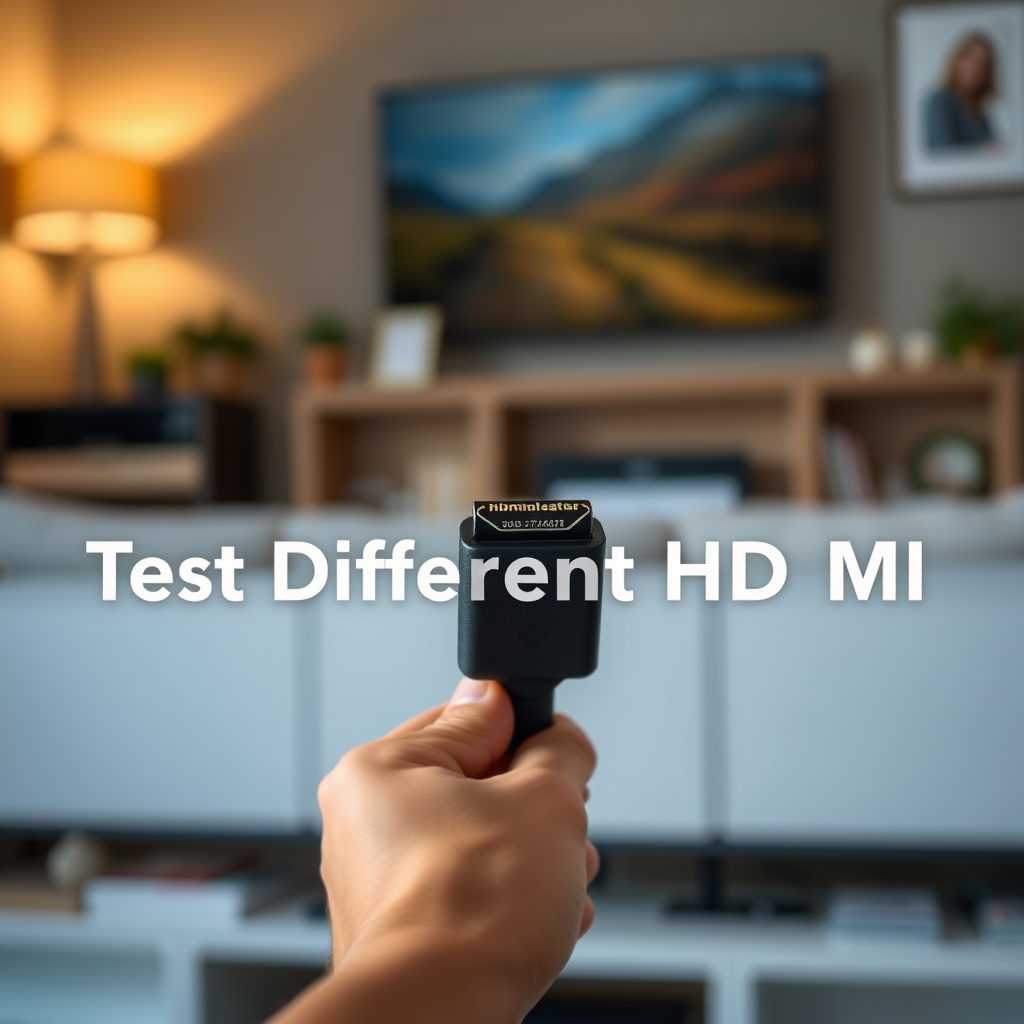
If checking the connections does not resolve the issue, the next step is to test different HDMI ports. Many TVs and receivers come equipped with multiple HDMI ports. By connecting the HDMI cable to a different port, you can determine whether the original port is faulty. This simple experiment can often identify port-specific issues without further troubleshooting.
If available, try testing with another HDMI device, such as a gaming console or a Blu-ray player. Connecting a different device to the same HDMI port can help you ascertain whether the problem lies with the original device or the port itself. If the new device works, you may need to troubleshoot or replace the original device.
Update Firmware and Software
Outdated firmware and software can lead to compatibility issues between your Pioneer home theater system and other devices. Therefore, it is crucial to check for any available firmware updates for your home theater system. Pioneer frequently releases updates that can enhance performance and fix bugs related to HDMI connectivity.
Similarly, ensure that your TV or projector is running the latest software version. Manufacturers often issue updates to improve compatibility with new devices and standards. You can typically find update options in the settings menu of your device. Regularly updating your devices can help prevent HDMI-related issues in the future.
Common HDMI Cable Issues and Solutions
| # | Issue | Cause | Solution |
|---|---|---|---|
| 1 | No Signal | Loose Connection | Secure all connections |
| 2 | Flickering Screen | Bad Cable | Replace HDMI cable |
| 3 | Audio Issues | Incorrect Settings | Check audio settings |
| 4 | Color Distortion | Cable Length | Use a shorter cable |
| 5 | Intermittent Connection | Faulty Port | Try a different port |
| 6 | No 4K Support | Old Cable | Upgrade to high-speed cable |
| 7 | Black Screen | Device Compatibility | Check device compatibility |
Use Quality HDMI Cables
Using high-quality HDMI cables is essential for ensuring a stable and reliable connection. Low-quality or excessively long cables can lead to signal degradation, resulting in poor video and audio quality. When selecting HDMI cables, look for those that are labeled as high-speed, which support the latest standards such as 4K and HDR.
Investing in quality cables can significantly enhance your viewing experience by providing clearer images and better sound. Additionally, avoid using HDMI cables longer than necessary; the longer the cable, the greater the potential for signal loss. If you need to run a long distance, consider using an HDMI signal booster or an active HDMI cable designed for long runs.
Reset Your Devices
If all else fails, performing a reset on your Pioneer home theater system may resolve persistent HDMI issues. Start with a soft reset by unplugging the system from the power outlet for a few minutes; this can clear temporary glitches in the system.
If the problem continues, consider performing a factory reset. However, be cautious and back up any settings or configurations before doing so, as a factory reset will erase all personalized settings. Consult your user manual for specific instructions on how to perform a reset, as the process can vary depending on the model.
Check Device Settings
Sometimes, the issue may not be with the hardware but rather with the settings on your devices. Ensure that the correct input source is selected on your TV or projector. If you have multiple devices connected, it is easy to select the wrong input by mistake.
Additionally, check the audio and video settings on your Pioneer home theater system. Ensure that they are compatible with the capabilities of the connected device. For instance, if your TV supports 4K resolution, make sure the settings on your home theater system are adjusted accordingly to take full advantage of that capability.
Consult Customer Support
If none of the above solutions work, it may be time to consult customer support. Pioneer’s customer support team can provide further assistance and troubleshooting specific to your model. They may have additional insights or be aware of common issues related to HDMI connectivity.
Before reaching out, consult the user manual for any troubleshooting tips that may be specific to your device. Having your model number and a detailed description of the problem can help expedite the support process.
Pioneer Home Theater HDMI Performance Issues
To resolve HDMI issues with your Pioneer home theater, start by checking connections and testing different ports. Ensuring your cables are of high quality and keeping your devices updated can also prevent future problems. If these steps don’t resolve the issue, don’t hesitate to reach out to customer support for further guidance. By following these troubleshooting tips, you can enhance your home theater experience and enjoy uninterrupted entertainment.
Frequently Asked Questions
What should I do if my Pioneer Home Theater HDMI isn’t connecting to my TV?
If your Pioneer Home Theater HDMI isn’t connecting to your TV, first check that all HDMI cables are securely plugged into both the receiver and the TV. Next, try using a different HDMI cable or port, as faulty cables or ports can often cause connection issues. Ensure that the correct input source is selected on your TV for the HDMI connection, and consider resetting both the receiver and TV if problems persist.
How can I troubleshoot audio issues with my Pioneer Home Theater HDMI setup?
To troubleshoot audio issues with your Pioneer Home Theater HDMI setup, start by checking the audio settings on both your receiver and TV. Make sure that the HDMI audio output is enabled and set to the correct format (like PCM or Bitstream). Additionally, verify that your audio cables are connected properly and try switching to different HDMI ports to see if the problem resolves.
Why does my Pioneer Home Theater HDMI output no video signal?
If your Pioneer Home Theater is outputting no video signal through HDMI, it could be due to several reasons. First, ensure that both the receiver and the TV are turned on and set to the correct input. Additionally, check for any software updates for your receiver, as outdated firmware can cause compatibility issues, and try a different HDMI cable or port to rule out hardware problems.
What is the best way to reset my Pioneer Home Theater HDMI settings?
The best way to reset your Pioneer Home Theater HDMI settings is to access the menu on your receiver and navigate to the system settings. Look for an option labeled “Factory Reset” or “Reset HDMI Settings” and confirm your selection. This process will restore the default settings, which can fix various connectivity issues and help you start fresh with your HDMI configuration.
Which HDMI settings should I check if my Pioneer Home Theater isn’t displaying correctly?
If your Pioneer Home Theater isn’t displaying correctly, check the HDMI settings in the receiver’s menu, including video output resolution and format settings. Make sure that the HDMI Control (CEC) feature is enabled, as this can enhance compatibility with your TV. Additionally, confirm that the TV’s HDMI input settings are correctly adjusted to match the output from your receiver for optimal performance.
References
- Google Scholar Google Scholar
https://scholar.google.com/scholar?q=Pioneer+Home+Theater+HDMI+Not+Working - https://www.lifewire.com/how-to-fix-hdmi-issues-2626106
https://www.lifewire.com/how-to-fix-hdmi-issues-2626106 - Google Scholar Google Scholar
https://scholar.google.com/scholar?q=HDMI+troubleshooting+guides - Google Scholar Google Scholar
https://scholar.google.com/scholar?q=HDMI+connectivity+problems+solutions - Google Scholar Google Scholar
https://scholar.google.com/scholar?q=Pioneer+Home+Theater+HDMI+Not+Working?+Try+These+Fixes - Pioneer Home Theater HDMI Not Working? Try These Fixes – Search results
https://en.wikipedia.org/wiki/Special:Search?search=Pioneer+Home+Theater+HDMI+Not+Working?+Try+These+Fixes - https://www.ncbi.nlm.nih.gov/search/research-articles/?term=Pioneer+Home+Theater+HDMI+Not+Working?+Try+These+Fixes
https://www.ncbi.nlm.nih.gov/search/research-articles/?term=Pioneer+Home+Theater+HDMI+Not+Working?+Try+These+Fixes
