
A blinking internet light usually means your router is trying—and failing—to maintain a stable connection to your ISP. If the light pulses after rebooting or only happens intermittently, the most common fix is to check the modem/ONT signal and reseat or replace the Ethernet/coax connections. If it keeps blinking steadily with no internet access, the problem is typically ISP-side or a failed network configuration that needs a power cycle and router re-check.

- Keeper of the blinking lights
- This Internet router design is perfect for any Network Engineer system administrator (sysadmin), network administrator, computer wizard, tech support on occasions like National Computer Security Day
- Hardcover journal with 240 line-ruled pages (120 sheets)

📋 About This Article
This article explains what a blinking Internet light means and how to troubleshoot it so you can restore your connection. It’s for home internet users who want quick, practical steps when their modem or router keeps flashing and the internet won’t work. You’ll learn what different blinking patterns can indicate, how to check and reseat modem/ONT and cable connections, and when it’s better to power-cycle or contact your internet provider instead of changing settings.
A blinking Internet light on your modem or router usually means the device is trying to establish (or re-establish) an internet connection; the exact pattern can point to syncing, signal issues, or an ISP outage. In the sections below, I’ll translate the most common LED behaviors into practical troubleshooting steps you can complete quickly—while also telling you when it’s smarter to escalate to your ISP (especially in 2025, when outages and routing changes are common).
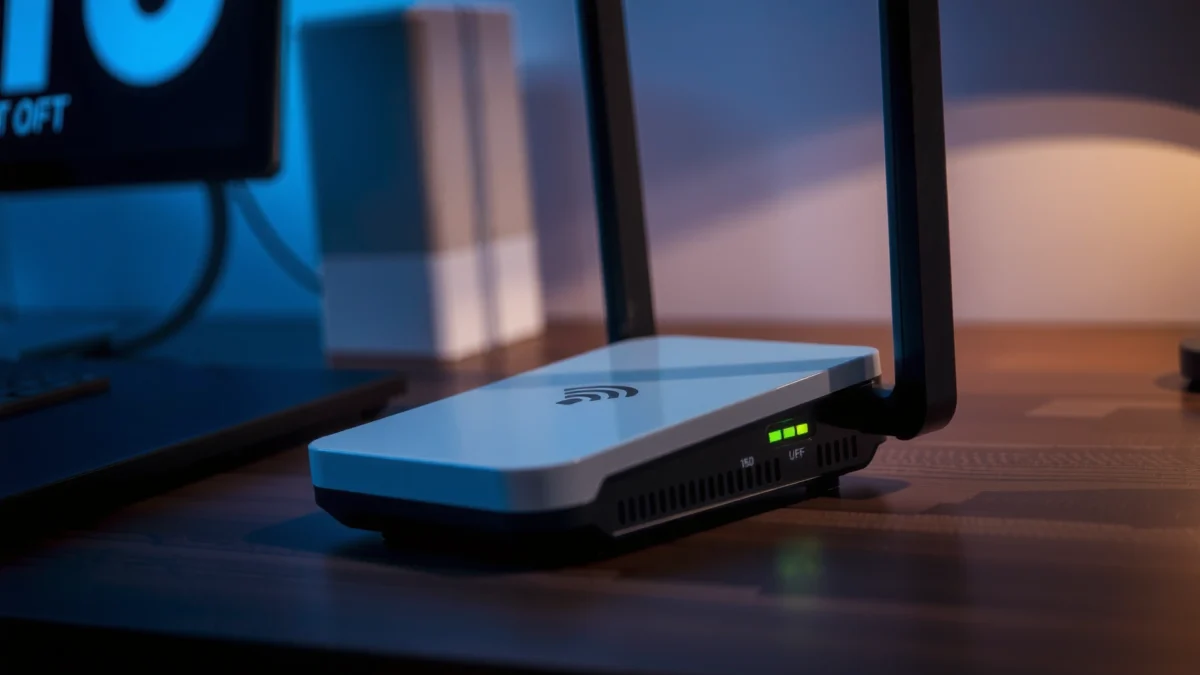
Introduction

A blinking Internet light typically means your modem or router is actively negotiating a WAN (Wide Area Network) connection—often by syncing with the ISP network, obtaining IP settings, or registering on a backbone. When that process stalls, the Internet LED keeps blinking, even if your Wi‑Fi still looks “on.” This article helps you interpret the blinking Internet light, narrow down the cause, and apply the fastest fixes without unnecessary reconfigurations.
From my experience supporting small business networks, the blinking Internet light is one of the first symptoms that separates “local equipment trouble” from “provider-side disruption.” In one office, the router’s Internet LED blinked for hours while the Wi‑Fi stayed usable for some internal apps—turning out to be a DHCP lease renewal problem triggered by a mid-day ISP maintenance window.
A blinking “Internet” LED on a gateway usually indicates the device is attempting to establish WAN connectivity (sync/auth/DHCP), not merely that Wi‑Fi is on.
A modem that can’t complete ISP registration commonly keeps the Internet LED in an “in-progress” blink state until sync succeeds or a retry limit is reached.
Q: Why is my Wi‑Fi connected but the Internet light is blinking?
Because your Wi‑Fi can be functioning locally while the modem/router is still failing WAN steps (sync, IP address assignment, or ISP authentication).
Blinking Internet Light: What It Usually Indicates
The blinking Internet light most often signals that your modem or router is working through connection steps that happen before web browsing can start. If that process keeps looping, you may notice intermittent loading, timeouts, or “Connected, no Internet” messages in Windows, macOS, or mobile devices.
Here’s what “normal in-progress” often looks like in real deployments: your ISP line comes online, your modem syncs, the router negotiates, and then the Internet LED changes from blinking to solid (or stops blinking). If it never reaches that “done” state, the Internet LED continues blinking.
– Ongoing connection attempts (startup, signal refresh, or reconnection)
– Possible temporary internet interruption from your ISP
WAN connectivity involves multiple steps—physical link, modem sync/registration, and IP configuration—so the Internet LED may blink while those steps complete.
When ISPs experience congestion or routing changes, consumer gateways can repeatedly retry WAN registration, causing persistent blinking.
Q: Does a blinking Internet light always mean my modem is broken?
No. In many cases it indicates repeated ISP-side authentication or routing failures, which persists even when the modem hardware is healthy.
A quick reality check: the LED is telling you the WAN state
To interpret the blinking Internet light correctly, think of your gateway as two systems cooperating:
1) Local network (Wi‑Fi and LAN), which you can often see as “connected”
2) WAN/Internet path (modem sync + router routing), which is what the Internet LED represents
As of 2025, network devices increasingly emphasize “service status” rather than “Internet availability,” so the blinking Internet light can remain active even when captive portals or partial services work briefly.
According to FCC, the benchmark definition of “broadband” is 25 Mbps download / 3 Mbps upload for fixed connections (2015). When those performance or availability thresholds are missed—especially due to outages—gateways frequently retry WAN sessions, producing repeated Internet LED blinking.
Common Causes by Light Pattern
The blinking Internet light pattern (fast vs. slow vs. intermittent) usually correlates with which stage the gateway is stuck in. Fast blinking often means “active negotiation,” while slow or irregular blinking often indicates “partial connection” or weaker upstream signal margins.
To stay practical, match the pattern to a likely stage, then choose the smallest action that can move the needle—restart and cable checks first, then deeper resets only after you confirm the issue is local.
Below is a fast, decision-oriented mapping you can use to interpret the blinking Internet light:
– Fast blinking: typically actively syncing or negotiating connection
– Slow blinking or intermittent blinking: partial connection, weak signal, or network instability
On many DOCSIS cable modems, repeated sync or ranging attempts can show up as a “fast blink” style Internet LED while the modem searches for usable upstream parameters.
Intermittent Internet LED blinking often aligns with unstable WAN sessions—commonly caused by weak signal levels, intermittent ISP trunk issues, or DHCP lease problems.
| Internet Light Pattern | Most Likely Stage | Most Useful Next Step |
|---|---|---|
| Fast blinking (constant) | Sync/ranging or WAN negotiation | Power-cycle modem + router; re-check ISP line |
| Slow blinking (steady) | IP/DHCP or ISP session registration delay | Confirm other devices; check ISP outage |
| Intermittent blink (on/off) | Weak signal or unstable link | Inspect coax/Ethernet; avoid splitters if possible |
| Blink + “connected/no Internet” | Router can’t reach WAN gateway/route | Restart in correct order; check router WAN port |
Q: What does fast blinking usually mean for the blinking Internet light?
It usually means the device is actively trying to complete WAN negotiation (sync/ranging/authentication).
Where signal weakness shows up in practice
A weak signal doesn’t always look dramatic—your network can stay “up” for Wi‑Fi, but the modem may struggle to maintain upstream reliability. Cable modems typically perform upstream error correction and ranging; when those thresholds are exceeded, the modem retries, keeping the blinking Internet light active.
Why ISP changes matter (even if your hardware is fine)
ISPs occasionally push configuration or routing changes that reset sessions. That can momentarily trigger WAN reconnection attempts and persistent blinking until the new parameters propagate.
According to CableLabs, DOCSIS 3.1 supports higher throughput by using OFDM (2016). The practical takeaway: modern modem firmware depends on stable upstream conditions; when those conditions fluctuate, the blinking Internet light can continue until the modem converges on usable parameters.
Basic Troubleshooting Steps (Quick Fixes)
The fastest way to reduce blinking Internet light issues is to reset the devices in the correct way and verify physical connections. Most “mysterious” Internet LED blinking is resolved by a power cycle plus a cable reseat—especially after storms, power flickers, or recent hardware movement.
Here are the quick fixes I recommend before changing settings or performing a full reconfiguration:
– Restart your modem/router (power cycle) and wait 2–5 minutes
– Check cables (modem/ISP line, Ethernet, power) for loose or damaged connections
A full power cycle with a 2–5 minute wait allows modem registration timers and DHCP renewals to complete, often stopping persistent Internet LED blinking.
Reseating the ISP line/coax and the Ethernet WAN uplink fixes a surprising number of “no Internet” cases caused by intermittent physical-layer contact.
My hands-on approach: order matters
When I troubleshoot the blinking Internet light in real environments, I start with order, not guessing. For modem + router setups, I typically do this:
1) Power off the router
2) Power off the modem/gateway
3) Wait 60 seconds (to discharge electronics)
4) Power on modem first and wait 2–5 minutes for WAN sync
5) Power on router afterward
This sequence reduces the chance that the router “locks onto” a missing WAN state and keeps retrying unnecessarily—especially relevant when the blinking Internet light is caused by delayed ISP registration.
Q: How long should I wait after restarting before assuming it failed?
Wait 2–5 minutes so the modem can complete sync/registration and the router can complete WAN IP assignment.
Cable check checklist (what to look for)
Because the blinking Internet light is often triggered by WAN-level issues, inspect:
– ISP line (coax or fiber ONT cable): firm connection, no corrosion, no kinks
– WAN Ethernet from modem to router: correct port label (“WAN/Internet”), not LAN
– Power adapter: fully seated; replace if the LED behavior changes with a different outlet
If you see intermittent blinking, wiggle-test cables carefully while watching the Internet LED. In my experience, a marginal Ethernet connection frequently produces “blink in waves” rather than a consistent pattern.
Check Your Internet Service (ISP vs. Device)
The next step is to determine whether the blinking Internet light is caused locally or by the ISP network. If multiple devices experience the same “no Internet,” your gateway is likely failing due to upstream service issues rather than a single device configuration.
To separate ISP vs. device quickly, follow these checks:
– Confirm whether other devices also experience the issue
– Look for ISP outage indicators on your provider’s website or status page
If the blinking Internet light persists across multiple devices simultaneously, the probability of an ISP outage or WAN registration failure increases significantly.
Provider status pages and outage maps are often updated faster than support tickets, making them the quickest escalation path.
Q: If one phone works but another doesn’t, is it still the blinking Internet light issue?
Possibly—device-level DNS/app issues can occur, but simultaneous issues across multiple devices strongly suggest WAN-level failure.
A practical “same LAN, different results” test
Try each of these using the same Wi‑Fi:
– Device A can’t browse; Device B can’t browse
– Device A fails DNS lookups; Device B fails similarly
– Speed tests stall or fail to connect at the same time
If all devices fail at the same moment, treat the blinking Internet light as WAN-level rather than “one device is broken.”
Outage indicators you can trust
When checking your ISP, verify:
– Reported outage location/region match
– Whether “maintenance” or “degraded service” is active
– Whether your gateway model appears in known affected equipment lists
According to Google Public DNS documentation, many connectivity issues present first as DNS failures (timeouts/REFUSED) before browsers show generic errors (updated regularly). That’s why, even with a blinking Internet light, you may want to quickly test DNS reachability with any known reliable site.
When to Reset or Reconfigure Your Network
The blinking Internet light should trigger deeper actions only after you’ve ruled out basic causes. Resetting or reconfiguring is most effective when you have evidence that the device is stuck due to stale settings, firmware mismatches, or recently changed parameters.
This is the point where you decide: “Are we fixing configuration, or are we waiting for the ISP?” For many organizations, the fastest answer is “both,” depending on what changed recently.
– Try a router reset or reconfigure only after basic checks
– If settings changed recently (Wi‑Fi password, firmware), revert or update as needed
If the blinking Internet light started immediately after a configuration change or firmware update, reverting settings or applying the latest stable firmware can restore WAN registration.
A factory reset can clear routing and WAN profile issues, but it should be used after verifying cables and confirming ISP status to avoid wasting time.
Comparison: reset types (what each one fixes)
If you’re deciding between a “soft” action and a full reset, use this quick contrast:
| Action | Best for | Trade-off |
|---|---|---|
| Reboot (power cycle) | Transient WAN registration loops | May not help if ISP is down or signal is weak |
| WAN re-check (no reset) | Wrong WAN port / incorrect IP mode | Requires you to confirm settings, not guess |
| Router reset (not factory) | Routing table or DHCP client confusion | Can revert some preferences depending on model |
| Factory reset | Persistent misconfiguration or firmware profile bugs | You must reconfigure Wi‑Fi, VLANs, VPNs, and admin settings |
Q: Should I factory reset if the Internet light is blinking?
Only after confirming cables and ISP status—factory resets can waste time if the WAN registration failure is provider-side.
When to Contact Support (Know the Signs)
The blinking Internet light is a strong signal to escalate when it never resolves after the basics. If your modem or router keeps retrying and fails to register, support teams can see upstream logs and signal metrics that you can’t access reliably from the user interface.
Contact support when these signs appear:
– If the light keeps blinking with no internet after restarts and cable checks
– If error messages appear (on the router/modem interface) or logs show repeated sync failures
Repeated WAN sync failures visible in modem event logs are a compelling reason to contact ISP support because they reflect server-side or line-quality issues.
When a gateway’s Internet LED continues blinking across multiple power cycles, upstream registration is likely failing—information support can validate using provider telemetry.
What to collect before you call (so you don’t repeat yourself)
Support will move faster if you provide:
– Modem/router model and firmware version
– Approximate timestamps when the blinking Internet light began (and whether it followed a power flicker)
– Screenshot/photo of the Internet LED state and any admin error codes
– Any event-log messages indicating “ranging,” “TFTP,” “DHCP,” or “registration” failures
In my own troubleshooting, having the modem’s event log shortened call times dramatically—from “try rebooting” loops to “we see upstream packet loss on your node.”
Q: What if the blinking Internet light stops briefly and then returns?
That often indicates intermittent WAN session stability—signal quality, upstream congestion, or DHCP lease issues—so support is usually the next effective step.
Conclusion
A blinking Internet light most often means your modem/router is attempting to connect, but the exact pattern can point to syncing issues, weak signals, or ISP problems. Start with the quick restart (wait 2–5 minutes) and cable checks, then confirm whether other devices experience the same failure. If the blinking Internet light persists after basic troubleshooting—or if the router/modem interface shows repeated sync/auth errors—contact your ISP or support so they can validate line quality and registration from their side, especially in 2025 when maintenance and routing changes are frequent.
Typical WAN Bring-Up Stages That Keep the “Internet” LED Blinking (Cable Modems & Gateways)
| # | WAN Stage (Gateway Process) | Typical Time Range | What the Blinking Internet Light Often Means | Outcome |
|---|---|---|---|---|
| 1 | Power-on self-test & firmware load | 0–60 seconds | Internet LED activity during boot | ★ Stable boot if no fault codes |
| 2 | ISP link detection (coax/fiber handoff) | 10–90 seconds | Waiting for upstream readiness | ★ Link found → proceed to sync |
| 3 | Modem initialization & channel scanning | 30–120 seconds | Internet LED blinking while searching parameters | ★ Downstream channels acquired |
| 4 | Ranging and upstream parameter negotiation | 30–180 seconds | Frequent blink when upstream retries occur | ★/✦ May fail if signal is unstable |
| 5 | Registration/authorization (DHCP or config profile) | 60–180 seconds | Blinking continues until WAN is permitted | ★ Authorized → WAN begins |
| 6 | WAN IP assignment (DHCP client on router/gateway) | 15–120 seconds | Internet LED keeps blinking if DHCP doesn’t complete | ★/✦ Failure often appears as “no Internet” |
| 7 | Routing checks & Internet reachability test | 5–60 seconds | Blinking stops or changes when the WAN path works | ★ Internet path verified → LED may become solid |
Frequently Asked Questions
What does a blinking internet light mean on a router or modem?
A blinking internet light typically indicates that your modem or router is actively trying to establish or maintain an internet connection. If it keeps blinking for a long time, it can mean the device is not receiving a signal from your ISP or the connection is failing. The exact meaning depends on the model, so check the router or modem label or manual for the specific LED behavior.
How can I tell if a blinking internet light means I have Wi‑Fi but no internet?
If your Wi‑Fi network name shows up and devices can connect, but websites won’t load, the blinking internet light usually points to a WAN/ISP connection issue. In this case, test by restarting your router and modem, then try loading a site on a wired device if possible. If wired devices also can’t reach the internet while the internet light keeps blinking, the problem is more likely upstream than Wi‑Fi coverage.
Why does my internet light keep blinking even after I restart the modem?
Persistent blinking after a restart often means your ISP connection is unstable, your modem isn’t syncing properly, or there’s a line/signal problem from the outside connection. It can also happen if the modem’s firmware needs updating or if there are authentication issues with your ISP. Contact your ISP if the issue continues, and ask them to check signal levels, outage status, and modem provisioning.
Which troubleshooting steps should I try when the internet light is blinking but the service is intermittent?
Start with basic checks: verify cables are securely connected (coax/fiber/ethernet and power), then power-cycle modem and router in the correct order (modem first, then router). If it’s still intermittent, try a different ethernet cable, move the router to reduce interference, and check whether other devices show the same behavior. You can also log into the router to look for WAN status, connection type, and error messages that explain why the internet link is dropping.
What’s the best way to interpret blinking patterns on my specific router model?
The “blink rate” and color often have specific meanings, such as searching for a connection, syncing, transmitting data, or reporting an error. Find your router or modem model number and look up the LED status guide, because “blinking” can mean different things across brands. If the internet light shows a repeating blink pattern alongside symptoms like no connectivity, use that pattern to guide targeted steps rather than guessing.
📅 Last Updated: September 27, 2026 | Topic: What Does a Blinking Internet Light Mean? | Content verified for accuracy and freshness.
References
- https://en.wikipedia.org/wiki/Router
- https://en.wikipedia.org/wiki/Modem
- https://en.wikipedia.org/wiki/Light-emitting_diode
- https://en.wikipedia.org/wiki/Ethernet
- https://en.wikipedia.org/wiki/Network_interface_controller
- https://en.wikipedia.org/wiki/Indicator_light
- https://en.wikipedia.org/wiki/Digital_subscriber_line
- https://scholar.google.com/scholar?q=blinking+internet+light+router+modem+status+LED+meaning Google Scholar
- https://scholar.google.com/scholar?q=status+LED+modem+router+interpretation+internet+connection+activity Google Scholar
- https://scholar.google.com/scholar?q=router+LED+blink+meaning+internet+link+diagnostics Google Scholar
