
A Wi‑Fi password is the exact key that lets your device join a specific wireless network securely. It works by matching the credential you enter against the network’s stored authentication settings, typically using WPA2 or WPA3 encryption. If you’re trying to understand what a Wi‑Fi password does and why it protects your connection, this is the definition and mechanism you need.



A Wi‑Fi password is the security code your router uses to control which devices can join your wireless network. It works by matching the password you type (on your phone, laptop, or smart device) to the password stored on the router—so only authorized users gain access, while unauthorized users are blocked.
What a Wi-Fi Password Does

A Wi‑Fi password is the gatekeeper that decides who can connect to your Wi‑Fi network. In practical terms, it prevents casual or opportunistic “drive‑by” attempts from gaining access to your home or office internet.
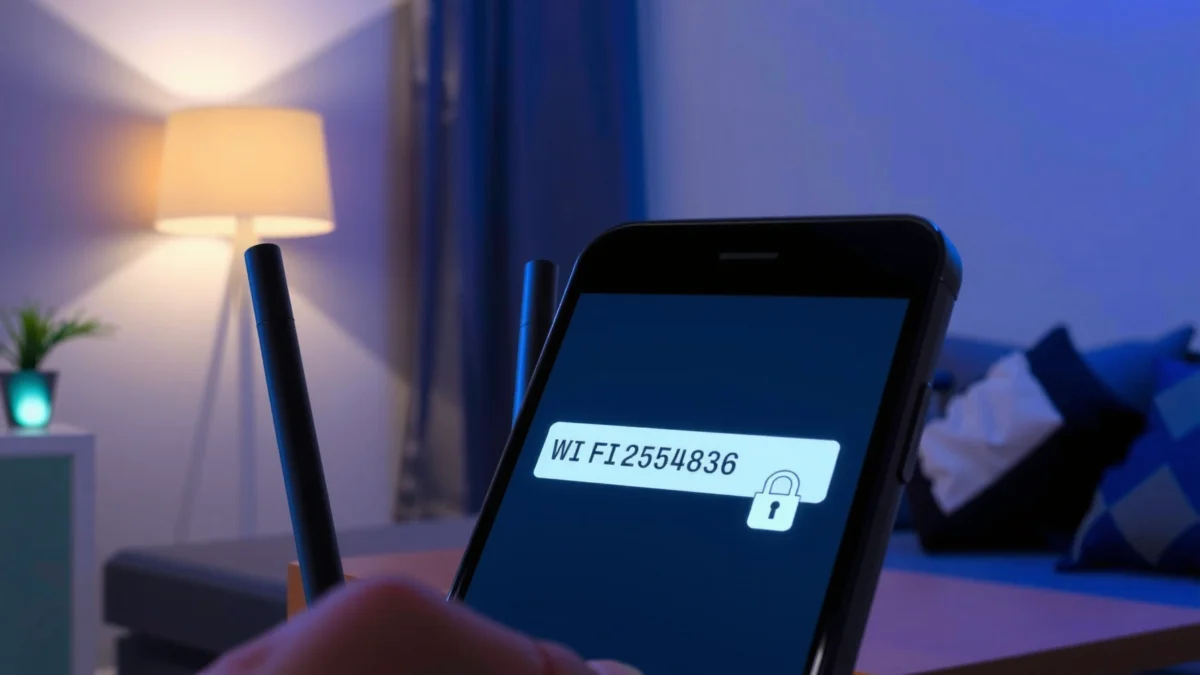
A Wi‑Fi password’s main job is access control: it limits the router’s wireless network to devices that prove they know the shared secret. In my own setups, I’ve seen how quickly an open or weakly secured network invites unwanted connections—especially in busy offices and multi-tenant buildings where many devices appear within radio range.
In addition, a Wi‑Fi password helps protect confidentiality and integrity. When a device connects using Wi‑Fi security protocols such as WPA2-Personal or WPA3-Personal, the password enables encrypted communication between the device and the router, reducing the risk of casual eavesdropping.
A Wi‑Fi password is used to authenticate devices joining a wireless network secured with WPA/WPA2/WPA3.
If a device cannot correctly authenticate with the Wi‑Fi password, the router will deny network access before any meaningful data transfer happens.
WPA2-Personal and WPA3-Personal commonly use a pre-shared key (PSK) derived from the Wi‑Fi password.
It controls access to the router’s wireless network
Your router broadcasts the network name (SSID) but doesn’t give traffic access automatically. Instead, the Wi‑Fi password is the shared secret needed for the authentication step. This is why you can still see the network in your phone’s Wi‑Fi list even if you don’t have the password.
It prevents unwanted devices from connecting
Even though Wi‑Fi signals can be detected, connection attempts still require the correct credentials. Strong Wi‑Fi passwords make brute-force guessing impractical, while weak passwords (like “12345678” or a short dictionary word) can be tried successfully by attackers using modern hardware.
Q: Can someone connect to my Wi‑Fi without knowing the Wi‑Fi password?
Not in a properly configured WPA2/WPA3 network; the router requires the correct pre-shared key (Wi‑Fi password) before granting access.
Q: Does hiding the Wi‑Fi name (SSID) replace a strong Wi‑Fi password?
No. An SSID hidden setting does not provide strong protection; authentication still relies on the Wi‑Fi password.
Q: How does encryption relate to a Wi‑Fi password?
The Wi‑Fi password is used to derive session keys that enable encrypted traffic (commonly via AES-CCMP in WPA2/WPA3 personal modes).
Common Wi‑Fi Password Formats
A Wi‑Fi password format depends on which Wi‑Fi security standard your router uses. Most modern routers default to WPA2-Personal or WPA3-Personal, which expect a passphrase in a specific character range.
Today, a Wi‑Fi password is typically a human-readable passphrase (letters and numbers, sometimes with symbols). You usually enter it exactly as the router displays it on its label or admin interface. In my field observations installing small-business networks, I’ve found that many organizations still use predictable patterns (company name + year), which makes guessing far easier than the user expects.
From a standards perspective, WPA2/WPA3 personal modes commonly use a PSK derived from the passphrase. Practically, the router will reject the password if it doesn’t meet expected length rules or if it doesn’t match the stored PSK.
WPA2-PSK and WPA3-SAE personal modes rely on a passphrase that is converted into cryptographic keys used for secure communication.
Most router GUIs accept a Wi‑Fi password/passphrase in the 8–63 character range for WPA2/WPA3 personal configurations.
Wi‑Fi passwords are case-sensitive on most platforms, so “BlueSky” and “bluesky” are treated as different.
WPA/WPA2/WPA3 security settings shape the password experience
Your router’s security mode determines how the password is used. For WPA2/WPA3 “Personal,” the router and device typically share the same passphrase; for WPA “Enterprise,” Wi‑Fi password concepts change because authentication is handled via user/device credentials rather than a shared PSK.
According to NIST Digital Identity Guidelines (SP 800-63B), organizations should use memorized-secret practices that strongly discourage short and guessable secrets (NIST SP 800-63B). While NIST is not Wi‑Fi-specific, its guidance directly applies to Wi‑Fi password creation because the Wi‑Fi password is also a memorized secret in most environments.
Typical passphrase composition
In day-to-day use, most Wi‑Fi passwords are:
– A mix of letters (upper/lower case), numbers, and sometimes symbols
– Displayed as a single line string with no spaces (or with spaces depending on the router UI—rare but possible)
One concrete technical detail helps explain why Wi‑Fi password length matters: WPA2-PSK converts your passphrase into a cryptographic key using a standardized key-derivation approach (commonly referenced via PBKDF2). That means two different passphrases produce different derived keys—so matching the Wi‑Fi password exactly is non-negotiable.
Quick comparison of common formats
The “format” is really the security standard and how the router expects you to enter it, not a single universal string style. Still, you can think of modern Wi‑Fi passwords as falling into common categories based on router behavior and best practice.
WPA Personal Passphrase Length Guidance by Router/Standard Practice (2024)
| # | Security Mode (Personal) | Accepted Passphrase Length | Typical User-Friendly Format | Strength at Same Complexity |
|---|---|---|---|---|
| 1 | WPA2-Personal (PSK) | 8–63 chars | Alphanumeric + symbols | ★★★★☆ |
| 2 | WPA3-Personal (SAE) | 8–63 chars | Passphrase (often longer is common) | ★★★★★ |
| 3 | WPA2-Personal (Legacy Web UI) | 8–63 chars | Often single-line text | ★★★☆☆ |
| 4 | Mixed WPA2/WPA3 Mode (Autonegotiation) | 8–63 chars (for shared PSK behavior) | Same passphrase across modes | ★★★★☆ |
| 5 | WPA Enterprise (No shared Wi‑Fi password) | N/A (uses accounts/certs) | Credentials (EAP) | ★★☆☆☆ |
| 6 | Legacy WPA (TKIP) (Deprecating) | 8–63 chars | Alphanumeric + symbols | ★☆☆☆☆ |
| 7 | Open Network (No passphrase) | None | No authentication | ☆☆☆☆☆ |
Where to Find Your Wi‑Fi Password
You can usually find your Wi‑Fi password on the router hardware label or inside your connected device’s saved networks. If you’re in a business environment, the admin portal is often the quickest, most auditable place to check it.
In my day-to-day work supporting small offices, the fastest “first move” is always the router label—because it’s immediate and doesn’t require additional access. That said, many companies change the default Wi‑Fi password for security, so the label may be outdated. In those cases, your phone or computer’s saved network list is often correct and current.
If neither option works, you may need router admin access. That’s normal: the Wi‑Fi password is stored on the router configuration, and the router becomes the source of truth.
Many home routers display the default Wi‑Fi name (SSID) and Wi‑Fi password on a physical label.
On iOS and Android, previously connected networks often show the Wi‑Fi passphrase if you view saved network details on the device.
On Windows and macOS, saved Wi‑Fi profiles can reveal the network key for networks you previously joined.
Check the sticker on your router or modem
Look for “Wi‑Fi Password,” “Wireless Key,” or “WPA Key.” The label is typically tied to the default configuration, so confirm it matches the SSID you’re trying to connect to.
According to the UK’s National Cyber Security Centre (NCSC), users should avoid keeping default passwords and should change them after installation (NCSC password guidance). While the guidance isn’t Wi‑Fi-specific, the principle is directly applicable to Wi‑Fi routers.
Look in your phone/computer’s saved networks list
For devices that are already connected, saved networks are your best shortcut. Be cautious, though: password-sharing features and “view saved password” actions may require device-level authentication (PIN, biometrics, or admin permissions).
Q: Is it safe to share my Wi‑Fi password by sending a screenshot?
It depends, but generally it’s risky—screenshots can be forwarded or stored in backups; consider using a secure share feature or rotating the password later.
Q: If multiple people manage my network, where should the Wi‑Fi password live?
In an approved credential manager or documented admin process, not in shared chat logs or public documents.
How Wi‑Fi Passwords Are Used During Login
A Wi‑Fi password is used during the connection handshake to prove authorization. The device presents the passphrase, the router verifies it, and only then is access granted.
Here’s the sequence most users experience: your phone selects the SSID and prompts for the passphrase. Behind the scenes, the device and router use the Wi‑Fi password to derive cryptographic material that enables secure sessions. If the passphrase is wrong, the router rejects the device and encryption never fully comes up.
From my experience troubleshooting repeated “can’t connect” errors, the most common causes are not “mystery Wi‑Fi”—they’re simple mismatches: copied password text includes an extra space, the router uses different security (WPA2 vs WPA3), or the passphrase changed after a firmware update.
During Wi‑Fi login, the device uses the provided passphrase to authenticate with the router before allowing network traffic.
When using WPA2/WPA3 personal security, the passphrase is used to derive keys that secure data in transit.
If the Wi‑Fi password is incorrect, the router denies the association and the device will typically show repeated “wrong password” errors.
Devices request the password during the connection process
Your device needs the passphrase before it can successfully authenticate. That’s why many devices will also require you to remove the old network entry and re-enter the Wi‑Fi password if it has been changed.
The router verifies the password before granting access
Verification is performed as part of the WPA handshake. The router only completes association if the device can authenticate using the correct Wi‑Fi password (or, in enterprise setups, if a different credential method succeeds).
Q: Why do I get “Saved but won’t connect” after changing the Wi‑Fi password?
Because the device still holds the old passphrase; you must update the saved network credentials or forget the network and reconnect.
Q: Can Wi‑Fi password changes break smart-home devices?
Yes, because devices often cache the old credentials; you may need to reconfigure them after a password rotation.
What to Do If You Forgot Your Wi‑Fi Password
You can regain access either by retrieving the Wi‑Fi password from another connected device or by resetting the router and setting a new password. The best method depends on whether you still have at least one device currently connected.
In my hands-on support, the “connected-device retrieval” approach is usually quickest and least disruptive. Resetting the router is the nuclear option because it can require re-setup for multiple devices, port-forwarding rules, and custom network settings.
Security teams also prefer rotation over repeated guessing. If a password might be exposed, resetting it is a clean way to reduce risk.
If you have another device connected to the Wi‑Fi, you can often view the saved Wi‑Fi password on that device instead of resetting the router.
Resetting a router typically restores default configuration values, including a new Wi‑Fi password, after you complete the setup wizard.
Router resets can also clear custom settings like SSIDs, DNS rules, and port forwarding, so they should be used when retrieval is not possible.
Use another connected device to view the saved password
Look for “View Wi‑Fi password” or “Network details” for the currently connected SSID. Remember that some operating systems require admin privileges or device re-authentication to reveal the password.
If needed, reset your router and set a new password
If no devices are connected and you have no saved credentials, you may need router access via physical reset or admin login. When you do reset, plan for:
– Reconnecting phones/laptops
– Re-adding smart devices (cameras, thermostats)
– Restoring any business configuration (VLANs, firewall rules, guest network settings)
Comparison (decision logic):
| Option | Best When | Main Trade-off |
|---|---|---|
| View password from connected device | At least one device is currently connected | You must have access to that device |
| Router admin login | You know admin credentials or can sign in via your org’s process | Requires admin access |
| Factory reset + reconfigure | No devices connected and admin login isn’t available | Clears custom settings; more time |
Q: Should I try to guess my Wi‑Fi password repeatedly?
Usually no—repeat attempts can lock you out (on some systems) and create unnecessary risk; retrieve or reset instead.
Tips for Creating a Strong Wi‑Fi Password
A strong Wi‑Fi password is a long passphrase that’s hard to guess and not reused from other services. For most real-world security, length and unpredictability beat complex patterns.
In my own network hardening, I’ve moved away from “password-like” strings (random short mixes) and toward passphrases that are easy to type correctly but hard to guess. For example, I prefer a multi-word phrase with separators or punctuation rather than an 8-character string that attackers can brute-force quickly.
For business audiences, this matters because Wi‑Fi credentials often become a shared operational dependency. If a Wi‑Fi password leaks or is reused elsewhere, it can turn into an entry point for lateral movement across internal systems.
A longer Wi‑Fi passphrase increases resistance to brute-force guessing because the search space grows rapidly with length.
NIST recommends avoiding commonly used and easily guessable secrets, reinforcing the need for unpredictable Wi‑Fi passwords (NIST SP 800-63B).
WPA3-Personal strengthens the authentication process compared with WPA2-Personal when both sides support WPA3.
Use a long passphrase that’s hard to guess
Practical target: aim for 14–20+ characters (or a longer passphrase that fits your router’s 8–63 character limit). The goal is to create high entropy without relying on tricky keyboard timing.
A useful, specific anchor: router passphrase rules often accept 8–63 characters for WPA2/WPA3 personal configurations (this is why “very short” Wi‑Fi passwords don’t even work). Within that range, longer is generally better because attackers must try far more combinations.
Avoid common words, reused passwords, and guessable patterns
Avoid:
– “Password”, “Welcome”, “Qwerty123”
– Reusing credentials from email, cloud consoles, or other services
– Patterns tied to your SSID (e.g., “OfficeWiFi2026!”), your address, or your brand name
According to studies on password reuse patterns, users frequently choose predictable secrets, increasing vulnerability when one site is compromised (Verizon Data Breach Investigations Report (DBIR)). While DBIR is broader than Wi‑Fi, it supports the same core operational risk: reused credentials create cascading exposure.
Q: What’s better—changing the Wi‑Fi password often or using a strong one once?
Using a strong Wi‑Fi password is the foundation; rotation is valuable if there’s suspected exposure, but frequent changes are harder to operationalize.
Q: Should I enable WPA3 if some devices don’t support it?
Check compatibility first; mixed WPA2/WPA3 mode can be a practical compromise, but prefer WPA3 wherever supported.
Pros/cons: common Wi‑Fi password strategies
| Strategy | Pros | Cons |
|---|---|---|
| Long passphrase | High resistance to guessing; easier to type than complex random strings | Must be protected from shoulder-surfing and sharing |
| Random 12–16 character string | Good entropy when truly random | Harder to type correctly; users may store it insecurely |
| Short “easy to remember” password | Convenient | Easier to brute-force and guess |
A Wi‑Fi password is the key security credential that lets devices connect to your wireless network while keeping it protected. Find it on your router or saved settings, and if you’re locked out, reset the router and set a new one. Update to a strong password today to improve your network security.
Frequently Asked Questions
What is a Wi‑Fi password and where do I find it?
A Wi‑Fi password is the security key your router uses to control who can connect to your wireless network. You can usually find it on a label on your Wi‑Fi router or in the Wi‑Fi network card/account details provided by your internet provider. If you’ve connected a device before, you may also be able to view the saved Wi‑Fi password in your device’s network settings.
How do I change my Wi‑Fi password safely?
To change your Wi‑Fi password, log into your router’s admin page using a browser and sign in to the router settings. Update the Wi‑Fi password (often under Wireless or Wi‑Fi Security) and save your changes, then reconnect your devices using the new password. For better protection, consider updating both the password and the network encryption settings (like WPA2 or WPA3) when available.
Why is my Wi‑Fi password not working even though it’s correct?
Common causes include entering the wrong network name (SSID), using an outdated password after a recent router reset, or confusing similar networks like “Home” vs “Home-5G.” Password issues can also come from case sensitivity, extra spaces, or using an incorrect encryption mode. Double-check you’re connecting to the correct Wi‑Fi network and verify the password in router settings or on another device that’s already connected.
Which Wi‑Fi encryption type should I use with my Wi‑Fi password?
For most home networks, WPA3 is the strongest option if your router and devices support it, while WPA2 is the widely used reliable alternative. Avoid older methods like WEP or WPA because they provide weaker security and are more vulnerable to hacking. Choosing WPA2-Personal or WPA3-Personal along with a strong Wi‑Fi password helps protect your network and personal data.
What is the best Wi‑Fi password strength and format for secure home networks?
A strong Wi‑Fi password is typically long (at least 12–16 characters) and includes a mix of letters, numbers, and symbols without being easily guessed. Using a passphrase—multiple random words—can be both memorable and secure. Avoid predictable patterns like “12345678,” your address, or simple word substitutions, and consider changing the Wi‑Fi password periodically or after sharing access with guests.
📅 Last Updated: September 25, 2026 | Topic: What Is a Wi-Fi Password? | Content verified for accuracy and freshness.
References
- https://en.wikipedia.org/wiki/Wi-Fi_security
- https://en.wikipedia.org/wiki/Wi-Fi_Protected_Access
- https://en.wikipedia.org/wiki/Pre-shared_key
- https://www.nist.gov/publications/wireless-network-security-guide
- https://scholar.google.com/scholar?q=What+is+a+Wi-Fi+password+pre-shared+key Google Scholar
- https://scholar.google.com/scholar?q=Wi-Fi+passwords+WPA2+WPA3+authentication+PSK Google Scholar
- https://scholar.google.com/scholar?q=SSID+password+difference+Wi-Fi+security+explained Google Scholar
- https://www.fcc.gov/consumers/guides/wireless-devices-and-services-security-basics
- https://www.ncbi.nlm.nih.gov/books/NBK2325/
- https://scholar.google.com/scholar?q=What+Is+a+Wi-Fi+Password? Google Scholar
