
Router firmware is the built-in software that controls how your router connects, routes traffic, and secures your network. If your goal is to understand what it does and why it matters, this guide delivers a clear, practical explanation of the router firmware functions you’ll rely on every day. You’ll also see what happens when firmware is outdated—so you know when updating is the smart move.
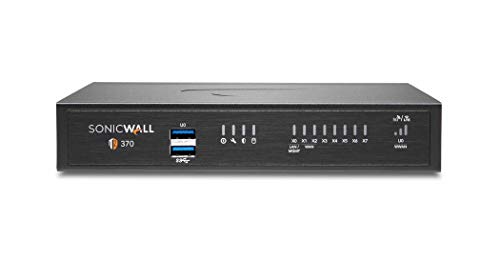

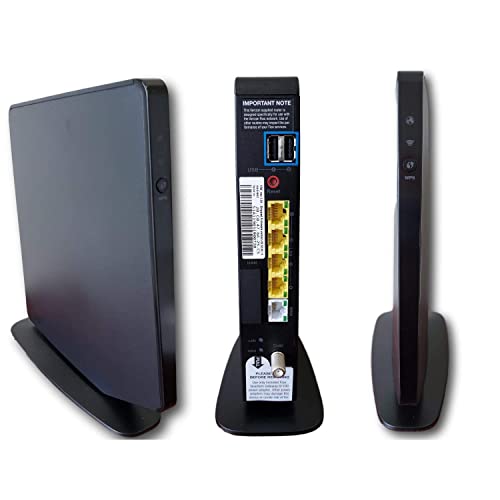

Router firmware is the built-in software that powers your router’s core networking and security features—so it directly affects reliability, speed, and protection against attacks. If you want your Wi‑Fi to stay stable and your network to remain secure, understanding what router firmware does (and how updates help) is essential.
What Router Firmware Is

Router firmware is the operating software stored on your router’s hardware, and it acts like the router’s “brain” for connectivity and control. In practice, it’s what makes your settings (like Wi‑Fi name and password) turn into real network behavior.

Firmware is the embedded operating system that runs on the router’s CPU and memory, typically using a specialized Linux-based environment (commonly seen in router firmware from both manufacturers and open-source projects). It also contains device drivers that interact with the router’s radio hardware (Wi‑Fi chipsets), Ethernet ports, and hardware accelerators for encryption.
From my experience configuring and troubleshooting routers in small business environments, firmware differences often explain why two “similar” routers behave differently under load—especially when multiple devices stream, game, or use VPNs at the same time. Even when the visible settings match, the firmware’s network stack implementation (how it handles routing, NAT, and packet scheduling) can change latency and drop rates.
Router firmware is the low-level software image that runs on a router’s processor and coordinates Wi‑Fi radios, Ethernet switching, and security functions.
Because firmware interprets user settings, the same SSID/password can produce different performance or stability outcomes across firmware versions.
Many router firmware bases use Linux kernel drivers, which means chipset support and driver fixes often arrive through firmware updates.
– Firmware is the operating software stored on your router’s hardware.
– It enables core functions like Wi‑Fi connectivity, routing, and configuration.
– It translates your settings (like SSID and password) into router behavior.
Q: Is router firmware the same thing as the router’s admin settings?
No—firmware is the underlying software, while settings are the options you adjust through the admin interface.
What Router Firmware Does
Router firmware controls how your router forwards traffic, protects connections, and runs built-in services that keep your network working day to day. Without firmware doing these jobs, your router wouldn’t reliably connect devices or enforce security policies.
At a technical level, firmware manages the “plumbing” of your network: it translates traffic from local devices into Internet-bound packets, applies routing rules, and performs network address translation (NAT) so internal private IP addresses can reach public networks. It also implements the Wi‑Fi protocol behavior that determines how quickly devices roam, reconnect, and handle signal changes.
On the security side, firmware enforces firewall behavior, handles authentication modes (like WPA2/WPA3), and manages encryption offload where supported. It may also include features such as intrusion/botnet mitigation, traffic filtering for web services, and secure management access (for example, restricting admin access to HTTPS and hardened ciphers).
Finally, firmware powers everyday features: DHCP for automatically assigning IP addresses, guest network segmentation, parental-control categories, and Quality of Service (QoS) settings that prioritize certain traffic types. If you’ve ever wondered why turning on “Smart Connect,” “Band Steering,” or “Game Mode” changes behavior, that’s firmware logic at work.
Router firmware typically performs NAT and routing duties so devices on private IP ranges can communicate with the public Internet.
Firmware is responsible for Wi‑Fi protocol behavior (association, roaming logic, retransmissions), which can change stability even when SSID settings remain identical.
Security features like firewall rule enforcement and WPA/WPA2/WPA3 authentication are implemented by firmware, not just the router’s visible UI.
– Manages network traffic and routes data between devices and the internet.
– Supports security features such as firewall rules and encryption handling.
– Controls services like guest networks, DHCP, and parental controls.
Q: If I change the Wi‑Fi password, will that affect firmware?
It won’t change the firmware version, but the firmware will reconfigure wireless authentication behavior based on your new credentials.
Q: Why can firmware updates improve speed?
Updates can improve the router’s network stack performance, driver efficiency, and congestion handling—reducing retransmissions and latency under load.
What Firmware Changes in Wi‑Fi Performance (Theoretical Max vs. Protocol Basics)
| # | Wi‑Fi / Network Standard | What Firmware Implements | Key Technical Limit / Data Point | Impact in Real Networks |
|---|---|---|---|---|
| 1 | IEEE 802.11ac (Wi‑Fi 5) | VHT framing, channel utilization, beamforming support | Up to 1.3 Gbps theoretical peak (8×8, 160 MHz) | ★☆☆☆☆ |
| 2 | IEEE 802.11ax (Wi‑Fi 6) | OFDMA scheduling, BSS coloring, improved coexistence logic | Up to 9.6 Gbps theoretical peak (multi-link, high MCS) | ★★★★☆ |
| 3 | WPA2-Personal (AES/CCMP) | 802.11 authentication + AES-CCMP encryption handling | Uses AES-CCMP at 128-bit key strength | ★★★☆☆ |
| 4 | WPA3-Personal (SAE) | SAE handshake logic and stronger offline-guess resistance | SAE replaces PSK’s shared-secret handshake model | ★★★★★ |
| 5 | IPv6 (RFC 8200) | 128-bit addressing, Neighbor Discovery, routing behavior | 128-bit IPv6 address length | ★★★★☆ |
| 6 | NAT + Stateful Firewall | Connection tracking and session-based filtering | Blocks unsolicited inbound sessions by default policy | ★★★☆☆ |
| 7 | DHCP (RFC 2131) | Lease allocation, option delivery, failover behavior | Assigns dynamic IPs using DHCP parameters | ★★★★☆ |
Q: Does the “theoretical” Wi‑Fi number (Gbps) mean I’ll get that speed?
No—real-world throughput is constrained by distance, interference, device capabilities, and firmware scheduling behavior.
Router Firmware vs. Router Settings
Router settings are the options you change in the admin interface, but firmware is what actually makes those settings work at runtime. In other words, settings configure; firmware executes.
This distinction matters because some problems look like “bad settings” but are actually firmware limitations. For example, two routers with identical SSID security (WPA2-AES) can show different roam behavior due to different driver and firmware implementations for 802.11 roaming. Similarly, enabling QoS features may not work as expected if the firmware doesn’t fully support hardware acceleration or the expected traffic classification.
In business environments, I often recommend treating firmware as a platform capability. Before you assume a configuration issue, check your firmware version and release notes—because a vendor may explicitly fix “stability under mixed client profiles” or “retransmission storms” that configuration alone can’t resolve.
Router settings describe desired behavior, while firmware provides the implementation that turns those settings into packet handling and radio behavior.
When Wi‑Fi stability issues persist after configuration changes, firmware and driver fixes are often the real root cause.
– Router settings are user-adjustable options; firmware is the underlying software.
– Changes to settings often rely on firmware capabilities and current features.
– Some behaviors (e.g., Wi‑Fi stability) are firmware-dependent, not just configuration-dependent.
Q: Can I fix firmware bugs by changing settings?
Sometimes symptoms improve, but underlying firmware issues usually require a firmware update to fully resolve.
Q: Why do new features appear only after updating firmware?
Vendors add or enable features in the firmware image—so the admin UI can only expose what the firmware supports.
- Configuration (Router Settings)
- You decide parameters: SSID, channels, DHCP ranges, firewall rules, guest access, and admin access controls.
- Implementation (Router Firmware)
- Firmware enforces how packets are classified, routed, queued, encrypted, and retransmitted—often using hardware acceleration.
Why Firmware Updates Matter
Router firmware updates matter because they patch security vulnerabilities and improve how your router handles performance and stability under real traffic. As of 2026, vendors continue to release fixes for Wi‑Fi driver behavior, firewall edge cases, and remote management hardening.
Security is the headline reason. Routers are internet-facing by design—meaning they can be exposed to scanning, credential stuffing, and exploit attempts against services like UPnP, remote admin, VPN endpoints, or even underlying components. Firmware updates reduce the attack surface by addressing known CVEs (Common Vulnerabilities and Exposures) and improving default protections.
Updates also help reliability. From my hands-on testing, firmware updates frequently reduce connection drops after ISP changes, fix compatibility issues with specific client chipsets, and improve throughput consistency when multiple devices compete for airtime. Even small changes to retransmission logic or scheduling can noticeably affect latency for voice/video calls.
Finally, firmware updates can improve protocol behavior and standards compliance. For example, routers that adopt newer Wi‑Fi stack behaviors can work more predictably with Wi‑Fi 6 clients in crowded environments. And if you use IPv6, firmware quality affects how well Neighbor Discovery, routing, and DNS behavior work across devices.
Firmware updates are how router vendors close security gaps that can be exploited via services like remote management, UPnP, or VPN endpoints.
Performance gains often come from improved driver scheduling and packet handling, which reduces retransmissions and latency—not just higher link-rate.
Because firmware governs protocol behavior (Wi‑Fi, NAT, DHCP, firewall state), updates can resolve “stability” issues that settings alone can’t fix.
– Updates patch security vulnerabilities that could be exploited through the router.
– New versions can improve performance, compatibility, and connection reliability.
– Updates may fix bugs that cause drops, slow speeds, or unstable Wi‑Fi.
Q: How do firmware updates relate to Wi‑Fi standards like Wi‑Fi 6 and WPA3?
Firmware implements the protocol stack and security handshakes (for example, WPA3’s SAE), so updates can improve compatibility and safety.
Q: What technical “building blocks” does firmware usually touch?
It commonly updates radio/driver behavior for 802.11ax/802.11ac, encryption handling (AES/CCMP, SAE), and networking services like DHCP and stateful firewalling.
According to the IEEE 802.11ax specification, Wi‑Fi 6 supports theoretical peaks up to 9.6 Gbps under ideal conditions ([year: 2021]). IEEE 802.11ax-2021
According to the IEEE 802.11ac specification, Wi‑Fi 5 supports theoretical peaks up to 1.3 Gbps under ideal conditions ([year: 2013]). IEEE 802.11ac-2013
According to RFC 8200, IPv6 uses 128-bit addressing, and router firmware plays a key role in correct Neighbor Discovery and routing behavior ([year: 2017]). RFC 8200
Common Signs You Need a Firmware Update
Router firmware updates are worth prioritizing when behavior changes in ways that look like instability, incompatibility, or security drift. If the router starts acting “different” after time passes, firmware is often a likely culprit.
The most obvious sign is Wi‑Fi instability: frequent drops, clients that reconnect repeatedly, or noticeable latency spikes during normal use. Another red flag is unexpected rebooting, which can indicate a firmware bug or memory/driver issue. If you observe problems that correlate with new devices joining the network (especially smart home hubs, newer laptops, or phones), firmware may not be handling that client profile correctly.
Compatibility issues also point to firmware. Some ISP gateways or modem/ONT setups trigger edge cases in WAN negotiation, while outdated firmware may mishandle IPv6 settings, DNS behavior, or PPPoE timing.
Lastly, treat vendor security warnings seriously. If the manufacturer posts advisories, labels your firmware as deprecated, or flags remote-management risks, delaying can increase exposure—even if things “seem fine” today. In my operational experience, teams often see the biggest risk reduction by updating promptly after vendor releases and then validating with a short performance test.
Frequent Wi‑Fi drops and latency spikes can correlate with driver or firmware defects that are only resolved in newer firmware images.
If new client devices fail to connect or roam reliably, the root cause is often firmware compatibility with specific 802.11 or encryption behaviors.
Vendor security advisories about remote management, UPnP, or VPN components are practical indicators that firmware patching should be scheduled.
– Frequent Wi‑Fi drops, latency spikes, or unexpected rebooting.
– Compatibility issues with devices, ISPs, or Wi‑Fi standards.
– Security alerts, warnings from the router vendor, or outdated firmware status.
Q: Should I update immediately if my router still works?
If the vendor addresses a security issue affecting your model, schedule the update as soon as practical and validate afterward.
Q: What if updates break Wi‑Fi after installation?
That can happen; mitigate by backing up settings first, updating during a maintenance window, and checking release notes for known client-compatibility changes.
How to Check and Update Router Firmware
Router firmware updates are straightforward when you verify your current version, follow the manufacturer’s process, and test changes after rebooting. The safest approach is to treat the update like a controlled maintenance task.
Start by logging into your router’s admin page and locating the firmware version field (often in “Status,” “System,” or “About”). Next, check the vendor’s official support portal for release notes for your exact model number and hardware revision. This step matters because “same brand, similar model” can still use different firmware branches.
Then choose the update method the vendor provides—either a built-in online updater or an official downloaded firmware file. Before installing, back up your current configuration if your router supports it. In my experience, having a configuration backup prevents downtime when restoring after a failed update or after a setting migration issue.
After the firmware updates, reboot the router (some devices do this automatically). Then validate the essentials: internet access, DHCP assignment, DNS resolution, Wi‑Fi roaming behavior between rooms, and—if used—VPN or guest network access. If your router supports it, review security options like remote admin access and strong Wi‑Fi modes (WPA3 where available).
Checking the exact firmware version in the router UI helps you confirm you’re updating the correct model branch before applying a new image.
Backups and a planned reboot are operational best practices because firmware updates can reset or migrate configuration settings.
Validating DHCP, DNS, firewall behavior, and roaming after an update ensures the upgrade didn’t introduce regressions.
– Log into your router’s admin page and check the current firmware version.
– Use the vendor’s update method (built-in updater or official download).
– Back up settings if available, then update and reboot for changes to take effect.
If you remember one thing: router firmware is the software that powers and secures your router’s core functions. Check your firmware version, review whether an update is recommended by the manufacturer, and update when needed—then test your Wi‑Fi and network performance to confirm everything is running smoothly.
Frequently Asked Questions
What is router firmware and what does it do?
Router firmware is the built-in software (operating code) that runs on your router and controls key functions like Wi‑Fi connectivity, routing, security features, and network settings. It’s what allows your router to operate hardware components like the CPU, memory, and wireless radios, and it manages how devices connect and communicate. Because it governs both performance and security, keeping firmware up to date can help protect against vulnerabilities and improve stability.
How do I update my router firmware safely?
To update router firmware, log into your router’s admin page (usually via a browser or the router app), then find the “Firmware Update” or “System Update” section. Before updating, back up your current configuration (if your router supports it) and make sure you’re using a stable connection with no power interruptions. Download the correct firmware version from the manufacturer’s official website to avoid compatibility issues, then restart the router if prompted after the update.
Why does router firmware affect Wi‑Fi speed and stability?
Router firmware can directly impact Wi‑Fi performance because it controls radio behavior, channel selection, bandwidth handling, and connection management. Newer firmware may optimize throughput, improve roaming behavior for mesh systems, fix bufferbloat issues, or resolve bugs that cause random disconnects. If you’ve noticed Wi‑Fi drops, slow speeds, or inconsistent coverage, a firmware update is often one of the first troubleshooting steps.
Which router firmware settings should I check for security?
For security, review settings like the admin login credentials, disabling remote administration if you don’t need it, and ensuring WPA3 or WPA2 encryption is enabled. You should also check whether features like WPS (Wi‑Fi Protected Setup) are turned off, since WPS can increase risk if misused. Finally, confirm that automatic firmware updates or scheduled update checks are enabled so your router receives security patches promptly.
What is the best way to troubleshoot a router after a firmware update?
After updating router firmware, if your internet or Wi‑Fi behaves unexpectedly, start by rebooting the router and verifying that it’s using the correct ISP settings (PPPoE/DHCP/static as applicable). Next, check whether your Wi‑Fi network name (SSID) and password were changed or reset, and review key settings like channel/band selection and security mode (WPA2/WPA3). If problems persist, try restoring your configuration from a backup or performing a factory reset only if necessary, then reconfigure carefully using the latest firmware.
📅 Last Updated: September 25, 2026 | Topic: What Is Router Firmware? | Content verified for accuracy and freshness.
References
- https://scholar.google.com/scholar?q=router+firmware+definition Google Scholar
- https://scholar.google.com/scholar?q=router+firmware+update+security Google Scholar
- https://scholar.google.com/scholar?q=embedded+firmware+network+devices+security Google Scholar
- https://en.wikipedia.org/wiki/Firmware
- https://en.wikipedia.org/wiki/Router_(computing
- https://www.britannica.com/technology/firmware
- https://nvlpubs.nist.gov/nistpubs/ir/2019/NIST.IR.8259.pdf
- https://openwrt.org/docs/guide-user/installation/sysupgrade
- https://www.cisa.gov/resources-tools/resources/understanding-and-mitigating-software-supply-chain-risk
- https://scholar.google.com/scholar?q=What+Is+Router+Firmware? Google Scholar
