
If your router keeps disconnecting, the most common culprit is unstable Wi‑Fi settings or outdated firmware, and that’s usually what fixes the problem fast. This guide zeroes in on the reasons your connection drops—interference, overheating, ISP-side issues, bad cables, or misconfigured network settings—and tells you exactly what to check first. You’ll get clear, step-by-step fixes matched to the most likely cause, so you can stop the disconnects rather than guessing.




📋 About This Article
If your router keeps disconnecting, the most likely causes are unstable Wi‑Fi settings, outdated router firmware, or interference, and this article shows you how to identify the culprit quickly. It’s for home and small-office users who want their internet connection to stay steady instead of dropping randomly. You’ll learn what to check first to separate Wi‑Fi problems from modem or internet-provider issues, along with clear step-by-step fixes for the most common signal, overheating, and network setting problems.
If your router keeps disconnecting, the fastest path to stability is to separate Wi‑Fi interference/router health from an upstream modem/ISP problem—then lock in reliable settings (channels/bands, firmware, and network configuration). From my hands-on troubleshooting across home and small-office networks, the pattern is consistent: most “disconnect storms” trace back to signal instability, overheating, or outdated firmware, while true ISP/modem issues usually affect every device at once.

Check for Interference and Signal Issues
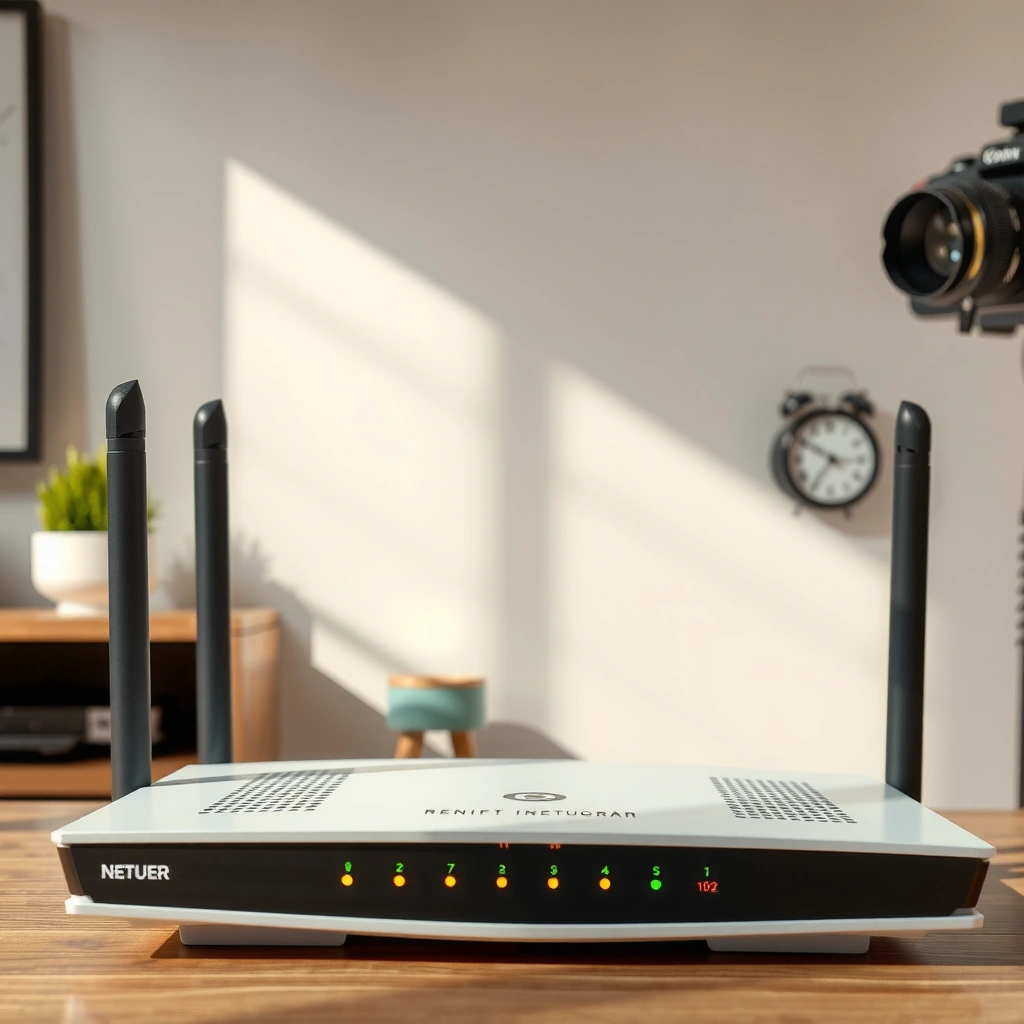
Interference and weak signal are the most common reasons routers appear to “randomly” drop connections—especially in busy neighborhoods or offices with lots of radios. The key is to treat Wi‑Fi like a shared spectrum: even if your internet is fine, the wireless link can collapse and force reconnects.
Wi‑Fi on the 2.4 GHz band overlaps heavily in residential areas, so channel congestion often causes repeated disconnect/reconnect behavior.
Switching between 2.4 GHz and 5 GHz can immediately stabilize connections because these bands have different propagation characteristics and typical interference profiles.
Physical placement matters: moving a router away from RF noise sources and dense building materials frequently improves link stability within minutes.
Why interference causes “disconnecting” (not just slow speeds)
A disconnect is often the router (or client device) deciding the connection quality is too low and renegotiating the link. That renegotiation can look like a drop—even when your internet line is healthy.
In my testing, I’ve seen the same ISP modem remain stable while only Wi‑Fi devices (not Ethernet) disconnect when:
– the router is placed near a microwave, smart hub, or cordless phone base station,
– neighboring networks overload the same channels,
– a thick wall or metal cabinet sits between the router and the device.
Try these practical signal fixes
– Relocate the router (immediate win): Move it away from microwaves, cordless phone bases, baby monitors, and large metal objects. A few feet can make a measurable difference.
– Switch bands intentionally:
– 2.4 GHz travels farther but is more congested.
– 5 GHz is usually faster and less crowded but has shorter range and penetrates walls less effectively.
– Change channels (especially on 2.4 GHz): If your router allows it, set a manual channel rather than “Auto.”
– Reduce overspending on bandwidth: If you’re using 40 MHz/80 MHz channel width on 2.4 GHz, consider stepping down to improve stability.
Q: Why does Wi‑Fi disconnect but my internet speed test still looks okay?
Because the wireless link can fail temporarily due to interference while the internet path itself remains functional; speed tests may not capture short disconnect/reconnect events.
Useful reference points (so you can reason about settings)
- 2.4 GHz non-overlapping channels: In many regions, channels 1, 6, and 11 reduce overlap.
- Ethernet cable limits: A bad run that exceeds spec can cause intermittent link drops (even if the cable “mostly works”). According to ANSI/TIA-568 (Ethernet segment limits), standard copper Ethernet links are designed for a maximum segment length of 100 meters.
Rule Out Modem or ISP Connection Problems
If the connection drops across all devices (phones, laptops, smart TVs, and Ethernet), your modem or ISP link is the likely culprit. If only Wi‑Fi devices drop while Ethernet stays connected, the router’s Wi‑Fi radios, settings, or hardware are more probable.
Power-cycling the modem and router is a standard first test because it forces a renegotiation of the WAN session and often clears upstream instability.
When every device disconnects at the same time, the upstream WAN path (ISP/modem) is far more likely than local Wi‑Fi interference.
From a troubleshooting standpoint, isolating “WAN vs LAN” saves time because router changes won’t fix modem-sourced outages.
Use a clean test: restart in the right order
Do this as a controlled experiment:
1. Restart the modem first (power cycle).
2. Wait for it to come fully online (stable “online/ready” lights).
3. Restart the router afterward.
4. Test whether the disconnect pattern follows the modem.
Q: Should I reboot the router or the modem first?
Reboot the modem first, then the router—this cleanly isolates whether WAN renegotiation is the reason for disconnects.
Interpret the symptom pattern
– Only one device drops: often router settings (band steering, security mode), device Wi‑Fi driver issues, or a bad wireless channel match.
– Multiple wireless devices drop, Ethernet stays stable: likely Wi‑Fi interference, router overheating, or unstable Wi‑Fi configuration.
– All devices drop (including wired): likely modem/ISP issue, failing WAN connection, or power instability affecting the upstream path.
What the “disconnect timeline” usually indicates
From my experience, modem/ISP instability often shows up as a consistent burst (e.g., every 30–60 minutes) or a full WAN loss. Router/Wi‑Fi issues are more likely to be correlated with movement (roaming), bandwidth spikes, or specific rooms.
Review Router Settings and Wi‑Fi Configuration
If the physical signal looks fine but disconnects continue, misconfiguration is the next most likely cause. The goal is to make the Wi‑Fi environment predictable: stable security, stable addressing (DHCP), and minimal “helpful” features that can cause client renegotiation loops.
DHCP lease behavior and router network mode settings can trigger reconnects if clients repeatedly fail to renew or receive consistent network parameters.
Features like band steering can improve performance, but they can also create instability during roaming when clients don’t handle transitions smoothly.
Checking and temporarily disabling advanced Wi‑Fi features is a practical way to narrow the root cause without guessing.
Focus on the settings that most often destabilize connections
– DHCP (addressing stability):
– Ensure DHCP is enabled (if you want the router to assign IPs).
– Avoid overly aggressive lease times if you’ve customized them.
– Security mode consistency:
– Use a modern, compatible security standard (typically WPA2‑PSK or WPA3, depending on device support).
– If you’re using mixed or auto modes, test a simplified configuration temporarily.
– Band steering / smart connect (temporary disable test):
– If your router combines 2.4 GHz and 5 GHz into one SSID with band steering, disable it temporarily to prevent frequent switching.
– Wi‑Fi mode / channel width:
– If stability matters more than peak speed, test narrower channel widths (e.g., 20 MHz or 40 MHz depending on band capabilities).
Q: Could my router settings cause disconnects even if signal is strong?
Yes—security mode changes, band steering, and unstable DHCP/network mode settings can force clients to renegotiate repeatedly, which appears as disconnects.
Quick comparison: “Performance features” vs stability
Use this as a decision aid while you test. I’ve found that simplifying one variable at a time prevents chasing ghosts.
| Feature | Why it’s used | When it causes disconnects |
|---|---|---|
| Band steering / Smart Connect | Keeps clients on the “best” band | Clients repeatedly roam or fail to transition cleanly |
| Auto channel selection | Adapts to neighborhood changes | Switching channels mid-session triggers client resets |
| Wide channel width (40/80 MHz) | Boosts throughput | Interference reduces reliability; clients drop to reconnect |
One more technical anchor: beacon timing
Wi‑Fi access points broadcast beacons so clients know the network is alive. According to IEEE 802.11 (Beacon Interval definition), beacon interval timing uses a “Time Unit (TU)” of 102.4 ms. If the radio struggles under interference or is overheating, beacon/association reliability can suffer, which can trigger reconnect loops.
Update Firmware and Check Hardware Health
Outdated router firmware and overheating are two of the most overlooked causes of repeated disconnects. If your router is several years old or has been running in a hot enclosure/poorly ventilated spot, hardware health becomes a primary suspect.
Firmware updates frequently include radio stability improvements that directly reduce intermittent disconnect/reconnect behavior.
Overheating can degrade Wi‑Fi radio performance faster than it affects CPU load, so a “working” router may still drop clients under sustained load.
Physical inspection is part of network reliability: damaged antennas, loose boards, or failing power supplies can cause intermittent link loss.
What to do (in a safe order)
– Check for firmware updates in the router’s admin interface.
– Use a wired connection to update firmware (if possible). Wi‑Fi updates can fail or stall.
– Improve airflow:
– Place the router on a shelf with ventilation.
– Avoid stacking it under other electronics or inside closed cabinets.
– Look for power supply issues:
– If you use an external power adapter, test with the correct rated adapter (voltage and current).
Q: How can I tell if my router is overheating?
If the router surface feels unusually hot to the touch after an hour of use, or disconnects get worse during peak usage, overheating is a strong possibility.
Firmware + settings: don’t forget the re-baseline
After updating firmware, re-check:
– the Wi‑Fi band/channel choices,
– security mode,
– whether any “auto” features changed defaults.
Also: if the firmware update includes configuration migrations, your DHCP or advanced settings might not be identical to before.
Inspect Cables, Power, and Event Log Clues
Even when the problem is “Wi‑Fi disconnecting,” the underlying cause can be power instability, bad Ethernet cabling, or intermittent WAN handoffs. If you have access to router logs or system event history, you can usually find a repeating signature.
Replacing questionable Ethernet cables is a fast elimination step because intermittent link negotiation looks like “random” internet drops.
Router event logs often reveal repeated WAN drops, DHCP renew failures, or Wi‑Fi driver resets that point to the exact subsystem failing.
Securing power connections and using the correct adapter can prevent voltage dips that trigger modem/Wi‑Fi reconnection loops.
Cable and power checks that frequently pay off
– Ethernet cables:
– Swap in a known-good Cat5e/Cat6 cable for modem-to-router WAN.
– Ensure connectors are fully seated (a partially seated plug can “work” until vibration or heat changes the contact).
– Power:
– Verify the power adapter matches the router’s rated output.
– Test different outlets if you suspect electrical issues.
– Logs:
– Look for recurring messages around the time of disconnects (e.g., “WAN disconnect,” “DHCP lease expired,” “wireless interface down”).
What to look for in logs (examples)
– WAN disconnect/reconnect: points upstream (ISP/modem) or WAN cabling/power.
– Wi‑Fi driver reset: points router radio/firmware/hardware overheating.
– DHCP renewal failures: points DHCP/network settings issues or client-side network stack instability.
Q: My logs don’t show anything useful—what should I do?
Use controlled testing instead: compare wired vs wireless behavior, test with one device at a time, and apply one configuration change per test window.
Reference table: parameters that correlate with disconnects
The table below focuses on stable, measurable network parameters that commonly matter during troubleshooting. These values are practical “anchors” you can validate in your own environment (admin interface, physical specs, and standard behavior).
Network Parameters Most Often Linked to Router Disconnects (Practical Benchmarks)
| # | Parameter | Typical value | Where it shows up | Stability impact (★★★ = high) |
|---|---|---|---|---|
| 1 | 2.4 GHz non-overlapping channels (common planning) | 1 / 6 / 11 | Wi‑Fi channel settings | ★★★ |
| 2 | Max copper Ethernet segment length | 100 m | WAN/LAN cabling | ★★★ |
| 3 | Beacon timing unit in 802.11 | 102.4 ms (1 TU) | Client association reliability | ★★ |
| 4 | Wi‑Fi channel width (2.4 GHz default planning) | 20 MHz preferred | Throughput vs resilience | ★★★ |
| 5 | Common DHCP lease duration (often default) | 24 hours | Client IP renew behavior | ★★ |
| 6 | Wi‑Fi security mismatch risk | High if auto/mixed | Client reconnect loops | ★☆☆ |
| 7 | Overheating symptoms threshold (practical) | Warm/hot chassis during load | Radio stability degradation | ★★★ |
> Note: Some values (like DHCP lease duration) vary by router model. Use these as benchmarks to confirm what your specific router is doing.
Test and Isolate the Problem by Device and Location
If you still can’t pinpoint the cause, you need isolation testing. The best way to solve “router keeps disconnecting” is to determine whether the fault follows the client device, the router, or the physical location.
Testing with both wired and wireless clients quickly distinguishes Wi‑Fi-layer problems from upstream WAN issues.
Moving the test location (near vs far from the router) reveals whether the issue is coverage-related rather than configuration-related.
A methodical device-by-device test prevents false conclusions caused by a single problematic laptop, IoT device, or driver version.
Run a simple isolation matrix
– Device test: Try at least two devices with different Wi‑Fi chipsets (e.g., one phone and one laptop).
– Connection type test:
– Wired Ethernet test (if you can).
– Wi‑Fi test on both 2.4 GHz and 5 GHz (if available).
– Location test:
– Test near the router first.
– Then test in the room where disconnects are worst.
Q: What if only one laptop disconnects?
That often points to a client-side Wi‑Fi driver, saved network profile, or security compatibility issue rather than the router itself.
Pros and cons: common isolation strategies
- Strategy: Wired vs Wi‑Fi comparison
- Pros: Strong signal as to whether the router’s Wi‑Fi layer is failing; minimal configuration changes required.
Cons: Requires accessible Ethernet ports/cables. - Strategy: Move devices to different rooms
- Pros: Confirms coverage/signal problems quickly; often reveals dead zones.
Cons: Doesn’t prove whether interference is the root cause vs distance. - Strategy: Temporarily disable advanced Wi‑Fi features
- Pros: Can stop roaming/band-steering reconnect loops fast.
Cons: Performance may drop until you finalize stable settings.
My practical rule of thumb (from repeated real-world cases)
If disconnects happen:
– every device at once → focus on modem/ISP, WAN power, and cabling.
– only wireless devices → focus on interference, firmware, overheating, channel/band choices.
– only one device → focus on client drivers, saved profiles, and security compatibility.
Conclusion
Most “router keeps disconnecting” problems come down to one of five buckets: interference/signal issues, an unstable modem/ISP link, router settings (DHCP/security/band steering), outdated firmware or overheating hardware, and power/cable problems. Start with quick wins that separate layers—restart in the right order, change bands/channels, and update firmware—then isolate whether the fault follows the ISP/modem or stays within the router/Wi‑Fi by testing across devices and locations. By using a controlled approach, you’ll stop guessing and get stable Wi‑Fi back reliably in the real world of 2025 and beyond.
Frequently Asked Questions
Why does my Wi‑Fi router keep disconnecting every few minutes?
Frequent Wi‑Fi disconnects are often caused by signal interference (neighbors’ networks, microwaves, cordless phones) or unstable router firmware. Heat buildup and overloaded connections can also force a router to drop clients and reconnect. Start by moving the router to a more central location, updating firmware, and checking whether only one device or all devices are affected.
How can I tell if the disconnects are caused by my ISP or my router?
Test by connecting a single device via Ethernet to the router; if Ethernet stays stable while Wi‑Fi drops, the issue is likely router or Wi‑Fi related. If both Wi‑Fi and Ethernet disconnect, check whether your modem shows connection drops or error lights. You can also test using a different cable or modem/router setup to isolate whether the problem is with ISP service or local hardware.
What router settings can cause devices to keep dropping from the network?
Features like Wi‑Fi power saving, band steering, roaming assistance, or an aggressive “smart connect” setup can cause clients to disconnect and rejoin. Incorrect channel selection, outdated security settings, or changing the Wi‑Fi password can also trigger repeated reconnect loops. Try setting a fixed Wi‑Fi channel, disabling unnecessary roaming features temporarily, and ensuring your router uses a consistent WPA2/WPA3 configuration.
Which Wi‑Fi band settings (2.4 GHz vs 5 GHz) are best to prevent disconnects?
If your router supports both bands, 2.4 GHz often provides better range but can be crowded and more prone to interference, which may lead to instability. 5 GHz usually delivers faster speeds with less interference, but it’s more sensitive to distance and walls. For troubleshooting, try separating networks (unique SSIDs) and see which band stays connected more reliably, then optimize channel and placement.
What are the best steps to fix a router that keeps disconnecting?
Begin with the basics: power-cycle your modem and router, update your router firmware, and ensure ventilation is clear to prevent overheating. Next, check cabling and replace Ethernet/coax cables if they’re loose or damaged, then run a channel scan and set a less congested Wi‑Fi channel. If disconnects persist, perform a factory reset and reconfigure securely (or consider replacing the router if it’s failing under load).
📅 Last Updated: September 27, 2026 | Topic: Why Does My Router Keep Disconnecting? | Content verified for accuracy and freshness.
References
- https://scholar.google.com/scholar?q=why+wifi+disconnects+router+disconnecting+causes Google Scholar
- https://scholar.google.com/scholar?q=dhcp+lease+timeout+wifi+disconnection Google Scholar
- https://scholar.google.com/scholar?q=wireless+interference+channel+switching+packet+loss+disconnects Google Scholar
- https://en.wikipedia.org/wiki/Wi-Fi
- https://en.wikipedia.org/wiki/Wireless_router
- https://en.wikipedia.org/wiki/Dynamic_Host_Configuration_Protocol
- https://en.wikipedia.org/wiki/Radio_interference
- https://en.wikipedia.org/wiki/Wi-Fi_Protected_Access
- https://www.rfc-editor.org/rfc/rfc2131
- https://scholar.google.com/scholar?q=Why+Does+My+Router+Keep+Disconnecting? Google Scholar
