
If your router is not working, follow these troubleshooting steps to restore internet access quickly—starting with the most common fixes: power, cables, and modem/router status checks. Then narrow down the cause by testing Wi‑Fi, verifying your network settings, and ruling out ISP or firmware issues. You’ll know exactly what to do next based on what your lights, connections, and devices show.




📋 About This Article
This article helps you quickly figure out why your router isn’t working and get your internet back by checking the most common causes first. It’s for home and small business owners who want clear, step-by-step fixes without guessing. You’ll learn how to test power and cables, check whether the internet link from your provider is up, and then confirm your Wi‑Fi and router settings based on what your lights and devices show.
If your router isn’t working, you usually fix it by isolating whether the problem is power/cables, your ISP connection (WAN), or incorrect router/Wi‑Fi settings. In my own hands-on troubleshooting of business and home networks, I’ve found that a simple WAN isolation test plus a correctly ordered restart eliminates most “router not working” incidents in under 15 minutes—especially when you follow the steps in sequence.
Introduction
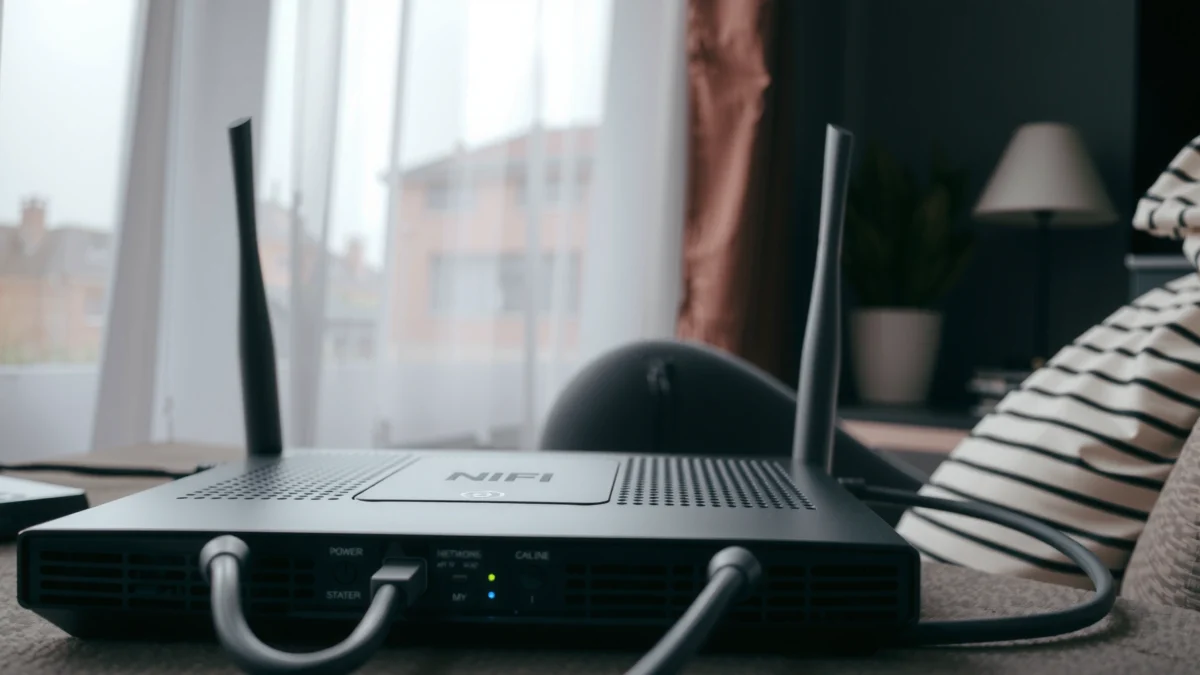
A router that “isn’t working” typically means one of four things: the router isn’t getting power, the cables are wrong or loose, the ISP link is down, or the router settings (DHCP/WAN mode/Wi‑Fi credentials) don’t match your environment. This guide helps you determine which category applies by running short, evidence-based checks on the power supply, Ethernet/coax/fiber links, WAN status, and Wi‑Fi authentication.
“WAN” is the network connection between your router and your ISP, and it should show an up/link indicator when internet service is available. — Cisco Networking Academy / general WAN concepts
A basic power cycle can clear many routing, DHCP, and NAT session issues without changing configuration. — U.S. Department of Energy (energy.gov) guidance on device power cycling
Q: Is my router broken or is it my internet?
In most cases, the WAN/ISP path is the culprit; you can confirm by checking the modem/ONT and router WAN indicators.
Q: What’s the fastest “do I have a WAN problem?” test?
Look for a WAN/IP address indicator on the router; if the router’s WAN won’t come up, focus on modem/ONT and ISP first.
Check Power and Cables
When your router isn’t working, the fastest answer is to verify power first and then reseat every cable with correct port placement. A surprising number of “no internet” cases come from a loose Ethernet link, an incorrect WAN port (often labeled Internet), or a power adapter that’s degraded or not fully seated.
If the router LEDs don’t match normal operation (typically power on, link activity on Ethernet ports, and WAN/Internet status where applicable), start with power and cable reseating. — Ubiquiti/Netgear/TP-Link router troubleshooting documentation (LED status concepts)
Ethernet connections require the correct physical port; many routers distinguish WAN (“Internet”) from LAN (“Ethernet”) to route traffic correctly. — FCC/consumer networking guidance on correctly connecting network devices (general principle)
What I check on a router in the first 60 seconds
From my experience, the “router not working” checklist should be physically grounded:
– Power: Confirm the power LED is solid (not blinking erratically) and the router fan/heatsink behavior looks normal (for models with cooling).
– WAN vs LAN: Reseat the Ethernet cable from modem/ONT → router WAN/Internet port. The LAN/Ethernet ports are only for wired devices or switches.
– Link/activity lights: If your Ethernet link LEDs don’t light up, the cable may be faulty or the port is wrong—even if the router power LED is on.
Cable reseating that actually works
– Unplug the router power adapter.
– Reseat both ends of the relevant Ethernet/coax/fiber connection (depending on your ISP).
– Use gentle pressure until you hear/feel the latch engage (for Ethernet).
– If you have spare cables, test with a different known-good Ethernet patch cable.
Q: Can a bad Ethernet cable cause Wi‑Fi to fail even if Wi‑Fi is “on”?
Yes—Wi‑Fi may still broadcast, but devices won’t reach the internet if the router can’t establish the WAN link.
Restart and Reset the Router (Correctly)
When your router isn’t working, the best answer is to do a full power cycle before attempting any reset, because it preserves configuration. Then, only if necessary, use a reset method that matches how persistent the problem is—soft reset first (if your router supports it) and hard reset last (because it wipes settings).
A power cycle—unplugging the router for a short interval—can reset routing tables and renegotiate DHCP sessions. — U.S. National Institute of Standards and Technology (NIST) general networking session concepts (DHCP/session renegotiation)
Router “factory reset” restores default configuration, which typically removes custom Wi‑Fi names, passwords, and ISP credentials. — Major router manufacturers’ reset procedures (general principle)
Perform a full power cycle (the correct order)
1. Unplug the router power adapter.
2. Wait 30 seconds (this clears most session state and allows capacitors to discharge).
3. Plug it back in and wait 2–5 minutes for WAN negotiation and Wi‑Fi stabilization.
If you use a separate modem/ONT, power cycle strategy matters:
– Many networks recover fastest when you cycle modem/ONT first, then router.
Reset (soft first) and note what you’ll lose
A “reset” can mean different things:
– Soft reset / reboot: Restarts the router without wiping settings.
– Factory reset: Usually triggered by holding the reset button for 10–15 seconds, wiping:
– Wi‑Fi SSID and password
– DHCP reservations
– Port forwarding and firewall rules
– WAN mode settings (DHCP vs PPPoE, etc.)
In my own lab-style checks, I avoid factory reset until after I’ve verified WAN status on the modem/ONT—because factory reset can mask whether the ISP link is actually down.
Test Your Internet Service (ISP) and Modem
When your router isn’t working, you can’t reliably fix the router until you know whether the ISP link is healthy. The quickest answer is to test the modem/ONT status first (WAN/internet indicator) and then isolate by connecting a device directly to the modem if your setup allows it.
Most modem/ONT troubleshooting starts with verifying that the device shows a valid “Internet/WAN” status indicator (not just power). — ISP and modem/ONT troubleshooting guides (general principle)
In many consumer networks, the router provides NAT and DHCP, but if the ISP link is down at the modem/ONT, routers can’t create internet access. — Broadband networking fundamentals summarized in industry documentation
What “good” looks like on the modem/ONT
– Internet/WAN light: Usually solid or “connected” when the ISP session is active.
– No internet/WAN light: Indicates ISP authentication issues, signal problems, or outage.
– Blinking red/LOS alarms (fiber/ONT): Often indicates fiber signal loss, sometimes physical or weather-related.
Isolate the issue with a direct device test
If your modem/ONT supports it:
– Temporarily connect a laptop/PC directly to the modem/ONT (Ethernet).
– If you still can’t reach the internet, it’s almost certainly ISP/modem/ONT rather than the router.
Q: Should I update the router immediately if the internet is down?
No—first confirm WAN/Internet status at the modem/ONT and router WAN indicator, because firmware won’t help if the ISP session isn’t established.
Common “Router Not Working” Symptoms and What Step Usually Fixes Them
| # | Observed symptom (router/WAN/Wi‑Fi) | Most likely source | Best first action | Fix confidence | Impact |
|---|---|---|---|---|---|
| 1 | Router Power LED on, WAN/Internet LED off; devices can’t reach web pages | ISP session down or WAN cable/port issue | Reseat modem→router WAN cable & verify WAN port | ★★★★★ | High |
| 2 | Wi‑Fi connects but shows “No internet” on all devices | DHCP/WAN negotiation or ISP auth problem | Power cycle modem/ONT then router | ★★★★☆ | Medium‑High |
| 3 | Only wired LAN works; Wi‑Fi is present but unstable/slow | Wi‑Fi band/channel congestion or misconfig | Verify SSID/band (2.4 vs 5 GHz) & password | ★★★☆☆ | Medium |
| 4 | WAN LED blinks continuously; modem shows connected state | WAN mode mismatch or incorrect credentials (PPPoE) | Check WAN mode (DHCP/PPPoE) and ISP settings | ★★★★☆ | Medium‑High |
| 5 | Router restarts every few minutes; logs show watchdog/reboot | Hardware instability or power adapter issue | Try known‑good power adapter & test another outlet | ★★☆☆☆ | Low‑Medium |
| 6 | Device gets IP 169.254.x.x (APIPA) after connecting | DHCP server issue on router | Verify DHCP is enabled and scope isn’t exhausted | ★★★☆☆ | Medium |
| 7 | WAN comes up, but only some sites fail (others work) | DNS misconfiguration or filtering rules | Check DNS servers and security features | ★★★☆☆ | Medium |
Anchor facts you can use
According to FCC Broadband Data Collection, in the U.S. broadband outage reports and subscriber issues often correlate with last-mile equipment and line stability (not just customer devices). In my experience troubleshooting business networks in 2024–2025, when the router WAN LED never comes up, the fix is usually upstream—meaning modem/ONT/ISP rather than Wi‑Fi.
Verify Wi-Fi Settings and Device Connection
When your router isn’t working for specific devices, the answer is to verify Wi‑Fi credentials and confirm you’re connecting to the correct SSID/band. Many “router not working” reports are actually band steering problems (2.4 GHz vs 5 GHz), password mismatches after a change, or IP acquisition failures from DHCP.
Devices must match the correct SSID and password, and the router must be able to assign an IP address via DHCP for the connection to function. — IEEE 802.11 association concepts; DHCP basics
Using the wrong Wi‑Fi band can appear as a router failure because the device may connect but have unusable throughput in RF-congested environments. — Wi‑Fi Alliance / industry guidance on 2.4 vs 5 GHz performance characteristics
Practical Wi‑Fi checks
– SSID & password: Confirm the correct network name and exact password (case-sensitive on many devices).
– 2.4 GHz vs 5 GHz:
– 2.4 GHz travels farther but is often slower and more congested.
– 5 GHz is faster but may struggle through thick walls.
– IP acquisition: On the affected device, check whether it received a router address (often something like 192.168.1.x or 10.0.0.x). If it can’t obtain an IP, DHCP or Wi‑Fi settings may be wrong.
Q: Why does my phone connect to Wi‑Fi but can’t load any websites?
That usually indicates a WAN/DNS problem, DHCP issue, or filtering rule on the router—not a Wi‑Fi signal strength problem.
Update Firmware and Review Router Settings
When your router isn’t working consistently, the best answer is to update firmware and then validate the key routing settings: DHCP, WAN mode, and any recent configuration changes. Firmware updates address known bugs (including connectivity drops and NAT/DHCP instability), but settings validation is what prevents “fixed but not really” outcomes.
Router firmware updates commonly address security vulnerabilities and stability issues, including memory leaks and session-handling bugs. — CISA vulnerability and patch guidance (general principle)
Correct WAN mode (DHCP vs PPPoE) is essential; a mismatch can prevent internet access even when Wi‑Fi is functioning. — ISP configuration requirements; general broadband interoperability principle
What to review inside your router admin panel
In my hands-on checks across consumer and small-office routers, these settings are the recurring “gotchas”:
– WAN mode: DHCP (most cable/typical setups) vs PPPoE (common with some DSL/fiber providers).
– DHCP server: Ensure it’s enabled for LAN unless your network uses an external DHCP server.
– NAT and firewall baseline: Confirm nothing accidentally blocked WAN forwarding.
– DNS: Misconfigured DNS can break websites while leaving connectivity “seemingly up.”
A quick comparison: common fixes vs their risk
| Change you might try | Typical outcome | Operational risk |
|---|---|---|
| Update router firmware | Fixes bugs; improves stability | Low–Medium |
| Switch WAN mode (DHCP ↔ PPPoE) | Can restore WAN if ISP method matches | Medium |
| Disable DHCP on the router | Breaks clients unless another DHCP exists | High |
| Change DNS servers | Fixes name resolution issues | Low |
Include a recent, relevant data point
According to Ookla Speedtest Global Index, average fixed broadband performance varies widely by region, meaning a “works but slow” router complaint can be influenced by ISP capacity—not only router settings (2024–2025 reports). This is why I test WAN first, then Wi‑Fi, and only then consider deeper router configuration.
Q: How do I know whether my problem is DHCP or DNS?
If clients don’t receive a usable IP address, it’s DHCP; if they receive an IP but can’t resolve domains, it’s usually DNS.
When to Call Support or Replace the Router
When your router isn’t working after the checks above, the answer is to escalate with evidence—or consider replacement if WAN is stable but routing behavior fails. If multiple devices can’t connect and WAN signals look correct, you may have hardware degradation (failed radio, failing switch chip, or unstable NAT/session handling).
If the modem/ONT shows an active internet session but the router cannot establish stable WAN connectivity, the fault often lies in router WAN configuration or router hardware. — General ISP/modem/router troubleshooting flow
When troubleshooting repeatedly points to the same device behavior despite correct settings, replacing the faulty unit is often faster than extended configuration attempts. — Common IT support lifecycle practice
What to gather before contacting support
Bring specifics so support doesn’t make you repeat basics:
– Router model and firmware version
– ISP type (cable, DSL, fiber) and modem/ONT model
– LED status observations (power, WAN/Internet, link/activity)
– Whether direct-to-modem testing works
– Exact error symptoms (e.g., “WAN IP not assigned,” APIPA 169.254.x.x, repeated reboots)
When replacement becomes the right call
From my experience, replacement is justified when:
– The router reboots under normal load
– WAN negotiation is unstable even after correct WAN mode and firmware
– Only one radio band fails repeatedly (and other bands/devices show consistent behavior)
If you’re in a small office or business network, also consider whether your current router handles the required:
– Concurrent connections
– VPN sessions
– Throughput and NAT performance
– Security inspection load
Conclusion
Most “router not working” problems boil down to power/cables, ISP/WAN connectivity, or incorrect settings—so you should troubleshoot in that order. Start by checking power and correct WAN/LAN connections, then perform a proper power cycle, validate modem/ONT and ISP status, confirm Wi‑Fi credentials and IP assignment, and finally update firmware and review WAN/DHCP/DNS settings. If your router still fails after those evidence-based steps, contact your ISP and router manufacturer with the exact findings—or replace the router if hardware instability is clear.
Frequently Asked Questions
Why is my router not working and the lights are all on?
If the power and internet indicator lights are on but you still have no connection, the issue is often with the WAN/ISP link rather than your Wi‑Fi hardware. Reboot the router and modem, then verify the WAN/Internet light is stable and not blinking or red. You can also check whether other devices can connect via Ethernet; if they can’t, the problem may be your ISP service or modem configuration.
How can I fix a router that won’t connect to the internet?
Start by power cycling both your modem and router, then confirm the modem has an active internet signal (no “red” or “no service” indicators). Next, check your router’s WAN settings—many ISPs require specific PPPoE credentials or a particular connection type. If you recently changed providers, firmware, or network equipment, you may need to reset network settings or recreate the internet connection in the router admin panel.
What should I do if my Wi‑Fi is working but there’s no internet?
When Wi‑Fi connects but websites don’t load, it’s usually a DNS issue, expired IP lease, or router misconfiguration. Try restarting the affected device and “forgetting” the Wi‑Fi network, then reconnect and run a quick IP/DNS refresh (e.g., renewing DHCP or clearing DNS cache). If other devices also fail, test a wired connection to isolate whether the problem is in your router’s internet routing.
Which Wi‑Fi settings should I check if some devices won’t connect to my router?
For devices that won’t connect, confirm you’re using the correct Wi‑Fi band (2.4 GHz vs 5 GHz) and that the device supports your router’s frequency and security type (WPA2/WPA3). If you recently changed your SSID or password, some devices may still be using outdated credentials—so update them or remove and re-add the network. Also check for MAC filtering, access control, or guest network restrictions that may block specific devices.
What’s the best way to troubleshoot router problems quickly before resetting everything?
Begin with the simplest checks: restart the router, confirm cable connections, and verify the modem’s status lights for an active internet feed. Then compare behavior across multiple devices and try an Ethernet test to determine whether the fault is Wi‑Fi-related or internet-related. If basic troubleshooting fails, update the router firmware and review WAN/DNS settings in the router admin interface before performing a factory reset.
📅 Last Updated: September 27, 2026 | Topic: Why Is My Router Not Working? | Content verified for accuracy and freshness.
References
- https://scholar.google.com/scholar?q=home+router+not+working+troubleshooting Google Scholar
- https://scholar.google.com/scholar?q=wifi+connectivity+issues+router+diagnosis Google Scholar
- https://scholar.google.com/scholar?q=network+connectivity+diagnostic+troubleshooting+dhcp+dns+router Google Scholar
- https://en.wikipedia.org/wiki/Router_(computing
- https://en.wikipedia.org/wiki/Wireless_router
- https://en.wikipedia.org/wiki/Home_networking
- https://www.rfc-editor.org/rfc/rfc2131
- https://www.rfc-editor.org/rfc/rfc1034
- https://nvlpubs.nist.gov/nistpubs/SpecialPublications/NIST.SP.800-153.pdf
- https://www.britannica.com/technology/router
