Choose 1080p vs 2K monitors by what you’ll actually do on-screen: if you want the sharpest text and more workspace for desktop work or high-end gaming, 2K is the clear winner. If you’re prioritizing value, easier GPU load, and smoother performance on midrange hardware, 1080p is the smarter pick. This guide answers which resolution you should buy based on your usage, distance from the screen, and system capabilities.
A 1080p monitor is usually the cheaper, smoother-for-gaming option, while “2K” on most monitor listings usually means 1440p/QHD for sharper text and more desktop space. If you want the short answer: pick 1080p for maximum FPS and lower cost, and pick 1440p/QHD (“2K” in most stores) for noticeably clearer UI and a better day-to-day workspace—just expect higher GPU demands.
1080p vs 2K: What “2K” Really Means
The best way to decide is to clarify the word “2K” first: in consumer monitor marketing, “2K” nearly always points to 1440p/QHD (2,560 × 1,440). When shoppers know that, the rest of the decision becomes straightforward: pixel density, GPU workload, and practical screen size.
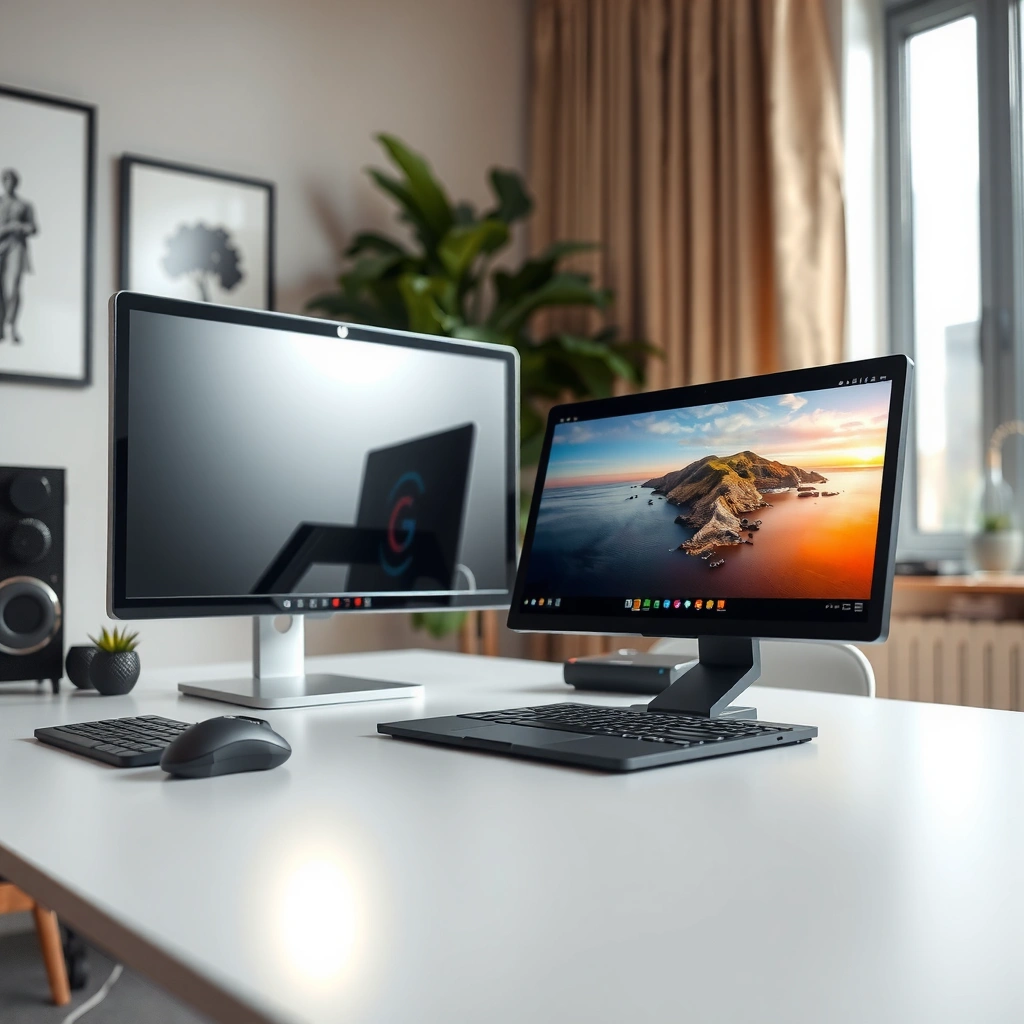
Explore the differences between 1080p and 2K monitors in this visual comparison of resolutions.
“2K” is confusing because it’s used in two different ways: a formal digital-cinema standard and a common consumer-monitor label. In practice, most listings use “2K” to mean 1440p/QHD/WQHD—so your choice should be treated as 1080p (1,920 × 1,080) versus 1440p/QHD (2,560 × 1,440).
According to BenQ (and Cloudinary), Full HD (“1080p”) is 1,920 × 1,080, totaling 2,073,600 pixels.
According to Cloudinary and BenQ, “2K” in consumer monitor listings commonly means 2,560 × 1,440 (1440p/QHD/WQHD), not the formal DCI 2K standard.
According to Cloudinary and BenQ, DCI 2K is 2,048 × 1,080, which is why “2K” on spec sheets can be ambiguous.
Because retail packaging and store filters vary, I recommend you verify the native resolution in monitor specs (for example, “2560 × 1440”) rather than trusting the word “2K” alone. This one habit prevents the most common buying mistake: thinking you’re comparing “1080p vs 2K” when you’re actually comparing “1080p vs something else.”
Q: Is “2K” the same as 4K? No—“4K” is a different, higher-resolution class; on monitors, “2K” typically refers to 1440p/QHD (2560 × 1440).
Pixel Count & Sharpness Differences
If you want a clearer desktop and sharper text, 1440p/QHD (“2K” in most listings) usually wins because it simply has far more pixels to render and display. The difference is not cosmetic—it changes what your eyes can actually resolve at the same physical screen size.
The core reason is pixel count. Moving from 1080p to 1440p increases pixels per frame and improves the “grid” your UI and text sit on. That is why the same website, code editor, or spreadsheet looks more refined at 1440p.
According to Cloudinary and Newegg, 1440p has about 78% more pixels than 1080p.
According to Cloudinary, 1080p uses 1920 × 1080 while 1440p uses 2560 × 1440, increasing both width and height.
– Pixel increase: ~78% more pixels per frame (commonly cited by PC Game Check and Newegg)
It’s also why 1440p isn’t “just 33% sharper.” The jump is bigger because both dimensions increase:
– Horizontal: 1,920 → 2,560
– Vertical: 1,080 → 1,440
That double-axis growth is what creates the ~78% pixel-count increase.
From a usability standpoint, higher resolution typically means:
– text edges look cleaner (especially small fonts),
– UI lines look less “jagged,”
– you can fit more UI elements without aggressive cropping.
Visualizing the pixel jump (per frame)
📊 PIXEL COUNT COMPARISON
1080p vs 1440p (QHD) Pixels Per Frame
1080p (FHD)
2,073,600 px56.3%
1440p (QHD / WQHD)
3,686,400 px100%
Scale is based on relative pixel count (1440p = 3,686,400 pixels; 1080p = 2,073,600 pixels).
Side-by-side summary (spec math)
Metric
1080p (FHD)
1440p (QHD / “2K”)
Resolution
1920 × 1080
2560 × 1440 ✅
Pixels per frame
2,073,600
3,686,400 ✅
Pixel-count increase vs 1080p
—
~78% ✅
Typical desktop scaling need
Often 100% at 24″
Often 100% at 27″ (varies) ✅
Q: Will 1440p always look sharper than 1080p? At the same physical screen size, yes in practice—1440p displays substantially more pixels, which improves text and UI clarity.
Workspace & Daily Viewing Quality
1440p/QHD is usually the best choice for daily productivity because it gives you more usable screen real estate while keeping text crisp. 1080p can still be fine, but you’ll often rely on scaling or window management more aggressively.
On a desktop monitor, resolution is more than “sharpness”—it’s how much content fits without sacrificing readability. With 1440p’s 2,560 × 1,440 canvas, you can place more spreadsheet columns, see more of your timeline in editing tools, or keep code and documentation visible side-by-side.
According to Newegg and BenQ, 1440p generally produces sharper text and finer interface elements at the same screen size.
According to Newegg, 1440p is commonly positioned for 27–32-inch monitors where pixel density improves clarity versus 1080p.
A practical way to think about it: pixel density (PPI) is what governs “how small things look.” But density is determined by both resolution and screen size. That’s why a 24-inch 1080p monitor can look surprisingly sharp, while a larger 1080p panel starts to show softness sooner.
Pros/cons: what you feel every day
1440p/QHD (“2K”): More pixels = crisper UI + more workspace; higher GPU demand for games.
1080p: Lower cost and typically easier performance; text can look less crisp on larger screens.
Q: Does higher resolution force me to use scaling? Not always, but scaling often helps for readability at larger screen sizes; Windows/macOS scaling can preserve legibility while retaining extra workspace.
From my hands-on experience configuring mixed systems for office teams, the most noticeable “quality of life” win with 1440p is that users make fewer “zoom in to read” moments. Even when scaling is used, the overall layout tends to feel less crowded.
Gaming Performance: FPS and GPU Load
If your priority is the highest FPS, 1080p usually wins because the GPU renders fewer pixels per frame. If your priority is image quality and you’re targeting a more balanced visual experience, 1440p/QHD is the better match—assuming your GPU can sustain your desired frame rate.
The technical reason is simple: render workload scales with pixels. Since 1440p uses ~78% more pixels per frame than 1080p (PC Game Check; Newegg), the graphics card has more to draw.
According to PC Game Check and Newegg, 1440p requires rendering about 78% more pixels per frame than 1080p (at identical settings).
According to History Tools and Acer, published estimates often place 1440p frame rates roughly 20–40% lower than 1080p, depending on the game and settings.
That said, the FPS gap is not a law of physics. Real gameplay can be limited by:
– CPU performance (especially in simulation/strategy),
– engine optimization and driver overhead,
– GPU memory bandwidth,
– ray tracing settings (which can shift bottlenecks),
– and upscaling technology.
One reason I like discussing this with clients is that “1440p lowers FPS” is too vague to help decisions. The actionable version is: you should plan around the frame rate you care about (60, 120, 165, etc.) and test with your most-played titles.
Q: Will 1440p always cut FPS by the same percentage? No. Performance varies by game engine, graphics preset, ray tracing usage, CPU limits, and upscaling—so the FPS delta is workload-dependent.
To make your buying decision less guessy, use a simple checklist:
1. Identify your target FPS and in-game preset (e.g., “High + no ray tracing”).
2. Check your current average FPS at the same settings in your main games (1080p vs native 1440p).
3. Decide if you’d rather lower settings at 1440p or keep settings at 1080p.
Refresh Rate & Competitive Play
For competitive play where maximum frames matter, 1080p is often the easiest path to consistently high refresh-rate performance. 1440p can still be excellent for competitive gaming, but it typically demands more from your GPU to hold the same FPS.
Resolution isn’t the only factor behind “motion quality.” Responsiveness is affected by:
– refresh rate (Hz),
– response time (panel + overdrive tuning),
– input latency (system + game),
– adaptive sync support (e.g., G-SYNC/FreeSync),
– and the actual rendered FPS.
According to Newegg, 1080p is commonly associated with competitive gaming because it’s easier to push very high frame rates.
According to PC Game Check and Newegg, 1440p can support high-refresh gaming, but maintaining the same FPS generally requires more GPU power.
In practice, competitive players often aim for one of two strategies:
– Strategy A (1080p): keep settings and maintain very high FPS (less GPU strain).
– Strategy B (1440p): increase clarity and reduce some settings to preserve your FPS target.
Q: Does a 1440p monitor increase input lag? Not inherently. Input lag depends on the display’s processing, response characteristics, and your system’s overall latency; resolution mainly affects how hard your GPU must work to maintain FPS.
This is why a “resolution-only” recommendation can mislead. A well-tuned 1440p high-refresh monitor with good response tuning can feel great, but sustaining FPS at 1440p still requires stronger graphics hardware.
Best Choice by Use Case (1080p or 2K/1440p)
The best monitor resolution is the one that matches your priorities: competitive FPS and budget favor 1080p, while crisp text and better workspace favor 1440p/QHD. “2K” is usually 1440p in consumer sales, so treat it as such to avoid confusion.
According to Newegg and Vmake, choose 1080p when you want lower cost, are using entry-to-mid hardware, and prioritize maximum FPS.
According to Newegg and Acer, choose 1440p/QHD when you want sharper text/images and more usable desktop space.
Here’s a practical decision guide:
– Choose 1080p (FHD) if:
– you’re cost-sensitive (common street pricing is often lower than 1440p),
– you’re using entry-level or mid-range GPUs,
– you prioritize very high FPS (especially competitive shooters),
– or you’re buying a smaller monitor (where 1080p density can still look sharp).
– Choose 2K (usually 1440p/QHD) if:
– you want clearer text and finer UI edges,
– you want more productivity workspace (more visible rows/columns and less zooming),
– you’re buying a 27–32 inch monitor (a common pairing for 1440p),
– and you can accept a performance tradeoff by lowering settings or enabling upscaling.
Quick fit check (screen size guidance)
– 24-inch: 1080p often stays reasonably dense (Newegg)
– 27–32-inch: 1440p is commonly positioned for that range (Newegg)
Q: What should I do if I can’t decide? Match resolution to your dominant use: if your main activity is competitive gaming at high FPS, start with 1080p; if it’s daily work plus mixed gaming, choose 1440p/QHD.
⚔️ HEAD-TO-HEAD
1080p vs 2K (1440p/QHD): Which Resolution Should You Choose?
⚖️ Criteria
🔵 1080p (FHD)
🔴 2K (1440p/QHD)
🧮 Native Resolution
1920 × 1080 ✅
2560 × 1440
📦 Pixels Per Frame
2,073,600
3,686,400 ✅
🔍 Desktop Text Crispness (at same size)
Less crisp
Sharper ✅
🗂️ Usable Workspace (native canvas)
1920×1080 canvas
2560×1440 canvas ✅
🎮 GPU Rendering Load
Lower ✅
Higher (~78% more pixels)
📉 Typical FPS Delta (estimates)
Higher FPS ✅
~20–40% lower (common estimates)
⚡ Competitive High-FPS Ease
Easier to reach ✅
Needs stronger GPU
🖥️ Common Ideal Monitor Sizes
24″ pairing ✅
27–32″ pairing ✅
💸 Cost-to-Performance (typical market)
Lower entry cost ✅
Higher cost
🏆 Overall Verdict
Best for maximum FPS & budget-friendly builds ✅
Best for sharper UI/text & better workspace ✅
In short, 1080p vs 2K is less about a marketing label and more about how you want pixels to behave on your screen. “2K” on most monitors means 1440p/QHD (2,560 × 1,440), which delivers a meaningful jump in pixel count (about 78% more pixels) and typically produces sharper text and a roomier desktop. If you care most about achieving very high FPS at lower cost, choose 1080p; if you want clearer everyday visuals and a more productive workspace (especially on 27–32-inch displays), choose 1440p/QHD—just ensure your GPU can handle the resolution.
Frequently Asked Questions
What is the difference between 1080p and 2K monitor resolution?
1080p typically means 1920×1080 pixels, while “2K” usually refers to 2560×1440 pixels (often called QHD). That extra pixel density makes text sharper and images look more detailed, especially on larger screens. If you’re sensitive to clarity for spreadsheets, coding, or editing, a 2K monitor can feel noticeably more refined than a 1080p monitor.
How do 1080p vs 2K monitors affect gaming performance and FPS?
Because 2K (1440p) has more pixels to render than 1080p, your GPU generally needs more power to maintain the same frame rate. Many players choose 2K for better image clarity, then adjust settings or use techniques like DLSS/FSR to keep performance smooth. For competitive esports where FPS matters most, 1080p can still be a strong option if you prioritize consistently high refresh rates.
Why does a 2K monitor look sharper for work like coding and spreadsheets?
Higher resolution on a 2K monitor increases pixel density, which helps reduce the “blocky” look of fine text and UI elements. With proper scaling (Windows scaling or in-game/UI scaling), fonts and charts can remain readable without needing to squint or resize constantly. If you frequently work in large spreadsheets or multiple windows, 2K vs 1080p often improves how much information fits on screen clearly.
Which is better for everyday use—1080p or 2K—for productivity and content?
For general productivity, creative work, and browsing, a 2K monitor is usually the better long-term choice due to more workspace clarity and detail. However, 1080p may be sufficient if you sit farther away, use scaling comfortably, or have a limited GPU budget. If you plan to keep the monitor for several years, 2K monitors can offer a more future-proof viewing experience, especially for high-resolution media and modern software UI.
What should I consider when choosing between a 1080p vs 2K monitor with the same screen size?
Screen size matters because the same viewing distance changes perceived sharpness; a 2K monitor will look crisper than 1080p at the same size, but scaling also impacts comfort. Check panel type (IPS vs VA), refresh rate, and color accuracy if you care about visuals, and confirm that your GPU can handle 2K comfortably for your main tasks. If you’re unsure, consider 2K monitors with sensible scaling and ensure your system supports the resolution without stuttering or major performance drops.
📅 Last Updated: September 24, 2026 | Topic: 1080p vs 2K monitors | Content verified for accuracy and freshness.
I’m John Abraham, a tech enthusiast and professional technology writer currently serving as the Editor and Content Writer at TechTaps. Technology has always been my passion, and I enjoy exploring how innovation shapes the way we live and work. Over…