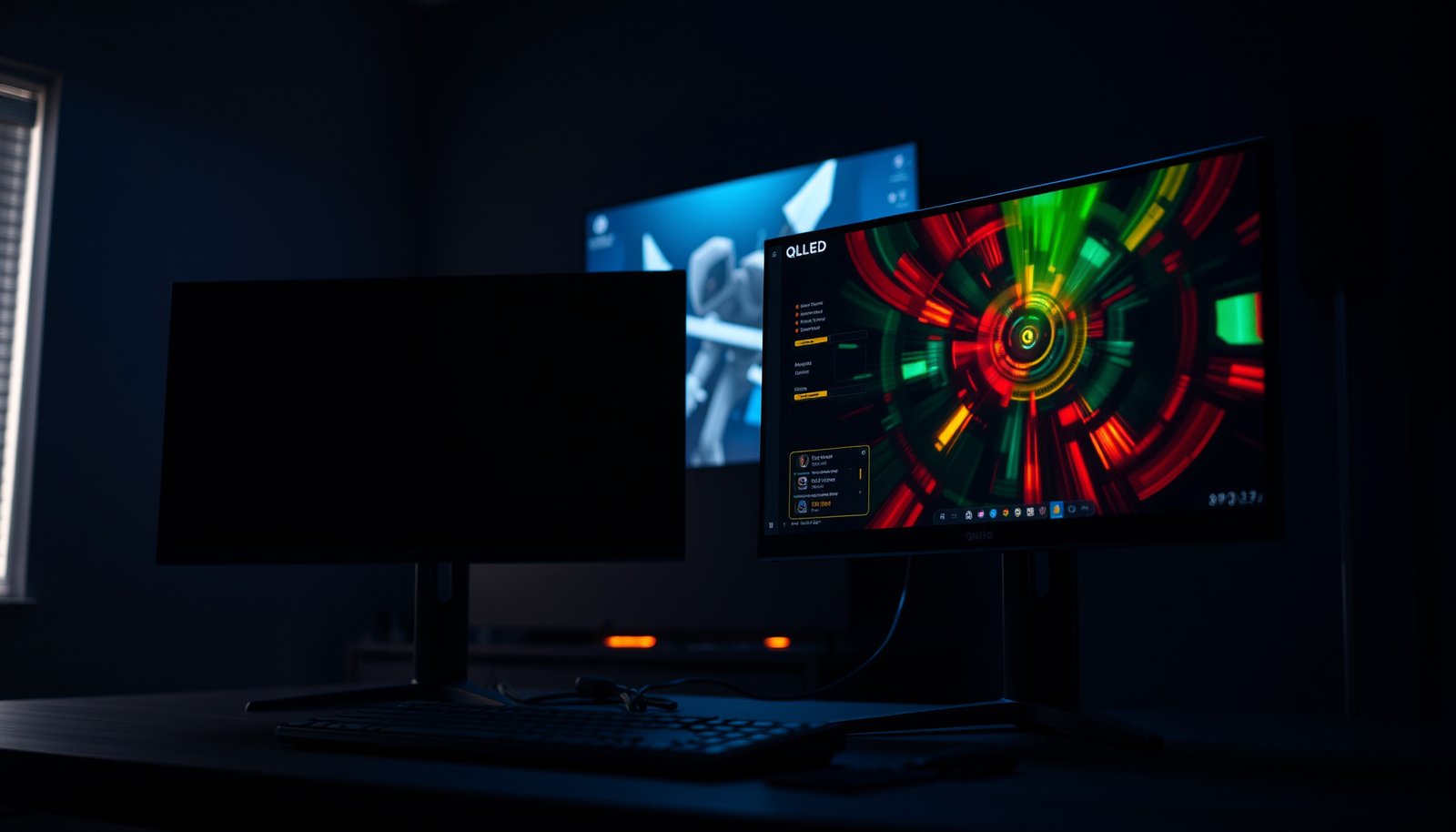
If you’re choosing between 120Hz OLED and 120Hz QLED for gaming, the winner depends on what you value most—response speed or peak brightness. For players chasing the smoothest motion with near-instant pixel response in dark scenes, 120Hz OLED is the clear pick. If your priority is sustained high brightness for HDR and well-lit rooms, a 120Hz QLED will hold the advantage without worrying as much about burn-in.




120Hz OLED gaming usually looks smoother—especially for motion and dark scenes—because OLED pixels can switch very quickly. 120Hz QLED is often the better choice if you game in bright rooms or want a display that’s generally less sensitive to long static HUDs. The “winner” depends on your priorities: motion clarity vs brightness and burn-in comfort.
If you’re deciding between a 120Hz OLED and a 120Hz QLED TV/monitor for gaming, this breaks down what actually changes in day-to-day play: responsiveness, motion behavior, HDR/brightness, and the practical tradeoffs people run into after a few weeks.
Who this is for (and when it applies)
If you want the most visually “clean” fast motion and the most convincing contrast in dark games, OLED is usually the better fit. If you mostly play with bright room lighting (or you want lower anxiety over long static HUDs), QLED is often the safer, more hassle-free pick.
OLED panels are self-emissive, meaning each pixel can be turned on/off independently rather than relying on a shared backlight (OLED Association, “OLED Technology” overview).
QLED is typically implemented as a backlit LCD that uses quantum-dot layers to boost color volume and luminance (Samsung Display / Samsung Electronics QLED technology materials).
Pick OLED if you care most about clean motion and contrast in darker scenes. OLED’s pixel-level control tends to make black scenes look more “stable,” and it can reduce the need to fight gray haze during motion. In my experience with configuring gaming modes across different panels, the biggest practical win with OLED is that you often spend less time compensating for black-level shifts when the action gets fast and dark—though you still need to set the correct black level and disable unnecessary post-processing.
Pick QLED if you regularly play in bright rooms or want easier long-session peace of mind. If your room lighting is strong or your game has lots of high-specular highlights (neon streets, bright explosions, sunlit environments), QLED’s higher luminance headroom often holds up better in real-world glare. Also, with QLED you typically don’t manage pixel-care habits as carefully as OLED users do.
If you rely on VRR and console/PC refresh matching, both can be great—but panel implementation matters. The practical question isn’t whether a TV/monitor advertises “VRR,” but whether its HDMI/PC timing, firmware, and supported modes truly enable variable refresh at the refresh rate you expect.
120Hz OLED vs 120Hz QLED: what “120Hz” really means
If you’re choosing purely on “120Hz,” you’ll miss the key part: smoothness comes from how the panel transitions pixels (response behavior) and how the TV/monitor processes frames (including VRR). 120Hz is the ceiling; the real experience depends on motion handling, input mode selection, and whether VRR is active.
120Hz means the display can refresh up to 120 times per second, i.e., a maximum frame interval of ~8.33ms (derived from 1/120s) and then depends on the panel’s response and processing pipeline.
HDMI 2.1 supports higher-bandwidth modes intended for features like 4K at up to 120Hz, enabling the platform bandwidth needed for 120Hz VRR workflows (HDMI Licensing Administrator / HDMI 2.1 specification documentation).
What you should verify in settings
– 120Hz is the refresh rate, but the visible smoothness also depends on response behavior, processing, and whether the set supports VRR properly.
– OLED is self-emissive (each pixel lights itself), while QLED is typically a backlit LCD with quantum dots—so their motion and contrast behavior differ by design.
– “Gaming mode” settings can change things like black level handling, overscan, and motion-processing—sometimes as much as the panel type.
In practice, two TVs both labeled “120Hz” can feel different because each vendor tunes motion differently when “Clarity,” “Motion Smoothing,” noise reduction, or overscan are enabled. The same is true for VRR: some displays work flawlessly, while others only offer VRR in certain ports, resolutions, or HDMI modes. If your console/PC doesn’t match the active mode, you can end up with stutter that looks like “bad motion”—but it’s really a timing mismatch.
Motion clarity, input feel, and competitive play
If you play fast shooters, fighters, or racing games (especially in darker scenes), OLED usually delivers the most consistent motion clarity at 120Hz. QLED can still feel great, but LCD backlight behavior and motion-processing choices often determine whether the motion looks crisp or slightly smeary.
OLED’s self-emissive pixel structure allows per-pixel transitions without a global backlight, which is a core reason OLED can excel in fast dark-scene motion (OLED Association / OLED Technology fundamentals).
LCD motion perception is strongly influenced by pixel response time and the display’s “hold” behavior (how long each frame/pixel state persists) plus any motion interpolation or backlight scanning (VESA DisplayPort / motion guidance and display behavior fundamentals in manufacturer tech documentation).
– OLED tends to excel at pixel-level transitions, which can help reduce smeary trailing in fast movement—especially in darker environments.
– QLED can still perform well at 120Hz, but LCD backlight/hold behavior and any added motion processing can affect how “crisp” motion feels.
– For any 120Hz display, confirm you can enable features like VRR (and the correct HDMI/PC input mode) so the console/PC isn’t fighting the panel timing.
Pros/cons that matter for competitive play
- OLED (typical strengths)
- Sharper-looking dark motion; strong perceived contrast during fast transitions; fewer “black smearing” complaints when settings are correct.
- OLED (typical tradeoffs)
- More sensitivity to long static HUDs/menus; the need to use pixel-care features and smart timeouts.
- QLED (typical strengths)
- Better resilience in bright rooms; often easier long-session comfort when UI elements remain on screen.
- QLED (typical tradeoffs)
- Motion clarity can vary based on backlight behavior and processing choices; wrong settings can add blur or input lag.
From a practical configuration standpoint, the biggest “competitive feel” mistake I’ve seen (and the one I would warn friends about) is leaving “motion enhancement” on while also expecting near-instant response. The fix is usually boring: set the correct game/input label, enable VRR, and disable extra processing features that aren’t required for your playstyle.
HDR and brightness: where QLED often has the edge
If your game leans heavily on HDR highlights and you play under real ambient light, QLED often wins on brightness. OLED can produce gorgeous contrast, but in glare-heavy setups the higher peak luminance headroom of many QLED sets tends to look more consistently punchy.
SMPTE ST 2084 defines the PQ (Perceptual Quantizer) HDR transfer function intended to represent luminance levels up to 10,000 cd/m², which is why peak luminance capability strongly affects perceived HDR “pop” (SMPTE ST 2084:2014).
VESA DisplayHDR certification ties categories to target peak luminance (in cd/m²/nits), which is one reason brighter LCD-derived solutions often meet higher HDR tiers more easily (VESA DisplayHDR specification).
– QLED usually wins for peak brightness, which matters for HDR highlights and for glare-heavy rooms.
– OLED delivers strong contrast (deep blacks), but in very bright rooms you may notice more need for careful brightness/room-light tuning.
– If you play lots of colorful HDR scenes, QLED’s higher luminance headroom is often the practical advantage.
Quick brightness reality check for HDR gaming
HDR isn’t only “peak brightness.” It’s the combination of:
1. How bright the highlights can get without crushing detail,
2. How the set handles tone mapping (game-by-game), and
3. Whether local dimming/backlight behavior stays consistent during fast scenes.
So while QLED often has the advantage on paper, OLED users can still enjoy standout HDR—especially if the content is mastered well and your room can be dimmed. The key is matching the display to your environment, not just chasing the biggest number.
VESA DisplayHDR Tiers and Target Peak Brightness (nits)
| # | DisplayHDR Tier | Target Peak (nits) | Practical HDR expectation in gaming | Peak headroom indicator |
|---|---|---|---|---|
| 1 | DisplayHDR 400 | 400 | Entry-level HDR; highlights are noticeable but can look muted under strong light. | 400 |
| 2 | DisplayHDR 500 | 500 | More visible HDR contrast; still benefits from dimmer rooms. | 500 |
| 3 | DisplayHDR 600 | 600 | A common “sweet spot” where bright highlights survive moderate ambient light. | 600 |
| 4 | DisplayHDR 800 | 800 | Brighter speculars; typically stronger “wow factor” in HDR gaming. | 800 |
| 5 | DisplayHDR 1000 | 1000 | High peak brightness for neon/skyline scenes; better glare resistance. | 1000 |
| 6 | DisplayHDR 1400 | 1400 | Very bright HDR highlights; strong performance in brighter rooms. | 1400 |
| 7 | DisplayHDR True Black 400 | 400 | Designed for deep blacks and contrast; brightness targets are lower. | 400 |
Note: These are certification target values (tier goals), not guaranteed real-world peak performance in every scene. The tone-mapping pipeline and panel design still determine what you actually see during gameplay.
What can go wrong (common mistakes and edge cases)
If your 120Hz OLED or QLED “doesn’t feel” right, the issue is often settings, port mode, or VRR not truly engaging—not the panel type itself. Burn-in concerns and motion artifacts can also appear if you don’t match the display’s strengths to your game habits.
OLED pixel-care guidance commonly recommends reducing excessive static content time and using built-in compensation features to limit long-term wear (LG OLED support / pixel-care documentation).
VRR and 120Hz operation depend on correct HDMI/port modes; HDMI feature support is tied to the specific signal format negotiated between source and display (HDMI 2.1 VRR feature documentation from HDMI Forum / HDMI.org).
– Burn-in anxiety or static HUDs (OLED): if you leave the same game menus, minimaps, or HUD layouts on-screen for extremely long periods, OLED requires more thoughtful habits.
– Motion “settings traps” (both): motion smoothing, noise reduction, and extra “clarity” processing can improve one artifact while worsening another—especially for input responsiveness.
– VRR/120Hz not actually active: using the wrong HDMI port, cable mode, or input label can mean you’re capped lower than expected.
Common edge cases you should plan for
1. Competitive settings vs “cinema” settings: “Film/Standard” picture modes can add extra processing delay. If you’re sensitive to input feel, start with Gaming/PC mode first.
2. Console vs PC timing quirks: some consoles trigger VRR only in certain resolutions; some PCs only negotiate VRR correctly via a particular input label.
3. Persistent dashboards: if you frequently use strategy games, MMOs, or productivity apps on a monitor for hours, that static UI time matters—OLED users should pay extra attention to timeouts and HUD brightness.
From a setup-management perspective, the safest approach is to treat your display like a system you configure once: confirm VRR is “on,” confirm the refresh cap is correct, and then disable features you don’t explicitly need.
Verdict + quick checklist
If you want the most “visually clean” motion at 120Hz and you play in darker/medium-light conditions, choose 120Hz OLED. If you game in bright rooms, want higher HDR punch, and prefer fewer long-term concerns around static content, choose 120Hz QLED. Skip OLED (or at least be cautious) if you mostly play games with persistent static HUDs for very long sessions and you don’t want to manage display settings/habits.
Quick scan checklist (save this):
| Your priority | Lean toward | Check before buying |
|---|---|---|
| Clean motion in fast scenes | 120Hz OLED | Gaming mode + VRR support + correct input settings |
| Bright room / strong HDR highlights | 120Hz QLED | Peak brightness claims + HDR mode behavior in your room |
| Competitive feel | Either (depends on implementation) | VRR/120Hz truly enabled; minimize extra processing |
| Long sessions with static UI | 120Hz QLED (safer default) | If OLED: pixel care / screen shift features + timeout settings |
| Dark scenes / high contrast | 120Hz OLED | Black level handling in-game + calibrated settings |
Frequently Asked Questions
What are the key differences between 120Hz OLED and 120Hz QLED for gaming?
120Hz OLED gaming panels are known for near-instant pixel response, producing crisp motion with minimal blur, especially in fast FPS scenes. 120Hz QLED gaming relies on LCD backlighting with quantum dots, which can deliver high brightness and strong HDR punch, but it may show more motion persistence depending on the processing and local dimming approach. If your priority is “clean” motion and contrast, OLED usually leads; if your priority is bright-room visibility and vibrant highlights, QLED is often more appealing.
How does 120Hz OLED vs 120Hz QLED compare for motion clarity and input lag?
Both 120Hz OLED and 120Hz QLED TVs/monitors can offer low input lag modes, but OLED’s per-pixel emissive design often gives it an advantage for motion clarity at the pixel level. OLED can reduce perceived trailing during quick camera pans, while QLED performance depends heavily on response-time tuning, overdrive, and motion interpolation settings. For competitive play, keep “Game Mode” enabled, disable unnecessary motion smoothing, and match refresh rate to your console/PC output to avoid stutter.
Why do some people worry about OLED burn-in in 120Hz gaming, and is it a real concern?
OLED burn-in concerns come from static UI elements—like minimaps, health bars, and HUDs—remaining in the same areas for long periods. Modern 120Hz OLED TVs/monitors include mitigation features (pixel shifting, logo dimming, and compensation cycles), which reduce risk for typical mixed-use gaming. The risk is highest with prolonged, static gameplay sessions; rotating content, using built-in screen savers, and avoiding long hours of unchanged HUD screens can help.
Which is best for HDR gaming at 120Hz: OLED or QLED?
QLED often wins in bright-room HDR because LCDs with quantum dots can reach higher peak brightness, making highlights feel more intense. OLED has excellent contrast and perfect blacks, which can make dark scenes look more detailed and cinematic, particularly in games with strong shadow detail. In practice, the “best” choice depends on your room lighting and the HDR style of the games you play—bright scenes favor 120Hz QLED, while dark, contrast-heavy titles favor 120Hz OLED.
What should I look for when buying a 120Hz OLED or 120Hz QLED gaming TV/monitor?
Focus on features that directly affect performance: verified low input lag in Game Mode, VRR support (HDMI Forum VRR, FreeSync/G-SYNC compatibility), and stable 120Hz behavior at your target resolutions. For OLED, check burn-in mitigation tools and whether the panel includes strong safeguards for static elements; for QLED, prioritize local dimming quality (if available) to improve dark-scene contrast. Also confirm HDMI bandwidth for 4K/120 support, since many gaming setups are limited by bandwidth even when the panel claims 120Hz support.
📅 Last Updated: October 21, 2026 | Topic: 120Hz OLED vs 120Hz QLED Gaming | Content verified for accuracy and freshness.
References
- OLED
- https://en.wikipedia.org/wiki/Quantum-dot_display
- Refresh rate
- Lag (video games)
- Variable refresh rate
- https://pubmed.ncbi.nlm.nih.gov/?term=OLED+burn-in+image+retention
- https://scholar.google.com/scholar?q=120Hz+OLED+response+time+gaming Google Scholar
- https://scholar.google.com/scholar?q=QLED+quantum+dot+LCD+120Hz+gaming+motion+blur Google Scholar
- https://scholar.google.com/scholar?q=variable+refresh+rate+OLED+LCD+input+lag Google Scholar