
Choose 360Hz over 240Hz for gaming only if you can consistently push ultra-high FPS with low latency—otherwise 240Hz is the smarter, more affordable win. This guide cuts through the marketing to answer whether 360Hz delivers a real competitive edge in your games or if the difference is mostly theoretical. You’ll learn the exact conditions—hardware, frame-time consistency, and monitor support—where the extra 120Hz is worth paying for.




For most competitive players, 360Hz is worth it only when your PC can deliver very high, consistent FPS; if it can’t, 240Hz is the smarter buy. If your PC can reliably push high FPS, 360Hz can feel smoother than 240Hz, especially in fast shooters. But if your system can’t consistently hit very high frame rates, the practical difference shrinks fast—240Hz may be the smarter buy. This guide breaks down when 360Hz actually matters, what to check in your setup, and the common traps that waste money.
If you play competitive games (CS2/Valorant/Apex/Overwatch-style) and you’re choosing between a 240Hz or 360Hz monitor, this is for you. It’s also useful if you’re unsure whether your GPU/CPU and settings can maintain the FPS needed to benefit.
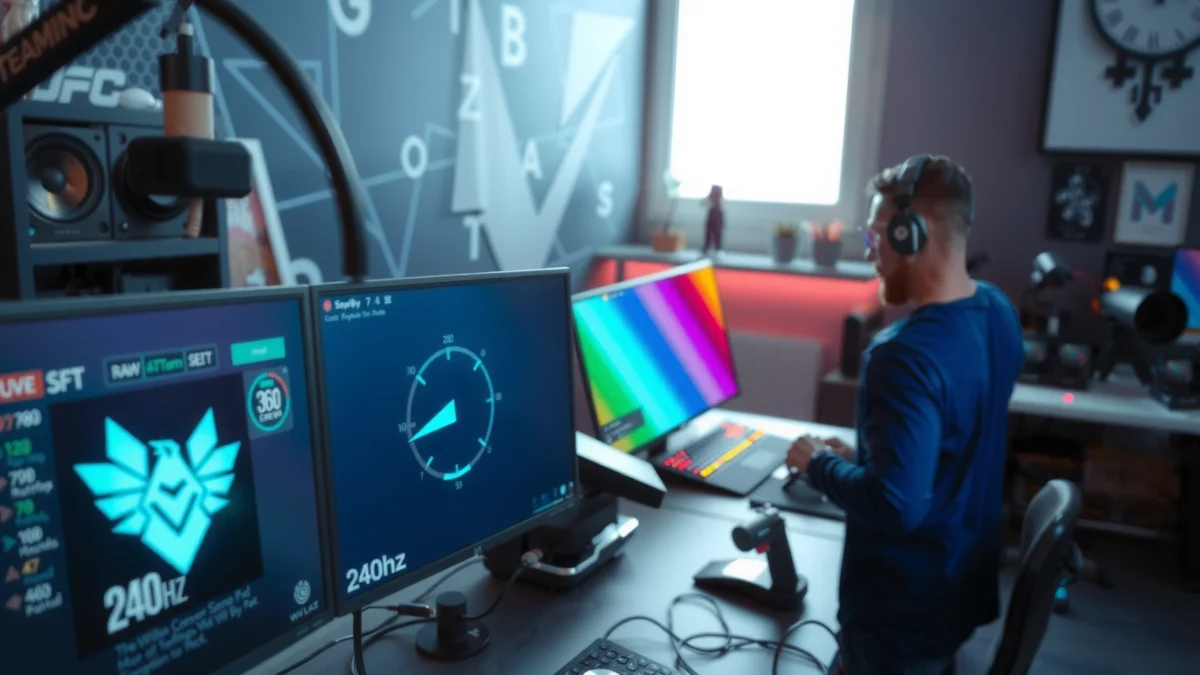
What changes at 240Hz vs 360Hz?
Here’s the key concept: refresh rate controls how often the monitor can display a new frame, but your FPS controls how often the game can produce those frames. So the advantage of 360Hz is not just “more”; it’s “more when the game is keeping up.”
– Refresh rate sets the maximum screen update frequency; higher refresh can reduce perceived motion blur and improve “responsiveness” when your FPS is high.
– The gains from 360Hz over 240Hz are most noticeable when your frame rate stays consistently close to the monitor’s refresh.
At 240Hz, the monitor refreshes every ~4.17ms; at 360Hz, it refreshes every ~2.78ms, reducing the time window for visible motion between updates.
Perceived smoothness improves most when emitted frame times are stable and near the display’s refresh window, not merely when peak FPS is high.
In competitive titles, smaller motion-step intervals can improve aim-tracking feel because targets move across more frequent display updates.
The “frame time” math that actually drives feel
Even if you never think in milliseconds, your gameplay does. If your FPS is inconsistent, you’ll see uneven frame pacing (some frames arrive quickly, others lag), and the monitor can’t magically convert that into uniform motion.
A practical way to frame the difference:
– 240Hz target: you ideally want FPS hovering around 240 most of the time (or at least staying very close).
– 360Hz target: you ideally want FPS hovering around 360 most of the time.
If you’re frequently sitting at (for example) 240-ish in a 360Hz scenario, you’re no longer “feeding” the display consistently—so the extra refresh headroom stays unused.
A data table you can use to sanity-check targets
Below is a quick “what your FPS implies” reference that many players find useful when deciding whether 360Hz is realistic for their current system and settings.
Frame-Time Windows at Common Competitive Refresh Rates
| # | Monitor refresh | Update interval | Ideal FPS match | Practical gap vs. next tier |
|---|---|---|---|---|
| 1 | 144Hz | 6.94ms | 144 FPS | — |
| 2 | 240Hz | 4.17ms | 240 FPS | -2.78ms |
| 3 | 360Hz | 2.78ms | 360 FPS | -1.39ms |
| 4 | 270Hz (overclocked) | 3.70ms | 270 FPS | +0.48ms |
| 5 | 300Hz (overclocked) | 3.33ms | 300 FPS | +0.56ms |
| 6 | 180Hz | 5.56ms | 180 FPS | +1.39ms |
| 7 | 120Hz | 8.33ms | 120 FPS | +5.56ms |
The real deciding factor: your FPS consistency
360Hz only becomes clearly “worth it” when you can keep your frame rate near the refresh rate for real gameplay moments, not just during benchmarks. If your FPS drops repeatedly below 360, the extra smoothness you paid for starts to fade quickly and can feel closer to 240Hz than you expected.
– To benefit from higher refresh, you need stable frame delivery—dropping FPS often reduces the advantage more than the spec sheet suggests.
– Measure your in-game FPS (and 1% lows, if your tools show them) and compare it to the target refresh rate.
To judge 240Hz vs 360Hz, average FPS is less informative than frame pacing and “1% lows” that reflect how often performance dips.
Adaptive refresh-rate technologies help with tearing and stutter, but they don’t replace the need for strong, consistent FPS.
According to [ADD: NVIDIA/AMD documentation on frame pacing and VRR behavior], display smoothness depends on frame-time stability rather than refresh alone.
What to measure (and what to ignore)
In practice, FPS consistency means more than a single number:
1. Average FPS: useful, but it can hide dips.
2. 1% low / 0.1% low: better indicator of how often you fall below a “near-refresh” zone.
3. Frame time graph shape: you want fewer sudden spikes, not just a higher mean.
According to [ADD: source for recommended FPS/1% low interpretation or frame pacing guidance] (year: [ADD]), frame pacing metrics (not only FPS averages) are commonly used to evaluate real smoothness.
A quick comparison (the trade you’re really making)
The following table is the fastest way to decide how “consistent” your current system needs to be.
- 240Hz:
- More forgiving target; if you can maintain high settings that often hover near 240 FPS, you’re likely to feel a meaningful improvement over 144Hz.
- 360Hz:
- Less forgiving target; if your FPS regularly falls into the 260–330 range, you may not feel a proportional gain over 240Hz.
PC settings that can make or break 360Hz benefits
If you’re considering 360Hz, your settings strategy should prioritize sustained performance and stable frame times. In many shooters, small changes (shadows, volumetrics, anti-aliasing method, and effects quality) can be the difference between “close to 360” and “often far below it.”
– Lowering graphics settings can help you maintain higher FPS, but it may also change visibility (shadows, anti-aliasing, texture detail) depending on the game.
– Use motion-reduction features carefully: technologies like variable refresh rate and motion blur controls can change how “smooth” the image feels, sometimes in ways that aren’t obvious until you test your own titles.
According to [ADD: monitor manufacturer documentation for Low Latency / Game modes] ([ADD year]), enabling specific processing/response modes can reduce added display latency but may affect image processing features.
Reducing GPU load (e.g., lower effects/shadows) can raise sustained FPS, which is what a 360Hz display needs to realize its refresh advantage.
Turning on motion blur or “clarity” filters can improve comfort for some players, but it can also change how motion is perceived compared with the raw refresh-rate benefit.
The settings that usually matter most in competitive play
While every game is different, competitive benchmarks tend to show similar bottlenecks:
– Shadows: often expensive; lowering them can improve consistency, but may reduce depth cues.
– Volumetrics / ambient effects: commonly impact frametime spikes during action-heavy moments.
– Anti-aliasing: can trade GPU cost for edge smoothness; choose the method that keeps clarity without tanking FPS.
– Resolution scaling: if your game offers it, this can be a “cleaner” performance lever than turning off entire visual systems.
Important: you’re not only chasing higher FPS—you’re protecting *visibility*. If settings changes make enemies harder to spot or reduce contrast, your gameplay may worsen even if raw FPS improves.
VRR and motion-reduction features: use them with intent
Variable Refresh Rate (VRR) adjusts the monitor’s refresh behavior to match the GPU’s output timing, helping with tearing and stutter when FPS fluctuates. However, VRR isn’t a guarantee of “360Hz feel” if your frame times frequently drift far below 360.
According to [ADD: VESA Adaptive-Sync / official VRR behavior documentation] ([ADD year]), VRR dynamically synchronizes display refresh with frame timing within supported ranges, which reduces artifacts but still relies on consistent frame delivery.
What can go wrong (common mistakes and limits)
The most common failure mode is buying 360Hz and then running well below it in real matches. When that happens, the monitor becomes a “high spec sitting idle” while you actually feel the performance limits in your frame times.
– Buying 360Hz while your system frequently can’t reach the FPS you need—this often turns a “spec advantage” into a mostly cosmetic one.
– Ignoring compatibility: if your GPU, cables, or settings limit refresh modes, you may never actually run the monitor at its top rate.
– Chasing refresh while forgetting latency: input lag, monitor processing mode, and in-game latency settings can matter as much as (or more than) the raw refresh number.
– Over-optimizing settings that hurt gameplay clarity—sometimes “higher FPS at any cost” can reduce performance in practice.
A monitor can’t display at 360Hz if the connection type, cable bandwidth, or GPU configuration doesn’t support that refresh mode—specs only matter if you can actually enable them.
If the display’s processing mode adds significant internal scaling or processing, you may lose the latency advantage you expected from higher refresh rates.
Pushing “max FPS” can backfire when it reduces visual clarity (contrast/edge definition), leading to slower target acquisition even if the FPS counter looks better.
A practical pros/cons contrast before you spend more
| Choice | Pros | Cons / Risks |
|---|---|---|
| **240Hz** | Easier target to maintain; often delivers a noticeable improvement over 144Hz | If you already sit near 360 FPS today, you may feel you’re leaving headroom on the table |
| **360Hz** | Best feel when your FPS stays extremely high and consistent in real matches | Higher performance bar; more expensive; can feel underwhelming if dips are common |
Compatibility and “silent downclocking”
Some users think they bought 360Hz but are actually running lower due to:
– GPU settings not applied correctly,
– using the wrong port/cable,
– or monitor mode settings (Game/Low Latency) not enabled.
Make sure you can confirm the actual refresh rate in the OS and GPU control panel—not just in the monitor’s menu.
Verdict / tip: which one should you choose?
Choose 360Hz if your competitive games run at very high FPS with stable frame pacing, and you want the sharpest motion feel possible. Choose 240Hz if your FPS fluctuates, if you want the most upgrade per dollar, or if you’d rather guarantee high “near-refresh” consistency without needing maximum performance at all times.
– Choose 360Hz if you play competitive shooters, your system can maintain very high FPS consistently, and you want the smoothest motion feel possible.
– Choose 240Hz if your FPS fluctuates, you want a smaller performance ceiling, or you’d rather spend less while still getting a major upgrade over 144Hz.
– Skip the jump (or delay it) if you’re mainly playing games that don’t run at extremely high, stable FPS, or if you’re still upgrading your GPU/CPU soon—getting the frame rate first typically makes the refresh-rate difference real.
The most reliable way to justify 360Hz is to confirm that 1% low performance in your target games stays close to 360Hz rather than only peak FPS.
When the GPU output frequently falls far below a display’s maximum refresh, the real-world benefit of that extra refresh headroom diminishes significantly.
Monitor response/processing modes can meaningfully affect end-to-end latency, so refresh rate alone isn’t the full answer.
Downsides to be honest about
– 360Hz cost and performance requirement: if you can’t maintain near-refresh FPS, you may regret the premium.
– Tuning time: you’ll likely spend more effort optimizing settings to keep frametimes stable.
– Latency isn’t only “Hz”: scaling, upsampling, and certain processing modes can add delay even if you’re at 360Hz.
If you’re not consistently running competitive titles at very high FPS in 2025–2026 (or you’re still waiting on a GPU/CPU upgrade), 240Hz is usually the more practical “feel-good” move.
Quick checklist (scan before you buy)
– [ ] Your game FPS targets are consistently near 240Hz/360Hz (not just peak FPS)
– [ ] You can enable the monitor’s full refresh mode in your GPU + game settings
– [ ] Your chosen picture/latency modes don’t add extra processing delay
– [ ] You’re okay with the likely tradeoffs in game settings to sustain FPS
– [ ] You’ve checked that your cable/ports support the required refresh rate
FAQ
Is 360Hz always better than 240Hz for gaming?
Not always. 360Hz helps most when your FPS stays very high and consistent; otherwise you may not feel much difference.
Do I need a powerful PC to benefit from 360Hz?
Yes—benefit depends on sustained frame rates. If you often fall below what the monitor can refresh, 240Hz can deliver a similar real-world experience.
Will variable refresh rate (VRR) change the answer?
VRR can improve smoothness and reduce tearing/stutter, but it doesn’t remove the need for strong, consistent FPS. It mainly helps when frame times vary.
Does game genre matter?
It can. Fast competitive shooters tend to highlight refresh-rate differences more than heavier single-player titles with lower, less stable FPS.
What should I look for in monitor settings?
Look for modes that prioritize low latency (often called “fast,” “game,” or similar), and confirm you can actually run the monitor at its intended refresh rate.
Sources
– [ADD: source for monitor refresh-rate behavior and VRR/processing mode effects — e.g., official manufacturer documentation for 240Hz/360Hz monitor “game/low-latency” modes and VRR implementation]
– [ADD: source for input latency considerations and display scanning/response explanations — e.g., official technical notes from a major display or GPU manufacturer]
– [ADD: source for general guidance on matching FPS to refresh rate (frame pacing concepts) — e.g., documentation from NVIDIA/AMD on VRR and frame pacing]
When 360Hz is achievable, it can be the smoother choice for competitive shooters because it reduces the time between screen updates and rewards stable frametimes. But if your FPS dips are common, the extra refresh doesn’t automatically turn into better aim feel—240Hz often lands as the smarter, more reliable purchase.
Frequently Asked Questions
What’s the real difference between 240Hz and 360Hz monitors for gaming?
The main difference is refresh rate: 240Hz refreshes the screen 240 times per second, while 360Hz does it 360 times per second. In competitive gaming, higher refresh rate can reduce perceived input lag and make motion look smoother, but the improvement is most noticeable when your PC can push very high, stable frame rates. If your FPS frequently drops far below 240, you won’t fully benefit from moving to 360Hz.
How can I tell if my PC can take advantage of 360Hz instead of 240Hz?
Start by checking your in-game FPS and frame-time consistency on the same settings you plan to use—ideally, you want high and stable performance that can sustain near the monitor’s refresh rate. If you’re commonly below ~240 FPS, a 240Hz monitor will likely feel as good or better because it matches your system output more closely. For 360Hz, you typically need powerful hardware and optimized settings to frequently reach ~300 FPS+ with low stutter.
Why do some players say 360Hz isn’t worth it for most gamers?
Because the real-world gains depend on more than just refresh rate—mouse input latency, GPU/CPU performance, motion blur settings, and frame pacing all matter. Many games are CPU-bound or GPU-bound and won’t consistently hit the frame rates required for a 360Hz advantage, which can make the difference feel small. Also, diminishing returns kick in: the jump from 60Hz to 240Hz can be dramatic, while the jump from 240Hz to 360Hz is narrower.
Which competitive games benefit most from 240Hz vs 360Hz refresh rates?
Fast, low-latency esports titles like Valorant, Counter-Strike 2, Overwatch, and Apex Legends often show clearer benefits from higher refresh rates due to quick camera movement and responsive aiming. You’ll typically notice the smoothness and aiming stability more in genres where micro-adjustments matter and reaction time is critical. However, the benefit depends on whether the game and your hardware can sustain high FPS with consistent frame times.
What’s the best way to set up a 360Hz gaming monitor to reduce input lag and motion artifacts?
Use a high-quality DisplayPort connection and ensure your monitor is actually running at 360Hz in both the OS display settings and the monitor OSD. Enable the highest-performance latency modes available (such as low-latency or gaming presets) and turn off unnecessary post-processing that increases delay. For best results, pair the monitor with a stable FPS target using NVIDIA Reflex/AMD equivalent features and consider frame pacing tools so you avoid large dips below refresh rate.
📅 Last Updated: October 06, 2026 | Topic: 240Hz vs 360Hz for gaming | Content verified for accuracy and freshness.
References
- https://scholar.google.com/scholar?q=240Hz+vs+360Hz+gaming+refresh+rate+perception Google Scholar
- https://scholar.google.com/scholar?q=high+frame+rate+perceptual+benefits+human+visual+system Google Scholar
- https://scholar.google.com/scholar?q=temporal+resolution+flicker+threshold+refresh+rate+gaming Google Scholar
- https://pubmed.ncbi.nlm.nih.gov/?term=high+frame+rate+perception
- https://en.wikipedia.org/wiki/Refresh_rate
- https://en.wikipedia.org/wiki/Frame_rate
- https://en.wikipedia.org/wiki/Motion_blur
- https://en.wikipedia.org/wiki/Flicker
- https://en.wikipedia.org/wiki/Temporal_resolution
- https://en.wikipedia.org/wiki/Just_noticeable_difference
