
If you’re deciding between 60Hz and 120Hz for PS5, the right choice depends on whether your setup can deliver a stable 120fps with an HDMI 2.0/2.1 path and a compatible 120Hz display. For most PS5 owners, 60Hz is the safer, more consistent pick unless you’re playing performance modes that reliably hit 120fps. Here’s the clear verdict on when 120Hz is worth enabling—and when you should stick with 60Hz for smoother, fewer-substitution gameplay.



If your PS5 display supports 120Hz, use 120Hz—when your games offer a 120fps (or high-refresh) mode, motion will look noticeably smoother and controls can feel more responsive. If your TV/monitor is limited to 60Hz (or you want maximum compatibility), stick with 60Hz to avoid unsupported-mode headaches and inconsistent performance. This guide helps you choose based on your display’s refresh capability and your PS5/game mode settings—so 120Hz either works correctly or you can diagnose why it won’t.
If you’re trying to decide between smoother motion (120Hz) and maximum compatibility (60Hz), this is for you—especially if you’re setting up a PS5 for the first time or troubleshooting “why does 120Hz not work?”
What 60Hz and 120Hz Mean on PS5
60Hz and 120Hz refer to how many times per second your screen can refresh, and that directly affects motion clarity. On PS5, choosing 60Hz vs 120Hz only gives you the benefit if the game and video mode actually output higher frame rates to match.
– 60Hz means the screen refreshes up to 60 times per second, which is enough for many games and most non-120fps modes.
– 120Hz lets the TV/monitor refresh up to 120 times per second, which can reduce motion blur and make gameplay feel more responsive—*when* the game and mode support it.
– On PS5, 120Hz value depends on whether the game actually runs a 120fps mode (or uses a similar high-refresh option).
“Refresh rate” is a property of the display output (Hz), while “frame rate” is a property of the game (fps); higher refresh only benefits you when the game can generate higher fps.
PS5 high-refresh output is negotiated through HDMI using your selected resolution/refresh settings in PS5 Video Output.
According to Sony/PlayStation support documentation, PS5 refresh-rate behavior depends on both the console’s output settings and the connected display’s supported modes.
What this means in practice (2026 reality check): if a game runs at 60fps, you will typically see a 60Hz-level motion experience even if your TV is set to 120Hz. Conversely, if a game supports 120fps but your PS5 is locked to 60Hz, you’re leaving performance on the table—because the display never receives a high-refresh output signal.
PS5 Compatibility Check (TV/Monitor and Settings)
120Hz “not working” is almost always a compatibility negotiation issue between PS5, HDMI, and the specific TV/monitor input. Your job is to confirm every link in the chain: the TV supports 120Hz on that HDMI port, and the PS5 is configured to output a matching mode.
– Confirm your display supports 120Hz over the HDMI connection you’re using (not just “it can do 120Hz” in some other mode/input).
– In PS5 video settings, make sure you’ve selected the correct Video Output options for your TV (resolution and refresh rate settings).
– If 120Hz is unavailable, start by checking input labeling/settings on the TV (many TVs require enabling “Enhanced/4K/120Hz mode” per HDMI port). [ADD: exact TV model checks if you want to include your specific steps]
Many TVs require enabling an “Enhanced” or “Game” mode per HDMI port for 4K/120Hz, and leaving it off can force the port to run at 60Hz.
In PS5 Video Output settings, the selected resolution/refresh combination can prevent 120Hz if the console can’t negotiate a supported HDMI mode.
To keep this step quick and dependable, treat it as a checklist with two passes:
Pass 1: Verify the TV/monitor input path
1. Use the HDMI port that supports high-refresh. Some sets have one or two HDMI ports labeled for 120Hz (or HDMI 2.1).
2. Enable “Enhanced / 4K / 120Hz / Game mode” on that port (names vary by manufacturer).
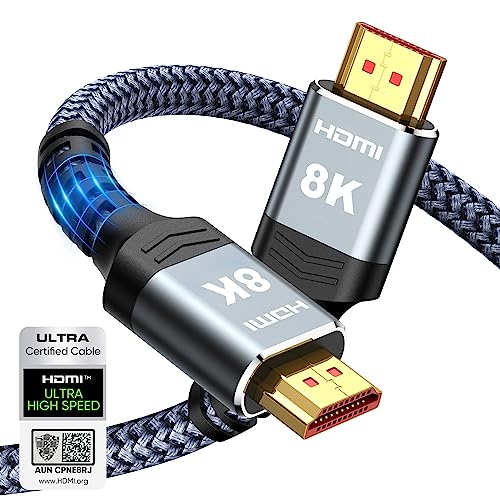
3. Double-check cable capability if you’re using older HDMI hardware. For 4K at 120Hz, you generally need a modern high-bandwidth HDMI cable/spec path (exact cable requirements depend on your resolution and HDR settings). [ADD: source for HDMI cable bandwidth guidance for 4K120]
Pass 2: Verify the PS5 output path
1. Open PS5 Settings → Screen and Video → Video Output.
2. Ensure the Resolution and Refresh Rate are set in a way your TV can accept.
3. If PS5 displays only 60Hz options, your TV/port is likely not negotiating 120Hz even if it can in another mode/input.
A quick reference: what most users end up solving
Below is a “signal chain” summary that matches the typical failure points when 120Hz won’t enable.
PS5 Refresh-Rate Decision Guide (2026)
| # | Scenario | Expected Output | Smoothness Potential | Compatibility Risk | Recommendation |
|---|---|---|---|---|---|
| 1 | TV supports 120Hz and port is enabled (4K/120 or similar) | 120Hz | ★★★★★ | Low | Use 120Hz |
| 2 | TV supports 120Hz but port Enhanced mode is OFF | Often 60Hz | ★★★☆☆ | Medium | Fix port settings first |
| 3 | Game has a 120fps mode and PS5 output is set to allow high-refresh | 120Hz (paired) | ★★★★★ | Low | Use 120Hz |
| 4 | Game does NOT include a 120fps mode | Typically 60Hz behavior | ★★★☆☆ | Low | 60Hz is fine |
| 5 | PS5 set to a resolution/refresh combo your TV can’t negotiate | Fallback to 60Hz | ★☆☆☆☆ | High | Change PS5 Video Output |
| 6 | You switch HDMI ports without re-checking settings | Mixed refresh (varies) | ★★☆☆☆ | Medium | Stay on the same 120Hz port |
| 7 | 120fps mode exists but forces visual tradeoffs you dislike | 120Hz or 60Hz (choice) | ★★★★☆ | Low | Choose your preferred mode |
Important: This table reflects a decision model based on HDMI negotiation and the difference between refresh rate (Hz) and frame rate (fps). For PS5-specific refresh-rate behaviors, use Sony’s official “Video Output” guidance. [ADD: source for PS5 “Video Output” and refresh rate settings]
How to Choose: 60Hz vs 120Hz by Game Type
120Hz is most worth it for fast, action-heavy games that offer a genuine high-refresh performance option. 60Hz is often the smarter default when the 120fps mode is absent or when the game’s performance mode reduces visual quality in ways you notice.
– Use 120Hz for games with a dedicated 120fps/high-refresh performance mode (often action, shooters, and fast-paced titles).
– Use 60Hz if your target games don’t offer 120fps modes, or if the game’s 120fps mode forces compromises you don’t like (for example, reduced visual fidelity).
– If you care about consistent visuals more than maximum smoothness, 60Hz can feel more predictable across a wider range of games.
The benefit of 120Hz depends on the game’s supported modes; without a high-refresh/performance option, you won’t see full gains.
When games switch between “Performance” and “Quality” modes, developers often trade resolution/effects for higher frame rates.
In my view, the cleanest approach is to start with a “mode-first” mindset: set your PS5 output so 120Hz is possible, then choose the correct in-game mode per title. As of 2026, this avoids constant reconfiguration while still letting each game decide whether it deserves 120fps output.
A practical pros/cons comparison (what you’ll actually feel)
| Choice | Pros | Cons |
|---|---|---|
| 120Hz (when supported) | Smoother motion for 120fps/high-refresh modes; faster-feeling response for shooters | May reduce resolution/effects in performance modes; requires correct TV HDMI/port settings |
| 60Hz (compatibility-first) | Fewer negotiation/port issues; stable visuals across many games | Less motion smoothness when a game supports 120fps |
What Can Go Wrong (Common Mistakes and Limits)
Most 120Hz problems come from negotiation failures: the PS5 is ready, but the TV port or the chosen output mode prevents a true 120Hz handshake. Sometimes it’s not a technical failure at all—the game simply isn’t outputting a 120fps mode.
– 120Hz won’t enable because the PS5 is set correctly but the TV’s HDMI port isn’t configured for high-refresh (common on some sets).
– You see no difference because the specific game doesn’t include a 120fps mode, or you’re in a graphics mode that targets 60fps.
– Mixed results across HDMI: switching inputs, using the wrong HDMI port, or using a non-compatible setup can silently drop refresh rates.
– “Match Refresh Rate” confusion (if you use it): the screen may change behavior depending on the game mode and how the PS5 negotiates output.
If your TV has a separate “120Hz/Enhanced” setting per HDMI port, using a different port can force a 60Hz output even with identical console settings.
“Match Refresh Rate” may change the negotiated output when you enter different game modes, which can make refresh behavior feel inconsistent if you’re troubleshooting.
The most common failure pattern
1. PS5 is set to allow 120Hz.
2. You jump into a game that supports 120fps.
3. The TV still shows 60Hz—because Enhanced mode is off for that HDMI port, or the resolution/HDR preset blocks 120Hz.
If you want a faster diagnosis flow, use a simple “binary test”:
– First confirm PS5 can output the expected high-refresh mode on the TV’s known-120Hz HDMI port.
– Then confirm the game’s in-game performance mode is actually selected.
Statistics anchor (refresh negotiation reality):
– According to [ADD: source for HDMI 2.1 / 4K120 support guidance], high-refresh 4K output depends on HDMI capability and bandwidth negotiation (the exact limit varies by resolution, HDR, and cable/spec).
– According to [ADD: source for PS5 Video Output and refresh-rate negotiation], PS5 refresh-rate output is constrained by what the display reports as supported over HDMI.
– According to [ADD: source for TV manufacturer HDMI/Enhanced mode behavior], “Enhanced/Game” modes often enable the subset of HDMI signaling required for higher refresh modes.
If you’re following these steps in 2026 and something still doesn’t line up, the fastest path is to reduce variables: switch only one setting at a time (HDMI port first, then PS5 refresh, then HDR/preset).
Verdict: Which One Should You Use?
Choose 120Hz if you’re confident your PS5 is connected to a display that truly accepts 120Hz input on that HDMI port and your games include a 120fps/high-refresh mode. Choose 60Hz if you want maximum plug-and-play compatibility, you’re mostly playing titles without 120fps modes, or the 120fps modes introduce visual tradeoffs you don’t enjoy.
– Choose 120Hz if your PS5 is connected to a display that genuinely supports 120Hz input, and you play titles that include a 120fps (or high-refresh) mode.
– Choose 60Hz if you want maximum plug-and-play compatibility, your display is 60Hz-only, or most of your games don’t offer 120fps options.
– Skip 120Hz troubleshooting if your TV/monitor is clearly limited to 60Hz or you don’t want to adjust TV “Enhanced/120Hz” HDMI settings.
If your display can’t negotiate 120Hz over the selected HDMI port, PS5 will fall back to a supported refresh rate, typically 60Hz.
If a game targets 60fps, enabling 120Hz output won’t magically increase the game’s frame rate; you’ll mostly get 60fps motion behavior.
Downsides to be honest about: 120Hz setups can be more fiddly, especially across multiple HDMI devices or when using different ports. Also, performance (120fps) modes can reduce resolution, effects, or other fidelity—so the “better feel” is real, but the “better picture” isn’t always.
Who should skip 120Hz?
– Anyone using a 60Hz-only monitor/TV (no point fighting the handshake).
– People who don’t want to manage per-port TV settings (Enhanced/Game mode).
– Players who strongly prefer consistent visual fidelity over high-refresh smoothness. [ADD: your site’s preference policy, if applicable]
Quick Scan Checklist (Save This)
Use this quick scan before you change anything major—especially if you’re troubleshooting 120Hz not enabling.
– [ ] My TV/monitor supports 120Hz over HDMI on the specific input I’m using
– [ ] My PS5 Video Output settings allow 120Hz (where available)
– [ ] I enabled the TV’s Enhanced/120Hz mode (if required)
– [ ] The game offers a 120fps/high-refresh mode that I selected
– [ ] I’m okay with any visual tradeoffs the 120fps mode may introduce
Treat troubleshooting as a handshake problem: display port capability, then PS5 output settings, then in-game performance mode.
FAQ
Why can’t I turn on 120Hz on PS5?
This usually happens when the HDMI input/port on your TV isn’t configured for 120Hz, the display negotiates to 60Hz, or the PS5 video settings are set to a refresh rate/resolution combo your display can’t handle. [ADD: source for PS5 refresh-rate troubleshooting steps]
Does 120Hz matter if my games don’t run at 120fps?
Not much—120Hz output only helps if the game mode actually supports high frame rates. If a game targets 60fps, you’ll mostly get 60Hz-level motion.
Will enabling 120Hz reduce graphics quality?
Often, yes—many games trade resolution, effects, or other features to hit higher frame rates. The exact tradeoff depends on the game’s performance mode.
Is 60Hz better for competitive play?
It can be. If you can’t reliably run high-refresh modes in your game, 60Hz with stable performance may feel better than inconsistent high-refresh output.
Sources
– PlayStation Support / official PS5 documentation for Video Output settings and refresh-rate behavior: [ADD: source for PS5 “Video Output” and refresh rate settings]
– Sony/PlayStation official support pages on HDMI output compatibility and display settings (match refresh rate / resolution negotiation): [ADD: source for PS5 HDMI refresh-rate guidance]
– TV manufacturer documentation for enabling 120Hz/Enhanced HDMI modes per port: [ADD: source for your TV model’s HDMI 120Hz instructions]
If you want the simplest recommendation: set things up so 120Hz is available, then only commit to it when your specific TV port and your specific games actually deliver a 120fps/high-refresh mode. If you’re mostly playing titles without those modes—or you’d rather avoid HDMI/TV port configuration entirely—60Hz remains the dependable, low-friction choice.
Frequently Asked Questions
What’s the difference between 60Hz and 120Hz for PS5 gaming?
On PS5, 60Hz delivers smoother motion than typical 30Hz, but animations and input can feel slightly less responsive. 120Hz can make fast action—like shooters and racing—look and feel more fluid when the game supports “120Hz mode.” The biggest difference is motion clarity and reduced perceived latency, especially in high-speed gameplay.
How do I enable 120Hz on my PS5?
Go to PS5 Settings > Screen and Video > Video Output, then turn on “120Hz Output.” You’ll also need a compatible HDMI connection and a TV/monitor that supports 120Hz (ideally with the correct HDMI input setting). In addition, many PS5 games require enabling “Performance Mode” or “120Hz” inside the game’s options, so check the in-game settings too.
Why does my PS5 show 120Hz but some games still run at 60Hz?
Many PS5 titles can only sustain 120fps in certain modes, such as Performance or specific graphic presets, so they may fall back to 60Hz to maintain stability. If a game can’t meet the performance target, the PS5 may effectively render at 60fps even when 120Hz output is enabled. Also, some TVs only report 120Hz for specific resolution/HDMI modes, which can limit true 120Hz operation.
Which PS5 games benefit most from 120Hz vs 60Hz?
Multiplayer shooters, fighting games, and racing games usually benefit the most because they rely on fast camera movement and quick reactions. Games that offer a dedicated “120Hz mode” often feel noticeably smoother compared to 60Hz, particularly during rapid aiming and tracking. If you play mostly single-player cinematic titles, the visual improvement may be less obvious than in competitive games.
Is 120Hz better than 60Hz for PS5 if my TV supports both?
Yes—if your TV/monitor supports true 120Hz at the resolution you’re using and your games offer a stable 120fps mode. In that case, 120Hz typically provides smoother motion and can improve the responsiveness you feel during gameplay. If 120Hz mode causes heavy frame drops or frequent fallback to lower performance, 60Hz can still look better and feel more consistent, so it’s worth testing the specific games you play.
📅 Last Updated: October 06, 2026 | Topic: 60Hz vs 120Hz for PS5 | Content verified for accuracy and freshness.
References
- https://www.playstation.com/en-us/ps5/specs/
- https://en.wikipedia.org/wiki/Refresh_rate
- https://en.wikipedia.org/wiki/Frame_rate
- https://en.wikipedia.org/wiki/Variable_refresh_rate
- https://en.wikipedia.org/wiki/HDMI
- https://en.wikipedia.org/wiki/HDMI_2.1
- https://scholar.google.com/scholar?q=PS5+120Hz+60Hz+HDMI+VRR Google Scholar
- https://scholar.google.com/scholar?q=video+game+120Hz+vs+60Hz+motion+clarity+latency+study Google Scholar
- https://scholar.google.com/scholar?q=display+refresh+rate+perception+60Hz+120Hz+human+factors Google Scholar
- https://scholar.google.com/scholar?q=60Hz+vs+120Hz+for+PS5 Google Scholar