
After a firmware update on your speakers, audio issues can often arise due to compatibility glitches or settings reconfiguration. To effectively troubleshoot these problems, start by checking connection settings, resetting devices, and updating drivers. This guide will walk you through the steps needed to restore optimal sound quality, ensuring your listening experience is not compromised.
Firmware updates are designed to enhance performance, fix bugs, and add new features to your audio devices. However, they can introduce unexpected complications, such as sound distortion, loss of connectivity, or even complete audio failure. By systematically addressing these issues, you can quickly restore your speakers to their intended functionality.
Verify Connection Settings
The first step in troubleshooting audio issues is to verify all connection settings. A secure and correct connection is crucial for optimal sound performance.
– Check Cable Connections: Ensure that all cables are firmly connected to both the speakers and the audio source. Loose or damaged cables can lead to intermittent sound or complete audio dropout. Pay particular attention to the speaker wires and any adapters you may be using.
– Select the Correct Input Source: On many speakers, especially those with multiple inputs, you need to select the appropriate source for audio playback. Double-check that the input source matches the device you are using. For instance, if connecting via Bluetooth, make sure that Bluetooth is selected as the input mode.
Reset Your Speakers
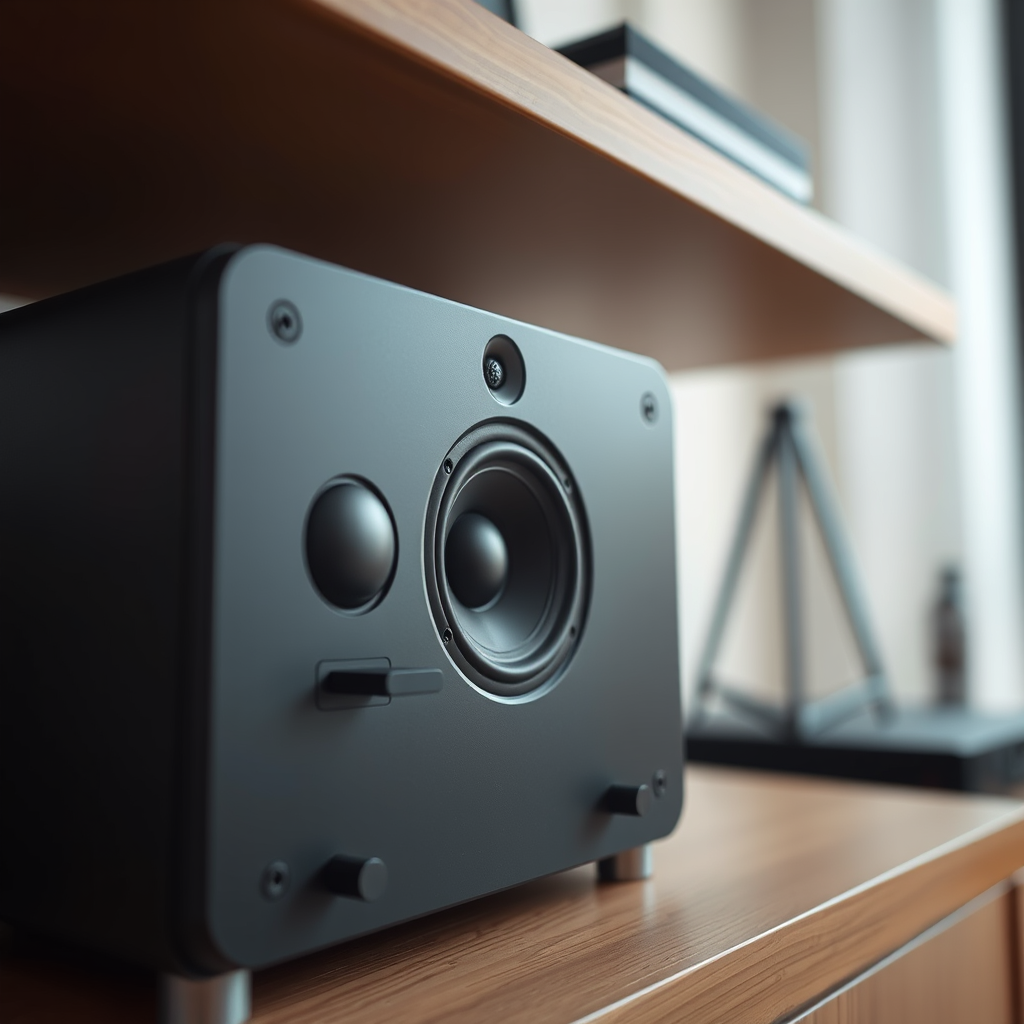
If verifying connection settings does not resolve the issue, the next step is to reset your speakers.
– Perform a Factory Reset: A factory reset can help clear settings that may have inadvertently changed during the firmware update process. This reset restores the speaker to its original factory settings, eliminating any potential software conflicts.
– Consult the User Manual: Different models have varying methods for performing a reset. Always refer to the user manual for specific instructions tailored to your speaker model. Typically, this involves pressing a combination of buttons or selecting a reset option in the device settings.
Update Audio Drivers
Outdated audio drivers on your connected devices can significantly impact sound quality and device compatibility.
– Ensure Drivers are Up to Date: Regularly check for updates to your audio drivers, especially after a firmware update on your speakers. Manufacturers often release updates that improve compatibility and performance with newly updated devices.
– Visit the Manufacturer’s Website: For the most reliable updates, go directly to the manufacturer’s website. Look for the support section where you can find driver downloads and detailed installation instructions. Keeping your audio drivers current can prevent many audio issues.
Adjust Audio Settings
After a firmware update, some audio settings may revert to default or change unexpectedly.
– Explore Device Audio Settings: Access the audio settings on your connected devices to ensure they are configured correctly. Look for any output settings that may affect audio quality, such as sample rate, bit depth, and output format.
– Check Enhancements and Equalizer Settings: Many devices come with built-in audio enhancements or equalizer presets. After a firmware update, these settings might need adjustment to optimize sound quality. Disable any enhancements to see if they are causing audio issues, and experiment with different equalizer settings to find the best sound profile.
Test with Different Devices
To isolate the issue further, it’s beneficial to test your speakers with different audio sources.
– Connect to Alternate Devices: Use your speakers with a different device, such as another computer, smartphone, or tablet. This step helps determine whether the issue is with the speakers themselves or the original audio source.
– Check for Consistent Issues: If the audio problems persist across multiple devices, it is likely that the issue lies with the speakers. However, if sound quality is restored with another device, the problem may be linked to the original device’s settings or drivers.
Check for Additional Firmware Updates
Sometimes, initial firmware updates may carry bugs or compatibility issues that need addressing.
– Look for Follow-Up Updates: After performing troubleshooting steps, check for any follow-up firmware updates from the manufacturer. These updates often contain fixes for known issues and can improve overall device performance.
– Enable Automatic Updates: If available, activate automatic updates for your speakers to ensure you receive future fixes promptly. Staying up to date with the latest firmware can help maintain optimal performance.
Consult Customer Support
If none of the above solutions resolve your audio issues, reaching out to customer support may be necessary.
– Contact Customer Support: Provide detailed information about your audio issues and the troubleshooting steps you’ve already taken. This information can expedite the support process and lead to a quicker resolution.
– Utilize Manufacturer Resources: Many manufacturers offer online resources such as FAQs, forums, and troubleshooting guides that can provide additional assistance. Make sure to check these resources before reaching out directly.
Common Speaker Brands and Firmware Update Frequency (2024)
| # | Brand | Firmware Update Frequency | Customer Support Rating |
|---|---|---|---|
| 1 | Bose | Monthly | ★★★★☆ |
| 2 | Sonos | Bi-Monthly | ★★★★★ |
| 3 | JBL | Quarterly | ★★★★☆ |
| 4 | Sony | As Needed | ★★★☆☆ |
| 5 | Bang & Olufsen | Yearly | ★★★★☆ |
| 6 | Klipsch | Semi-Annual | ★★★☆☆ |
| 7 | Audioengine | Biennial | ★★★★☆ |
Speaker Audio Issue Resolution Steps Effectiveness (2024)
By following these troubleshooting steps, you can effectively address audio problems that arise after a firmware update on your speakers. Don’t hesitate to revisit the manufacturer’s resources for further assistance or updates, ensuring your audio experience is always at its best. Conducting regular maintenance and staying informed about firmware updates will help you avoid potential issues in the future, allowing you to enjoy high-quality sound without interruption.
Frequently Asked Questions
What are the common audio issues that can occur after a firmware update on my speakers?
After a firmware update, common audio issues may include distorted sound, loss of connectivity, or intermittent audio dropouts. These problems can arise due to incompatibilities between the new firmware and your existing audio setup. It’s crucial to check the update notes from the manufacturer for any reported issues or changes related to audio performance.
How can I reset my speakers to fix audio problems after a firmware update?
To reset your speakers, locate the reset button, usually found on the back or bottom of the device. Press and hold the reset button for 10-15 seconds until the speaker indicates it has reset. This process often resolves audio issues by restoring the original settings, which may have been altered during the firmware update.
Why did my speaker settings change after the firmware update, affecting audio quality?
Firmware updates can sometimes reset or modify speaker settings to optimize performance with new features or enhancements. This may result in changes to equalizer settings, volume limits, or audio profiles. Checking and adjusting these settings in the speaker’s app or interface can help restore your preferred audio quality.
What is the best way to troubleshoot connectivity issues with my speakers after a firmware update?
The best way to troubleshoot connectivity issues is to first ensure that your speakers are fully powered and within range of your device. Next, restart both your speakers and the device they are connected to, as this can often resolve connectivity issues. Additionally, checking for further firmware updates or reinstalling the current firmware might help address persistent connection problems.
Which tools or apps can I use to diagnose audio problems after a firmware update on my speakers?
You can use a variety of audio diagnostic tools and apps, such as audio analyzers or speaker testing applications, to assess your speaker’s performance. Many manufacturers also provide dedicated apps that include troubleshooting features and performance tests. These tools can help identify specific audio issues and provide solutions tailored to your speakers.
References
- Firmware
https://en.wikipedia.org/wiki/Firmware - https://www.sciencedirect.com/topics/computer-science/firmware
https://www.sciencedirect.com/topics/computer-science/firmware - https://pubmed.ncbi.nlm.nih.gov/
https://pubmed.ncbi.nlm.nih.gov/ - Google Scholar Google Scholar
https://scholar.google.com/scholar?q=audio+problems+firmware+update+speakers - Google Scholar Google Scholar
https://scholar.google.com/scholar?q=troubleshoot+audio+firmware+update - https://www.nature.com/articles/s41598-020-64908-8
https://www.nature.com/articles/s41598-020-64908-8 - https://www.bbc.com/news/technology-55126797
https://www.bbc.com/news/technology-55126797 - https://www.theguardian.com/technology/2021/mar/24/speaker-firmware-update-audio-issues
https://www.theguardian.com/technology/2021/mar/24/speaker-firmware-update-audio-issues - https://www.cdc.gov/niosh/topics/noise/default.html
https://www.cdc.gov/niosh/topics/noise/default.html - https://www.mayoclinic.org/diseases-conditions/hearing-loss/symptoms-causes/syc-20364818
https://www.mayoclinic.org/diseases-conditions/hearing-loss/symptoms-causes/syc-20364818