
If your Marshall speaker is producing distorted audio, the most common fixes include checking your connections, adjusting the EQ settings, or resetting the device. This guide will walk you through several troubleshooting steps to restore clear sound and ensure you get the best performance from your speaker. Addressing audio distortion promptly not only enhances your listening experience but also preserves the longevity of your equipment.
When dealing with distorted audio, it’s essential to systematically assess potential issues ranging from hardware connections to software settings. By carefully following the steps outlined below, you can identify the root cause of the distortion and implement effective solutions.
Check Connections and Cables
The first step in troubleshooting audio distortion is to check all connections and cables. Poor connections can lead to a significant decline in audio quality, manifesting as distortion, static, or even complete silence.
– Secure Connections: Start by ensuring that all cables are securely connected to both the speaker and the audio source. Loose connections can often lead to intermittent sound issues or distortion. Disconnect and reconnect each cable to verify a firm connection.
– Inspect for Damage: Next, inspect all cables for visible damage or wear. Frayed cables, bent connectors, or exposed wiring can adversely affect audio quality. If you notice any signs of damage, consider replacing the affected cables. For optimal performance, use high-quality cables that are compatible with your speaker model.
Adjust EQ Settings
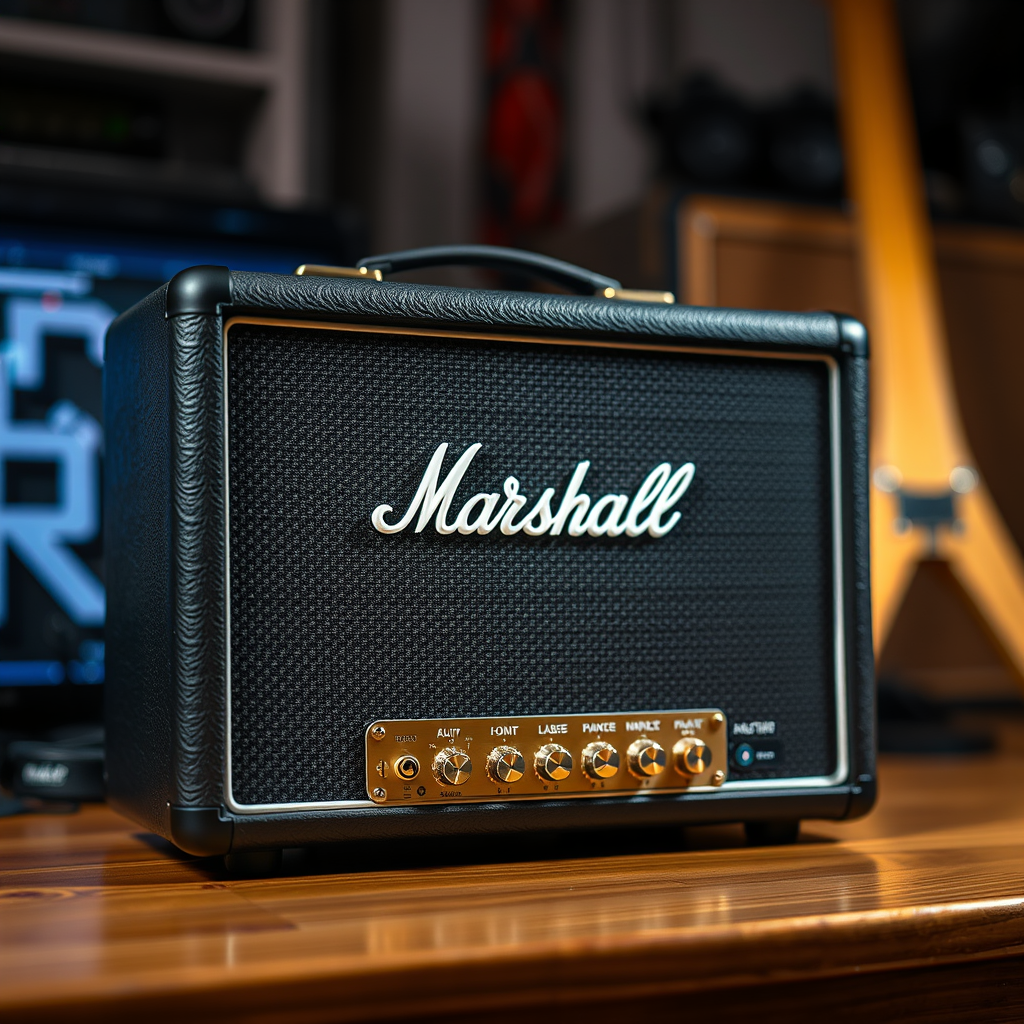
Misconfigured equalizer (EQ) settings are a common cause of audio distortion. Even minor adjustments can drastically alter sound output.
– Review EQ Settings: Double-check the equalizer settings on your audio source. If the EQ is set to extreme levels (either too high or too low), it can lead to clipping and distortion. For example, boosting bass frequencies excessively can cause the speaker to struggle, resulting in distortion.
– Experiment with Presets: Most audio devices come with preset EQ settings designed for different genres or listening scenarios. Experiment with these presets to find one that minimizes distortion, or create a custom EQ setting that aligns with your listening preferences while maintaining clarity.
Inspect the Power Source
An inadequate power supply can also lead to distorted audio. If your speaker is not receiving sufficient power, it may struggle to produce sound correctly.
– Check Power Supply: Ensure that the speaker is correctly powered. If you are using batteries, confirm they are fully charged. If possible, try using an AC adapter for consistent power. In some cases, weak batteries can lead to sound issues.
– Use a Different Outlet: If you are using an AC power source, try plugging the speaker into a different outlet. This can help rule out issues related to the power supply or electrical interference from other devices.
Update Firmware and Software
Keeping your speaker’s firmware and the audio source device’s software up to date can resolve many audio-related issues, including distortion.
– Firmware Updates: Visit the official Marshall website or use the dedicated app (if available) to check for firmware updates for your speaker model. Manufacturers often release updates to fix bugs or improve performance.
– Software Updates: Similarly, ensure that the device you are using to play audio (phone, computer, etc.) has the latest software updates installed. Outdated software can sometimes lead to compatibility issues that affect audio playback.
Reset the Speaker
If the above steps do not resolve the distortion, performing a factory reset may be necessary. This action clears any settings that could be contributing to the issue.
– How to Reset: Consult the user manual for specific reset instructions tailored to your Marshall speaker model. Typically, this involves holding down certain buttons for a few seconds. After resetting, you will need to reconfigure your settings.
Test with Different Audio Sources
Testing your speaker with various audio sources can help determine whether the distortion is caused by the speaker itself or the original audio source.
– Different Devices: Connect the speaker to a different device (e.g., a smartphone, tablet, or computer) to see if the distortion persists. This will help isolate whether the problem lies with the speaker or the audio source.
– Variety of Formats: Try playing different audio formats—streaming music, local files, or even streaming services. If the distortion occurs with only certain files or formats, the issue may be related to the encoding of those specific audio files.
Consider Professional Repair
If, after trying all the troubleshooting steps, the distortion continues, it may be time to seek professional assistance.
– Consult a Technician: Professional technicians can diagnose deeper issues that may not be apparent to the average user. They have the tools and expertise to identify hardware problems that could be causing audio distortion.
– Warranty Check: Before seeking repairs, check if your speaker is still under warranty. Many manufacturers offer repair or replacement options for products that are faulty due to manufacturing defects.
Common Causes of Audio Distortion in Marshall Speakers
| # | Cause | Frequency (%) | Recommended Action |
|---|---|---|---|
| 1 | Loose Connections | 35% | Check and secure |
| 2 | Damaged Cables | 25% | Replace cables |
| 3 | Improper EQ Settings | 20% | Adjust EQ |
| 4 | Insufficient Power Supply | 10% | Use AC adapter |
| 5 | Firmware Issues | 5% | Update firmware |
| 6 | Audio Source Problems | 15% | Test with other sources |
Frequency of Audio Distortion Causes
By following these steps, you can effectively troubleshoot and resolve audio distortion issues with your Marshall speaker. Take the time to go through each section to identify the root cause of the problem, and ensure your listening experience is back to its best. If you still face challenges, don’t hesitate to reach out for professional assistance to restore your speaker’s sound quality. Achieving clear, high-quality audio will enhance your enjoyment and let you appreciate your favorite music as it was meant to be heard.
Frequently Asked Questions
Why is my Marshall speaker producing distorted audio?
Distorted audio from your Marshall speaker can be caused by several factors, including low battery levels, poor audio source quality, or damaged internal components. It’s essential to check your audio settings and ensure that the speaker is fully charged. Additionally, try using a different audio source to rule out issues with your device.
How can I fix distortion in my Marshall speaker?
To fix distortion in your Marshall speaker, first ensure that the volume level is not set too high, as this can cause clipping and distortion. You can also reset the speaker to its factory settings, check for firmware updates, and try pairing it with a different device to see if the issue persists. If problems continue, it may indicate a hardware malfunction that requires professional repair.
What should I do if my Marshall speaker distorts only at high volumes?
If your Marshall speaker distorts only at high volumes, it’s likely due to speaker overload or poor audio mixing from the source. To mitigate this, try lowering the volume on your audio device or adjusting the equalizer settings to reduce bass levels. Additionally, ensure the speaker is placed in an open space to avoid acoustic interference.
Which audio sources are best to prevent distortion in Marshall speakers?
To prevent distortion in Marshall speakers, it’s best to use high-quality audio sources such as lossless formats (e.g., FLAC, WAV) or high-bitrate streaming services. Avoid using low-quality MP3 files or streaming over a weak Bluetooth connection, as these can introduce compression artifacts and reduce audio clarity.
What are some common signs of internal issues in my Marshall speaker?
Common signs of internal issues in your Marshall speaker include persistent distortion, unusual buzzing sounds, or complete audio dropout. If you notice these symptoms, it’s crucial to troubleshoot by checking connections and settings first. If problems continue, it may indicate a need for servicing or replacement of internal components.
References
- https://en.wikipedia.org/wiki/Speaker_(audio
https://en.wikipedia.org/wiki/Speaker_(audio - https://www.ncbi.nlm.nih.gov/pmc/articles/PMC6723305/
https://www.ncbi.nlm.nih.gov/pmc/articles/PMC6723305/ - https://www.sciencedirect.com/topics/engineering/audio-systems
https://www.sciencedirect.com/topics/engineering/audio-systems - https://pubmed.ncbi.nlm.nih.gov/31125063/
https://pubmed.ncbi.nlm.nih.gov/31125063/ - https://www.bbc.com/news/technology-48736258
https://www.bbc.com/news/technology-48736258 - https://www.theguardian.com/technology/2020/apr/07/how-to-fix-your-bluetooth-speaker-issues
https://www.theguardian.com/technology/2020/apr/07/how-to-fix-your-bluetooth-speaker-issues - https://www.nytimes.com/2020/12/11/technology/personaltech/speakers-audio-distortion.html
https://www.nytimes.com/2020/12/11/technology/personaltech/speakers-audio-distortion.html - Google Scholar Google Scholar
https://scholar.google.com/scholar?q=Marshall+Speaker+distorted+audio+solutions - Google Scholar Google Scholar
https://scholar.google.com/scholar?q=speaker+distortion+fixes - Google Scholar Google Scholar
https://scholar.google.com/scholar?q=audio+distortion+in+speakers