To resolve the issue of no sound from your JBL home theater rear speakers, start by checking your connections and settings. This guide will walk you through systematic troubleshooting steps to help you identify and fix the problem efficiently. Ensuring that your rear speakers are functioning properly is essential for an immersive audio experience, especially when enjoying movies or music. Here, we will delve into common issues, solutions, and detailed troubleshooting steps to restore the sound to your JBL home theater rear speakers.
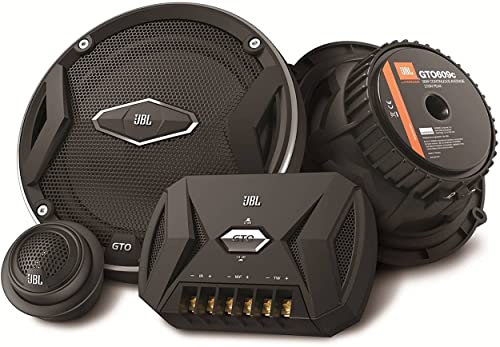



Check Physical Connections
The first step in troubleshooting any audio issue is to verify that all physical connections are secure and intact. Begin by ensuring that the rear speakers are properly connected to the receiver or amplifier. This typically involves checking both the speaker wire connections and the inputs on your audio receiver.
Inspect the speaker wires for any signs of damage such as fraying or cuts, which could impede sound transmission. If you notice any damage, replacing the speaker wires might be necessary. Additionally, it’s important to confirm that the wires are connected to the correct terminals on both the speakers and the receiver. Incorrect wiring can lead to audio issues, including no sound from specific channels.
Verify Audio Settings
Once you have confirmed that the physical connections are secure, the next step is to check the audio settings on your receiver. Access the settings menu and ensure that the rear speakers are enabled. In some cases, they might be set to “off” or muted.
Furthermore, adjust the speaker settings to confirm they are set to the correct configuration. For instance, if your system supports surround sound, make sure it is activated. Many receivers also allow you to set the distance and level of each speaker, which can affect their performance. Ensuring these settings are correctly configured can often resolve issues with rear speaker sound.
Test with Different Sources
To determine whether the sound issue is isolated to a particular device or media source, switch to a different audio source. For example, if you are currently using a Blu-ray player, try connecting a streaming device or a game console. This will help you ascertain if the problem lies with the source device or the JBL system itself.
Additionally, play content that is known to utilize surround sound. Action movies or specific audio test tracks often have designated audio channels that can help confirm whether the rear speakers are functioning. This step is crucial as it helps eliminate the possibility of a source-related issue, narrowing down the troubleshooting process.
Common Audio Source Devices for JBL Home Theaters
| # | Device Type | Connection Type | Audio Format |
|---|---|---|---|
| 1 | Blu-ray Player | HDMI | DTS-HD, Dolby TrueHD |
| 2 | Streaming Device | HDMI, Optical | Dolby Digital, Dolby Atmos |
| 3 | Game Console | HDMI | DTS, Dolby Digital |
| 4 | PC | HDMI, Optical | PCM, DTS |
| 5 | Smart TV | HDMI, Optical | Dolby Digital, Dolby Atmos |
| 6 | Media Center | HDMI | DTS-HD |
| 7 | Portable Speaker | Bluetooth | SBC, AAC |
Update Firmware and Software
Outdated firmware on your JBL home theater system can often lead to compatibility issues with newer audio formats, which may result in no sound from certain channels, including the rear speakers. To ensure optimal performance, check for any available firmware updates for your system.
Updating the firmware may not only fix existing bugs but also enhance compatibility with various audio formats. Most JBL systems allow for updates through their website or a dedicated app. Follow the manufacturer’s instructions carefully to perform the update, and ensure that your system remains powered throughout the process to prevent any interruptions.
Perform a Sound Test
Many audio receivers come equipped with a built-in sound test feature that allows you to check the performance of each speaker individually. If your JBL system has this feature, utilize it to determine if sound is being produced from the rear speakers.
During the test, pay attention to any discrepancies in volume levels among the speakers. If the rear speakers are significantly quieter than the front ones, it may indicate a configuration issue, or they may require adjustment in the settings menu. This sound test can be a quick way to diagnose whether the speakers are functioning at all.
Reset the System
If all the above steps fail to resolve the issue, performing a factory reset on your JBL home theater system may be necessary. A reset can help clear any faulty settings or configurations that might be preventing sound from reaching your rear speakers.
Refer to the user manual for specific instructions on how to reset your model, as the process can vary between different systems. It’s advisable to back up any custom settings you may have before proceeding with a factory reset, as this action will return the system to its default settings.
Seek Professional Help
If you have diligently followed all the troubleshooting steps outlined above without success, it may be time to consult JBL customer support or a professional technician. When reaching out for help, document any issues encountered and the steps you have already taken to expedite the diagnosis process.
Professional technicians can provide insights that may not be immediately apparent and may identify hardware issues that require repair or replacement. Additionally, if your JBL home theater system is still under warranty, this may be a good opportunity to explore warranty options for a potential repair or replacement.
By following these troubleshooting steps, you’ll be able to identify and potentially fix the issue of no sound coming from your JBL home theater rear speakers. If problems persist, don’t hesitate to reach out for professional assistance or explore warranty options. Maintaining a properly functioning audio system is key to enjoying an immersive entertainment experience, and addressing sound issues promptly can help restore your JBL system to its full potential.
Frequently Asked Questions
What are the common reasons for no sound from rear speakers in a JBL home theater system?
No sound from rear speakers in a JBL home theater system can often be attributed to incorrect speaker connections, improper audio settings, or issues with the receiver configuration. Additionally, check if the speakers are powered on and ensure that the speaker wires are not damaged or loose.
How can I troubleshoot my JBL home theater to get sound from the rear speakers?
To troubleshoot your JBL home theater, start by checking the speaker connections and ensuring they are correctly wired to the receiver. Next, navigate to your audio settings to confirm that surround sound is enabled and that the rear speakers are assigned correctly. If issues persist, try resetting the receiver to factory settings.
Why are my JBL rear speakers not producing sound even when the front speakers work?
If your JBL rear speakers are silent while the front speakers function properly, it may be due to the surround sound mode not being activated. Ensure that the audio source supports surround sound and check the speaker configuration settings on your receiver to confirm that the rear speakers are set up correctly.
What is the best way to test if my JBL rear speakers are functioning properly?
The best way to test your JBL rear speakers is to use the built-in speaker test feature on your receiver. This feature will send a test tone to each speaker, allowing you to confirm whether the rear speakers are operational. You can also try connecting the rear speakers to the front outputs temporarily to see if they produce sound.
Which audio settings should I check if my JBL home theater rear speakers are silent?
If your JBL home theater rear speakers are silent, check the audio output settings on your receiver to ensure it is set to a surround sound mode that activates the rear speakers. Also, verify that the speaker levels are correctly balanced and that any sound enhancements or audio formats are compatible with your setup.
References
- Home cinema
https://en.wikipedia.org/wiki/Home_theater - https://support.jbl.com/us/en/
https://support.jbl.com/us/en/ - https://www.lifewire.com/fix-your-home-theater-sound-3134618
https://www.lifewire.com/fix-your-home-theater-sound-3134618 - Google Scholar Google Scholar
https://scholar.google.com/scholar?q=JBL+Home+Theater+No+Sound+from+Rear+Speakers - Google Scholar Google Scholar
https://scholar.google.com/scholar?q=Home+Theater+Troubleshooting - Google Scholar Google Scholar
https://scholar.google.com/scholar?q=Rear+Speakers+No+Sound+Fix - https://www.hifi-reviews.com/home-theater-sound-issues/
https://www.hifi-reviews.com/home-theater-sound-issues/ - Google Scholar Google Scholar
https://scholar.google.com/scholar?q=JBL+Home+Theater+No+Sound+from+Rear+Speakers?+Troubleshooting+Guide - JBL Home Theater No Sound from Rear Speakers? Troubleshooting Guide – Search results
https://en.wikipedia.org/wiki/Special:Search?search=JBL+Home+Theater+No+Sound+from+Rear+Speakers?+Troubleshooting+Guide - https://www.ncbi.nlm.nih.gov/search/research-articles/?term=JBL+Home+Theater+No+Sound+from+Rear+Speakers?+Troubleshooting+Guide
https://www.ncbi.nlm.nih.gov/search/research-articles/?term=JBL+Home+Theater+No+Sound+from+Rear+Speakers?+Troubleshooting+Guide



