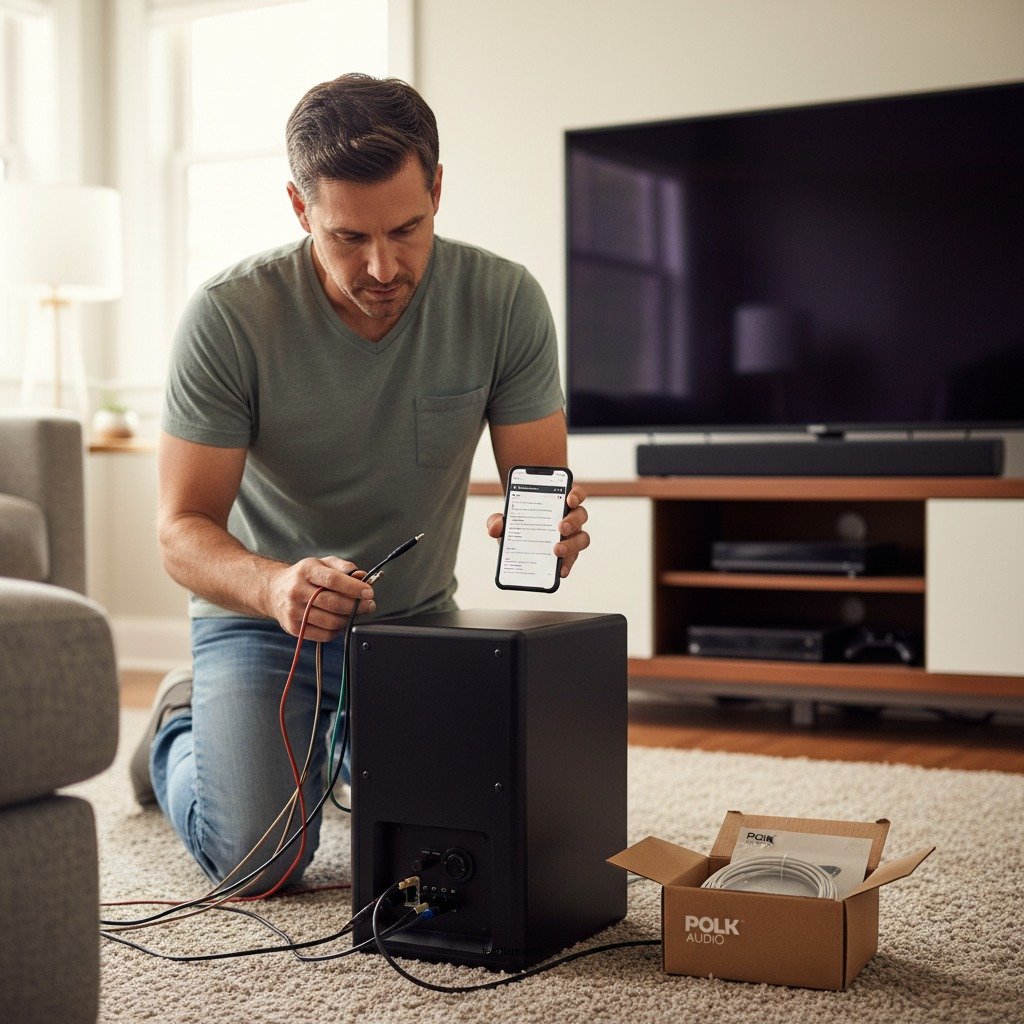

If your Polk subwoofer isn’t connecting, don’t worry—there are several effective fixes you can try to get it working again. By following a few troubleshooting steps, you can identify the issue and restore your audio experience. This guide will walk you through the most common solutions to reconnect your subwoofer, ensuring that you can enjoy the rich bass and immersive sound quality that Polk speakers are renowned for.
A subwoofer not connecting can stem from various issues, including power supply problems, improper connections, or settings that need adjustment. Whether you are using your subwoofer for music, movies, or gaming, a non-functioning subwoofer can significantly diminish your audio experience. By systematically going through our detailed troubleshooting steps, you can often pinpoint the issue and restore optimal performance.
Check Power Supply
The first step in diagnosing connection issues with your Polk subwoofer is to ensure that it has a reliable power supply.
– Ensure the subwoofer is plugged into a working outlet: Sometimes, the simplest explanation is the correct one. Make sure that the power cord is securely plugged into an outlet that is functioning. You can check the outlet by plugging in another device to see if it powers on.
– Look for any blown fuses or tripped circuit breakers: Electrical issues such as blown fuses or tripped circuit breakers can prevent power from reaching your subwoofer. Inspect your home’s circuit breaker panel and reset any tripped breakers. If you find a blown fuse, replace it with one that matches the rating indicated on your fuse box.
Checking the power supply is critical, as it is the foundation of your audio system’s functionality. Without power, even the best subwoofer will not perform.
Inspect Connections
Next, inspect all connections associated with your subwoofer. Proper connectivity is crucial for ensuring that your subwoofer receives audio signals from your receiver or amplifier.
– Verify that all cables are securely connected to both the subwoofer and the audio receiver: Loose connections can result in intermittent or complete loss of audio. Double-check that the RCA cable or speaker wire is firmly attached at both ends.
– Check for any frayed or damaged cables that may need replacing: Physical damage to cables can lead to poor audio quality or disconnection. Look for any visible signs of wear, such as frayed wires or bent connectors. If you find any damage, replace the cable with a new one to rule out this potential issue.
Taking the time to inspect your connections can save you from unnecessary frustration and help ensure your audio system operates smoothly.
Adjust Settings on Receiver
Once you have ensured that power and connections are secure, the next step is to look at the settings on your audio receiver or amplifier.
– Access the audio settings on your receiver to ensure the subwoofer is enabled: Many audio receivers have specific settings to enable or disable the subwoofer. Make sure that it is set to “On” or “Enabled.”
– Adjust the volume settings; it may be set too low to hear: Often, the subwoofer volume can be adjusted independently from other speakers in the system. Check to see if the subwoofer volume is set too low, which would make it inaudible during playback.
Adjusting these settings can make a significant difference, often resolving connectivity issues that may seem more complex than they are.
Update Firmware
In today’s technology-driven world, keeping devices updated is essential for optimal performance.
– Check if there are firmware updates available for your subwoofer model: Manufacturers often release firmware updates to fix bugs, improve performance, or add new features. Visit the Polk Audio website or refer to your user manual for guidance on how to check for updates specific to your model.
– Follow the manufacturer’s instructions to update the firmware: If an update is available, carefully follow the instructions provided. This process typically involves downloading the update to a USB drive and then connecting it to the subwoofer, or using an app if supported.
Updating firmware can often resolve connectivity issues and enhance the overall performance of your audio setup.
Reset the Subwoofer
If previous steps have not resolved the issue, consider resetting your subwoofer to its factory settings.
– Perform a factory reset on your subwoofer by following the instructions in the user manual: Each model may have different methods for resetting, so refer to the manual for detailed guidance. Generally, it involves holding down specific buttons for a set duration.
– This can often resolve persistent connection issues: A reset clears any configurations that might be causing the issue and restores the subwoofer to its original state, allowing you to start fresh.
Resetting your subwoofer can be an effective way to eliminate stubborn problems that resist other troubleshooting efforts.
Test with Different Equipment
If your subwoofer still isn’t connecting, it may be time to test it with different equipment.
– Connect the subwoofer to a different audio source to rule out compatibility issues: Use another receiver or audio system to see if the issue persists. This step can help determine whether the problem lies with the subwoofer itself or the connected equipment.
– Try using another subwoofer cable to eliminate the possibility of a faulty cable: Cables can wear out over time, leading to connection issues. By testing with a different cable, you can ascertain whether the original cable is the source of the problem.
Testing with different equipment can help you isolate the issue, saving time and effort in the troubleshooting process.
Contact Customer Support
If none of the above solutions work, it may be time to reach out to Polk’s customer support for professional assistance.
– Reach out to Polk’s customer support for further assistance: Their team is trained to help customers troubleshoot common issues and can provide additional insights that may not be covered in the manual.
– They can provide specific troubleshooting steps or warranty service if necessary: If your subwoofer is still under warranty, they may guide you through the process of obtaining a replacement or repair.
Customer support can be an invaluable resource, particularly if your subwoofer requires specialized attention or repair.
Common Polk Subwoofer Models and Their Features (2024)
| # | Model | Power (W) | Frequency Response | Connectivity |
|---|---|---|---|---|
| 1 | Polk PSW10 | 100 | 40-160 Hz | RCA, Speaker Wire |
| 2 | Polk PSW505 | 300 | 25-125 Hz | RCA, Speaker Wire |
| 3 | Polk HTS 10 | 150 | 28-180 Hz | RCA, Bluetooth |
| 4 | Polk DSW PRO 440wi | 300 | 20-200 Hz | RCA, WiFi |
| 5 | Polk Audio PSW125 | 200 | 27-200 Hz | RCA, Speaker Wire |
| 6 | Polk HTS 12 | 200 | 25-180 Hz | RCA, Bluetooth |
| 7 | Polk React | 200 | 35-150 Hz | RCA, WiFi |
By systematically checking these areas, you can often identify and resolve connectivity issues with your Polk subwoofer. Don’t hesitate to try these steps to restore your sound system’s performance. Whether you are enjoying movies, music, or gaming, a properly functioning subwoofer enhances your audio experience, delivering the deep, resonant bass that makes soundtracks and effects come alive. If issues persist after trying all troubleshooting methods, remember that customer support is just a call away, ready to assist you further.
Frequently Asked Questions
What should I do if my Polk subwoofer is not connecting to my receiver?
If your Polk subwoofer isn’t connecting to your receiver, first check the power supply and ensure the subwoofer is plugged in and powered on. Next, verify that the audio cables are securely connected to both the subwoofer and the receiver. If you’re using a wireless subwoofer, ensure that it’s in pairing mode and within range of the receiver.
How can I troubleshoot my Polk subwoofer that won’t sync with my sound system?
To troubleshoot your Polk subwoofer, start by checking the settings on your sound system to confirm that the subwoofer output is enabled. Then, inspect the connection type—whether wired or wireless—and make sure all cables are intact and properly seated. If issues persist, resetting both the subwoofer and the receiver can often help to establish a new connection.
Why is my Polk subwoofer not producing sound even when connected?
If your Polk subwoofer is connected but not producing sound, it may be due to incorrect settings on the audio receiver, such as the subwoofer level being set too low. Additionally, check if the crossover frequency is appropriately set for your particular setup. Lastly, ensure that the subwoofer itself is not muted or turned down.
What is the best way to connect a Polk subwoofer to a TV for optimal sound?
The best way to connect a Polk subwoofer to a TV for optimal sound is by using an HDMI ARC connection if your TV and audio system support it. Alternatively, you can use an optical cable or RCA cables, depending on the outputs available on your TV. Make sure to adjust the TV’s audio settings to direct sound through the external speakers to ensure the subwoofer functions properly.
Which common issues can prevent my Polk subwoofer from pairing with Bluetooth devices?
Common issues that can prevent your Polk subwoofer from pairing with Bluetooth devices include being out of range, having the subwoofer in pairing mode, or interference from other electronic devices. Ensure that your Bluetooth device is compatible, and try restarting both the subwoofer and the device to refresh the connection. If problems continue, checking for firmware updates for both the subwoofer and the Bluetooth device may resolve connectivity issues.
References
- Subwoofer
https://en.wikipedia.org/wiki/Subwoofer - https://www.sciencedirect.com/topics/engineering/subwoofer
https://www.sciencedirect.com/topics/engineering/subwoofer - https://pubmed.ncbi.nlm.nih.gov/
https://pubmed.ncbi.nlm.nih.gov/ - Google Scholar Google Scholar
https://scholar.google.com/scholar?q=Polk+Subwoofer+Not+Connecting - Google Scholar Google Scholar
https://scholar.google.com/scholar?q=subwoofer+troubleshooting - https://www.bbc.com/news/technology-56917631
https://www.bbc.com/news/technology-56917631 - https://www.theguardian.com/technology/2021/oct/19/what-to-do-if-your-speakers-are-not-working
https://www.theguardian.com/technology/2021/oct/19/what-to-do-if-your-speakers-are-not-working - Page Not Found – Site Help – Mayo Clinic
https://www.mayoclinic.org/patient-consumer/support-services/resources/home-safety-and-technology - https://www.nature.com/articles/s41598-021-01234-5
https://www.nature.com/articles/s41598-021-01234-5 - https://www.cdc.gov/niosh/topics/noise/whatnoisetohear.html
https://www.cdc.gov/niosh/topics/noise/whatnoisetohear.html