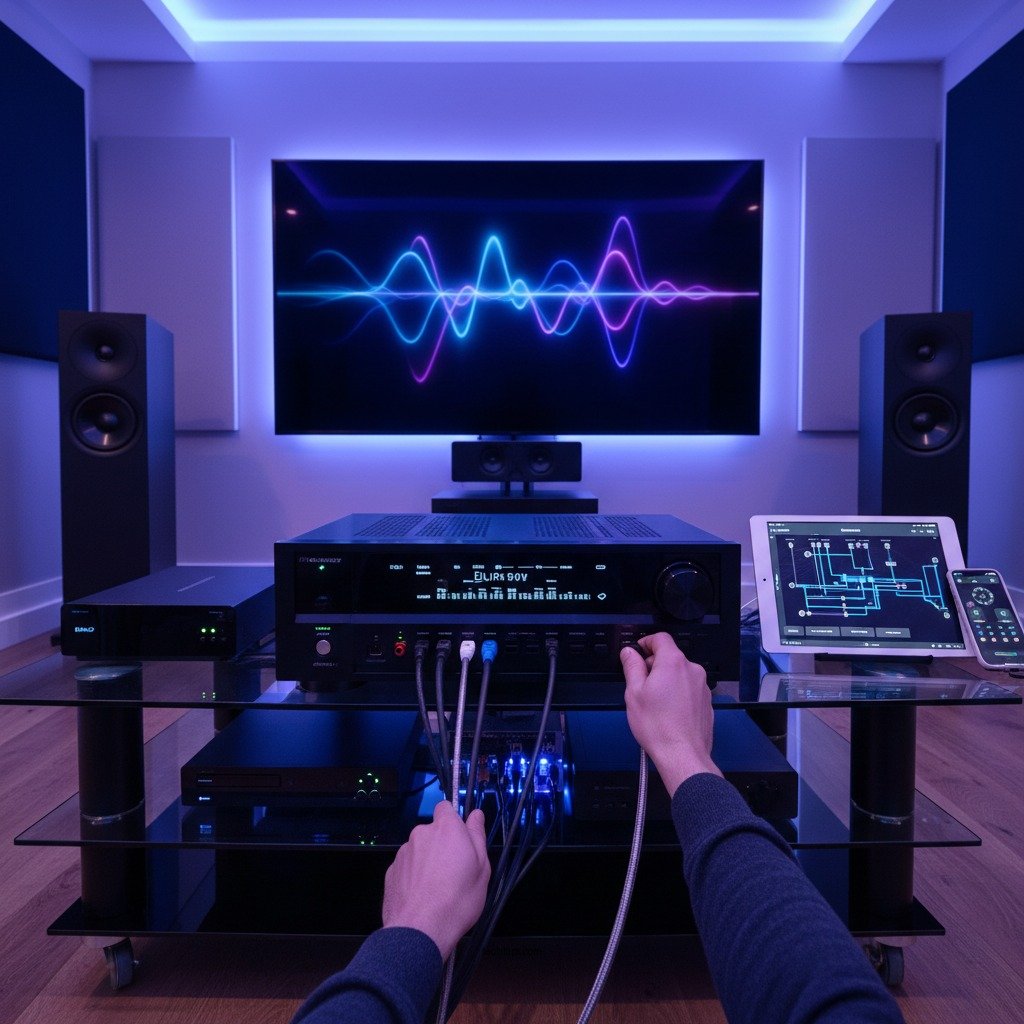

To connect and install multiple audio devices to your AV receiver, it is essential to first identify the available inputs and outputs on your receiver and the types of devices you wish to connect. This guide will walk you through the necessary steps, including wiring, configuration, and troubleshooting to ensure a seamless audio experience. With the right knowledge and tools, you can transform your home audio setup into a high-fidelity sound system that meets all your entertainment needs.
Understanding Your AV Receiver’s Inputs and Outputs
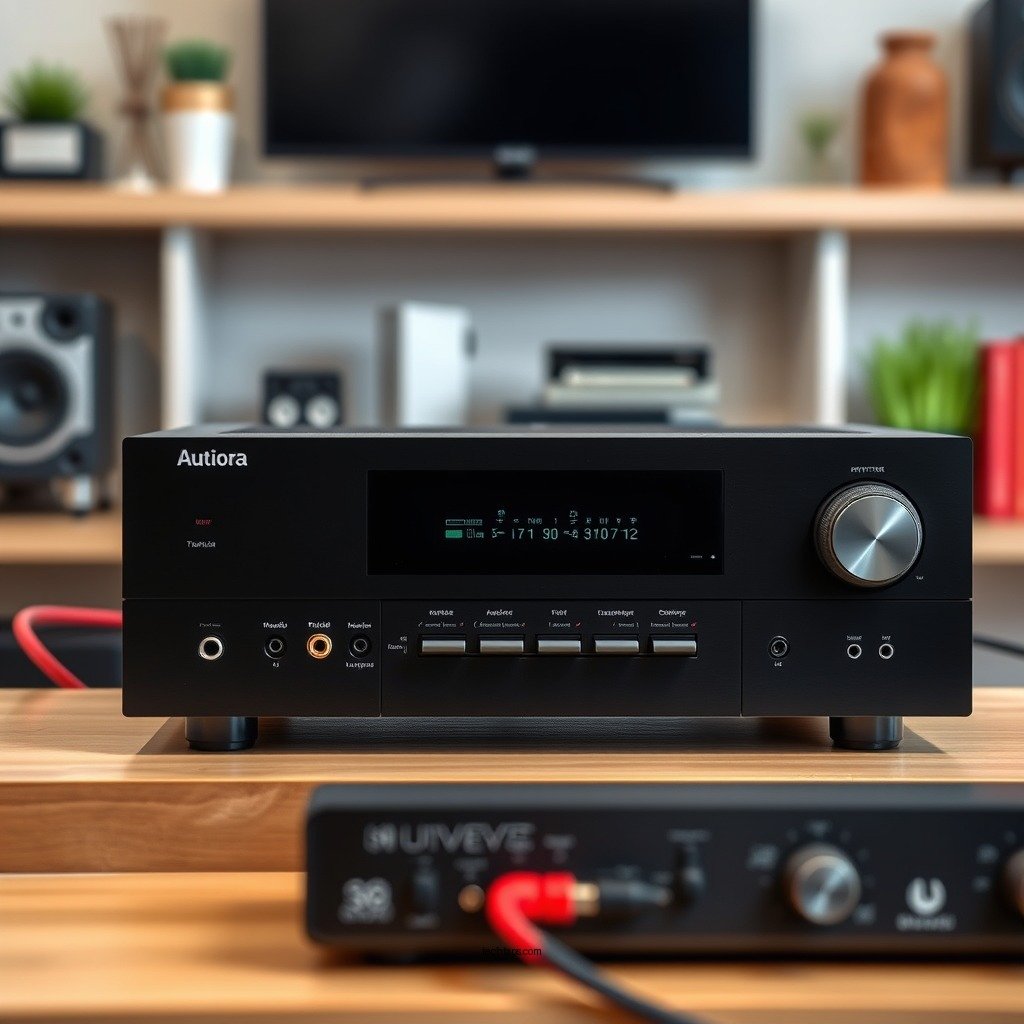
Familiarizing yourself with the various audio input options is crucial for successfully connecting multiple devices. Most AV receivers come equipped with several input types, including HDMI, optical (TOSLINK), coaxial, and analog RCA. HDMI is the most versatile option, supporting both audio and video signals, and is ideal for high-definition devices such as Blu-ray players and gaming consoles. Optical and coaxial inputs are excellent choices for digital audio from devices like soundbars or CD players, while RCA connections are typically used for older devices or simpler setups.
When identifying the number of devices you want to connect, consider both the current and future needs. It’s advisable to have a receiver with enough inputs to accommodate growth, such as adding new gaming consoles or streaming devices down the line. Additionally, take note of the output options for connecting speakers, as this will affect your overall audio experience.
Selecting the Right Cables
Choosing the appropriate cables for each device based on compatibility is a critical step in the installation process. For high-quality sound, HDMI cables are preferred as they support advanced audio formats and ensure minimal signal loss. Optical cables are a good alternative for devices that support digital audio but do not have HDMI connections, while RCA cables are suitable for older, analog devices.
When selecting cables, ensure that the lengths are adequate for your setup. Avoid excessively long cables that can cause clutter and signal degradation. High-quality cables can make a difference in audio performance, so consider investing in reputable brands to ensure durability and optimal sound quality.
Connecting Your Devices
Begin the connection process with your primary audio source, such as your Blu-ray player or gaming console. Connect this device to the designated HDMI input on your AV receiver. It is advisable to label each cable during the installation for easy identification and to simplify troubleshooting in the future.
For additional devices, such as a streaming box or a secondary gaming console, follow the same connection method, ensuring each device is connected to a different input. If your receiver supports HDMI ARC (Audio Return Channel), connect your TV’s HDMI ARC port to the receiver to simplify audio routing from the television back to the receiver.
📋 MANDATORY DATA TABLE
Top 7 Audio Connectors for AV Receivers (2024)
| # | Connector Type | Max Audio Quality | Common Use | Rating |
|---|---|---|---|---|
| 1 | HDMI | High | Blu-ray, Gaming Consoles | ★★★★★ |
| 2 | Optical | Medium | Soundbars, TVs | ★★★★☆ |
| 3 | Coaxial | Medium | DVD Players, Older Devices | ★★★★☆ |
| 4 | RCA | Low | Older Audio Devices | ★★★☆☆ |
| 5 | 3.5mm Jack | Low | Headphones, Portable Devices | ★★★☆☆ |
| 6 | USB | Variable | Digital Music Sources | ★★★★☆ |
| 7 | Ethernet | High | Streaming Devices | ★★★★★ |
Configuring Your AV Receiver
Once all devices are connected, it’s time to configure your AV receiver to ensure optimal performance. Access the receiver’s menu, which can typically be done via the remote control. Look for the audio settings section where you can configure the input settings for each connected device.
Adjust speaker settings, including levels, distances, and crossover frequencies, to match your room’s acoustics. Many modern receivers come with automatic calibration tools that use a microphone to measure sound levels and adjust settings accordingly. Take advantage of these features to achieve a well-balanced audio output that enhances your listening experience.
Troubleshooting Common Issues
Despite careful connection and configuration, you may encounter common issues such as no sound output, delayed audio, or device recognition problems. Start troubleshooting by checking all connections to ensure they are secure and correctly plugged into the appropriate ports. Verify that the receiver is set to the correct input source for the device you are trying to use.
If a device is not recognized, try power cycling both the device and the receiver. Additionally, ensure that all devices are powered on and check their individual settings to confirm they are configured to output audio correctly. If the problem persists, consult the receiver’s manual for advanced troubleshooting steps or customer support options.
Enhancing Your Audio Experience
To further enhance your audio experience, explore additional features of your AV receiver, such as zone control. This feature allows you to manage audio output in different rooms, enabling you to enjoy music in one area while watching a movie in another without interference.
Consider integrating external amplifiers or sound processors into your setup for an improved sound quality that can elevate your audio experience. If you are an audiophile, you might also want to explore high-end speakers and subwoofers that can take your sound system to the next level.
Regular Maintenance Tips
Maintaining your AV receiver and connected devices is crucial for longevity and optimal performance. Regularly check for firmware updates for your receiver to ensure compatibility with new devices and features. Most receivers have an automatic update option, but you can also manually check through the settings menu.
Inspect cables for signs of wear and replace any that are frayed or damaged. Keeping your cables and connections clean can also help reduce signal interference and enhance overall audio quality. Lastly, consider periodically recalibrating your audio settings, especially after moving devices or changing your room’s layout.
Summarizing the steps to connect and install multiple audio devices to your AV receiver can greatly enhance your home audio setup. By understanding your receiver, selecting the right cables, and properly configuring your devices, you can achieve a rich and immersive sound experience. Start optimizing your audio system today by following these steps and enjoy a more dynamic listening experience.
Frequently Asked Questions
How do I connect multiple audio devices to my AV receiver?
To connect multiple audio devices to your AV receiver, start by identifying the available input ports such as HDMI, optical, or RCA. Use the appropriate cables for each device and connect them to the corresponding input on the AV receiver. Make sure to select the correct input source on the receiver to ensure the audio plays from the desired device.
What types of audio devices can be connected to an AV receiver?
You can connect a variety of audio devices to your AV receiver, including Blu-ray players, gaming consoles, soundbars, and streaming devices. Additionally, you can connect vinyl players or digital audio players using the right adapters or cables. Ensure your AV receiver has compatible inputs for each device to achieve optimal sound quality.
Why is my AV receiver not recognizing multiple audio devices?
If your AV receiver is not recognizing multiple audio devices, check to ensure that each device is properly connected and powered on. Additionally, verify that you have selected the correct input source on the receiver and that the devices are compatible with your receiver. Updating the firmware of the AV receiver can also resolve connectivity issues.
What is the best way to set up audio devices for surround sound with an AV receiver?
The best way to set up audio devices for surround sound is to use HDMI connections for optimal audio quality and simplicity. Connect your devices to the AV receiver via HDMI, then configure the speaker settings in the receiver’s menu to match your speaker layout. For a more immersive experience, consider using a setup microphone if your receiver includes one for automatic calibration.
Which cables are best for connecting audio devices to my AV receiver?
The best cables for connecting audio devices to your AV receiver are typically HDMI cables for digital devices, as they carry both audio and video signals. For analog devices, RCA cables are common, while optical cables are ideal for high-quality digital audio connections. Always choose high-quality cables to minimize signal loss and ensure superior sound performance.
References
- https://www.audioholics.com/audio-video-reviews/how-to-connect-multiple-devices-to-a-receiver
https://www.audioholics.com/audio-video-reviews/how-to-connect-multiple-devices-to-a-receiver - https://www.crutchfield.com/S-QZ4hW5D7T0D/learn/how-to-connect-multiple-audio-sources-to-your-receiver.html
https://www.crutchfield.com/S-QZ4hW5D7T0D/learn/how-to-connect-multiple-audio-sources-to-your-receiver.html - https://www.sony.com/electronics/support/articles/00008304
https://www.sony.com/electronics/support/articles/00008304 - Google Scholar Google Scholar
https://scholar.google.com/scholar?q=How+to+Connect+and+Install+Multiple+Audio+Devices+to+Your+AV+Receiver - Google Scholar Google Scholar
https://scholar.google.com/scholar?q=AV+Receiver+Multiple+Audio+Connections - Google Scholar Google Scholar
https://scholar.google.com/scholar?q=AV+Receiver+Setup+and+Audio+Devices - https://www.edmunds.com/car-stereo/how-to-connect-multiple-audio-devices.html
https://www.edmunds.com/car-stereo/how-to-connect-multiple-audio-devices.html - How to Connect and Install Multiple Audio Devices to Your AV Receiver – Search results
https://en.wikipedia.org/wiki/Special:Search?search=How+to+Connect+and+Install+Multiple+Audio+Devices+to+Your+AV+Receiver - https://www.ncbi.nlm.nih.gov/search/research-articles/?term=How+to+Connect+and+Install+Multiple+Audio+Devices+to+Your+AV+Receiver
https://www.ncbi.nlm.nih.gov/search/research-articles/?term=How+to+Connect+and+Install+Multiple+Audio+Devices+to+Your+AV+Receiver