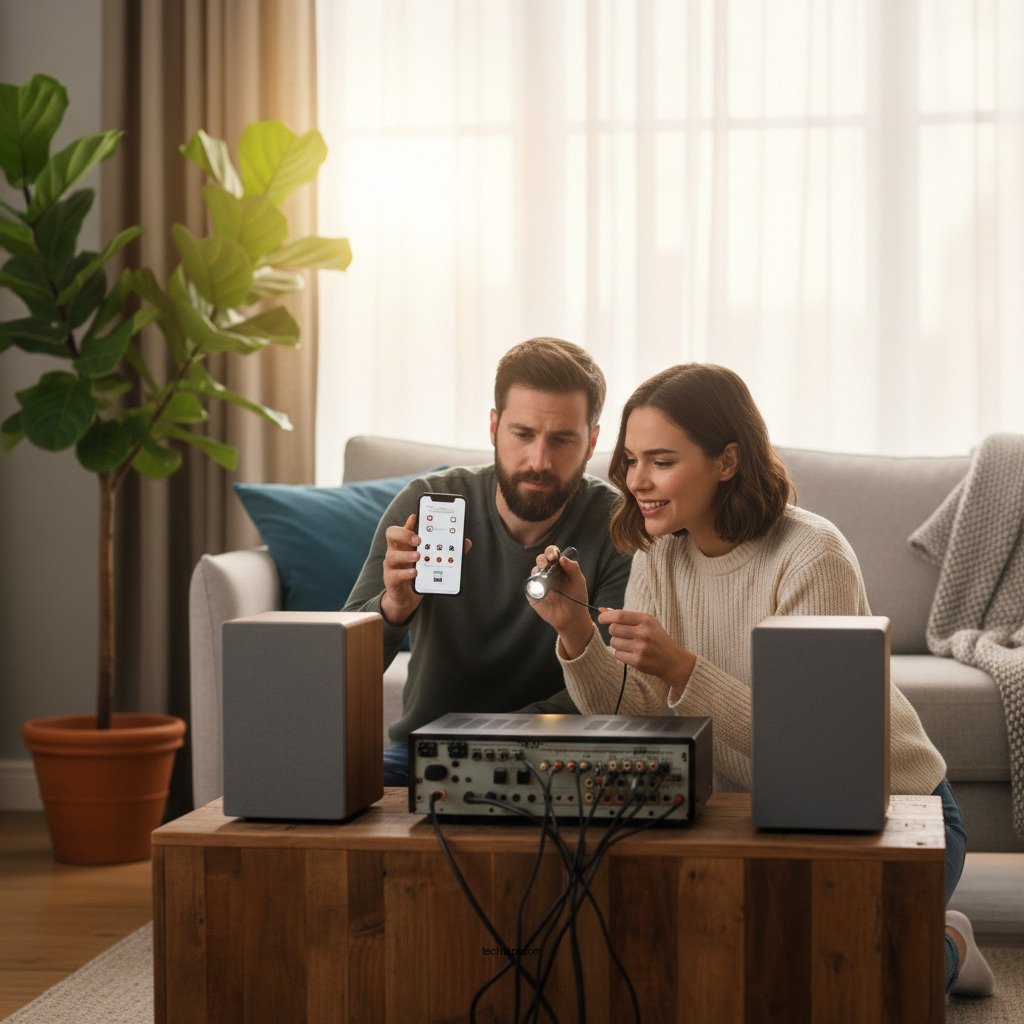
If your home audio system has no sound, the issue could be as simple as a loose connection or a setting on your device. In this article, we’ll explore common reasons for no sound and provide practical solutions to get your audio system back up and running. Understanding the intricacies of your audio setup is essential for diagnosing the problem efficiently and restoring your listening experience.




Common Causes of No Sound
Experiencing no sound from your home audio system can be frustrating, but it often stems from common issues that are relatively easy to identify and rectify. One of the primary culprits is loose or disconnected cables. If any cables connecting your speakers, receiver, or source devices are not firmly plugged in, the audio signal may not reach the speakers.
Additionally, incorrect input settings on your audio system or connected devices may lead to silence. For instance, if your receiver is set to the wrong input source, it won’t receive audio from the intended device. Other potential causes include faulty hardware, such as damaged speakers or receivers, and software issues, including settings that have inadvertently been adjusted.
Checking Connections
The first step in diagnosing audio issues is to check all physical connections. Ensure all speaker wires and cables are securely connected, as loose connections are a frequent source of audio problems. Inspect the back of your audio receiver and the speakers, ensuring that each wire is affixed tightly and that there are no frayed ends or corrosion.
Moreover, it is crucial to inspect any HDMI, optical, or audio cables for damage or wear. If you notice any signs of wear, such as cuts or kinks in the cable, replacing them may resolve the issue. Additionally, if you are using extension cables, ensure they are of good quality and compatible with your audio system.
Device Settings and Configuration
Once you’ve verified all physical connections, the next area to examine is the device settings and configuration. Begin by verifying that the correct input source is selected on your audio receiver or TV. Many receivers have multiple input options, and it’s easy to mistakenly select the wrong one.
Next, check the volume levels on both your audio system and the connected devices. Ensure that the volume is turned up and that none of the devices are muted. It’s also worthwhile to check the audio settings on your media source, whether it’s a streaming device, Blu-ray player, or gaming console, as these settings can sometimes override your receiver’s output.
Troubleshooting Individual Components
If you’ve checked connections and settings but still don’t have sound, it’s time to troubleshoot individual components. Start by testing your speakers independently. If available, connect a different speaker to the same output to determine whether the speaker itself is the issue.
Additionally, restart your audio system and all connected devices. Unplugging the devices for a minute before powering them back on can help reset any potential glitches that might be causing the sound issue. Simple reboots often clear out minor software bugs and may restore your audio functionality.
Common Audio System Issues and Solutions
| # | Issue | Possible Cause | Solution | Severity |
|---|---|---|---|---|
| 1 | No sound from speakers | Loose connections | Check and secure all cables | High |
| 2 | Audio but no bass | Subwoofer issues | Check subwoofer settings and connections | Medium |
| 3 | Sound distortion | Overdriven speakers | Lower volume levels | High |
| 4 | No sound on certain devices | Wrong input selected | Select the correct input source | Medium |
| 5 | Delayed sound | Audio/video sync issues | Adjust audio delay settings | Low |
| 6 | Sound cuts out | Overheating receiver | Ensure proper ventilation | High |
| 7 | No surround sound | Incorrect speaker configuration | Reconfigure speaker settings | Medium |
Software Updates and Resets
In addition to physical connections and settings, software updates play a crucial role in the performance of your audio system. Ensure that your audio system’s firmware is up to date, as manufacturers often release updates that fix bugs or enhance features. Check the manufacturer’s website or the audio system settings for any available updates.
If you are still experiencing issues despite confirming that everything is up to date, consider performing a factory reset on your audio system. This process restores the system to its original settings and can resolve persistent problems that might not be fixed through simple troubleshooting. Be aware that this will remove any custom settings you have configured, so you may want to document these before proceeding.
Seeking Professional Help
If all else fails and your audio system remains silent, it may be time to consult a professional technician for advanced troubleshooting. Audio systems can be complex, and sometimes the problem lies deeper within the hardware than what can be diagnosed through standard checks and resets.
Before seeking professional help, check your warranty options if your audio system is relatively new. Many manufacturers offer support services that may cover repair or replacement if a defect is identified. Utilizing these resources can save you time and money while ensuring your system is restored to optimal condition.
In summary, when your home audio system has no sound, checking connections, settings, and components is critical to identifying the problem. Following these steps can help you restore sound quickly. If you still have issues, don’t hesitate to seek professional assistance. Take action now to enjoy your audio experience fully!
Frequently Asked Questions
Why is there no sound coming from my home audio system?
There can be several reasons for no sound from your home audio system, including incorrect input selection, muted speakers, or disconnected cables. First, check that your audio source is set to the correct input and that the volume is turned up. Additionally, inspect all cables for secure connections and any visible damage.
How can I troubleshoot my home audio system if it has no sound?
To troubleshoot your home audio system, start by checking the power supply to ensure everything is turned on. Next, examine the connections between your speakers, receiver, and audio source; reseat all cables if necessary. You can also try resetting your audio system to factory settings, which sometimes resolves software-related issues.
What should I do if my home audio system is connected but still has no sound?
If your home audio system is connected but still has no sound, verify that the audio source is functioning properly by testing it with another device. Ensure that any additional settings, such as surround sound configurations, aren’t affecting the output. If using a smart device, check for any app-specific settings that might be causing the issue.
Which common mistakes can cause my home audio system to have no sound?
Common mistakes that may lead to no sound in your home audio system include using the wrong input source, having the speakers muted, or incorrect audio settings on your connected devices. Additionally, failing to check for loose or damaged cables can also be a significant oversight when troubleshooting audio issues.
What are the best solutions to fix audio issues in my home entertainment system?
The best solutions for fixing audio issues in your home entertainment system include systematically checking all connections, ensuring the correct input is selected, and verifying that all devices are powered on. Additionally, consider updating your system’s firmware or software, and if problems persist, consulting the user manual or contacting customer support for further assistance.
References
- Sound system
https://en.wikipedia.org/wiki/Sound_system - https://www.verywellhealth.com/how-to-fix-your-home-audio-system-5181385
https://www.verywellhealth.com/how-to-fix-your-home-audio-system-5181385 - https://www.lifewire.com/troubleshoot-audio-problems-3135147
https://www.lifewire.com/troubleshoot-audio-problems-3135147 - https://www.audioholics.com/tips/troubleshooting-audio-problems
https://www.audioholics.com/tips/troubleshooting-audio-problems - https://www.hifiengine.com/manuals/faq/troubleshoot.html
https://www.hifiengine.com/manuals/faq/troubleshoot.html - Google Scholar Google Scholar
https://scholar.google.com/scholar?q=home+audio+system+no+sound - Google Scholar Google Scholar
https://scholar.google.com/scholar?q=troubleshooting+home+audio+system - Google Scholar Google Scholar
https://scholar.google.com/scholar?q=Why+Your+Home+Audio+System+Might+Have+No+Sound+and+How+to+Fix+It - Why Your Home Audio System Might Have No Sound and How to Fix It – Search results
https://en.wikipedia.org/wiki/Special:Search?search=Why+Your+Home+Audio+System+Might+Have+No+Sound+and+How+to+Fix+It - https://www.ncbi.nlm.nih.gov/search/research-articles/?term=Why+Your+Home+Audio+System+Might+Have+No+Sound+and+How+to+Fix+It
https://www.ncbi.nlm.nih.gov/search/research-articles/?term=Why+Your+Home+Audio+System+Might+Have+No+Sound+and+How+to+Fix+It




One thought on “Why Your Home Audio System Might Have No Sound and How to Fix It”