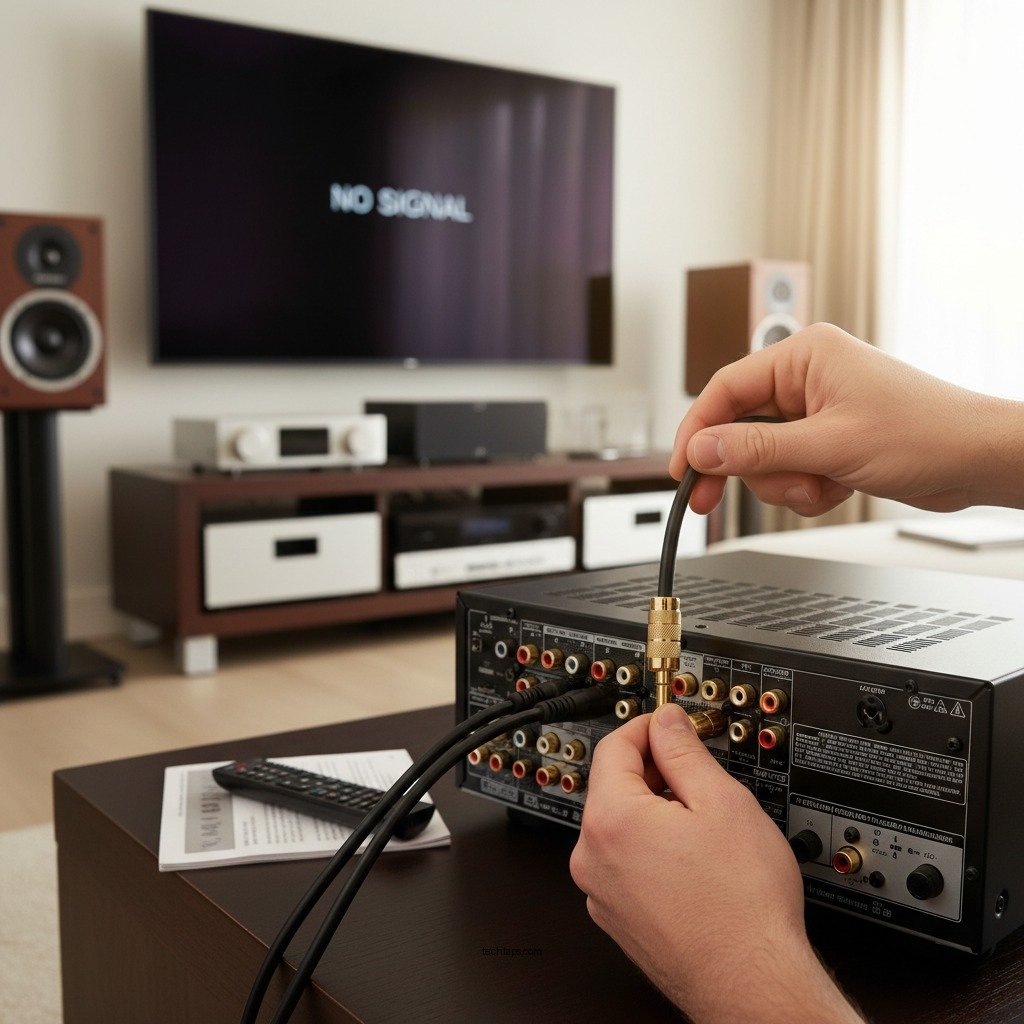

If your speaker system isn’t receiving a signal from your receiver, the first step is to check the connections and settings. Often, issues can stem from loose cables or incorrect input selections. By systematically troubleshooting the components involved, you can identify the root cause of the problem and restore your audio experience. In this article, you’ll learn the necessary troubleshooting steps to efficiently resolve the issue.
Check All Connections
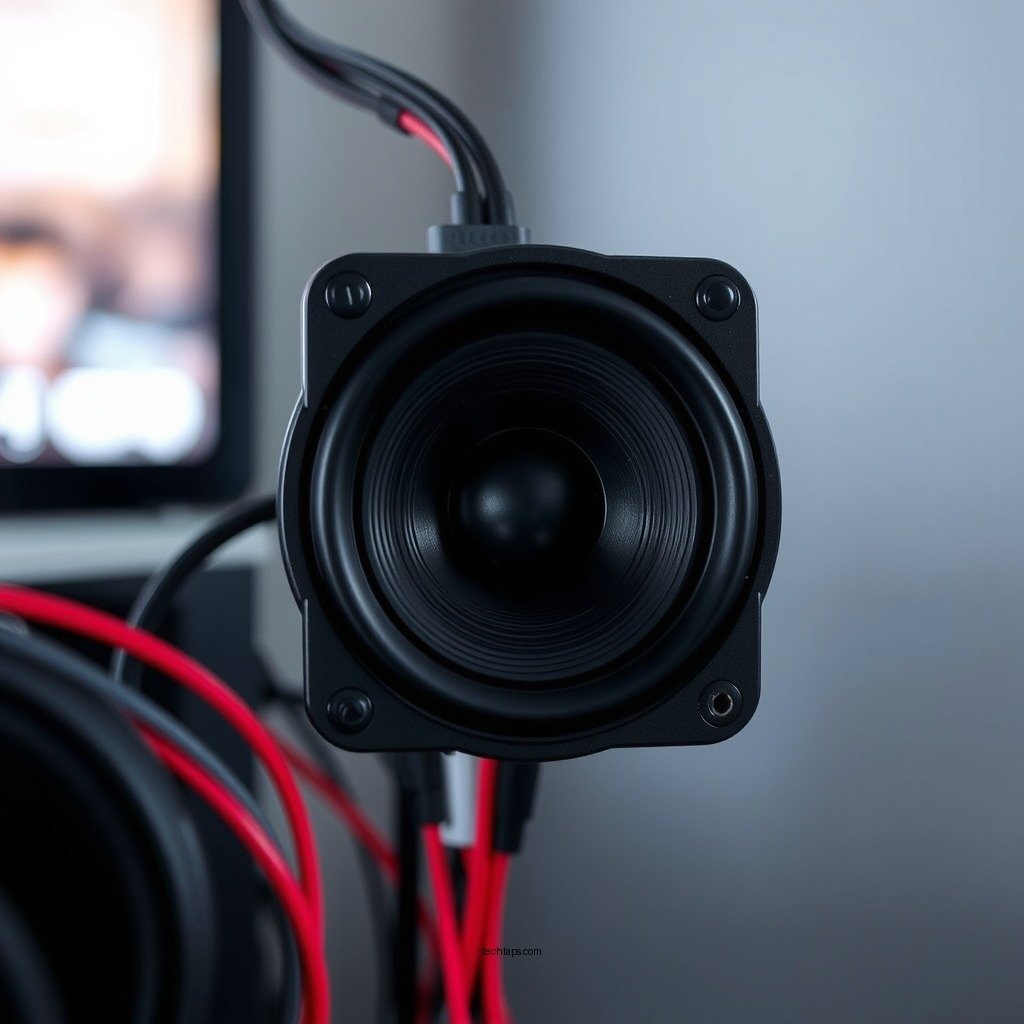
The first and most straightforward step in troubleshooting your audio setup is to ensure all connections are secure. Start by examining the speaker wires, making sure they are firmly connected to both the speakers and the receiver. Loose connections can easily disrupt the signal flow, resulting in no sound output.
Next, inspect the input cables that connect the receiver to your source device, such as a television, DVD player, or gaming console. Confirm that these cables are properly plugged in and not damaged. A faulty or frayed cable can lead to signal loss. If you have multiple input options, such as HDMI, optical, or RCA, make sure you’re using the correct type for your setup.
Verify Receiver Settings
After confirming that all physical connections are secure, the next step is to check the settings on your receiver. It’s essential to ensure that the receiver is set to the correct input source that matches the device you are trying to use. For example, if your DVD player is connected via HDMI input 1, make sure that the receiver is set to HDMI 1.
Additionally, navigate through the receiver’s setup menu to verify the speaker configuration settings. Many receivers allow users to customize speaker settings, such as speaker size and distance from the listening position. If these settings are not configured correctly, it can lead to sound issues.
Inspect Speaker Functionality
If you’ve verified the connections and settings but still have no signal, the next step is to test the functionality of the speakers themselves. One effective way to do this is to connect the speakers to a different audio source, such as a smartphone or another audio device. If the speakers work with a different source, it indicates that the issue lies with your receiver or the initial source device.
Conversely, if the speakers do not produce sound when connected to another source, the problem may reside within the speakers. If possible, try connecting a different set of speakers to the receiver. If these new speakers work, it’s likely that your original speakers require repair or replacement.
Examine the Source Device
The source device plays a critical role in the audio signal chain; thus, it’s important to verify that it is functioning correctly. Make sure the source device, whether it’s a DVD player, gaming console, or streaming device, is powered on and operating as intended.
Additionally, check the audio settings on the source device. Many devices have audio output settings that determine whether sound is sent through the HDMI, optical, or analog outputs. Ensure that the output is set to the appropriate format that corresponds with how it connects to the receiver.
Reset the Receiver
If all of the above steps have been checked and the issue persists, a reset of the receiver may resolve the problem. Start by powering down the receiver and unplugging it from the wall outlet for a few minutes. This process can help to clear any glitches or temporary errors in the system.
Once you’ve waited a few minutes, plug the receiver back in and power it on. If the problem continues, consider performing a factory reset. Each receiver model has a unique procedure for performing a factory reset, so refer to the manufacturer’s instructions for guidance. Keep in mind that a factory reset will restore all settings to their default values, so you may need to reconfigure your settings afterward.
Consult the Manual
In the age of digital technology, it’s easy to overlook the user manual that came with your equipment. However, this manual can be an invaluable resource when troubleshooting. It often contains specific troubleshooting tips and detailed explanations of settings that may pertain to your particular issue.
Look for sections dedicated to signal issues or audio problems; these can provide tailored advice that may not be covered in general troubleshooting guides. If you cannot locate a physical copy of the manual, many manufacturers offer digital versions available for download on their websites.
Seek Professional Help
If none of the above solutions rectify the issue, it may be time to seek professional assistance. A qualified technician can provide a more in-depth diagnosis and repair any underlying problems that may not be evident through basic troubleshooting.
Before seeking help, check if your equipment is under warranty. Many manufacturers offer warranty options that cover repairs or replacements at no cost, thus saving you from unexpected expenses.
Common Causes of Signal Issues in Audio Systems
| # | Issue | Possible Fix | Severity |
|---|---|---|---|
| 1 | Loose Connections | Check and secure all cables | Medium |
| 2 | Incorrect Input Source | Set receiver to the correct input | High |
| 3 | Faulty Speakers | Test with different speakers | High |
| 4 | Source Device Issues | Check power and settings | Medium |
| 5 | Settings Misconfiguration | Review configuration settings | High |
| 6 | Receiver Errors | Reset or update firmware | Medium |
| 7 | Professional Repair Needed | Contact technician | High |
By following these troubleshooting steps, you can identify the root cause of why your speaker system isn’t receiving a signal from your receiver. Whether it’s a simple connection issue or a more complex problem, addressing these areas can help restore your audio experience. If you continue to face challenges, don’t hesitate to reach out to a professional for assistance. Ultimately, understanding your audio setup can enhance your listening experience, ensuring that you get the most out of your investment in quality sound.
Frequently Asked Questions
What are the common reasons my speaker system isn’t receiving a signal from my receiver?
There are several common reasons your speaker system may not be receiving a signal from your receiver. First, check the connections to ensure that all cables are securely plugged in and not damaged. Additionally, verify that the receiver is set to the correct input source and that the speaker settings are properly configured in the receiver’s menu.
How can I troubleshoot my speaker system when it’s not getting a signal from the receiver?
To troubleshoot your speaker system, start by power cycling both the receiver and speakers. Next, inspect all audio cables for damage and try replacing them if necessary. Finally, ensure that your receiver’s firmware is up to date and that the speakers are assigned correctly in the receiver’s settings.
Why is my wireless speaker system not receiving a signal from my receiver?
If your wireless speaker system isn’t receiving a signal from your receiver, it could be due to interference from other electronic devices or a weak Wi-Fi signal. Make sure your receiver and speaker are within range and that there are no obstacles blocking the signal. Additionally, resetting your wireless connection and re-pairing the devices can often resolve the issue.
What should I do if my speaker system is connected but still not producing sound from the receiver?
If your speaker system is connected but not producing sound, first confirm that the volume on both the receiver and speakers is turned up and not muted. Check the speaker configuration settings in the receiver to ensure they are correctly set up for your specific audio setup. Lastly, try testing the speakers with a different audio source to rule out any issues with the receiver itself.
Which audio cables are best for ensuring a strong signal between my receiver and speaker system?
The best audio cables for ensuring a strong signal between your receiver and speaker system are high-quality speaker wires and optical or HDMI cables, depending on your setup. For regular speaker connections, look for oxygen-free copper cables that minimize signal loss. For digital connections, HDMI cables offer the best quality and support for surround sound formats, making them an ideal choice.
References
- https://en.wikipedia.org/wiki/Speaker_(audio
https://en.wikipedia.org/wiki/Speaker_(audio - https://www.hifiadvice.com/how-to-setup-your-audio-system/
https://www.hifiadvice.com/how-to-setup-your-audio-system/ - https://www.audioholics.com/tweaks/how-to-troubleshoot-audio-systems
https://www.audioholics.com/tweaks/how-to-troubleshoot-audio-systems - https://www.sony.com/electronics/support/articles/00008057
https://www.sony.com/electronics/support/articles/00008057 - Music.com.au | Music > Entertainment > Community > Culture
https://www.audio.com.au/faq/how-to-fix-audio-system-problems - https://www.bbc.com/news/technology-51114384
https://www.bbc.com/news/technology-51114384 - Google Scholar Google Scholar
https://scholar.google.com/scholar?q=Speaker+system+receiver+signal+issues - Google Scholar Google Scholar
https://scholar.google.com/scholar?q=audio+troubleshooting+guide - Google Scholar Google Scholar
https://scholar.google.com/scholar?q=What+to+Do+if+Your+Speaker+System+Isn’t+Receiving+a+Signal+from+Your+Receiver - What to Do if Your Speaker System Isn’t Receiving a Signal from Your Receiver – Search results
https://en.wikipedia.org/wiki/Special:Search?search=What+to+Do+if+Your+Speaker+System+Isn’t+Receiving+a+Signal+from+Your+Receiver