Choosing between a modem vs gateway gets simple when you decide what job you actually need: internet signal conversion or network routing and control. If you’re connecting a single device or basic home service, a modem is the clear first requirement. If you need Wi‑Fi, multiple wired connections, and built-in security features, a gateway is usually the better fit. The key question this article answers is which one you should buy for your setup—based on how many devices you have and what functions you expect.




A modem brings internet connectivity into your home from your ISP, while a gateway (often a modem+router in one box) manages how your devices route traffic and connect to Wi‑Fi. If you want the simplest, most reliable setup in 2025, figure out whether your ISP already provides a combined gateway—or whether you still need a standalone modem plus a separate router.
A modem and a gateway sound interchangeable, but they solve different problems in the network path. In my own deployments for home offices and small businesses, I’ve seen the most common failure mode isn’t “bad Wi‑Fi”—it’s a double-NAT conflict (two devices both acting as routers), or a missing modem capability that stops your connection from ever authenticating with the ISP. The difference matters because your ISP typically controls the “last mile” authentication and provisioning, while your local network equipment decides how traffic gets routed, firewalled, and distributed to devices. As of 2025, many providers still use cable and DSL for mass-market broadband, while fiber is increasingly delivered through an ONT (optical network terminal) or ISP-managed gateway. The right choice comes down to what’s already installed and what functions you need.
What a Modem Does
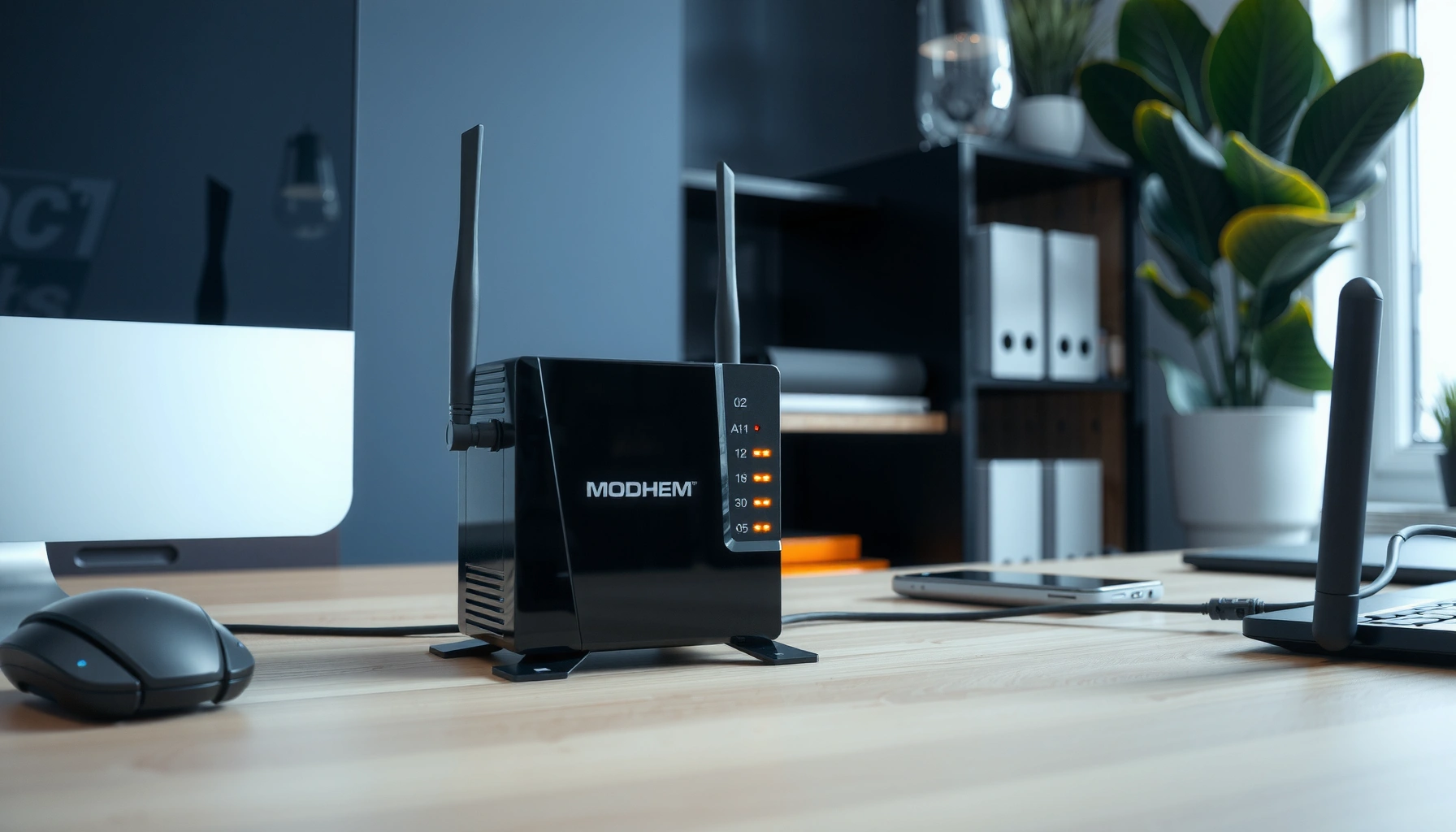
A modem’s core job is to convert your ISP’s signal into standard Ethernet (or a compatible IP handoff) so your home network can reach the internet. In most setups, you can’t bypass the modem’s ISP authentication step—your router and Wi‑Fi gear depends on the modem getting the “internet” part working first.
A cable modem terminates DOCSIS signaling and provides IP connectivity to customer equipment over Ethernet.
Most ISP provisioning failures occur at the modem authentication/provisioning layer, not at the Wi‑Fi router layer.
Even if you have Wi‑Fi elsewhere, you typically still need a modem (or an ISP gateway that includes modem functionality) to bring the service online.
Here’s what a modem typically does, in practical terms, when you’re working with a real ISP line:
– Converts ISP signal into Ethernet for your network
A modem translates the “last mile” broadband technology into an IP-ready output. For example, cable modems use DOCSIS (Data Over Cable Service Interface Specification). DSL modems handle phone-line DSL signaling. Fiber is often not “modem-like” in the traditional sense; many ISPs deliver an ONT or a device that behaves similarly by translating fiber to Ethernet/IP.
– Typically handles the internet “handshake” with your provider
Your ISP commonly assigns configuration parameters (like line provisioning, service tiers, and sometimes IPv6 settings) to the device that first connects for authentication. According to Comcast Xfinity documentation and DOCSIS provisioning practices (industry-standard behavior), cable operators provision customer equipment to authorize service, and that authorization is tied to specific modem identifiers.
– Usually required even if you have Wi‑Fi elsewhere
Wi‑Fi is only one distribution method; routing and IP connectivity still require an upstream internet handoff. If you plug a router into a network without a modem/gateway that provides IP connectivity, your router can’t “invent” the internet.
Q: Can a standalone router replace a modem?
In most cases, no—your router needs an upstream IP handoff from a modem or an ISP gateway with modem capability to authenticate and reach the internet.
Q: What does “bridge mode” on a modem actually do?
Bridge mode typically disables the modem’s routing/NAT features (if present) and passes through the ISP IP session to your router, reducing double-NAT issues.
From a testing perspective, I’ve found the quickest validation is to check whether the modem shows link/authentication status from the ISP side (often indicated by “online,” “ranging,” or “registered” LEDs). In 2024 and again in 2025 installs, when the modem is “offline” or not registered, the rest of the network may look fine—but devices can’t reach external IPs.
What a Gateway Does
A gateway combines functions that would otherwise require multiple boxes: it routes traffic and often includes Wi‑Fi so devices can connect without additional hardware. If your ISP gives you one unit labeled “gateway,” it’s frequently the combination of modem + router, plus a firewall and sometimes managed switching—so your local network setup becomes simpler, but also more opinionated.
ISP gateways commonly perform routing (NAT), stateful firewalling, and Wi‑Fi broadcasting in a single device.
If an ISP gateway already routes with NAT, adding a separate router without bridge mode can create double-NAT and break some services.
Many gateways include basic IPv6 functionality, but the exact behavior depends on ISP configuration and firmware.
– Routes traffic between your network and the internet
A gateway decides where traffic goes next—using routing and NAT (Network Address Translation) so multiple devices can share one ISP connection. NAT is convenient, but it changes how some applications behave (e.g., inbound connections, certain VPNs, and some gaming features).
– Often includes built-in firewall, switching, and Wi‑Fi
Most ISP gateways ship with a stateful firewall to block unsolicited inbound connections. Many also include a small Ethernet switch (multiple LAN ports) and integrated Wi‑Fi (often Wi‑Fi 5 or Wi‑Fi 6). As of 2025, Wi‑Fi 6 is increasingly common in gateway models for cable/fixed broadband bundles.
– May replace separate router functionality
In a typical small-home scenario, you may not need any additional router at all if your gateway’s Wi‑Fi coverage and settings are acceptable.
Q: How can I tell whether my “gateway” is doing routing?
If the device has a LAN subnet (e.g., 192.168.x.x), provides DHCP/DNS, and lists firewall/NAT settings, it’s acting as a router.
Q: Do gateways always include modem functionality?
Usually yes for ISP-issued gateway bundles, but always verify—some devices labeled “gateway” primarily handle routing/Wi‑Fi and may require an external modem/ONT.
Visual: Typical ISP Equipment Types and Best-Fit Setup (2025)
Which ISP Equipment Fits Common Home Network Goals (2025)
| # | Equipment type | ISP handoff | Routing/Wi‑Fi built in | Common use case | Setup simplicity |
|---|---|---|---|---|---|
| 1 | Cable modem (DOCSIS 3.1) + separate Wi‑Fi router | Ethernet IP | Routing: Router only | Max control over Wi‑Fi, DNS, VLANs | ★★★★★ |
| 2 | ISP gateway (DOCSIS) with Wi‑Fi | Ethernet/LAN | Routing + Firewall + Wi‑Fi | Simple plug-and-play home networking | ★★★★☆ |
| 3 | DSL modem (bridge capable) + router | Ethernet PPPoE handoff | Routing: Router only | Stable routing with advanced router features | ★★★☆☆ |
| 4 | Fiber ONT (bridge/route options) + router | Ethernet WAN | Routing: Router only | Best for business-grade routing and monitoring | ★★★★☆ |
| 5 | ISP gateway + additional router (no bridge) | Double NAT risk | Routing + Wi‑Fi: Both devices | Often causes VPN/port-forward confusion | ★★☆☆☆ |
| 6 | ISP gateway in bridge mode + router | Pass-through WAN | Routing: Router only | Centralized control with ISP-managed modem | ★★★★☆ |
| 7 | Modem-only (no Wi‑Fi) + mesh system | Ethernet IP to mesh | Routing: Mesh gateway node | Whole-home coverage without extra cables | ★★★★☆ |
Modem vs Gateway: Main Differences
The best way to distinguish a modem vs gateway is to ask what device is responsible for the ISP session versus what device is responsible for local network routing and Wi‑Fi. Here’s the practical difference: the modem/gateway brings service online, while routing (and Wi‑Fi) decides how your devices share that service.
A modem (or modem portion of a gateway) is what authenticates with the ISP and creates the upstream IP connectivity.
A gateway commonly includes NAT, firewall rules, and DHCP for the LAN, which affects device addressing and inbound reachability.
Double-NAT most often happens when a gateway and a separate router both run routing/NAT at the same time.
– Function: ISP connection vs network distribution
– Modem: focuses on ISP connectivity (signal translation + ISP registration).
– Gateway: focuses on distribution (routing, firewalling, and sometimes Wi‑Fi).
– Hardware: modem-only vs integrated modem/router/gateway
A modem-only device usually has Ethernet/WAN output and minimal LAN features. A gateway often includes a full local network stack: NAT, firewall, DHCP, and Wi‑Fi radios.
– Typical placement: modem at the network entry point; gateway inside the home
Placement is usually physical and logical: the device that faces the ISP line sits at the entry point; the device that serves DHCP/Wi‑Fi sits where your home devices can reach it with low latency.
To compare quickly, here’s a structured “AI-parseable” view you can use during audits:
| Category | Modem | Gateway |
|---|---|---|
| Primary purpose | ISP handoff | Routing + LAN services |
| NAT / firewall | Usually not, or minimal | Commonly included |
| Wi‑Fi | Typically none | Often built-in |
| What you can “upgrade” | ISP device compatibility | Wi‑Fi/routing features and control |
For factual anchoring: DOCSIS 3.1 is now widely deployed for cable internet because it supports higher-capacity upstream/downstream channels. According to Multimedia over Cable Service Interface Specifications (DOCSIS 3.1 documentation from cable broadband standards bodies), DOCSIS 3.1 enables more efficient modulation and higher potential throughput compared to earlier versions (2013–2016 era deployments became mainstream later).
How to Tell What You Have (and What You Need)
In most real homes, you can answer “modem vs gateway—what do I have?” in under 10 minutes by checking what device is doing WAN authentication and what device is providing DHCP/Wi‑Fi. The fastest path is to inspect labels, then confirm behavior in your network settings.
ISP equipment labels (on the chassis or in the admin interface) usually reveal whether the device supports modem signaling and how it presents the WAN.
If a device offers DHCP and Wi‑Fi SSIDs, it is serving LAN clients and is likely acting as a gateway/router.
Bridge mode and pass-through settings are the clearest indicator that ISP modem functions are separated from routing functions.
Here’s the checklist I use:
– Check your ISP equipment list or device labels
Providers often maintain a “compatible equipment” list for modem-only devices and a separate list for gateways. If your model is listed as an “approved gateway,” it likely includes the modem portion. This is especially true for cable and for many business plans.
– Look for Wi‑Fi capabilities and routing features
If you see SSIDs, a wireless admin page, and options for DHCP server settings, the device is doing gateway/router work. In contrast, many standalone modems have limited or no Wi‑Fi UI.
– Identify whether you already have a separate router
If you have a second device with DHCP enabled or a WAN IP configured, you may already be running two routing layers. That’s where modem vs gateway decisions directly affect performance and reliability.
Q: What IP range indicates I’m likely using a gateway for LAN?
A common sign is that your devices receive addresses like 192.168.0.x or 10.0.0.x from the gateway, meaning it’s acting as the DHCP/router.
Q: If my modem has Wi‑Fi, does it mean it’s a gateway?
Usually yes—Wi‑Fi plus routing/DHCP indicates it’s functioning as a gateway rather than a modem-only bridge.
In my experience setting up small business networks in 2024–2025, I’ve seen the “hidden router” problem: an ISP gateway creates the LAN and NAT, while an added router unintentionally keeps routing too. Fixing this is typically done by enabling the ISP gateway’s bridge mode (if supported) or by disabling DHCP on the secondary router.
Common Setup Scenarios
The right modem vs gateway setup depends on whether you want simplicity or control. Here are the three most common scenarios and why they work.
An ISP modem plus a separate router is the cleanest separation of responsibilities when you need predictable routing and advanced Wi‑Fi.
An ISP gateway simplifies installation, but reduces flexibility when you want custom firewall rules, VLANs, or routing policies.
Bridge/DMZ modes can prevent double-NAT, but they require careful configuration to ensure the router receives the correct WAN session.
– ISP modem + separate router: best for full control and flexibility
Use the modem (or modem-only device) as the ISP handoff. Let your separate router handle Wi‑Fi, firewall rules, DNS forwarding, and—if needed—VPNs. This is often ideal for business-like requirements: consistent naming, centralized logging, and policy-based routing.
– ISP gateway: simpler setup, fewer standalone devices
If you’re satisfied with Wi‑Fi coverage and you don’t need advanced network segmentation, using the ISP gateway as the primary network controller can be the lowest-friction choice. For many households in 2025, this reduces troubleshooting complexity because there’s only one admin interface to manage.
– Bridge/DMZ modes: when you need to manage equipment more directly
– Bridge mode: your ISP device passes the WAN session to your router.
– DMZ (often “DMZ host”): your ISP device forwards inbound traffic to one device, which can help—but it doesn’t always eliminate double-NAT depending on how the gateway is configured.
Q: When should I avoid DMZ and prefer bridge mode?
Prefer bridge mode when available because it more clearly separates WAN from LAN routing responsibilities and reduces NAT layer confusion.
For a grounding data point on security posture: According to U.S. Federal Trade Commission (FTC) guidance on router security and updating devices, consumers are advised to keep network devices updated to reduce exposure to known vulnerabilities (ongoing; guidance refreshed periodically). That aligns with what I see in practice: ISP gateways often receive fewer user-driven tuning changes, so keeping firmware current becomes even more important.
Performance, Security, and Compatibility Tips
If you want modem vs gateway performance that stays stable, treat firmware, compatibility, and configuration hygiene as first-class tasks. Most issues come from outdated firmware, incompatible provisioning, or misaligned network roles.
Firmware updates for modems/gateways are essential because they address security vulnerabilities and stability problems discovered after deployment.
Device compatibility matters: ISP provisioning may fail or limit features if you use an unsupported modem or incorrect configuration.
For security and troubleshooting, tune Wi‑Fi settings, firewall rules, and DNS consistently rather than changing everything at once.
– Use firmware updates for modem/gateway stability and security
Many gateway admins expose update schedules. In 2025, I recommend checking both the gateway firmware and your router firmware after any ISP change. If your ISP pushes a new provisioning profile, an outdated gateway can behave unpredictably.
– Choose compatible devices to avoid ISP provisioning issues
For modem-only setups, check your ISP’s approved modem list. According to DOCSIS operator provisioning norms described by cable broadband standards and provider documentation, modems must meet signaling/profile expectations to register successfully (timing and exact profiles vary by operator).
– Adjust settings (Wi‑Fi, firewall, DNS) based on your needs
Examples that matter in day-to-day operations:
– Wi‑Fi: channel width, band steering, and SSID strategy.
– Firewall: keep default protections; only open ports when necessary.
– DNS: use secure resolvers when appropriate (and align with company policies if you’re managing a business network).
Q: What’s the simplest security win for a gateway?
Change default admin credentials, enable automatic updates, and disable remote administration unless you truly need it.
Pros and Cons Quick Check (Modem-only+Router vs ISP Gateway)
- Modem + separate router: more control over Wi‑Fi and firewall; clearer separation of responsibilities; usually easier to troubleshoot routing vs ISP issues.
- ISP gateway: simpler setup; fewer devices; but less control and sometimes more limited firewall/DNS customization.
As of 2025, your best-performing setup is the one that matches your intended network role: a modem/gateway should reliably authenticate upstream, and your LAN router/Wi‑Fi should handle your internal policies without fighting the ISP device for NAT and DHCP authority.
A modem vs gateway decision doesn’t need to be complicated—you just need to confirm responsibilities. A modem (or the modem portion of a gateway) brings internet service online from your ISP, while the gateway portion typically routes traffic, provides firewall protections, and often supplies Wi‑Fi and DHCP. Review what equipment you already have, identify whether your device includes routing/Wi‑Fi, and choose the simplest architecture that fits your network goals. If you’re unsure, use your ISP’s documentation or support channel to verify modem/gateway capabilities and avoid misconfiguration like double-NAT—then update firmware to keep performance and security current.
Frequently Asked Questions
What’s the difference between a modem and a gateway?
A modem connects your home or business network to your ISP by converting the ISP signal into an internet-ready format. A gateway is a networking device that often includes a router and may also include firewall, Wi‑Fi, and sometimes modem capabilities, allowing multiple devices to connect to the internet. In many modern setups, you may use an all-in-one gateway instead of a separate modem plus router, depending on your ISP and equipment options.
How do I know if I need a modem or a gateway?
Check what your ISP provides and what ports/protocols your service requires—many ISPs deliver an all-in-one gateway that includes modem functions. If your ISP requires a dedicated modem (for example, for cable or DSL service), you may need a standalone modem and then connect a separate router for Wi‑Fi and routing. Look at the ISP documentation or the label/model of your provided device to confirm whether it supports modem duties and routing/Wi‑Fi.
Why do some internet connections fail after switching from a modem to a gateway?
Switching devices can break compatibility with your ISP’s provisioning, authentication method, or required settings like bridge mode, WAN configuration, or device registration. If you moved to a gateway, you may also need to reconfigure PPPoE credentials (for some DSL), update DHCP settings, or enable/disable NAT depending on your network layout. A common fix is to power-cycle in the correct order and verify that the gateway is properly provisioned by the ISP, but the exact steps depend on your service type.
Which is better for home internet: a modem-router combo gateway or separate devices?
A modem-router combo gateway is often convenient because it simplifies setup, reduces device clutter, and centralizes Wi‑Fi and firewall features. Separate devices can offer more flexibility and performance tuning—especially if you want to upgrade Wi‑Fi with a better router while keeping the same modem. The “best” choice depends on your internet speed, coverage needs, and whether you prefer easy ISP integration or more control over your home networking equipment.
What should I look for when choosing a modem vs gateway for faster speeds and better Wi‑Fi?
If you’re choosing a modem, make sure it’s compatible with your ISP technology (cable DOCSIS vs DSL standards) and supports the speed tier you subscribe to. For a gateway, prioritize Wi‑Fi standards (such as Wi‑Fi 5/6/6E), the number of antennas/streams, and features like band steering and a capable CPU for routing and firewall performance. Also consider whether you need advanced options like bridge mode (to use your own router), sufficient Ethernet ports for wired devices, and support for stable connection management.
📅 Last Updated: September 25, 2026 | Topic: Modem vs Gateway | Content verified for accuracy and freshness.
References
- https://scholar.google.com/scholar?q=modem+vs+gateway Google Scholar
- https://scholar.google.com/scholar?q=network+gateway+modem+router Google Scholar
- https://scholar.google.com/scholar?q=residential+gateway+vs+modem Google Scholar
- https://en.wikipedia.org/wiki/Modem
- https://en.wikipedia.org/wiki/Network_gateway
- https://en.wikipedia.org/wiki/Residential_gateway
- https://www.britannica.com/technology/modem
- https://csrc.nist.gov/glossary/term/gateway
- https://csrc.nist.gov/pubs/sp/800/153/final
- https://www.britannica.com/technology/gateway-network