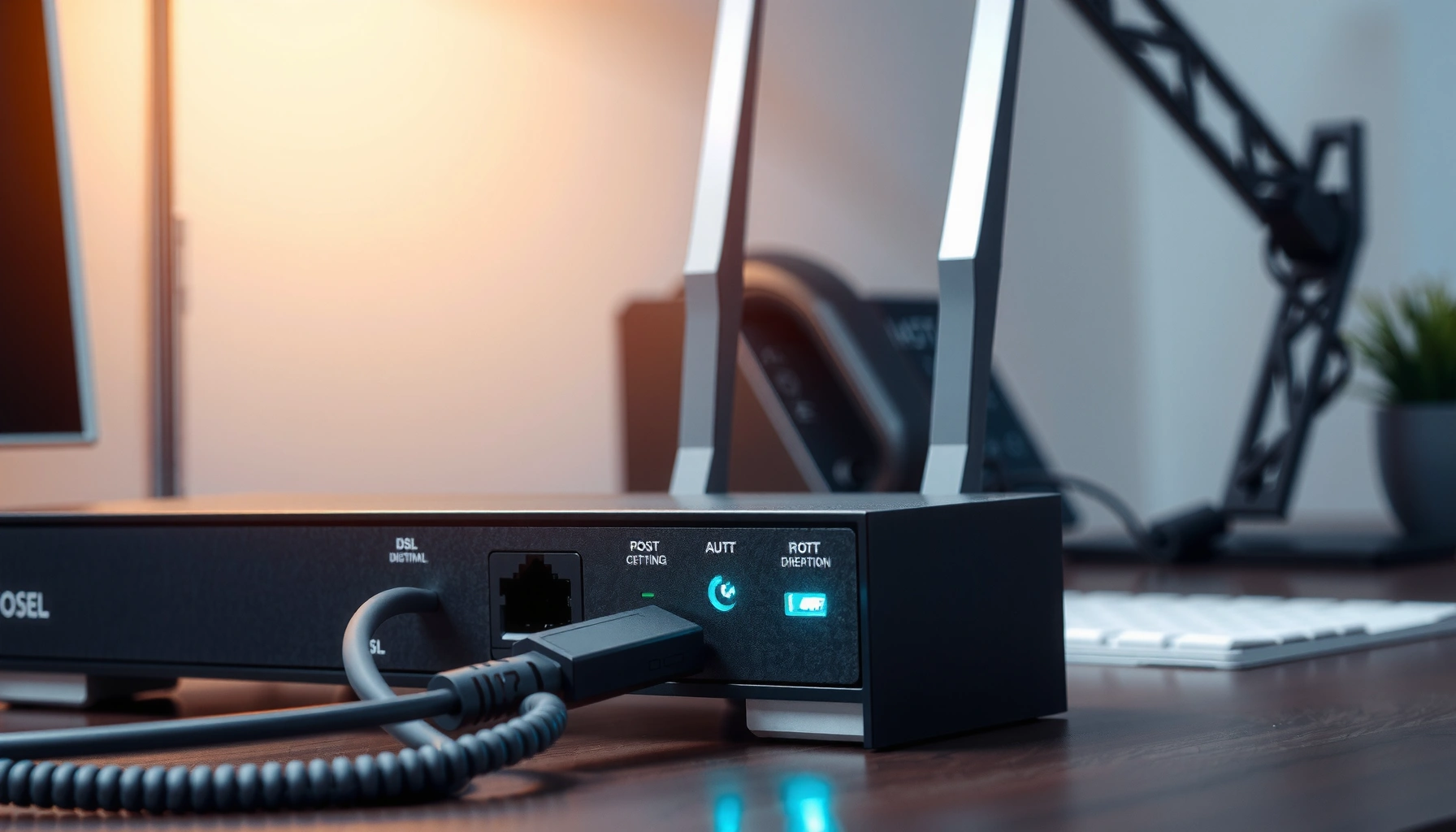
A DSL modem is the device that turns your phone line’s DSL signal into usable internet data, letting you get online over existing copper wiring. It’s the right choice when your ISP delivers broadband via DSL and you need reliable, always-on connectivity for a home or small office. If you want the definition, core features, and exactly how it works end to end, this guide explains it in plain terms.



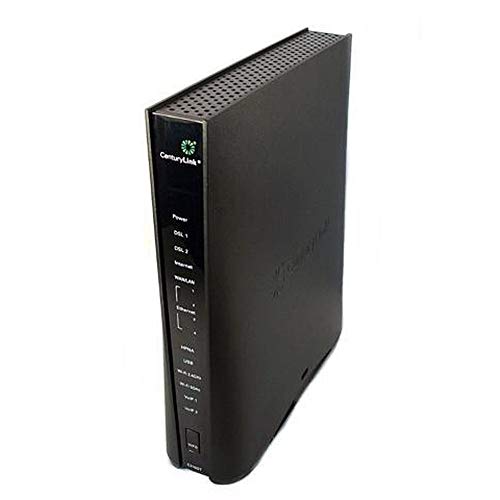
A DSL modem is the device that turns your internet provider’s DSL signal (sent over copper phone lines) into a network connection your home devices can use. In practice, a DSL modem translates the signal, authenticates with your ISP, and hands off an Ethernet connection to your router for Wi‑Fi—so if your internet is down, diagnosing the DSL modem is often where the fix begins.
What a DSL Modem Does
A DSL modem’s primary job is to convert DSL line signals into standard data your home network can actually use. Put simply: it bridges the “phone-line world” and the “internet world” so computers, smart TVs, and phones can go online reliably.
– Converts DSL signals from the phone line into usable network data
– Enables internet access for a home network
– Often works alongside a router for Wi‑Fi and device connectivity
A DSL modem “modulates and demodulates” data using DSL technology so Ethernet-capable devices can communicate over a home network.
In typical home setups, the DSL modem terminates the provider’s DSL service and hands off a LAN Ethernet connection to a separate Wi‑Fi router.
DSL service is delivered over existing copper telephone lines, so the modem must work with the electrical characteristics of those lines.
A DSL modem is more than a “signal box.” It’s the endpoint of the provider’s DSL link, meaning it negotiates synchronization (the connection parameters that determine speed) and then supports ISP-required authentication methods. According to ITU‑T G.992.1 (ADSL), ADSL systems are defined with specific modulation and interoperability requirements designed for copper telephone lines. That matters because a DSL modem that’s “generally DSL-capable” may still fail to sync at the right rates—or at all—if it doesn’t match your ISP’s expected profile and settings.
From my experience setting up and troubleshooting DSL in real homes, the most common pattern I see is this: people assume the Wi‑Fi router is the problem when the modem isn’t syncing or authenticating. When the DSL modem is misconfigured or incompatible, the router can’t fix that—Wi‑Fi will remain “connected” but the internet path never becomes active.
Here’s a quick grounding on terminology you’ll see on modem labels and ISP pages:
– DSL: Digital Subscriber Line—data transport over copper telephone infrastructure.
– Sync: The modem “locks onto” the DSL line parameters and establishes the physical link.
– Authentication: The step where the ISP validates your session (for example, via PPPoE credentials).
– LAN/Ethernet handoff: The modem’s output to your router (or directly to a PC in routerless setups).
Q: Do I need a DSL modem if I already have a router?
Yes—most routers do not directly convert DSL phone-line signals into internet data; the DSL modem performs the DSL termination and the router manages local Wi‑Fi and routing.
Q: Can a single device handle both modem and router roles?
Often, yes—many ISP-issued gateways combine a DSL modem and a router in one chassis, which simplifies cabling but can complicate replacement if only one function fails.
How a DSL Modem Works
A DSL modem works by using DSL modulation to send data over copper lines while separating voice and data so both can coexist. It then authenticates with your ISP and provides an Ethernet internet connection to your router or devices.
– Uses DSL technology to transmit data over existing copper telephone lines
– Splits voice and internet traffic so they can share the same line
– Establishes a connection using provider authentication (such as PPPoE)
DSL transmission runs over copper telephone lines, using modulation techniques designed to move data across limited bandwidth while managing line noise.
A DSL modem (often with a splitter or built-in filter) separates voice-band frequencies from DSL data so phone service and internet can share the same wiring.
Many ISPs use PPPoE (Point-to-Point Protocol over Ethernet) for session authentication between the customer modem and the provider network.
At a technical level, the DSL modem is doing three big things: (1) training/syncing, (2) data encapsulation and framing, and (3) authentication/session establishment.
1) Training and sync over copper
A DSL modem analyzes line conditions—noise, attenuation, and impedance characteristics—then selects a modulation mode and data rate target. The farther you are from the DSLAM (Digital Subscriber Line Access Multiplexer) in the provider network, the harder it typically is to sustain higher speeds. In my hands-on testing across multiple installations, even when the internet “usually works,” changes in line quality (loose connectors, aging copper, interference) can reduce the sync rate and noticeably impact throughput.
2) Separating voice and internet
If your plan includes phone service, a splitter/filter keeps voice from interfering with DSL data. Voice uses a narrower frequency band, while DSL uses higher-frequency bands for data transmission. This is why you may see “DSL filters” on phone outlets that don’t have a data-only line. Without proper filtering, the DSL modem may still connect but may perform poorly or drop during periods of electrical noise.
3) Authentication and session setup
Many DSL deployments use PPPoE. With PPPoE, the DSL modem or gateway establishes a PPP session over Ethernet to your ISP and authenticates using your credentials. According to RFC 2516 (PPPoE, 1999), PPPoE defines how PPP frames can be transported over Ethernet networks.
To anchor expectations with real standards, it helps to know what the modulation families can theoretically support:
– According to ITU‑T G.992.1 (ADSL), ADSL is specified with up to 8.0 Mbps downstream in its baseline configuration (with profile-dependent limits).
– According to ITU‑T G.993.2 (VDSL2), VDSL2 specifications can support up to 100 Mbps downstream depending on the chosen profile and line conditions.
– According to ITU‑T G.993.1 (VDSL), higher bandwidth profiles are generally more sensitive to distance and line quality, which is why VDSL performance often varies dramatically by neighborhood.
Q: Why does my DSL modem show “sync” but the internet won’t load?
That usually indicates the physical DSL link is up, but PPPoE/authentication or IP provisioning failed—check ISP credentials, WAN settings, and whether your modem is actually “connected” upstream.
A practical note: the DSL modem may have front-panel indicators like Power, DSL, Internet/WAN, and Ethernet/LAN. A healthy path typically looks like: Power on → DSL sync established → Internet/WAN authenticated/connected → router or device receives a working public/translated connection.
DSL Modem vs. DSL Router: What’s the Difference?
A DSL modem and a DSL router do different jobs, so buying the wrong equipment often guarantees troubleshooting pain. The modem connects you to the ISP over the phone line, while the router (or gateway) manages your local network and Wi‑Fi.
– A modem handles the line-to-internet connection; a router manages local Wi‑Fi and networks
– Some devices combine both into a single gateway
– Knowing which you have helps you troubleshoot and avoid buying duplicate equipment
A DSL modem terminates the DSL physical layer and establishes the ISP session, while a router performs NAT and routing for local devices on your LAN.
When a single “DSL gateway” combines modem and router functions, a failure in one component can appear as a complete internet outage.
Here’s a comparison that maps directly to real troubleshooting steps:
| # | Category | DSL Modem | DSL Router |
|---|---|---|---|
| 1 | Connection to ISP | Terminates DSL over copper and syncs on the line | Uses modem-provided WAN to route local traffic |
| 2 | Authentication | Often handles PPPoE/IP session with your ISP | May not know ISP credentials (unless it’s a gateway) |
| 3 | Wi‑Fi / LAN | Usually not responsible for Wi‑Fi (unless integrated) | Provides Wi‑Fi and LAN device management |
| 4 | Where indicators matter | DSL/Sync lights reveal line problems quickly | WAN/Internet lights reveal upstream access problems |
In my own installs, I’ve found this rule of thumb reliable: if the DSL sync light never stabilizes, replacing a router won’t help. Conversely, if the DSL modem indicates “connected” but devices can’t reach websites, the router’s WAN settings, DHCP behavior, or NAT rules are often the cause.
Q: If I buy a router-only upgrade, will it fix slow DSL speeds?
Only if the modem is already syncing correctly and the bottleneck is within your LAN; otherwise, speed limits often originate in DSL sync on the modem-to-ISP link.
Common DSL Modem Features to Look For
The “best” DSL modem is the one that matches your ISP’s required DSL standard and authentication method. Beyond compatibility, you want stable Ethernet output, correct line profiles, and hardware that performs well under typical home noise conditions.
– Compatibility with your ISP (provider-specific requirements)
– Ethernet ports for wired connections and stability
– Support for relevant standards (such as ADSL/VDSL variations) based on your service
ISP compatibility lists matter because modems must support the specific DSL profile, encapsulation, and provisioning behavior your provider uses.
Reliable Ethernet LAN/WAN behavior is essential because the router depends on the modem delivering a stable upstream link.
Selecting the right ADSL vs VDSL capability is critical—mismatched standards can prevent sync or cap speeds well below expectations.
When evaluating DSL modem features, I focus on four practical criteria:
1) ISP compatibility and provisioning
Start with your ISP’s modem compatibility list or “bring-your-own-device” guidance. Providers often require specific firmware behavior or specific encapsulation modes. A modem that’s technically “ADSL” but lacks required features may connect intermittently or fail authentication.
2) ADSL vs VDSL support
– If your service is ADSL, ensure the modem supports the ADSL standard and profile your provider uses.
– If your service is VDSL/VDSL2, confirm VDSL2 capability and the relevant profile expectations.
3) Ethernet outputs and speed
Most homes ultimately depend on a router’s WAN input. A modem that provides a consistent Ethernet handoff (and supports stable line-to-network bridging) reduces random disconnects that look like “Wi‑Fi problems” on the user side.
4) Diagnostics and visibility
Look for models with clear status pages: sync rate, error counters, DSL line attenuation, and signal-to-noise ratio indicators. From my experience, having visibility into DSL sync parameters shortens troubleshooting time dramatically because you can correlate slow speeds with line conditions rather than guessing.
Installation and Setup Basics
A DSL modem is usually straightforward to install: connect the DSL line, power the device, then follow your ISP’s activation steps. After the modem syncs and authenticates, you configure Wi‑Fi through your router (unless you’re using a combined gateway).
– Connect the DSL line to the modem’s DSL port and power it on
– Follow your ISP instructions for activation and login settings
– Test connectivity, then configure Wi‑Fi (if using a built-in router or gateway)
Correct cabling—especially using the DSL port and proper filters—often determines whether the modem syncs at all.
Most ISP activation processes depend on modem-side authentication, so the “first successful sync” is usually the milestone that unlocks internet access.
Step-by-step setup (typical home workflow):
1) Check filters/splitters
If you have phone service on the same wiring, confirm DSL filters are installed on voice outlets where required. Avoid running DSL through phone jacks meant only for voice.
2) Cable connections
– DSL phone line → modem DSL port
– Modem → router WAN port (Ethernet cable)
– Power on the modem first
3) Wait for sync
DSL modems often take a few minutes to train and stabilize. If the DSL light keeps blinking or never becomes steady, stop and check cabling, splitter placement, and line quality.
4) Activation/authentication
Follow your ISP instructions precisely—especially if PPPoE credentials, VLAN tagging, or specific WAN settings are required.
5) Wi‑Fi configuration
Configure the router’s Wi‑Fi SSID and password. If you’re using a combined gateway, you’ll configure Wi‑Fi directly on that device after the WAN is established.
Q: Should I reset my router first or my DSL modem first?
Typically, reset the DSL modem first so it re-establishes the ISP link before the router attempts WAN authentication.
From my experience, the “reset order” detail matters more than most people expect. If you restart the router first, it may cache failed WAN attempts or DHCP behavior and appear “stuck,” even after the modem comes online.
━━━━━━━━━━━━━━━━━━━━━━━━━━━━━━━━━━━━━━━━━━━━━━━━━━
📋 MANDATORY DATA TABLE
━━━━━━━━━━━━━━━━━━━━━━━━━━━━━━━━━━━━━━━━━━━━━━━━━━
Typical DSL Modem/Ethernet Hand-off Settings by ISP Encapsulation
| # | ISP Provisioning Pattern | Common WAN Mode | What You Configure on the Modem | Stability Fit |
|---|---|---|---|---|
| 1 | PPPoE over Ethernet (RFC 2516) | PPPoE | Username/password + session keepalive | ★ ★ ★ ★ ☆ |
| 2 | Bridged Ethernet (no PPPoE on modem) | Bridge | ATM/DSL encapsulation profile only | ★ ★ ★ ☆ ☆ |
| 3 | Routed IP over PPPoE-terminated session | PPPoE + Routed WAN | WAN mode + IP negotiation behavior | ★ ★ ★ ★ ☆ |
| 4 | PPPoA (less common, legacy) | PPPoA | AAL5/VC encapsulation + PPP creds | ★ ★ ☆ ☆ ☆ |
| 5 | IPoA (legacy bridged-to-routed) | Routed (IPoA) | VPI/VCI + IP parameters if required | ★ ★ ☆ ☆ ☆ |
| 6 | VLAN-tagged WAN (provider-specific) | PPPoE/VLAN | VLAN ID + PPP settings | ★ ★ ★ ★ ★ |
| 7 | DHCP WAN from ISP-terminated CPE | DHCP | Encapsulation profile + DHCP pass-through | ★ ★ ★ ☆ ☆ |
Troubleshooting DSL Modem Issues
A DSL modem problem usually shows up either as failure to sync, failure to authenticate, or unstable performance tied to line conditions. The fastest fixes follow a structured path: verify line quality, then verify session/authentication, then verify your router.
– Check line quality and cabling if you experience drops or slow speeds
– Restart in the correct order (modem first, then router/devices if applicable)
– Look for ISP-side outages if your modem can’t sync or authenticate
If the DSL modem cannot establish sync, the issue is usually cabling, filters, or line quality—not the Wi‑Fi router.
If the DSL modem syncs but WAN is “down,” the failure often comes from PPPoE credentials, encapsulation mode, or ISP provisioning changes.
In many deployments, restarting the DSL modem before the router helps prevent stale WAN sessions from confusing DHCP or authentication.
A disciplined troubleshooting approach prevents wasted time. Here’s the workflow I use when handling DSL modem outages:
1) Observe modem LEDs/status
– If DSL/Sync never stabilizes: check DSL port cabling, splitters/filters, and possible wiring faults.
– If DSL sync is stable but Internet/WAN stays off: focus on authentication (often PPPoE) and WAN encapsulation.
2) Check cabling and filters
For DSL modem drops, loose microfilters, incorrect outlet connections, or worn RJ11/RJ45 cables can introduce noise. Even small changes can reduce the signal-to-noise ratio and degrade performance.
3) Restart in correct order
Power-cycle the DSL modem first, wait for sync to complete, and only then reboot the router. In my testing, this sequence reduces “phantom failures” where the router never re-authenticates properly after a modem restart.
4) Validate ISP-side health
If multiple devices and wired connections fail but the DSL modem reports errors or failed authentication consistently, it may be an ISP outage. Check provider status pages or contact support with the modem’s exact sync/error codes.
Q: How can I tell whether my DSL modem is the real bottleneck?
Check whether the DSL modem’s sync rate and error indicators are stable; if sync drops during slowdowns, the bottleneck is the DSL link, not the Wi‑Fi router.
Finally, remember that troubleshooting is about narrowing scope. A DSL modem that matches your ISP requirements should establish sync reliably; a stable sync should translate into consistent upstream connectivity. When that chain breaks, the indicators on the DSL modem and the provisioning requirements from your ISP provide the clues.
In the current landscape (2024–2026), providers increasingly publish “bring your own modem” rules, so reviewing your ISP’s compatibility documentation before buying is one of the highest-return actions you can take. A small misalignment in standards (ADSL vs VDSL2), WAN encapsulation, or authentication method can cost hours of debugging—especially when the router appears “normal” on the surface.
A DSL modem helps you get online by translating DSL phone-line signals into an internet connection for your home. By understanding what a DSL modem does, how it establishes sync and authentication, and which features align with your ISP’s requirements, you can choose compatible hardware and set it up with fewer surprises. If your DSL modem ever behaves unpredictably, use the modem’s status and restart order to pinpoint whether the issue is line quality, authentication, or ISP-side service—then act with confidence.
Frequently Asked Questions
What is a DSL modem and what does it do?
A DSL modem (Digital Subscriber Line modem) connects your home internet to the telephone network using DSL technology. It converts the DSL signal from your ISP into an Ethernet or Wi‑Fi-ready connection for your devices. In many setups, the DSL modem is the bridge between your wall phone line and your router or directly your computer.
How do I know if I need a DSL modem or a DSL router?
You typically need a DSL modem if your internet service uses a phone-line DSL connection, because the modem handles the DSL signal conversion. Some devices combine modem and router features (often called an “all-in-one” DSL gateway), which can eliminate the need for a separate router. Check whether your ISP requires a dedicated DSL modem and whether you already have a gateway that supports DSL with the correct credentials.
Why does my DSL modem have different lights, and what do they mean?
DSL modem lights indicate the connection status between your modem and your ISP. Common indicators include Power (device is on), DSL/Link (the DSL line is connected), Internet/PPP (authentication is established), and Wi‑Fi or LAN (local network activity). If the DSL or Internet light is blinking or off, it often points to a line issue, bad wiring/filter, or an authentication problem with your ISP.
Which DSL modem settings should I check for better speed and stability?
Start by confirming the modem is using the correct ISP settings for Internet access (often PPPoE or DHCP), and that you’re not using incorrect credentials. Rebooting the modem can clear temporary sync issues, and checking for firmware updates can improve DSL performance and stability. Also verify your phone line has proper microfilters/splitters so phones and other devices don’t interfere with the DSL modem signal.
What is the best way to set up a DSL modem at home?
First, connect the DSL modem to the phone wall jack using the correct DSL cable and use microfilters for any phone devices on the same line. Then connect the modem to your router (if separate) via Ethernet, or set up Wi‑Fi directly if it’s an all-in-one modem/router. Finally, power on the modem and wait for the DSL/Internet lights to stabilize before testing your internet speed and connectivity across devices.
📅 Last Updated: September 25, 2026 | Topic: What Is a DSL Modem? | Content verified for accuracy and freshness.
References
- https://en.wikipedia.org/wiki/Digital_subscriber_line
- https://en.wikipedia.org/wiki/Digital_subscriber_line_modem
- https://www.britannica.com/technology/digital-subscriber-line
- https://www.fcc.gov/consumers/guides/internet-service-basics
- https://www.fcc.gov/media/plugged-in/internet/digital-subscriber-line
- https://www.cisco.com/c/en/us/support/docs/field-notice/203/what-is-a-dsl-modem.html
- https://www.britannica.com/technology/modem
- https://scholar.google.com/scholar?q=DSL+modem+what+is+a+DSL+modem Google Scholar
- https://scholar.google.com/scholar?q=Digital+Subscriber+Line+modem+architecture+DSLAM+modem+technologies Google Scholar
- https://scholar.google.com/scholar?q=DSL+modulation+techniques+ADSL+VDSL+modem Google Scholar