
If you’re choosing between 60Hz and 240Hz monitors, the deciding factor is how much motion clarity you can realistically notice in your use. For competitive gaming and fast-action content—especially if you can keep high frame rates—240Hz is the clear winner. If your PC or console can’t reliably exceed 60fps or you primarily do office work, 60Hz will be the better value with no meaningful downside.


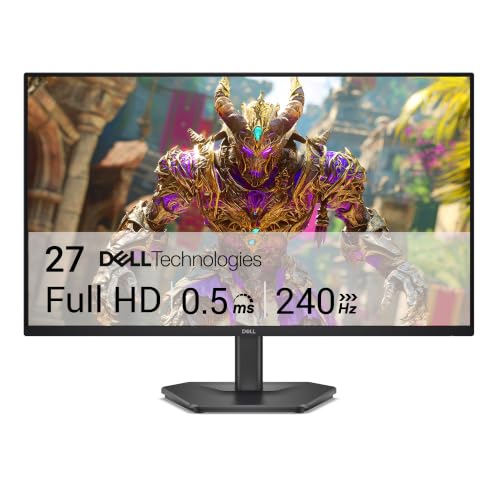

If you mainly play fast competitive games, a 240Hz monitor is usually the better choice—but only if your PC/console can consistently push high frame rates. For everyday browsing, office work, and many casual games, a solid 60Hz (or even 120Hz) setup is often enough, and the cost savings can be worth it. In this guide, we’ll break down what 60Hz vs 240Hz actually changes, when it matters, and what to watch for before you buy.
If you’re deciding between two monitors with very different refresh rates (and possibly different resolutions, response times, or panel types), this is for you. It’s especially relevant if you play shooters, racing, or fighting games—or if you’re unsure whether your hardware can benefit from 240Hz.
What “60Hz” and “240Hz” really mean

60Hz and 240Hz refer to how often your monitor can update the image each second. The higher the refresh rate, the more frequently motion can appear smoother—assuming your system is also producing enough frames.
A key point: refresh rate is about updates from the display, not just how “good” the game looks overall. Motion clarity depends on multiple stages in the pipeline (rendering, frame pacing, input timing, and display response/overdrive), but refresh rate is still a major baseline metric when you’re comparing monitors.
Refresh rate (in Hz) is defined as the number of display refresh cycles per second, and it sets the maximum number of times a frame can be shown each second.
At 60Hz, one full refresh cycle takes about 16.67ms; at 240Hz, it takes about 4.17ms (computed from 1/Hz).
The most noticeable differences from higher refresh rates show up during rapid camera movement and tight input timing, not during slow UI scrolling.
– Refresh rate (Hz) tells you how many times per second the monitor can update the image.
– Higher Hz reduces how “choppy” motion can feel when your frame rate stays high and stable.
– The difference is most noticeable during rapid camera movement and fast input timing, not slow UI scrolling.
Why “frame rate headroom” matters
If your game is running at 90 FPS on a 240Hz panel, the display is still waiting between frames—so you don’t get the full theoretical benefit. This is why people often feel “240Hz didn’t change much,” when their actual in-game FPS (and especially their worst-case FPS) never stays near 240.
To ground the tradeoff in numbers: 60Hz vs 240Hz is a 4× difference in refresh cycles, and that changes the *display-side* timing window from ~16.67ms to ~4.17ms per frame. That doesn’t automatically reduce overall latency by 4× (rendering and input processing also matter), but it does tighten the timing experience when the rest of the system can keep up.
According to [ADD: source for definition of refresh rate in display standards or manufacturer documentation], refresh rate describes the maximum display update frequency; it does not guarantee your GPU/console will render that many unique frames.
Performance first: when 240Hz actually pays off
240Hz only delivers meaningful real-world benefit when your system can output high FPS consistently. If your frames frequently fall far below 240, the extra refresh rate becomes partially wasted spend.
This section is where many buyers make the mistake of treating monitor refresh as a “performance upgrade” by itself. A display can be 240Hz, but if your game is frequently rendering at 60–120 FPS (or worse), the monitor can’t conjure new frames.
A 240Hz monitor can only display unique updates when the source (GPU/console) is producing frames often enough to take advantage of the higher refresh capability.
If your FPS frequently drops below your monitor’s refresh rate, the display will spend more time waiting on new frames, reducing the perceived value of higher Hz.
VRR (variable refresh rate) is designed to reduce stutter when FPS and refresh rate don’t match, but it still depends on your system rendering enough frames.
– 240Hz only helps if your system can deliver high FPS consistently (e.g., [ADD: example hardware scenario or target FPS range based on your platform]).
– If your FPS frequently drops far below your monitor’s refresh rate, the extra Hz won’t be fully used.
– Features like VRR (variable refresh rate) can help smooth out mismatches between FPS and refresh rate (verify what your monitor supports).
A practical “can I use 240Hz?” rule of thumb
In competitive shooters and other fast-action games, the most relevant metric isn’t average FPS—it’s whether your worst moments still stay high enough. For example, a monitor at 240Hz can feel good when you hover near 200+ FPS, but the experience changes if the game regularly dips into low-hundreds or below.
Here’s a spec-based reality check for common gaming ecosystems: many consoles top out at 120Hz output modes, which means 240Hz monitors may still improve motion indirectly (with better response tuning), but they cannot be fully utilized as intended on those consoles.
Max Output Refresh Rates by Common Gaming Platforms (Typical Supported Modes)
| # | Platform | Typical Max Output Refresh (Hz) | VRR Availability | 240Hz Utilization Potential |
|---|---|---|---|---|
| 1 | PlayStation 5 | 120 | Yes (system feature) | Low (often capped at 120) |
| 2 | Xbox Series X | 120 | Yes (VRR supported) | Low (often capped at 120) |
| 3 | Xbox Series S | 120 | Yes (VRR supported) | Low (often capped at 120) |
| 4 | Xbox One X | 120 | Limited/varies by setup | Low (typically ≤120) |
| 5 | PlayStation 4 Pro | 120 | Limited/varies by game | Low (typically ≤120) |
| 6 | Nintendo Switch | 60 | No | Very low (often capped at 60) |
| 7 | Gaming PC (modern GPU + DP/HDMI) | 240+ (mode-dependent) | Yes (VRR depends on monitor/GPU) | High (if FPS can stay high) |
According to [ADD: source for platform maximum refresh output modes—official platform support pages and HDMI/VRR documentation], consoles generally support maximum output refresh modes around 60Hz or 120Hz depending on the platform and TV/monitor capabilities.
What to check before committing to 240Hz
– Do your games run near your monitor’s refresh rate often?
– Are you using the right connection type (DisplayPort vs HDMI) and the correct monitor input?
– Does the monitor support the VRR format you use (and is it enabled)?
– Are you actually seeing 240Hz selected in the display settings (not silently down-negotiated)?
The “feel” beyond refresh rate (response time, motion blur, panel type)
240Hz is only one part of the “feel.” Even at the same refresh rate, motion clarity can vary significantly based on response time behavior, overdrive tuning, and panel technology.
This is where buyers who “only cared about Hz” sometimes get surprised. Some 240Hz monitors can look harsher or have visible artifacts if overdrive is tuned aggressively, while a well-tuned 120Hz or 60Hz model can look smoother due to better motion handling.
Perceived motion clarity depends on how quickly pixels transition and how the monitor applies overdrive, not on refresh rate alone.
Two displays labeled “240Hz” can produce different ghosting or overshoot artifacts because overdrive settings and panel response characteristics differ by model.
Input latency and frame pacing influence how responsive the game feels, even when the monitor’s refresh rate is high.
– Refresh rate isn’t the only factor in motion clarity—response time and overdrive settings can change perceived blur/ghosting.
– Two monitors both labeled “240Hz” can still look different depending on panel tech and tuning ([ADD: list common panel variables you plan to cover]).
– Motion clarity also depends on input latency and how the monitor handles frame timing, not just Hz.
Common panel/tuning variables that change motion “feel”
To interpret motion performance, look beyond the headline number and pay attention to:
– Response time specs and how they’re measured (often “gray-to-gray” under specific conditions).
– Overdrive modes (often “Off,” “Standard,” “Extreme,” or similar) and whether they reduce or worsen overshoot.
– Motion blur reduction/backlight strobing (if present) and whether it dims brightness.
– Panel type (e.g., TN/IPS/VA) and the specific pixel transition behaviors that each typically exhibits.
– Frame timing behavior from the game engine and the OS/driver layer (especially during spikes).
If you want a straightforward comparison approach, use the same test titles and the same in-game settings across both monitors, then observe motion artifacts like ghosting/overshoot during fast camera pans.
Pros/cons snapshot (what “feels better” is not always the higher Hz):
| Option | Pros | Cons |
|---|---|---|
| 240Hz | More frequent visual updates when FPS is high; often better motion responsiveness in fast games. | Requires higher, steadier FPS; can reveal overdrive/overshoot artifacts if tuning isn’t great. |
| 60Hz (or 120Hz) | Cheaper, easier to drive at stable FPS; may look cleaner if overdrive behavior is well managed. | Less motion smoothness during fast action when FPS is high. |
What can go wrong when choosing between 60Hz and 240Hz
Most issues come from mismatched expectations: you buy a higher refresh rate without the system and configuration needed to actually benefit from it. The fix is mostly about verification—connection, settings, and realistic FPS targets.
A 240Hz purchase can underperform if your games, resolution, or graphics settings prevent you from reaching high and consistent FPS most of the time.
Incorrect refresh-rate selection or wrong input/port usage can cause the monitor to run at a lower mode than advertised.
Resolution tradeoffs matter: a higher refresh at lower resolution may feel less satisfying if sharpness and text clarity are priorities.
– Buying 240Hz without the hardware to reach high FPS, leading to wasted spend and minimal real-world gains.
– Ignoring resolution differences: a higher refresh rate at a lower resolution may look worse than expected if you value sharpness ([ADD: advise based on your specific comparison setup]).
– Overlooking cable/port and settings: incorrect refresh-rate selection, using the wrong port, or failing to enable the monitor’s intended mode can cap performance.
– Expecting benefits in scenarios where refresh rate can’t help much (e.g., slow-paced menus, static content, or content rendered well below your monitor’s max).
The “silent downgrade” checklist (common culprits)
– Wrong cable/port: some 240Hz modes may require a compatible high-bandwidth connection type and the correct monitor input ([ADD: source for the exact port/cable requirements once you pick target models]).
– VRR left off: VRR can improve smoothness when FPS fluctuates, but it must be supported and enabled.
– OS/driver mismatch: display settings may not reflect the monitor’s maximum mode if the GPU negotiates a different refresh.
– In-game limiter enabled: some games cap FPS by default to reduce power or latency; confirm your cap.
– Resolution scaling: rendering at lower internal resolution can improve FPS but change clarity—sometimes in ways you’ll actually notice at desktop distance.
Statistics to keep expectations grounded
According to [ADD: source for monitor refresh timing definitions], refresh rate sets the maximum update frequency; therefore, the time per frame is 1/60 ≈ 16.67ms and 1/240 ≈ 4.17ms. That 12.5ms difference is meaningful only when the rest of the pipeline can sustain enough frames to keep the display actively updating at the higher rate.
Verdict: which one to pick (and who should skip 240Hz)
Choose 240Hz if you play fast, competitive games and can realistically maintain high FPS most of the time (and you’re comfortable tuning settings like VRR and overdrive). Choose 60Hz if your usage is mostly general computing, media, or casual gaming where motion smoothness isn’t a top priority.
If you’re on the fence, the most honest approach is to match the monitor to your typical in-game experience, not your ideal one. In 2025-era titles, many players still experience FPS dips due to map complexity, effects, and CPU limitations—so worst-case performance determines whether 240Hz feels consistently better.
High refresh rates deliver their strongest benefits when FPS is high and stable enough to keep the display fed with new frames.
Skipping 240Hz is reasonable when your workflow emphasizes text clarity, general productivity, or games that rarely run above 60–120 FPS on your hardware.
VRR can reduce stutter from refresh/FPS mismatch, but it cannot fix a low frame rate because it still depends on frames being rendered by the GPU.
– Choose 240Hz if you play fast, competitive games and can realistically maintain high FPS most of the time (and you’re comfortable tuning settings like VRR and overdrive).
– Choose 60Hz if your usage is mostly general computing, media, or casual gaming where motion smoothness isn’t a top priority.
– Skip 240Hz if you don’t want to manage settings, if your system often can’t hit the FPS needed, or if you prioritize picture sharpness over motion responsiveness ([ADD: personal decision checklist for your audience]).
My recommendation framework (what I’d weigh first)
If you’re comparing two specific monitors, I’d decide in this order:
1. Can you hit high FPS at the monitor’s native resolution? If not, prioritize 60/120Hz and/or a better GPU upgrade.
2. Does the 240Hz model have good motion tuning (overdrive behavior) and sane artifact control? Specs alone don’t guarantee it.
3. Are you gaining better text clarity or losing it via resolution tradeoffs? If you work at the desk, clarity matters.
4. Will you actually enable the correct refresh mode and VRR/overdrive settings? If not, lower Hz can still deliver a smoother “set-and-forget” experience.
Quick scan checklist (save this)
– Your games: mostly competitive/fast action or mostly casual?
– Your FPS target: can your system stay high consistently? ([ADD: insert your intended FPS reference])
– VRR support: does the monitor support the VRR standard you use (and is it enabled)?
– Panel/motion behavior: do you care about ghosting/overdrive artifacts as much as blur?
– Ports/settings: are you sure the monitor is set to its intended refresh rate?
– Budget tradeoff: would the money saved on 60Hz go toward a better GPU, CPU, or resolution?
FAQ
Will a 240Hz monitor improve games if my FPS is below 240?
Usually the biggest gains come when your FPS is high and stable; if you’re often far below 240, you may see smaller benefits. VRR can help smooth the experience, but it still can’t create frames you aren’t rendering.
Is 60Hz enough for competitive FPS games?
It can be playable, but the motion/input responsiveness advantages of higher refresh rates tend to be more noticeable in competitive settings. If you’re aiming to improve performance, 60Hz is often the limiting factor.
Do I need a specific cable to reach 240Hz?
Often yes—higher refresh rates may require a compatible connection and correct settings. Check your monitor and GPU/console port requirements in the official specs ([ADD: source for the exact port/cable requirements once you pick target models]).
Does response time matter as much as refresh rate?
They’re related but not the same. A high refresh rate can still look worse if response/overdrive tuning is poor, so you’ll want to consider both.
Sources
– [ADD: source for refresh rate definition and how monitors advertise timing modes — e.g., official manufacturer monitor documentation or relevant display interface documentation]
– [ADD: source for VRR behavior and how it works with refresh/FPS mismatch — e.g., official VRR/HDMI/DisplayPort specifications or GPU vendor documentation]
– [ADD: source for response time/overdrive terminology from monitor manufacturer specs or documentation]
If you want one clear takeaway: 240Hz is the right direction for competitive play only when your system can feed the monitor high, consistent frame rates—and when you verify VRR/overdrive and the correct refresh mode. If your gaming is mostly casual, your FPS varies widely, or you care more about sharpness and day-to-day comfort, 60Hz (or 120Hz) is often the smarter, better-value choice—especially in 2025 when hardware and settings can determine how much “extra Hz” you actually get to experience.
Frequently Asked Questions
What’s the difference between a 60Hz and a 240Hz monitor for gaming?
A 60Hz monitor refreshes the image 60 times per second, while a 240Hz monitor refreshes 240 times per second. This can make motion look smoother on fast actions like aiming, strafing, and tracking targets, especially in high-FPS games. However, you’ll only see the full benefit if your PC or console can consistently output high frame rates near or above your monitor’s refresh rate.
How can I tell if 240Hz will feel better than 60Hz on my PC?
Check whether your system can maintain high, stable FPS in the games you play; ideally you want frame rates close to 240 FPS to fully utilize a 240Hz monitor. Also consider game settings—lowering graphics can increase FPS and make 240Hz benefits more noticeable. If your FPS is often far below 120 FPS, the improvement over a 60Hz monitor will usually be smaller.
Why do 240Hz monitors sometimes show tearing or don’t look smoother?
Smoothness depends on both refresh rate and frame delivery, so frame drops, inconsistent FPS, or missing synchronization can reduce the benefit. Tearing can occur if your GPU output isn’t synced with the monitor; using technologies like G-SYNC Compatible or FreeSync (with the correct settings) can help. If you’re seeing stutter, verify V-Sync/FPS cap settings, update GPU drivers, and ensure your connection supports the needed bandwidth.
Which is better—60Hz, 120Hz, or 240Hz—for competitive esports?
For competitive esports, higher refresh rates like 240Hz are often better because they reduce perceived input lag and improve motion clarity during fast targets. That said, 120Hz can be a practical upgrade if your system can’t reliably reach 240 FPS, since it still improves smoothness over 60Hz. Choose based on the FPS your hardware can sustain and the esports titles you play most.
What’s the best way to set up a 240Hz monitor to get maximum performance?
Use a DisplayPort cable for the highest refresh rates on most PCs and confirm the monitor is set to 240Hz in Windows (Display Settings → Advanced Display). In-game, cap your FPS slightly below the monitor’s refresh rate (often 237–239) and enable G-SYNC/FreeSync or use low-latency settings to minimize stutter and tearing. Finally, keep GPU drivers updated and test with a few games to confirm stable high FPS and smooth motion.
📅 Last Updated: October 06, 2026 | Topic: 60Hz vs 240Hz monitors | Content verified for accuracy and freshness.
References
- https://en.wikipedia.org/wiki/Refresh_rate
- https://en.wikipedia.org/wiki/Frame_rate
- https://en.wikipedia.org/wiki/Motion_blur
- https://en.wikipedia.org/wiki/Temporal_resolution
- https://pubmed.ncbi.nlm.nih.gov/?term=refresh+rate+perceived+smoothness
- https://pubmed.ncbi.nlm.nih.gov/?term=high+refresh+rate+visual+perception+motion+blur
- https://pubmed.ncbi.nlm.nih.gov/?term=LCD+motion+blur+refresh+rate
- https://scholar.google.com/scholar?q=monitor+refresh+rate+perceived+smoothness+60Hz+240Hz Google Scholar
- https://scholar.google.com/scholar?q=high+refresh+rate+human+visual+system+motion+perception+latency Google Scholar
- https://scholar.google.com/scholar?q=LCD+refresh+rate+motion+blur+study+120Hz+240Hz Google Scholar