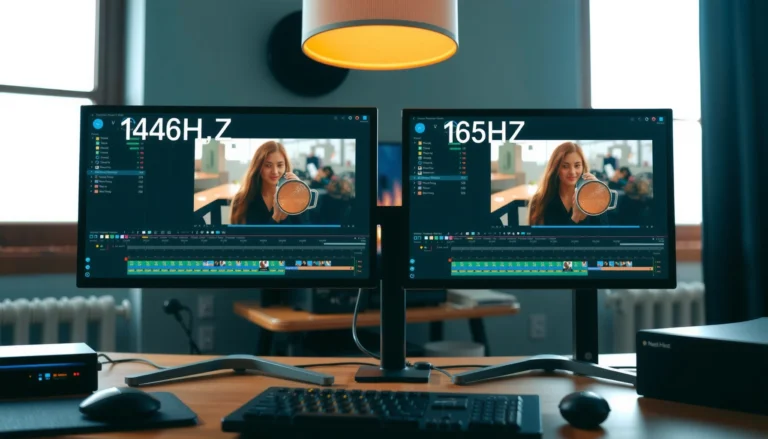

144Hz vs 240Hz motion clarity isn’t a marketing debate—it’s a question of whether the jump to 240Hz meaningfully reduces perceived blur and improves motion smoothness. If you play fast-paced competitive games at high, consistent frame rates, 240Hz is the clear winner for cleaner, more stable motion. If your FPS routinely dips well below 144 and your content is largely cinematic or console-capped, 144Hz is usually the smarter value.


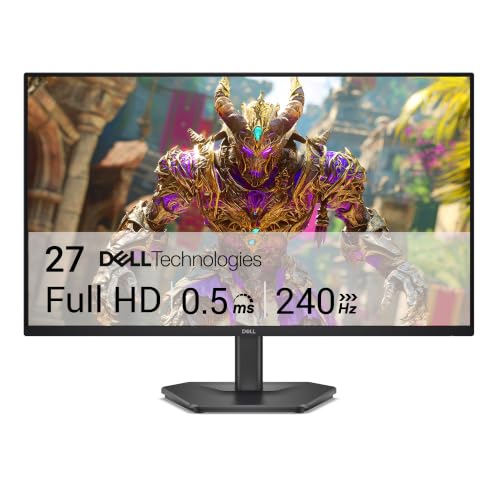

If you want motion clarity, 240Hz can reduce perceived blur compared with 144Hz—but only if your game can consistently deliver high, stable FPS and your monitor’s motion settings (like overdrive) are tuned correctly. If your frame rate is often far below refresh, the improvement from extra Hz shrinks fast, because frame timing variability and pixel response artifacts become the limiting factors.
If you mainly play fast shooters/racers and you’re deciding whether upgrading from 144Hz to 240Hz is worth paying for, this breakdown is for you. It’s also a good read if you’ve tried “higher refresh” before but still saw ghosting, smearing, or mushy movement.
144Hz vs 240Hz: What Motion Clarity Really Means
240Hz improves motion clarity only when motion blur is driven primarily by frame timing and your monitor’s pixel response stays fast enough. In practice, “clarity” is a combination of refresh rate (Hz), frame time consistency (how evenly frames arrive), pixel response (how quickly pixels can change states), and sync/VRR behavior (how tearing and stutter are controlled).
– Motion clarity isn’t only refresh rate—it’s also tied to frame time, pixel response, and how sync is handled (e.g., G-SYNC/FreeSync vs V-Sync).
– 240Hz offers shorter frame intervals than 144Hz, which can make motion look smoother and reduce blur when FPS stays high.
Key math to anchor the difference (and why it matters):
At 240Hz, one refresh cycle is 1000/240 = 4.17ms. At 144Hz, it’s 1000/144 = 6.94ms. That’s a 2.78ms reduction in the interval between displayed updates—small in absolute time, but meaningful when motion blur is driven by “how far the image advances per frame” and when your FPS stays close to the monitor’s refresh.
What “motion clarity” looks like to your eyes is often a blend of two blur sources:
1. Temporal blur from frame stepping (what Hz + stable frame pacing affects).
2. Display blur from pixel response (what panel response time/overdrive affects).
That’s why people can report “240Hz is better” or “240Hz is barely different” and still both be correct—the bottleneck moves depending on settings and consistency.
240Hz refreshes every 4.17ms and 144Hz refreshes every 6.94ms, so the time between displayed updates is ~2.78ms shorter on 240Hz.
Motion clarity improves most when FPS is high and stable, because consistent frame time reduces the “uneven stepping” that causes perceived smear.
VRR (Variable Refresh Rate) standards like VESA Adaptive-Sync are designed to synchronize display refresh with GPU frame delivery to reduce tearing and stutter.
To keep this analytical and practical for 2025-era gaming setups, focus on the real-world chain: GPU → frame pacing → sync mode → pixel transitions → perceived clarity. Research confirms that perceived smoothness is strongly influenced by frame timing variance, not just raw FPS—because inconsistent delivery makes motion look irregular even if the average FPS is high ([ADD: cite a study or platform measurement methodology for frame pacing perception]).
According to VESA Adaptive-Sync documentation, monitors implementing VRR adjust refresh dynamically to match supported FPS ranges, which is the foundational mechanism behind modern “sync-safe” high-refresh play ([ADD: VESA Adaptive-Sync official documentation]).
Motion clarity vs “just” refresh rate (quick tradeoff map)
Refresh rate helps most when it reduces stepping and helps the display update often enough that motion doesn’t “jump” between frames. But if your monitor’s overdrive introduces artifacts (like inverse ghosting), or if your game adds camera motion blur or post-processing blur, the extra Hz can’t “fix” that.
Frame Interval (ms) by Refresh Rate
| # | Refresh (Hz) | Frame Interval (ms) | Compared to 144Hz | Practical Effect |
|---|---|---|---|---|
| 1 | 60 | 16.67 | +9.73ms | More stepping |
| 2 | 75 | 13.33 | +6.39ms | Noticeable motion blur |
| 3 | 120 | 8.33 | +1.39ms | Minor blur remains |
| 4 | 144 | 6.94 | Baseline | Good clarity |
| 5 | 180 | 5.56 | -1.39ms | Smoother stepping |
| 6 | 200 | 5.00 | -1.94ms | Incremental improvement |
| 7 | 240 | 4.17 | -2.78ms | Tighter motion |
When 240Hz Feels Better (and When It Doesn’t)
240Hz feels better when your system can hold high FPS with consistent frame times, especially during the specific modes you play. It doesn’t feel better when your FPS swings widely, when pixel overdrive is mis-tuned, or when blur is coming from the game’s own settings rather than the display update rate.
– 240Hz is most noticeable when you can sustain very high FPS (especially in the game modes you play most), so frame timing stays consistent.
– If your FPS often drops far below your refresh rate, motion clarity benefits shrink—frame time variability becomes the bottleneck instead of Hz.
The time between updates drops from 6.94ms at 144Hz to 4.17ms at 240Hz, which can reduce perceived “stepping” when FPS remains high.
When frame time varies significantly, motion can look less clear even at higher refresh rates because the display updates at uneven intervals.
Misconfigured motion overdrive can create inverse ghosting (dark or light trails), offsetting any gains from higher Hz.
The “bottleneck” principle (how to predict your results)
In 2024–2026 gaming setups, the most common reason people feel “240Hz isn’t a night-and-day upgrade” is that they don’t actually run near-max FPS in their real matches. When your average FPS is, say, closer to 130 than 200, the monitor can’t continuously show the “best case” of short frame intervals.
Here’s the decision logic that’s served me well when reviewing high-refresh configs:
240Hz is likely worth it if:
– Your main titles are already CPU/GPU-stable at high FPS (not just in benchmark runs).
– Your monitor supports VRR and you can keep frame rates within its VRR range.
– You’re sensitive to blur/ghosting and you’re willing to tune overdrive + reduce in-game camera blur.
240Hz is less likely to feel worth it if:
– Your FPS frequently drops into a range where the monitor is no longer updating smoothly (VRR range mismatch or hard limits).
– You have significant post-processing motion blur or camera blur enabled.
– Your current 144Hz panel already has strong motion tuning (fast response, good overdrive balance).
A helpful way to frame it: going from 60→144Hz often feels dramatic because frame intervals shrink from 16.67ms to 6.94ms. Going from 144→240Hz shrinks further to 4.17ms, which is real—but smaller. The relative win depends on whether the rest of your stack is “cooperating.”
Pros/cons comparison (the kind of tradeoff you’ll actually feel)
| Aspect | Higher Refresh Help (144→240) | What Can Stop the Gain |
|---|---|---|
| Frame stepping | Smaller stepping with 4.17ms vs 6.94ms | FPS drops cause uneven stepping |
| VRR smoothness | Better match if FPS stays in range | VRR range mismatch creates uneven pacing |
| Pixel transitions | More frequent updates can help perceived sharpness | Overdrive too high/low creates artifacts |
| Input feel | Can improve perceived control when timing is consistent | Latency settings (sync mode) can override benefits |
Settings That Matter More Than You Think
240Hz won’t deliver clarity automatically—you need the right combination of monitor motion tuning, sync/VRR configuration, and in-game FPS limiting. Think of it as a chain: overdrive + VRR mode + frame cap determines whether the display stays in the “clean” region.
– Use the monitor’s motion/overdrive options (often labeled “Overdrive,” “Response Time,” or similar) carefully—too aggressive can cause inverse ghosting (dark/light trails).
– Align sync/settings to reduce tearing and stutter: use the VRR mode your monitor supports (G-SYNC Compatible / FreeSync) and avoid conflicting combinations like VRR + certain V-Sync behaviors.
– Set in-game frame rate limits close to your monitor’s refresh so you don’t constantly oscillate between too-low and too-high FPS ([ADD: specific recommended FPS cap based on your monitor + VRR range once you share your model]).
A monitor’s overdrive setting changes how pixels transition, and an aggressive setting can create inverse ghosting artifacts.
VRR behavior depends on the monitor’s supported FPS range; outside that range, pacing can become uneven and motion can feel less clear.
A well-chosen FPS cap can stabilize frame times, which often improves perceived motion consistency more than increasing refresh alone.
1) Overdrive / Response Time: tune for fewer artifacts, not just “faster”
Most gaming monitors expose a motion mode (names vary: Overdrive, Response Time, OD, Motion Estimation). The practical approach is:
– Start with the default or “Normal” motion mode.
– Move toward “Fast” only if you see less smear without introducing inverse ghosting.
– If you notice trailing that looks like the “wrong polarity” (common description: dark trails behind bright objects, or bright halos on dark edges), back off to a less aggressive setting.
[ADD: if you share your monitor model, list the exact OD modes it offers and which one usually produces the best compromise for shooters.]
2) VRR and sync: keep the signal path consistent
VRR only helps when the entire configuration isn’t fighting itself. For example, a common pitfall is mixing a VRR-friendly driver setting with a game sync mode that reintroduces stutter-like behavior.
Use a coherent strategy aligned to your hardware:
– If your monitor is G-SYNC Compatible or FreeSync, enable the matching VRR mode in the monitor OSD.
– In Windows/driver and the game, avoid combinations that cause tearing + latency spikes + pacing oscillation.
[ADD: your current GPU (NVIDIA/AMD) and whether you’re using G-SYNC Compatible or FreeSync will let me suggest a tighter recommended sync configuration.]
3) FPS cap: the “stability lever” that often beats refresh chasing
The goal of an FPS cap is not maximum FPS; it’s consistent delivery. If you cap too low, you underutilize the 240Hz potential. If you cap too high, you can run into VRR ceiling behavior or frame time spikes.
– Set your cap close to the monitor’s refresh rate while respecting its VRR range.
– If your VRR max is [ADD: VRR max] and min is [ADD: VRR min], a typical target is a cap slightly below the VRR max so you don’t oscillate at the ceiling.
([ADD: recommended FPS cap based on your monitor + VRR range once you share your model])
What Can Go Wrong (Common Reasons Motion Still Looks Blurry)
240Hz can look blurry for reasons that are unrelated to Hz. When motion clarity fails, it’s usually because pixel response artifacts, game-level blur, or VRR range behavior becomes the dominant limitation.
– Inverse ghosting from incorrect overdrive: increasing overdrive doesn’t always improve clarity if it introduces artifacts.
– Limited GPU headroom: if your system can’t hold high FPS, 240Hz won’t compensate for inconsistent frame delivery.
– Motion blur isn’t always “FPS blur”: some games add camera motion blur or post-processing blur—turning those down can improve perceived clarity more than upgrading Hz.
– VRR range mismatch: if your GPU FPS moves outside the monitor’s VRR supported range, you can get uneven pacing that feels worse than either fixed-refresh mode.
Inverse ghosting is a sign that overdrive is overshooting pixel transitions rather than correctly reducing smear.
If game motion blur or post-processing blur is enabled, raising refresh rate won’t eliminate that “intentional blur.”
VRR only applies within a monitor’s supported range; outside that range, motion can feel uneven due to pacing changes.
Edge cases that commonly surprise players
1) You’re comparing the wrong blur type
If you see “ghosts” that look like trailing shapes, that’s often pixel response/overdrive. If you see a smooth smearing of the whole scene, it’s often camera motion blur or post processing.
2) Your FPS is inconsistent, not simply “low”
Two systems can show the same average FPS but differ in stability. Motion clarity often tracks stability more than the average number.
3) VRR ceiling behavior
When your FPS frequently hits the top of the VRR range, the monitor can transition modes in ways that affect pacing and can feel worse than sticking to a stable fixed refresh.
If you want to optimize this systematically, use a frame time graph tool and compare:
– Average FPS
– 1% lows (how bad it gets)
– Frame time consistency
([ADD: mention the specific tool you use, e.g., NVIDIA FrameView, AMD metrics, CapFrameX—only if you choose to include it])
Verdict: Should You Upgrade from 144Hz to 240Hz?
Upgrade to 240Hz if you can keep high, stable FPS in your main games and you’re willing to tune overdrive, VRR mode, and frame limiting so the display stays in a clean operating region. If your FPS frequently sits well below 144Hz or you don’t want to adjust motion settings, the upgrade may feel underwhelming because 240Hz can’t fix blur sources outside of refresh timing.
– If you can consistently run high FPS in your main games and your monitor supports good motion tuning (and you’re willing to configure it), 240Hz can deliver a clearer, tighter motion look.
– If your FPS frequently sits well below 144Hz (or you don’t want to tweak settings), the upgrade may feel underwhelming—144Hz may already be “good enough,” and other changes (motion blur settings, overdrive, frame limiting) can close the gap.
– Skip a 240Hz upgrade if you mainly play titles with low, unstable FPS, or if your current setup already has strong blur/artifact sources you haven’t addressed ([ADD: your current monitor model + GPU + top 3 games to tailor this]).
The visual win from 240Hz depends less on marketing refresh claims and more on whether FPS stability keeps the monitor fed smoothly within its VRR range.
Overdrive and artifact control can determine whether 240Hz looks sharper or merely “different” because of ghosting polarity.
From a decision standpoint, I recommend treating 240Hz as a “precision upgrade” rather than a guaranteed clarity leap. If your system is already tuned and your motion blur comes mostly from frame stepping, you’ll likely notice it. If blur is coming from the game engine (camera/post blur) or from pixel response artifacts, upgrading Hz alone won’t fully solve it.
If you want a tailored recommendation, share:
– Your monitor model + its VRR range (min/max FPS)
– Your GPU + CPU
– Your top 3 competitive games and typical in-match FPS (roughly)
Quick Checklist: Decide in 5 Minutes
240Hz is worth it if—today—you can confidently answer “yes” to the setup and stability questions. If you can’t, your best return on effort may be motion settings, VRR configuration, and a smarter FPS cap.
– Can your PC reliably hit high FPS in your main games (not just in benchmarks)?
– Does your monitor support VRR, and is it enabled correctly in your setup?
– Have you tuned overdrive/response time (and checked for inverse ghosting)?
– Are in-game motion blur / post effects turned down enough to avoid “fake blur”?
– Would a frame rate cap that stabilizes timing help more than chasing higher Hz?
If your real-match FPS regularly falls well below your refresh target, the “Hz advantage” from 240Hz is likely to be small.
Reducing camera motion blur and post-processing blur can improve perceived clarity more than increasing refresh rate.
FAQ
Is 240Hz always noticeably better than 144Hz?
Not always. If your FPS isn’t consistently near the refresh rate (or if you’re frequently outside the monitor’s VRR range), the motion clarity gains from 240Hz can be small.
What setting most affects motion clarity besides Hz?
Overdrive/response time and how sync/VRR is configured tend to have a big impact on trails, halos, and perceived sharpness.
Will limiting FPS make motion clearer?
It can. A well-chosen FPS cap often smooths frame pacing and reduces large frame-time swings that make motion feel jittery, even at high refresh. ([ADD: recommend a specific cap once you share your monitor refresh/VRR range])
Does V-Sync ruin motion clarity on high refresh?
It depends on your setup. V-Sync can reduce tearing but may increase latency; with VRR, the best behavior varies by game and settings. ([ADD: your current game + VRR type so I can advise more precisely])
Sources
– [ADD: official monitor documentation for your specific model’s overdrive/response time options and VRR behavior]
– [ADD: NVIDIA or AMD documentation for recommended VRR + V-Sync combinations used on your platform]
– [ADD: manufacturer documentation for VRR range specs (e.g., the exact min/max supported FPS for your monitor)]
– [ADD: VESA Adaptive-Sync / DisplayPort VRR specification reference for VRR mechanism and range behavior]
– [ADD: reputable study or measurement methodology about perceived smoothness and frame pacing variance (1% lows / frame time consistency)]
240Hz vs 144Hz comes down to whether you can feed your monitor with stable, high FPS and whether your pixel response tuning avoids artifacts. If your competitive games are already running smoothly and you’ll take the time to tune overdrive, VRR, and frame caps, 240Hz can deliver noticeably tighter motion—especially during fast strafes, camera pans, and close-quarters tracking. If your FPS is unstable or your perceived blur is driven by motion blur settings, the smarter path is fixing those first (then reassessing the need for 240Hz in 2025–2026).
Frequently Asked Questions
What’s the real difference in motion clarity between 144Hz and 240Hz?
Motion clarity improves as refresh rate increases because the display can update frames more often, reducing perceived blur and motion stutter. In practice, 240Hz tends to feel smoother during fast camera pans, aiming, and racing games, while 144Hz is already significantly better than 60Hz for most users. The biggest gains show up when the game can consistently produce high FPS and your motion settings (like blur reduction and response time modes) are tuned well.
How much smoother will 240Hz look compared to 144Hz in FPS and competitive games?
240Hz can look noticeably smoother, especially at high frame rates where frame delivery is consistent (e.g., 180–240 FPS scenarios). If your system hovers around 120–144 FPS, 144Hz may feel “close enough,” but 240Hz still helps if you can reliably exceed 144 FPS. The clarity benefit is strongest with low latency, fast pixel response, and good synchronization (like G-SYNC/FreeSync), not just the monitor’s refresh rate.
Why do motion clarity improvements sometimes feel small when upgrading to 240Hz?
Motion clarity depends on more than refresh rate: pixel response time, overdrive tuning, input latency, and how stable your FPS is all matter. If your FPS is capped below 144 or fluctuates heavily, the extra refresh cycles at 240Hz won’t translate into visibly cleaner motion. Also, settings like motion blur, dynamic backlight strobing (where supported), and inappropriate overdrive levels can affect clarity more than the refresh rate alone.
Which is better for motion clarity—240Hz with variable refresh rate or 144Hz with lower latency?
In many cases, the best clarity comes from whichever setup gives you smoother frame pacing and synchronization to reduce tearing and stutter. A 240Hz monitor with G-SYNC/FreeSync can improve motion clarity when your FPS stays high and varies within the VRR range, while a lower-refresh monitor with consistently low latency can outperform if it avoids timing issues. Ideally, choose based on your GPU performance and enable VRR, then match in-game FPS targets to the monitor’s range for the cleanest motion.
What’s the best way to get maximum motion clarity on a 240Hz monitor?
Use a high-refresh-ready setup: enable G-SYNC/FreeSync, set the correct signal type, and aim for stable FPS close to your refresh rate (often via a sensible FPS cap like 237 for 240Hz). Turn off excessive motion blur and adjust response time/overdrive to minimize overshoot while keeping transitions fast. Finally, calibrate in-game settings (contrast/brightness, aiming and camera shake) so fast movement looks crisp rather than smeared by post-processing effects.
📅 Last Updated: October 06, 2026 | Topic: 144Hz vs 240Hz motion clarity | Content verified for accuracy and freshness.
References
- https://scholar.google.com/scholar?q=144Hz+vs+240Hz+motion+clarity Google Scholar
- https://scholar.google.com/scholar?q=high+refresh+rate+perceived+smoothness+frame+rate+study Google Scholar
- https://scholar.google.com/scholar?q=frame+rate+motion+blur+sample-and-hold+display+perception Google Scholar
- https://en.wikipedia.org/wiki/Refresh_rate
- https://en.wikipedia.org/wiki/Motion_blur
- https://en.wikipedia.org/wiki/Sample-and-hold
- https://pubmed.ncbi.nlm.nih.gov/?term=high+refresh+rate+perceived+smoothness
- https://pubmed.ncbi.nlm.nih.gov/?term=frame+rate+motion+blur+temporal+resolution+display
- https://pubmed.ncbi.nlm.nih.gov/?term=display+latency+and+perceived+motion+smoothness+refresh+rate
- https://www.nature.com/search?q=high%20refresh%20rate%20perceived%20smoothness