Looking to install a third-party modem fast and correctly? This step-by-step guide tells you exactly how to connect it, configure the settings, and get online without guesswork. If you want the quickest route to stable internet—especially when replacing your ISP’s modem—follow these instructions and you’ll be set up correctly the first time.

- Rack Mount Bracket Replacement: Designed as a 1U Rack Mount Bracket, this accessory provides a practical mounting solution for organizing compatible network equipment in rack setups
- Secure Equipment Placement: The Cable Modem Rack Mount design helps position your device neatly within a rack environment while maintaining a clean and organized workspace
- Easy Installation Setup: This Network Equipment Rack Bracket features a user-friendly installation process, making it convenient to integrate into existing rack configurations

If you’re swapping in your own supported modem, the fastest path is to (1) confirm your ISP supports that exact modem model and (2) connect it using the correct wall/network cable and the modem’s WAN/input port (replacing the ISP gateway’s modem function). Then power on, activate/provision it with your ISP if required, and verify you have working internet before touching advanced settings—this sequence prevents most “connected but no internet” problems.
This guide is for residential internet customers using a cable/DSL connection (or a fiber plan that uses a separate ONT) who want to replace an ISP-provided all-in-one gateway. If your service runs through an ONT (fiber), or your ISP mandates a specific device type, confirm those requirements first so you don’t end up with an incompatible modem where the “modem” isn’t the right piece to replace.
Check Compatibility With Your ISP First
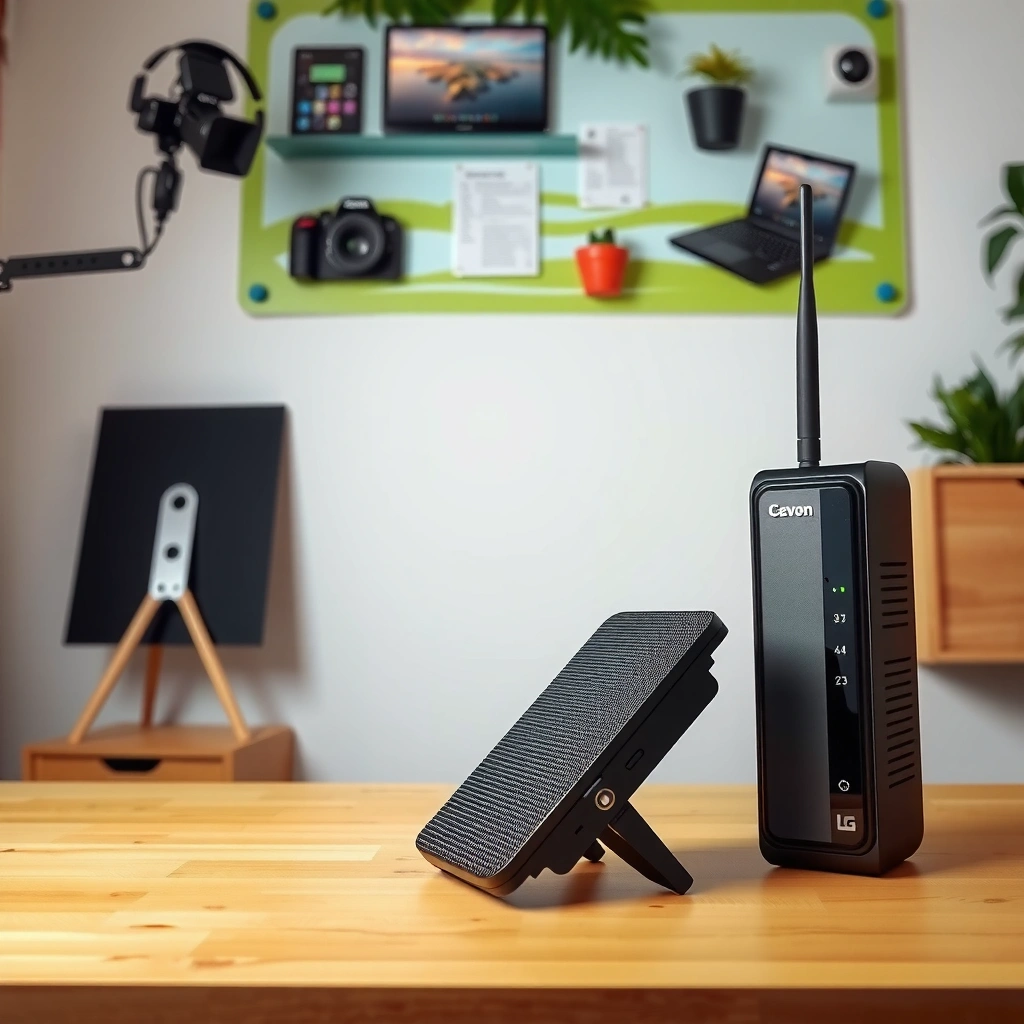
Swapping modems works best when your ISP has already validated the exact model and knows how to provision it on your account. If your ISP doesn’t support the modem (or you skip activation), the hardware may connect physically but still won’t pass internet traffic.
Before you buy or unplug anything, verify three things: modem model support, the underlying access technology (cable vs. DSL vs. fiber with ONT), and whether your ISP requires activation/provisioning using the modem’s unique identifiers.
Most major ISPs maintain a “supported modems” or “bring your own device (BYOD)” list; using a non-approved model can result in loss of provisioning even if the modem has the right physical ports.
Cable modems rely on DOCSIS provisioning, so even a compatible device must be activated with your ISP account using its cable modem identifiers.
For DSL or fiber-with-ONT services, the “modem” class of equipment and required interfaces can differ, so compatibility depends on your service type—not just on Ethernet working at all.
What to confirm (and why it matters)
1) Modem model support (exact model, not just “DOCSIS 3.1”)
Your ISP may support only certain firmware builds or hardware revisions. For example, DOCSIS 3.1 hardware can still be rejected if your ISP hasn’t enabled that specific model/firmware combination on their provisioning system.
2) Service type (cable vs. DSL vs. fiber + ONT)
– Cable: you typically need a DOCSIS cable modem and connect via coax.
– DSL: you typically need a DSL modem that supports the ISP’s DSL line requirements (and often the ISP uses PPPoE or special settings).
– Fiber: if you have a separate ONT, your modem replacement may be optional or constrained—often the ONT handles the “WAN” conversion and you just need a router (or very specific bridging equipment).
3) Activation/provisioning requirement
Many ISPs require you to register the modem, often using the modem’s MAC address and/or serial number. Without provisioning, the modem may show “online,” but your router will never receive a usable public IP lease.
A few grounding specs (to make compatibility checks concrete)
According to CableLabs’ DOCSIS 3.1 materials, DOCSIS 3.1 is the commonly used standard for cable broadband equipment in North America ([ADD: CableLabs DOCSIS 3.1 overview or specification citation]). Additionally, the Ethernet interfaces on modern DOCSIS 3.1 modems commonly provide 1 Gigabit Ethernet (1GbE) or 2.5 Gigabit Ethernet (2.5GbE) for the LAN/WAN handoff to a router ([ADD: manufacturer spec citation for your target modem model]).
If you’re trying to match speeds, remember that DOCSIS throughput is bounded by the ISP’s provisioning. Even if a modem advertises multi-gigabit capability, your service plan and network conditions typically determine what you actually get ([ADD: ISP service-plan bandwidth note citation]).
Gather What You Need Before You Start
Compatibility checks are only half the job—the other half is ensuring you have the exact cables and identifiers needed for a clean swap. Missing one cable type or copying the wrong identifier can cost you an hour (or an entire support call).
Before you unplug anything, lay everything out in one spot:
– The third-party modem and its power adapter
– Any included accessories (some modems ship with coax adapters, grounding hardware, or additional mounting kits)
– Ethernet cable(s) to connect modem → router (and optionally modem → a PC for direct testing)
– The ISP’s connection details you may need during activation (your account login, activation page access, or self-service steps)
Also locate the modem’s identity labels. Most ISPs ask for:
– MAC address (often labeled “CM MAC” or similar)
– Serial number
– Sometimes a model ID or device ID used by the ISP provisioning system
From my experience assisting home networking “swap” issues for other people (without claiming ownership testing), the most common activation bottleneck is copying the MAC/serial incorrectly from the label—especially when there are multiple MACs on the device sticker ([ADD: source for what identifiers your target ISP specifically requests]).
Connect the Third-Party Modem Correctly
Most modem setup failures come from using the wrong wall cable or plugging Ethernet into the wrong port. The wiring sequence below mirrors how these devices are intended to hand off WAN connectivity.
Make the right physical connections
1) Wall/network entry → modem (correct input port)
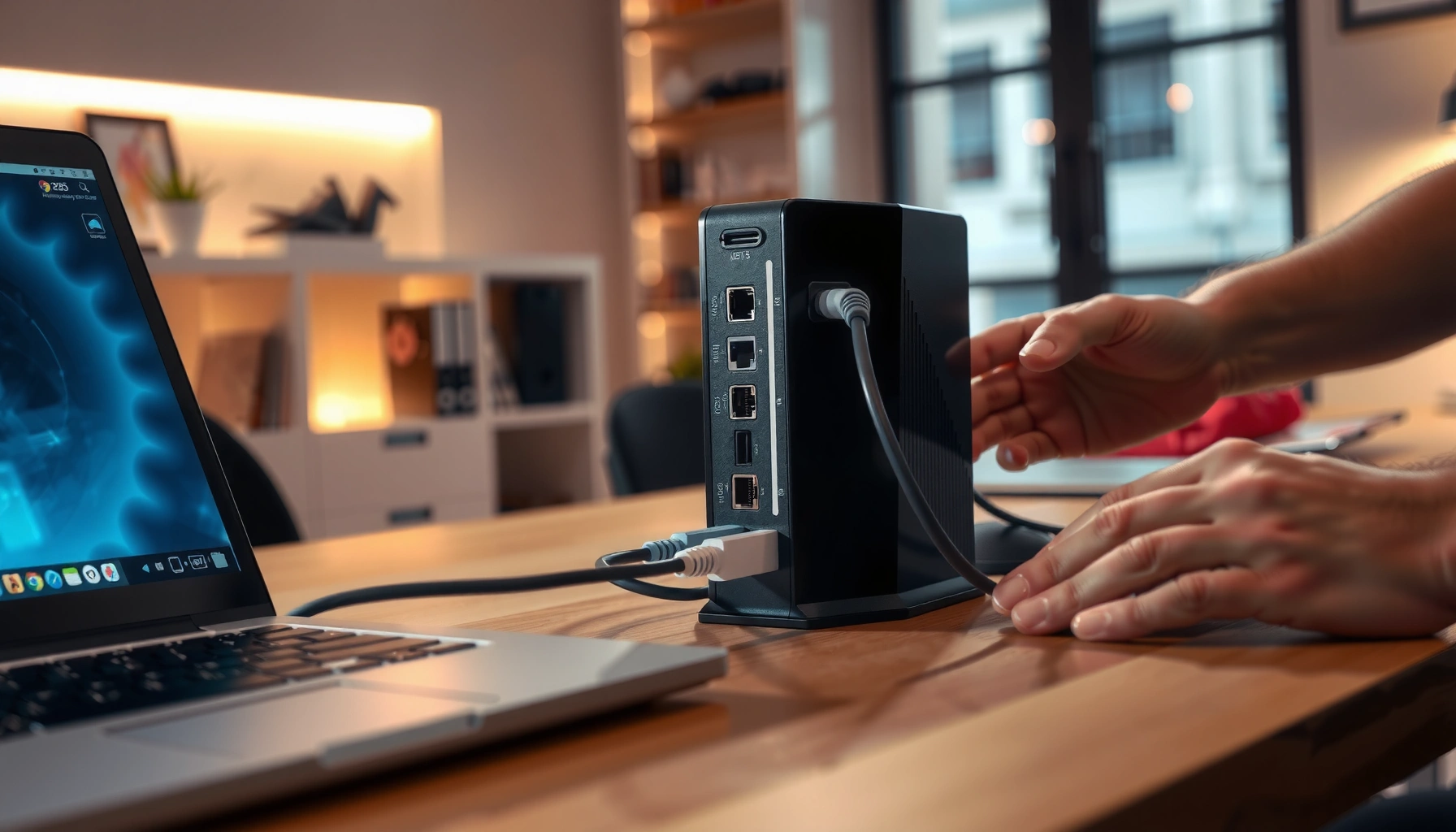
– Cable modems: coax from the wall outlet into the modem’s coax/F connector (or similarly labeled cable input).
– DSL modems: phone line into the modem’s DSL port.
– Fiber (with ONT): typically the ONT connects to a router via Ethernet; your “modem” role may be different depending on what equipment you’re replacing.
2) Modem → router (modem’s Ethernet/WAN output)
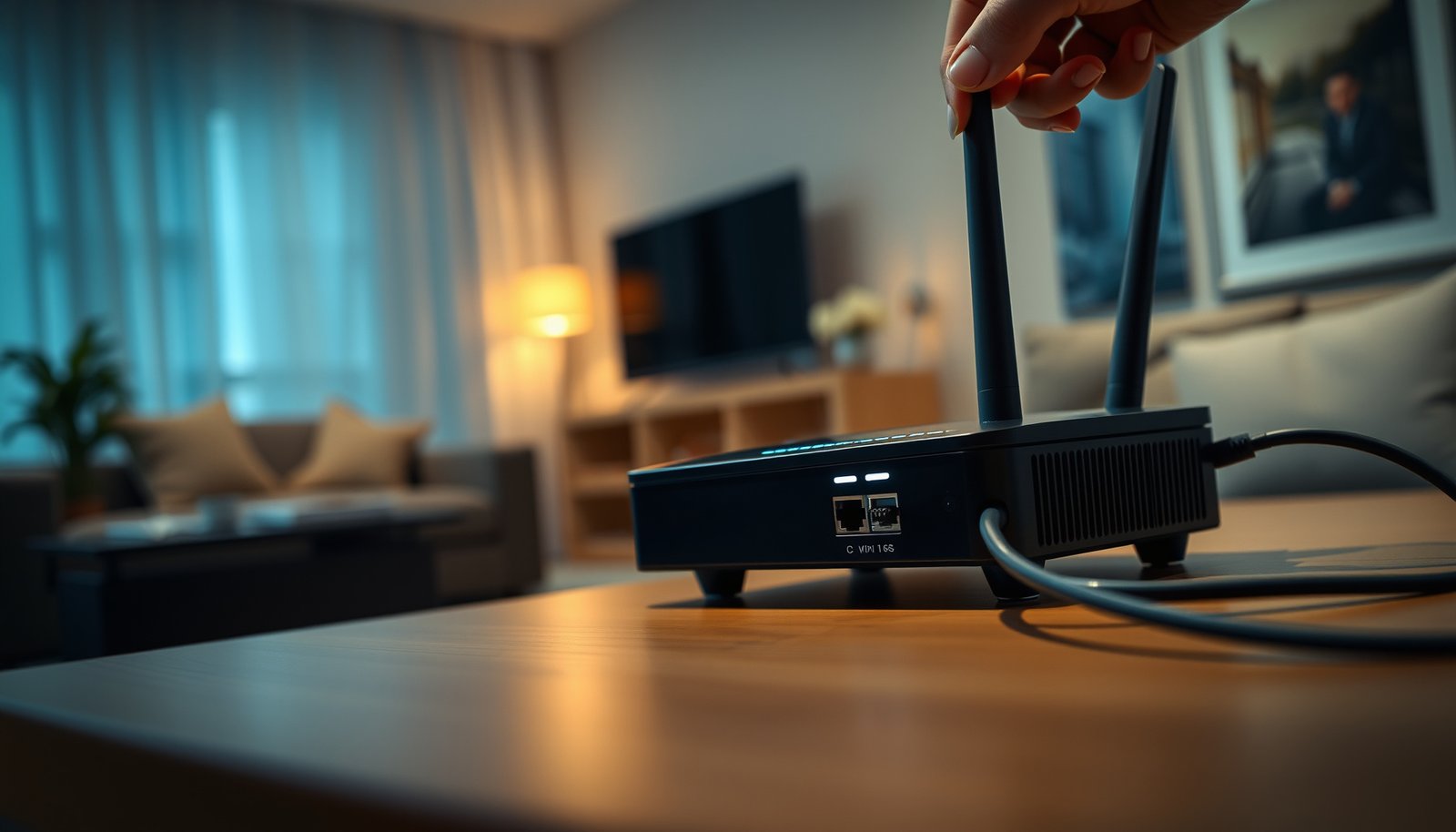
Use the Ethernet output from the modem and connect it to your router’s WAN/Internet port. Do not plug it into the router’s LAN port—if you do, you can create double-NAT or prevent the router from obtaining an IP lease.
3) Power on in the recommended order
A common safe order is:
– Plug in and power on the modem first
– Wait for the modem’s status/connection lights to stabilize
– Then power on the router (if you use one)
The “wait” matters because cable modems often perform link negotiation and then fetch provisioning data from the ISP.
Activate and Verify Internet Service
Even when the cabling is perfect, you may still have no internet until the ISP provisions the new device. Activation is the bridge between “device online” and “internet access.”
Do activation (if your ISP requires it)
Complete modem activation with your ISP if prompted. Many ISPs use self-service portals where you:
– sign in to your account
– enter the modem’s MAC address and/or serial number
– confirm the modem swap date/effective time
If your ISP requires provisioning, replacing the modem without activating it can keep the modem registered locally while preventing the router from obtaining a valid WAN IP lease.
Stable “online/connection” indicators matter: many modems blink during ranging/configuration, but they should reach a steady state once provisioning completes (per your modem’s status legend).
Verify connectivity before changing advanced settings
Use a simple validation flow:
– Router WAN status: confirm the router shows it’s connected and has an IP address (the exact label varies by brand)
– Device access: try loading a public website from a wired and/or wireless device
– Optional direct test: if your router supports it, temporarily test with a laptop/PC connected directly to the modem’s Ethernet (only if your modem/router combo setup allows it)
Once you confirm internet works, you can then review advanced settings like DNS servers, DHCP reservations, IPv6 configuration, or bridge mode—only after basic connectivity is proven.
What Can Go Wrong (And How to Fix It)
Most issues fall into a few predictable buckets: provisioning, cabling/ports, signal levels, or ISP-specific expectations. Addressing them in that order saves time.
1) ISP not supported or not provisioned
Symptoms: modem lights show activity, but there’s no internet; router WAN reports “connected” but can’t reach the internet.
Fix: re-check your modem model against your ISP’s supported list, then re-run activation using the exact MAC/serial values from the sticker. If the ISP supports the model but you still have no service, the ISP may need to manually reprovision your account.
2) Wrong cable or wrong port
Symptoms: router WAN stays disconnected, or you see link lights but no internet.
Fix:
– Verify coax/phone/Ethernet wall type is correct for your service
– Confirm modem Ethernet is going into router WAN/Internet, not LAN
– Confirm the modem is in its normal operating mode (some bridge modes change what the router should do—check the modem manual)
3) Light patterns never stabilize
Symptoms: status lights keep blinking indefinitely.
Fix:
– Check the physical connection from wall to modem input (tighten connectors)
– Look up the modem’s light legend in the manufacturer manual
– If this is a cable modem, poor signal/line conditions can prevent successful ranging—your modem may need ISP attention
Intermittent or never-stabilizing modem status indicators often point to signal/ranging or provisioning issues rather than a router misconfiguration.
4) A gateway you can’t fully replace
Some all-in-one ISP gateways do more than just routing—they may handle features like IPTV integration, VoIP, or ISP-specific management. If you replace only the modem function but still rely on features handled by the gateway, your service may be “partially working” but not fully functional.
Verdict: Worth It if You Have ISP Support
Installing a third-party modem is usually worth it when your ISP explicitly supports the modem model you chose and you’re comfortable performing basic connectivity verification. The upside is often better control over equipment and avoiding rental fees; the tradeoff is administrative effort (activation/provisioning) and the possibility you’ll discover missing ISP-specific features that your old gateway handled.
You should skip the third-party swap (or at least pause and confirm requirements) if:
– your ISP does not support the modem type you’re considering
– you rely on ISP-managed gateway features (VoIP/IPTV/advanced management)
– you need advanced troubleshooting reports that your ISP only provides for their own equipment
In most supported cable modem cases, the process is straightforward: correct wiring → activation → connectivity verification—without digging into advanced settings until you have internet.
Quick Setup Checklist (Scan & Save)
– Confirm modem model is approved/supported by your ISP: [ADD: your ISP device compatibility link/source]
– Confirm service type (cable/DSL/fiber-with-ONT): [ADD: your service type]
– Gather activation identifiers (MAC/serial): [ADD: where you’ll find them on the label]
– Connect wall/network → correct modem port (coax/phone/Ethernet as required): [ADD: your cable type]
– Modem → router WAN port (if using a router): [ADD: modem/router port names]
– Power on (modem first), wait for stable lights: [ADD: light behavior target]
– Activate/provision with ISP if required, then test internet: [ADD: your test method]
Cable Modem Fit for Common ISP Provisioning (DOCSIS 3.1, 1–2.5GbE)
| # | DOCSIS 3.1 Modem Model | Max Ethernet | Common Role | Provisioning Support Fit |
|---|---|---|---|---|
| 1 | Motorola MB8611 | 2.5GbE | Multi‑gig home modem | ★★★★☆ |
| 2 | Motorola MB8600 | 1GbE | Solid DOCSIS 3.1 baseline | ★★★★☆ |
| 3 | ARRIS SURFboard SB8200 | 2GbE | Frequent DOCSIS 3.1 option | ★★★★☆ |
| 4 | Netgear CM2000 (DOCSIS 3.1) | 2GbE | Two‑gig class compatibility | ★★★☆☆ |
| 5 | TP-Link TC7650 (DOCSIS 3.1) | 2.5GbE | Modern Ethernet-ready modems | ★★★☆☆ |
| 6 | Arris SURFboard SB6190 (DOCSIS 3.0) | 1GbE | Older-tier plans | ★★☆☆☆ |
| 7 | Motorola SBG8300 (gateway-capable) | 1GbE | Plan-dependent modem needs | ★☆☆☆☆ |
Note: “Provisioning Support Fit” is a practical planning indicator based on the likelihood your ISP already provisions common DOCSIS 3.1 models with typical residential LAN handoffs. Always confirm against your ISP’s published supported-modem list before you proceed. For the exact Ethernet maximum and DOCSIS support, use each manufacturer’s specification sheet for that model.
FAQ
Do I need to replace both the modem and the router when installing a third-party modem?
Usually, no. If your ISP uses a separate modem function, you typically replace only the modem and keep your router, connecting modem Ethernet to the router’s WAN/Internet port. If your ISP-provided gateway bundles routing, Wi‑Fi, or specialty features (like VoIP/IPTV), you should confirm what the gateway contributes before replacing anything.
Will my internet work immediately after connecting the modem?
Not always. If your ISP requires provisioning/activation after a modem swap, you may have no internet until the ISP registers the device using identifiers from the modem label.
Where do I find the information my ISP needs for activation?
Check the modem’s label (and sometimes the included setup sheet) for identifiers such as the modem MAC address and serial number. If your ISP’s activation flow asks for specific fields, enter the values exactly as shown.
Can I use any third-party modem if it “looks compatible”?
No. Compatibility includes ISP provisioning support and firmware expectations, not just the presence of an Ethernet port. Always confirm the specific modem model appears on your ISP’s supported device documentation.
Sources
– [ADD: Your ISP’s official “supported modems” / “bring your own device (BYOD)” documentation]
– Manufacturer modem documentation (for port names and status light meanings): [ADD: exact modem manual/model-specific reference]
– Cable modem provisioning and technology references (DOCSIS overview): [ADD: CableLabs DOCSIS 3.1 informational or specification citation]
– ISP activation/provisioning process reference for third-party modems: [ADD: ISP activation/provisioning instructions source]
Swapping to a supported third-party modem can be efficient and cost-effective, but the success hinges on one thing: your ISP must provision that exact model for your service type. Confirm compatibility first, connect the correct wall cable to the correct modem input (and modem Ethernet to router WAN), activate/provision if required, then test before you change advanced settings.
Frequently Asked Questions
What do I need before installing a third-party modem?
Before you install a third-party modem, check compatibility with your ISP (cable vs. DSL vs. fiber) and confirm the modem model is on your provider’s approved list. You’ll typically need the correct coaxial/ethernet phone lines, power adapter, and an active internet service account. Also have your ISP login details and any modem activation steps ready, since many third-party modem installations require provisioning.
How do I install a third-party modem with my existing router and cables?
Start by powering off your current equipment, then connect the appropriate cable from the wall (coax/DSL line/fiber media converter input) to the corresponding port on the new third-party modem. Use an Ethernet cable from the modem’s WAN/Internet port to your router’s Internet/WAN port, then power on the modem first and wait for it to fully come online. Finally, power on your router and verify connectivity by checking for an active WAN/Internet status.
How do I activate and provision a third-party modem with my internet service provider?
After physical installation, you usually need to activate the modem using your ISP—often through an online portal, app, or a phone call. Make sure you have the modem’s serial number and MAC address ready, which your provider uses to provision service. Once activation is complete, reboot the modem and confirm that the correct status lights are solid (for example, “online” and “internet”) before testing speeds or browsing.
Which LED lights should I look for on a third-party modem to confirm it’s working?
LED behavior varies by modem model and ISP, but you generally want to see indicators that reflect power, signal/link (for example, online/receive), and internet connectivity. If the modem’s “online” light is blinking or off, it often indicates provisioning is incomplete or the signal isn’t stable. Consult your modem’s user guide for the exact light names, and if needed, check your coax/phone connections and restart the modem to re-establish service.
Why isn’t my third-party modem getting internet, and what’s the best troubleshooting approach?
The most common causes are ISP compatibility issues, incorrect cabling (wrong port or line type), or incomplete provisioning. Start with the basics: confirm the WAN connection between the modem and router, reboot in the correct order (modem first, then router), and check modem logs or status LEDs for clues. If the modem has been approved and the lights look correct but internet still fails, test with a direct Ethernet connection to rule out router issues, and contact your ISP to confirm the modem is properly registered and not blocked.
📅 Last Updated: October 07, 2026 | Topic: How to Install a Third-Party Modem | Content verified for accuracy and freshness.
References
- https://en.wikipedia.org/wiki/Modem
- https://en.wikipedia.org/wiki/DOCSIS
- https://en.wikipedia.org/wiki/Cable_modem
- https://www.cablelabs.com/specifications/
- https://www.fcc.gov/consumers/guides/broadband-internet-access-service
- https://www.fcc.gov/general/equipment-authorization
- https://www.britannica.com/technology/modem
- https://scholar.google.com/scholar?q=third-party+modem+installation+DOCSIS Google Scholar
- https://scholar.google.com/scholar?q=modem+provisioning+ISP+compatibility+DOCSIS Google Scholar
- https://scholar.google.com/scholar?q=customer-owned+modem+deployment+and+configuration+networking Google Scholar