Mesh Wi-Fi cannot replace a modem on cable or DSL internet, but it can often replace your router. If you have fiber internet, a mesh system may connect directly to your provider’s optical network terminal without a separate modem. Here’s how to determine which equipment your connection requires—and whether you can retire your existing gateway.



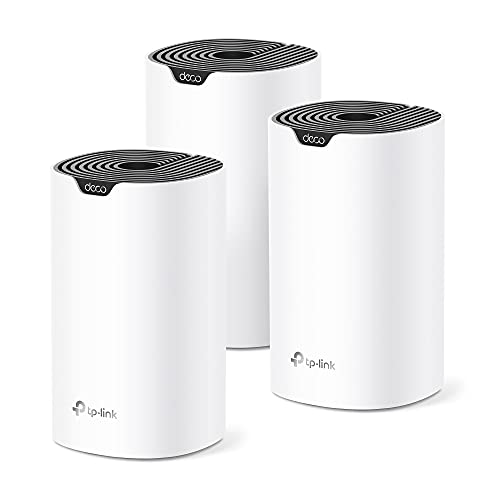
No—mesh Wi-Fi generally cannot replace a modem because it distributes your internet connection rather than providing the connection to your internet provider. It can often replace your router, while a modem, fiber ONT, or provider gateway still handles the incoming service. The key is identifying what your existing equipment does before removing anything.
This guide is for anyone considering mesh Wi-Fi to improve coverage, replace a router, or reduce equipment clutter. It also covers modem-router combination units and fiber connections, where the right setup can look different.
What a Modem Does That Mesh Wi-Fi Cannot

A modem connects your home to compatible internet service; a router manages traffic between that connection and your devices. Ordinary mesh Wi-Fi replaces or supplements the router—not the modem’s service-specific hardware.
A cable modem terminates a compatible cable internet connection; an Ethernet-only mesh router cannot perform that function.
A router typically assigns local network addresses and provides a firewall. A mesh system uses a main unit and additional nodes to spread wireless coverage throughout a property. Many main units also handle routing, while nodes communicate through wireless or Ethernet backhaul, the connection carrying traffic between mesh units.
A mesh system replaces a modem only when the product explicitly includes a compatible built-in modem.
For example, [TP-Link’s Deco X50-DSL documentation](https://www.tp-link.com/en/home-networking/deco/deco-x50-dsl/) identifies an integrated VDSL/ADSL modem. That does not make it a cable modem or fiber ONT.
The following manufacturer specifications illustrate the distinction. According to [TP-Link](https://www.tp-link.com/us/deco-mesh-wifi/product-family/deco-x20/#specifications), the Deco X20 has two Gigabit Ethernet ports per unit (specifications referenced in 2026). According to [eero](https://www.eero.com/shop/eero-6), the eero 6 router has two auto-sensing Gigabit Ethernet ports. According to [Google](https://store.google.com/product/nest_wifi_pro_specs), Nest Wifi Pro also has two Gigabit Ethernet ports. Ethernet connectivity alone does not provide modem functionality.
Seven Devices: Mesh Capability Versus Built-In Modem
| # | Device | Internet-side connection | Mesh capability | Built-in modem |
|---|---|---|---|---|
| 1 | TP-Link Deco X20 | Ethernet | Deco mesh | No |
| 2 | Amazon eero 6 router | Ethernet | eero mesh | No |
| 3 | Google Nest Wifi Pro | Ethernet | Nest Wifi Pro mesh | No |
| 4 | TP-Link Deco X50-DSL | DSL or Ethernet | Deco mesh | Yes: VDSL/ADSL |
| 5 | TP-Link Deco X20-DSL | DSL or Ethernet | Deco mesh | Yes: VDSL/ADSL |
| 6 | ARRIS SURFboard S33 | Cable coaxial | None built in | Yes: DOCSIS 3.1 |
| 7 | NETGEAR CM1000 | Cable coaxial | None built in | Yes: DOCSIS 3.1 |
“Built-in modem” indicates hardware functionality, not approval for a particular internet provider.
What Your Internet Connection Still Needs
Your incoming service determines which equipment must remain. An Ethernet socket on a mesh router does not guarantee compatibility with every provider.
– Cable or DSL: Keep a compatible modem or modem-router gateway. Cable providers may require an approved model and activation; DSL may require account credentials and supported line standards.
– Fiber: An optical network terminal, or ONT, converts the optical connection into a usable handoff. Direct mesh-to-ONT Ethernet works only where the provider supports your router and configuration. [Verizon documents using your own router with Fios](https://www.verizon.com/support/residential/internet/equipment/routers/other-equipment); television services can introduce additional requirements.
– Fixed wireless or satellite: The provider’s cellular receiver, satellite terminal, or gateway may remain essential. [Starlink’s official support documentation](https://www.starlink.com/support) covers third-party routers, bypass mode, and hardware-dependent Ethernet requirements.
Fiber service normally retains an ONT even when the customer replaces the Wi-Fi router.
Replacing provider Wi-Fi does not eliminate the receiver or terminal required for fixed wireless or satellite internet.
How to Connect Mesh Without Removing Essential Equipment
Identify every device before disconnecting anything, then choose a configuration supported by both manufacturers. Use model labels and official manuals rather than appearance alone.
1. Record the equipment. Photograph model labels and connections. Coaxial, DSL, optical, and Ethernet ports provide clues, but the manual confirms functionality.
2. With a standalone modem: Connect its Ethernet output to the main mesh unit’s internet/WAN port and follow activation instructions.
3. With a gateway: Choose gateway bridge mode or mesh access-point mode where supported.
Bridge mode usually disables the gateway’s routing so the mesh handles it. Access-point mode leaves routing with the gateway while mesh supplies wireless coverage. Feature availability varies: parental controls, security subscriptions, guest networking, and port forwarding may change.
Gateway bridge mode and mesh access-point mode are alternative ways to avoid running two household routers in series.
Turning off a gateway’s Wi-Fi does not, by itself, disable its routing.
Use [Xfinity’s bridge-mode instructions](https://www.xfinity.com/support/articles/wireless-gateway-enable-disable-bridge-mode) for supported Xfinity gateways and [TP-Link’s Deco access-point instructions](https://www.tp-link.com/us/support/faq/1842/) for compatible Deco systems. Do not assume other brands behave identically.
What Can Go Wrong When You Replace the Wrong Device
Removing essential access equipment can disconnect the household, while an unsuitable configuration can create subtler problems.
– Internet stops working: Ordinary mesh equipment cannot take over a removed cable modem, DSL modem, or ONT.
– Two routers remain active: Double NAT, where two devices perform network address translation, can complicate port forwarding, inbound connections, and some gaming setups. Browsing and streaming may still work normally.
– Provider features stop working: Gateway removal or bridge mode may affect television networking, bundled phone service, hotspot functions, or support eligibility.
Double NAT can complicate inbound connections without causing noticeable problems for every household.
A working internet connection does not prove that bundled telephone and television services remain correctly configured.
Review the ISP’s service-specific restrictions before changing modes. Verizon’s own-router guidance and Xfinity’s bridge-mode documentation explain relevant limitations; neither should be generalized to other providers.
When Mesh Is Worth Adding—and When to Skip It
Mesh Wi-Fi is worth considering when coverage fails across several rooms or floors—not simply because internet access feels slow. Diagnose the connection before buying more equipment.
Place nodes where they still receive a strong upstream signal, not inside the dead zone. Ethernet backhaul can reduce reliance on wireless links between nodes, although ports, cabling, and installation conditions determine feasibility.
Mesh Wi-Fi improves local wireless coverage; it cannot repair an ISP outage or a failing modem.
A mesh node needs a reliable backhaul connection to provide useful coverage beyond the main router.
- Advantages
- Broader coverage, coordinated wireless networking, and potentially easier management across multiple access points.
- Disadvantages
- Additional purchase cost, power outlets, equipment, and placement constraints; wireless backhaul can limit performance.
If coverage is already adequate, keep the current setup. Compare wired performance with Wi-Fi performance where practical: poor results over both connections suggest something beyond wireless coverage.
Save This Equipment Checklist
Match your existing equipment to the likely setup below before unplugging anything. As of 2026, compatibility remains model-, provider-, and service-specific.
A standalone modem usually stays when mesh replaces a separate router.
Verify provider approval before returning rented equipment, even when a replacement device appears technically compatible.
| Current equipment | What usually stays | What mesh may replace |
|---|---|---|
| Standalone modem and router | Modem | Router and its Wi-Fi |
| Modem-router gateway | Gateway, unless replaced with a compatible modem | Routing and Wi-Fi, depending on configuration |
| Fiber ONT and separate router | ONT | Router, if the ISP supports it |
| Provider-specific wireless or satellite gateway | Required provider equipment | Wi-Fi or routing, where supported |
Save account credentials and configuration details, confirm bundled-service requirements, and retain the original equipment until the new installation works.
Sources to Verify Before Making Changes
Official ISP instructions establish service compatibility; manufacturer documentation establishes hardware capabilities. Check both, including the exact model, hardware revision, and region.
A manufacturer’s modem specification does not establish approval for an individual ISP’s network.
Operating-mode support must be checked for the specific mesh system rather than assumed across brands.
– ISP requirements: [Xfinity approved-device lookup](https://www.xfinity.com/support/devices/), [Xfinity bridge mode](https://www.xfinity.com/support/articles/wireless-gateway-enable-disable-bridge-mode), Verizon Fios own-router guidance, and Starlink support linked above.
– Mesh specifications and modes: TP-Link Deco X20, eero 6, Google Nest Wifi Pro, and TP-Link access-point instructions linked above.
– Integrated modems: [Deco X20-DSL](https://www.tp-link.com/en/home-networking/deco/deco-x20-dsl/), Deco X50-DSL linked above, [ARRIS S33](https://www.surfboard.com/products/cable-modems/s33/), and [NETGEAR CM1000](https://www.netgear.com/home/wifi/modems/cm1000/).
Mesh Wi-Fi usually replaces the router or improves wireless coverage—not the modem or ONT that connects your home to the provider. Check your equipment model, confirm your ISP’s requirements, and choose a supported configuration before unplugging or returning any device.
Frequently Asked Questions
Can mesh Wi-Fi replace my modem entirely?
In most cases, no—mesh Wi‑Fi systems typically do not replace a modem because they usually don’t have a built-in cable/DSL/fiber modem. Your modem (or fiber ONT) is what connects to your ISP, and the mesh Wi‑Fi handles local routing and wireless coverage. Some systems are “modem Wi‑Fi router” combos, but those are less common and only work with certain ISP types.
How do I set up a mesh Wi‑Fi system if I already have a modem?
Connect the mesh system’s router unit to your existing modem using an Ethernet cable, then follow the setup wizard in the app. Usually, the modem stays in charge of the internet connection, while the mesh router creates your Wi‑Fi network. For best results, use the ISP-provided modem/router in bridge mode if your ISP allows it, so double NAT and connection issues are minimized.
Why does my internet stop working when I disconnect my modem and use mesh Wi‑Fi?
If your mesh Wi‑Fi doesn’t include a compatible modem, it can’t authenticate to your ISP or establish the required connection type (cable, DSL, or fiber). In that situation, the mesh network may come up, but you’ll see no internet or limited connectivity. The fix is to keep the modem/ONT in place or switch to a mesh system that includes an ISP-compatible modem/connection capability.
Which mesh Wi‑Fi systems include a built-in modem so they can replace my modem?
Look for “modem router” or “all-in-one modem + Wi‑Fi” models, and verify they match your internet service (DOCSIS for cable, VDSL/ADSL for DSL, or specific fiber/router setups). Even then, compatibility depends on your ISP’s supported devices and firmware requirements. Check your ISP’s modem compatibility list or ask support to confirm the exact model will work.
What’s the best way to use mesh Wi‑Fi with a modem to improve coverage and speed?
Place the main mesh node near your modem for a reliable backhaul connection, then add satellite nodes based on signal coverage needs. If your mesh supports wired backhaul, connect satellites to the router/main node with Ethernet to improve performance and reduce Wi‑Fi contention. Also ensure the modem is not overloaded and that your mesh router settings (like bridge mode on ISP equipment) are configured to avoid double NAT issues.
📅 Last Updated: October 16, 2026 | Topic: Can Mesh Wi-Fi Replace a Modem? | Content verified for accuracy and freshness.
References
- Modem
- Router
- Mesh networking
- Home network
- Cable modem
- Digital subscriber line
- https://scholar.google.com/scholar?q=mesh+wifi+replace+modem Google Scholar
- https://scholar.google.com/scholar?q=mesh+networking+architecture+modem+router Google Scholar
- https://scholar.google.com/scholar?q=home+network+modem+vs+router+mesh+wifi Google Scholar


One thought on “Can Mesh Wi-Fi Replace a Modem?”