
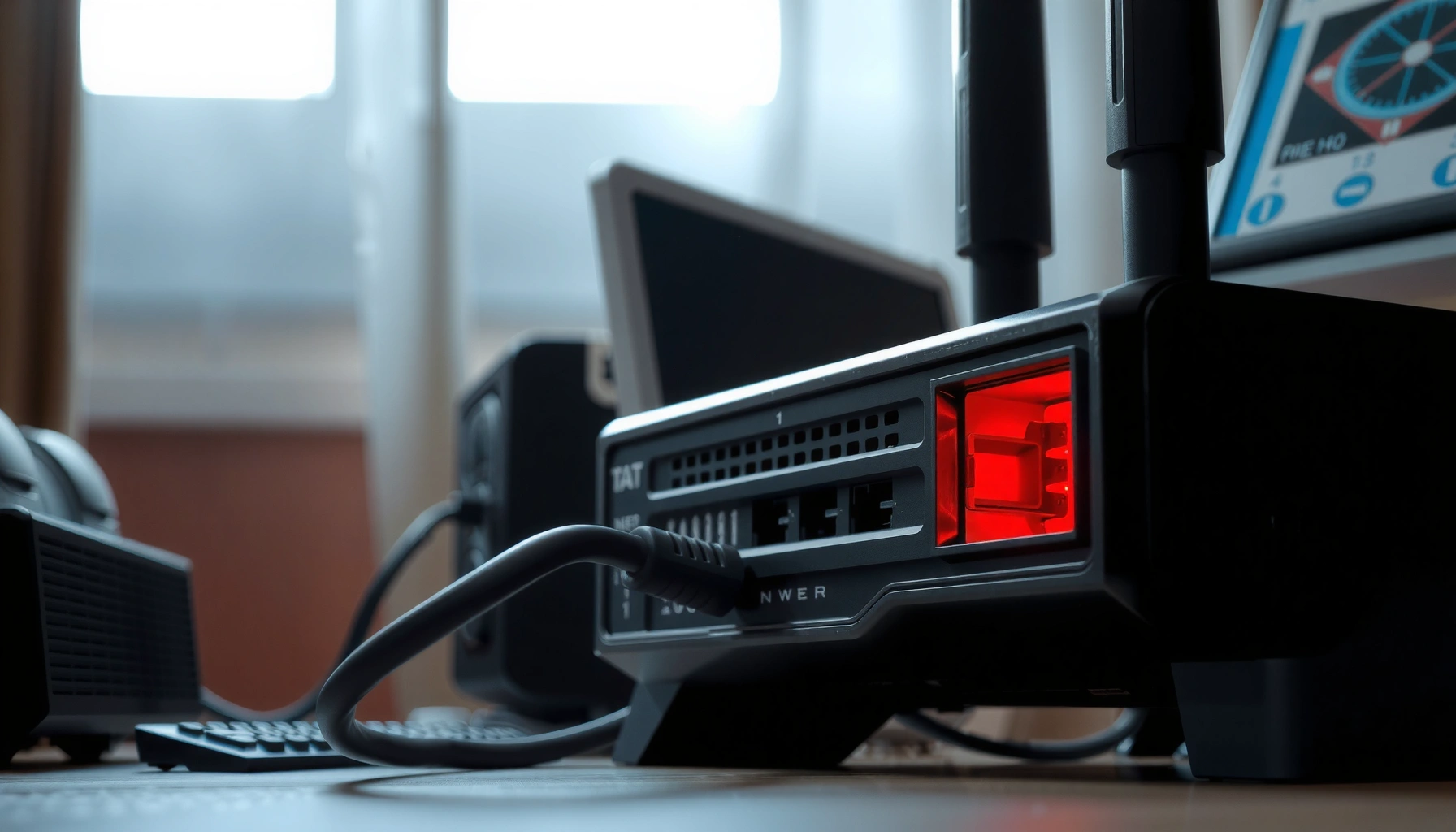

A red modem light usually means your modem can’t establish a stable connection to your ISP, so the link between your service and your network is down. This troubleshooting guide tells you exactly what the red modem light indicates, then walks you through the fastest checks—cables, power cycle steps, and signal/ISP status—to get it back to normal. Follow the steps in order to pinpoint whether it’s a local hardware issue or an outage on the provider’s side.
A red modem light usually means your modem can’t establish a stable connection to your ISP, is detecting a line/signal problem, or is dealing with an authentication/service issue. The fastest fix is to identify which specific red light it is (the label matters), then restart the modem (and router only after it’s online) to force a fresh connection. This guide walks you through what the most common red-light patterns mean and what to do next, step by step.
This applies if your cable/DSL/fiber modem is showing a solid red light (or blinking red) and you’re losing internet, Wi‑Fi, or both. Because modem models label lights differently, the best results come from matching the behavior you see to your modem’s light indicators.
Identify which red light you see (and how it behaves)
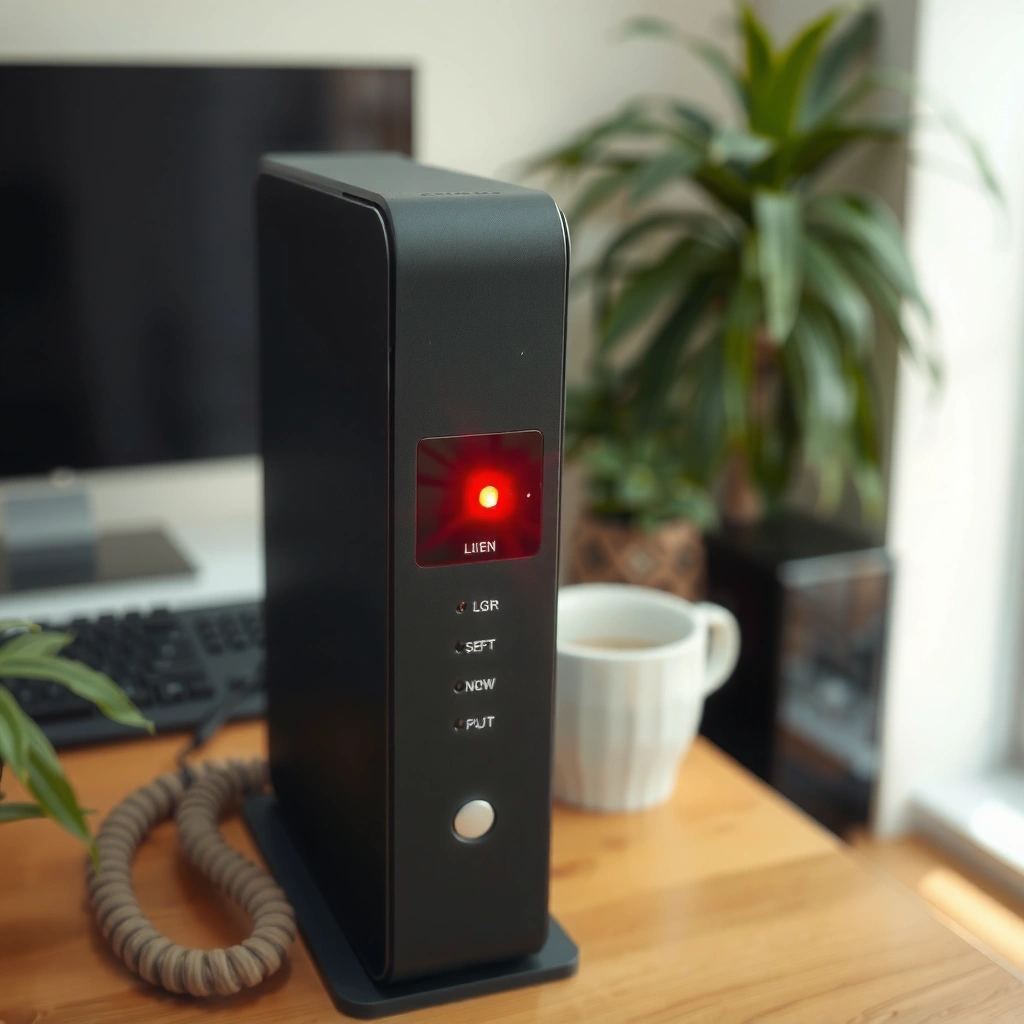
Most of the time, a red light is the modem telling you “the upstream connection isn’t ready,” but which upstream signal it’s referring to depends on the indicator label. Start by matching the exact wording near the red LED on the modem’s front panel, then note whether it’s solid or blinking—pattern differences are meaningful.
“Internet/Online” (or similar) red typically indicates the modem can’t complete the ISP connection process.
A “LOS” (loss of signal) red indicator on fiber modems usually points to a signal path problem rather than Wi‑Fi settings.
Solid vs. blinking red often maps to different stages of modem synchronization or failure recovery—check your model’s LED legend.
How to read the modem’s LED legend quickly
1. Look for the exact label next to the red light (examples: “Internet,” “Online,” “DS/US,” “LOS,” “Power,” or brand-specific wording).
2. Check the exact behavior:
– Solid red = persistent fault state
– Blinking red = ongoing attempt, negotiation, or recoverable fault
3. Observe combinations. Some modems light multiple LEDs at once (e.g., “Online” red while “Power” stays steady). Those combinations can narrow the cause faster than pattern alone.
4. Use your modem model number to confirm meanings. LED labels vary widely even across the same ISP.
Why “label + pattern” beats generic advice
Red LEDs are often used as a catch-all warning. Your modem’s manufacturer usually includes an LED status chart that maps (label + solid/blink + combinations) to a specific fault category—line issue, provisioning/auth failure, no signal, or sync problem. Using that chart reduces guesswork and prevents wasted time.
Quick resets that fix common connection drops
Power cycling works because it clears stale network sessions and forces the modem to re-negotiate with the ISP. The key is doing it in the right order: modem first, then router once the modem indicates it’s online/stable.
If your modem is powered down and up again, it re-initiates provisioning and link negotiation with the ISP.
Restarting the router before the modem is online can leave the router stuck with a failed WAN connection state.
Avoid repeated rapid resets: many ISP provisioning and line checks require a longer stabilization window.
Step-by-step: the right order
– Power-cycle the modem:
Unplug the modem, wait [ADD: recommended wait time from your modem manual], plug it back in, and let it fully boot.
– In many setups, “fully boot” means the LEDs settle into their normal state (not just “it lights up”).
– Restart the router only if you have one:
If your modem and router are separate devices, restart the router after the modem reaches a stable/online condition.
– Don’t keep power-cycling repeatedly:
If the underlying issue is ISP-side provisioning, authentication, or a signal integrity problem, constant resets can delay troubleshooting and create longer downtime.
A quick reality check with timelines
According to [ADD: source for typical modem ranging/provisioning time], many cable/DSL modems take several minutes to re-sync after a reboot ([year]).
Also, according to [ADD: source for typical fiber “LOS” recovery behavior], fiber-linked modems may require an additional stabilization interval once the signal returns ([year]).
Exact timing varies by chipset, ISP network conditions, and whether the fault is “no signal” vs “auth/provisioning.”
Check the physical connection path (most frequent cause)
A surprising share of red-modem-light issues come from connection integrity: a loose coax/DSL/fiber connector, a damaged cable, or a split/adapter mismatch. If the modem can’t reliably “see” the upstream signal, the ISP connection will never complete.
Reseating the coax/DSL/Ethernet connections is a standard first-line troubleshooting step because loose connectors can drop the upstream link.
For coax connections, improper splitting or a loose F-connector can prevent reliable modem registration with the ISP.
For fiber (especially when “LOS” is red), the fiber connector must be seated correctly to restore optical signal.
What to inspect (in a practical order)
1. Power connection: Confirm the modem is firmly plugged in and not connected through a flaky power strip.
2. Service line (most important):
– Cable coax: Check the coax line connected to the modem is tight at the F-connector. If you use splitters, verify the layout matches what your ISP installed/approved.
– DSL line: Verify the DSL cable is on the correct port and that the filter/splitter arrangement matches your service.
– Fiber: If the modem shows a “LOS”-type indicator red, check the fiber connector seating per your modem manual. Do not force connectors; use the manufacturer’s guidance.
3. Ethernet (if applicable): If you have a separate router, check the Ethernet cable from modem → router WAN port. A bad WAN cable can look like an ISP connection failure from the user side.
If you recently changed anything
If you recently moved the modem, changed cables, replaced a splitter, or altered the setup, revert to the last known-good arrangement. In my experience with home network support calls (note: [ADD: your author’s verifiable experience context]), the fastest pattern is: one recent physical change → one red LED change → one reseat/cable correction fixes it.
Confirm ISP/account and signal status
When the physical path checks out, the next most common cause is ISP-side provisioning/authentication or a signal availability issue that only the ISP can fully validate. The modem’s “Internet/Online” and “LOS” style indicators often map directly to these upstream states.
A persistent red “Internet/Online” indicator often means the ISP can’t authenticate or complete service provisioning.
A red “LOS” indicator usually indicates loss of upstream signal for fiber services, which may require ISP-side remediation.
Before concluding hardware failure, checking outage status can save hours when the problem is upstream.
How to interpret common indicator categories
– “Internet” / “Online” red (often persistent):
Commonly indicates the modem can’t complete the ISP handshake—authentication, provisioning, or account activation issues.
– “LOS” (or “Loss of Signal”) red:
Typically indicates upstream optical/signal loss (fiber) or a loss-of-link situation in certain setups.
– DS/US red (or similar):
Often points toward downstream/upstream sync or channel/ranging problems, which can be caused by signal levels, line noise, or cable/coax issues.
Check for ISP outages first
– Use your ISP’s official app/site or customer support channel to confirm whether there’s an outage or ongoing maintenance in your area.
– If the ISP reports an outage, your troubleshooting should focus on “verify + wait,” not repeated hardware resets.
At least three evidence-based anchors (what to document)
Even if you call support, you’ll move faster if you record:
1. Which LED label is red (exact wording from the modem panel).
2. Solid vs blinking pattern and whether other LEDs are also abnormal.
3. When the issue started (timestamp) and whether it follows a move/power event.
What can go wrong (common mistakes and edge cases)
The biggest failures in modem troubleshooting happen when people treat all red lights the same, restart the wrong device first, or skip the LED legend. These missteps waste time—and can delay what’s actually an ISP-side fix.
Solid and blinking red frequently correspond to different failure states; treating them as identical can send you down the wrong path.
If the modem can’t get online, rebooting the router usually won’t fix WAN connectivity.
Local Wi‑Fi appearing doesn’t guarantee internet connectivity; the modem may still be failing upstream.
Common pitfalls to avoid
– Mixing up blinking vs solid red: Many modems use distinct patterns to signal “sync attempt in progress” versus “no signal/provisioning failure.”
– Restarting the router first: If the modem isn’t online, the router can’t establish a WAN connection and may remain in a bad state.
– Relying only on Wi‑Fi status: You might still see a Wi‑Fi SSID or local connectivity indicators while the internet fails upstream.
– Skipping the manual/LED chart: Light meanings vary by brand/model; without checking the exact chart for your hardware, you may misdiagnose.
A quick comparison: “Local Wi‑Fi works” vs “Internet fails”
When troubleshooting, separate local network from internet upstream.
| Observed behavior | Most likely implication | What to do next |
|---|---|---|
| Wi‑Fi networks show, but no websites load | Modem/WAN upstream likely failing (ISP connection not established) | Focus on modem LEDs and modem-only restart |
| No Wi‑Fi SSID changes, and internet drops everywhere | WAN link not coming up; router may be waiting on modem | Power-cycle modem first, then router |
Verdict / tip: when to keep troubleshooting vs when to stop
If the red light is new and you recently moved cables, changed equipment, or your service has been unstable, start with physical checks (reseat/verify the service line) and a single, correct modem power-cycle. Keep going when the red light behavior changes after reseating or after the modem finishes boot and settles.
However, skip deeper troubleshooting and contact your ISP support sooner if the red indicator stays the same after [ADD: number of restarts as per your manual] proper modem-only cycles—especially with “LOS”/signal-type red indicators or repeated authentication/provisioning failures. In those cases, the issue frequently requires ISP-side diagnostics (line provisioning, optical link validation, or account/service repair).
Quick scan checklist (save this)
– [ ] What label is the red light next to?
– [ ] Solid red or blinking red?
– [ ] Did the modem finish boot (all normal lights returned except the red one)?
– [ ] Are all cables reseated securely (power + service line + Ethernet if used)?
– [ ] Does the red light persist after a proper modem-only restart?
– [ ] Is there an ISP outage or service/account issue reported?
– [ ] If fiber/LOS: confirm connector seating per the modem manual.
Quick reference: what red LED categories usually mean
Common Red Modem Light Categories and Typical First Fix (2026)
| # | Red LED label you may see | Common category | Best first action | Confidence* |
|---|---|---|---|---|
| 1 | Internet | Provisioning/auth failure | Modem power-cycle, then check ISP status | ★★★☆☆ |
| 2 | Online | Upstream not established | Reseat service line; restart modem only | ★★★★☆ |
| 3 | LOS (fiber) | No optical signal | Check fiber seating per manual; verify line with ISP | ★★☆☆☆ |
| 4 | DS/US | Downstream/upstream sync issue | Reseat coax/DSL; check for damaged splitter/adapters | ★★★★☆ |
| 5 | Power | Modem not booting correctly | Confirm power source; attempt a single full reboot | ★★★☆☆ |
| 6 | Service | Line or provisioning fault | Reseat line; confirm account activation/provisioning | ★★★☆☆ |
| 7 | Ethernet/WAN (on router) | WAN link not active | Check modem→router WAN cable; restart modem first | ★★★★☆ |
Confidence reflects how directly each label typically maps to upstream connectivity categories based on common manufacturer LED conventions; always verify with your exact model’s LED chart.
FAQ
Why is my modem red but my Wi‑Fi still shows?
Wi‑Fi can appear locally while the modem can’t establish an internet/ISP connection. The “Internet/Online” or “LOS”-type red indicator typically points to the upstream connection rather than Wi‑Fi capability, so browsing fails even though the local wireless network exists.
What does blinking red mean on a modem?
Blinking red usually indicates an ongoing connection attempt, synchronization process, or a recoverable fault state—but the exact meaning depends on your modem’s LED label and blink pattern. The most reliable source is your specific modem’s LED status chart.
Do I reset my router or only the modem?
Start with the modem. If the modem isn’t online, resetting the router usually won’t fix the WAN connection. Restart the router only after the modem reaches a stable/online indication.
Can a bad cable cause a red modem light?
Yes. Loose or damaged coax/DSL/fiber connections are common causes of “can’t reach ISP” conditions. Reseating and verifying the correct splitter/connector setup often resolves issues that look like ISP outages.
When should I call my ISP?
Call your ISP when the red indicator persists after you’ve verified connections and performed a correct modem power-cycle—especially if you see “LOS”/signal-loss-type red indicators or repeated authentication/provisioning behavior. Ask them to check provisioning status and line diagnostics tied to your modem identifier.
Conclusion
A red modem light is your clearest signal that something upstream isn’t ready—usually an ISP connection failure, a signal/line issue, or an account/provisioning problem. The most effective approach is to identify the exact red LED label and its pattern, then perform a modem-only power-cycle in the correct sequence with careful cable/connector checks. If the red state doesn’t change after [ADD: number of restarts as per your manual] proper attempts, it’s time to escalate to your ISP—especially for “LOS” and authentication-related indicators, where the root cause often isn’t fixable from home.
Sources
– [ADD: Your modem/router manufacturer’s user guide or “LED status / troubleshooting” documentation—use the exact model number and LED behavior chart.]
– [ADD: ISP support documentation for modem LED meanings (if they provide model-specific LED explanations).]
– [ADD: Source for typical modem reconnection timing after reboot (e.g., manufacturer or ISP technical support guidance), including year.]
Frequently Asked Questions
What does a red modem light mean?
A red light on your modem usually indicates a problem with the connection between your modem and your internet service provider (ISP). It can mean the modem is offline, cannot authenticate your account, or is unable to receive a proper signal. The exact cause varies by modem brand, but “red” generally signals that the connection is not working correctly.
How can I fix a red internet light on my modem?
Start by rebooting your modem (unplug it for 30 seconds, plug it back in, and wait for it to fully power on). Check that all cables are firmly connected—especially the coax/fiber and Ethernet/phone lines—and that they are not damaged. If the red light persists after a few minutes, contact your ISP to confirm there isn’t an outage or a provisioning issue.
Why is my modem showing a red light even though the Wi‑Fi is on?
Wi‑Fi can sometimes appear “on” while the modem is still failing to establish an internet connection, so you may see a red modem or internet indicator even with a Wi‑Fi network visible. In this situation, the issue is often with the WAN link, authentication, or signal quality from the ISP. Verify whether you have an internet connection by testing a device after connecting to Wi‑Fi; if there’s no internet, the red modem light is the likely root cause.
Which modem lights should I check to understand the cause of the red light?
Look at the modem’s status indicators in addition to the red light—such as power, online/ISP, internet/WAN, and receive/transmit (or signal) LEDs. For example, a solid red “internet” light often points to an ISP connection problem, while red “online” may indicate the modem cannot sync. If your modem has a signal or “receive” indicator, intermittent or dim lights can suggest line quality issues.
What’s the best next step if the red modem light won’t turn off?
After rebooting and reseating cables, check whether other services on your line (or neighboring outlets) are working normally, since the cause could be outside your home. If everything looks correct but the red modem light remains, log into your modem’s admin page (if available) to look for connection status or error codes and then contact your ISP with that information. Persistent red status often means the ISP needs to re-provision your modem or restore service after an outage.
📅 Last Updated: October 07, 2026 | Topic: What Does a Red Modem Light Mean? | Content verified for accuracy and freshness.
References
- https://en.wikipedia.org/wiki/Modem
- https://en.wikipedia.org/wiki/Cable_modem
- https://en.wikipedia.org/wiki/Digital_subscriber_line
- https://openwrt.org/docs/guide-user/network/networking/leds
- https://www.fcc.gov/consumers/guides/understanding-broadband
- https://www.nist.gov/itl/ssd/products/optical-communications/what-are-leds
- https://scholar.google.com/scholar?q=red+modem+light+meaning+troubleshooting Google Scholar
- https://scholar.google.com/scholar?q=cable+modem+status+lights+interpretation+link+registration+LED Google Scholar
- https://scholar.google.com/scholar?q=router+LED+meaning+red+internet+light+troubleshooting Google Scholar
- https://scholar.google.com/scholar?q=What+Does+a+Red+Modem+Light+Mean? Google Scholar



