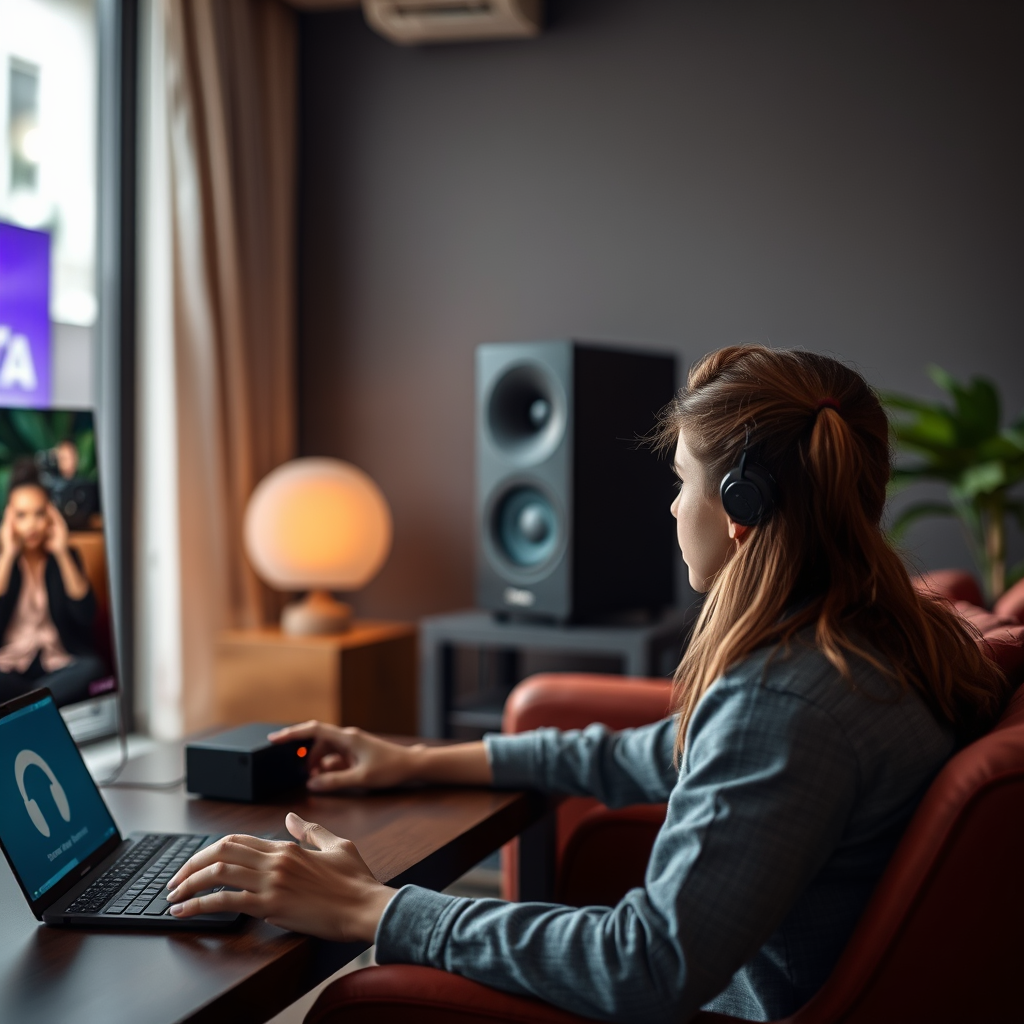

Resolving connection issues with wireless sound systems can be frustrating, but the good news is that many of these problems can be fixed with some straightforward troubleshooting steps. By understanding how these systems work, identifying common issues, and applying effective solutions, you can create a seamless audio experience that enhances your enjoyment of music, movies, and games.
Understanding Wireless Sound Systems

Wireless sound systems operate by transmitting audio signals without the need for wired connections, allowing for greater flexibility in how and where you enjoy your sound. Typically, these systems utilize either Bluetooth or Wi-Fi connections. Bluetooth is ideal for short-range connections, such as connecting your smartphone to a portable speaker, while Wi-Fi allows for greater range and better sound quality, making it perfect for home audio systems that stream music from the internet.
One of the key benefits of wireless sound systems is their convenience. They eliminate the clutter of cables, making it easier to set up your audio equipment in a way that suits your space. However, this convenience can sometimes lead to connectivity issues, especially in environments with multiple electronic devices vying for the same bandwidth.
Common Connection Issues
Several common issues can disrupt the connection between your wireless sound system and audio source. One major culprit is interference from other electronic devices. Wireless routers, microwaves, and even cordless phones can create electromagnetic interference that disrupts audio signals. If you’ve ever noticed your music skipping or cutting out, interference could be the reason.
Another significant issue is range limitations. Most wireless sound systems have a specified range, usually around 30 feet for Bluetooth and much further for Wi-Fi. Physical obstructions like walls, furniture, and appliances can reduce this range, leading to connectivity problems. If you find that your audio drops when you move to another room, it’s likely due to these physical barriers.
Troubleshooting Steps
If you’re experiencing connection issues, the first step is often the simplest: restart your devices. Powering off your wireless sound system and the source device (like your smartphone or computer) can reset the connection and resolve many minor issues. After restarting, try reconnecting to see if the problem persists.
Next, check for software updates on both your sound system and source device. Manufacturers frequently release updates to improve performance and fix bugs. For example, if you have a Bluetooth speaker, ensure that it has the latest firmware installed. Similarly, keep your smartphone or computer’s operating system and audio apps updated. This step can dramatically improve compatibility and reduce connection issues.
Advanced Solutions
If basic troubleshooting doesn’t resolve your issues, consider adjusting your audio settings for optimal performance. Some sound systems come with built-in settings for different audio sources, such as TV, gaming consoles, or music streaming. Experimenting with these settings can sometimes enhance connectivity and audio performance.
For those who frequently experience range issues, investing in a signal booster or extender can significantly improve your setup. Signal boosters amplify the wireless signal, allowing for better performance over greater distances. This is especially useful in larger homes or spaces with many physical obstructions. Brands like TP-Link and Netgear offer reliable products designed specifically for audio streaming.
Preventative Measures
Taking some preventative measures can help minimize future connection issues with your wireless sound system. When setting up your audio equipment, consider the placement of your devices. Keep your sound system away from potential sources of interference, such as microwaves and Wi-Fi routers, and try to position them in open spaces for better signal clarity.
Regular maintenance is also key. Clean your devices and ensure that they are free from dust and debris that could interfere with connectivity. Additionally, periodically check for firmware updates and new features released by the manufacturer. Staying proactive can extend the lifespan of your sound system and enhance your listening experience.
When to Seek Professional Help
Despite your best efforts, there may come a time when connection issues are beyond simple fixes. Signs of hardware failure include persistent connectivity problems even after troubleshooting, unusual noises from the sound system, or the inability to power on the device.
If you suspect a hardware issue, it’s wise to seek professional help. Look for reliable technicians or support services by checking online reviews or asking for recommendations from friends or family. Many manufacturers also provide customer support that can guide you through more complex issues or help you arrange repairs.
Addressing these connection issues effectively can enhance your listening experience and prolong the life of your wireless sound system. By implementing the strategies outlined in this guide, you can enjoy consistent and high-quality audio without interruptions. Remember, the key to a great sound experience is not just the equipment you use but also how well you manage and maintain it. Happy listening!
Frequently Asked Questions
What are the common causes of connection issues with wireless sound systems?
Common causes of connection issues with wireless sound systems include interference from other electronic devices, weak Wi-Fi signals, and outdated firmware. Additionally, physical obstructions like walls or furniture can weaken the signal, while incorrect network settings or incompatible devices can also lead to connectivity problems. Identifying these factors can help troubleshoot and resolve the issues effectively.
How can I improve the Wi-Fi signal for my wireless sound system?
To improve the Wi-Fi signal for your wireless sound system, ensure that your router is centrally located and free from obstructions. You can also try switching to a less congested frequency band, such as 5 GHz, if your router supports it. Additionally, using Wi-Fi extenders or mesh networks can help enhance coverage, and regularly updating your router’s firmware can optimize performance.
Why does my wireless sound system keep dropping the connection?
A wireless sound system may drop its connection due to interference from other devices, such as microwaves or cordless phones, that operate on similar frequencies. Additionally, network congestion, low battery levels in the sound system, or outdated software can contribute to unstable connections. Regular maintenance, including updates and checking for device compatibility, can help mitigate these issues.
What is the best way to reset my wireless sound system to fix connection issues?
The best way to reset your wireless sound system involves locating the reset button, usually found on the device itself, and holding it down for about 10 seconds until the indicator light blinks. Alternatively, you can access the system’s settings through the accompanying app or software and select the factory reset option. After resetting, ensure to reconnect the system to your Wi-Fi network following the manufacturer’s instructions.
Which troubleshooting steps should I take when my wireless sound system won’t connect to my device?
When your wireless sound system won’t connect to your device, start by ensuring that both devices are powered on and within range of each other. Check for any software updates for both the sound system and the device you’re trying to connect. Additionally, confirm that the correct Wi-Fi network is selected and that the password is entered correctly. Restarting both devices and refreshing your network connection can also resolve many connectivity issues.
References
- Wireless
- https://www.lifewire.com/fix-bluetooth-audio-connection-4178407
- https://www.cnet.com/how-to/how-to-fix-bluetooth-connection-problems/
- https://www.pcmag.com/how-to/how-to-fix-bluetooth-connection-problems
- https://www.techradar.com/how-to/how-to-fix-a-bluetooth-connection
- https://www.nytimes.com/2021/03/10/technology/personaltech/bluetooth-not-working.html
- https://www.digitaltrends.com/home-theater/how-to-fix-bluetooth-issues/
- https://www.soundguys.com/how-to-fix-bluetooth-issues-25125/