

To add wireless rear speakers to your existing audio system, you’ll need a wireless speaker kit or a receiver that supports wireless audio transmission. This process generally involves connecting the wireless transmitter to your current system and pairing it with your rear speakers, allowing for a seamless surround sound experience. In this article, we will guide you through the steps and considerations necessary for a successful setup.
Understanding Wireless Speaker Types
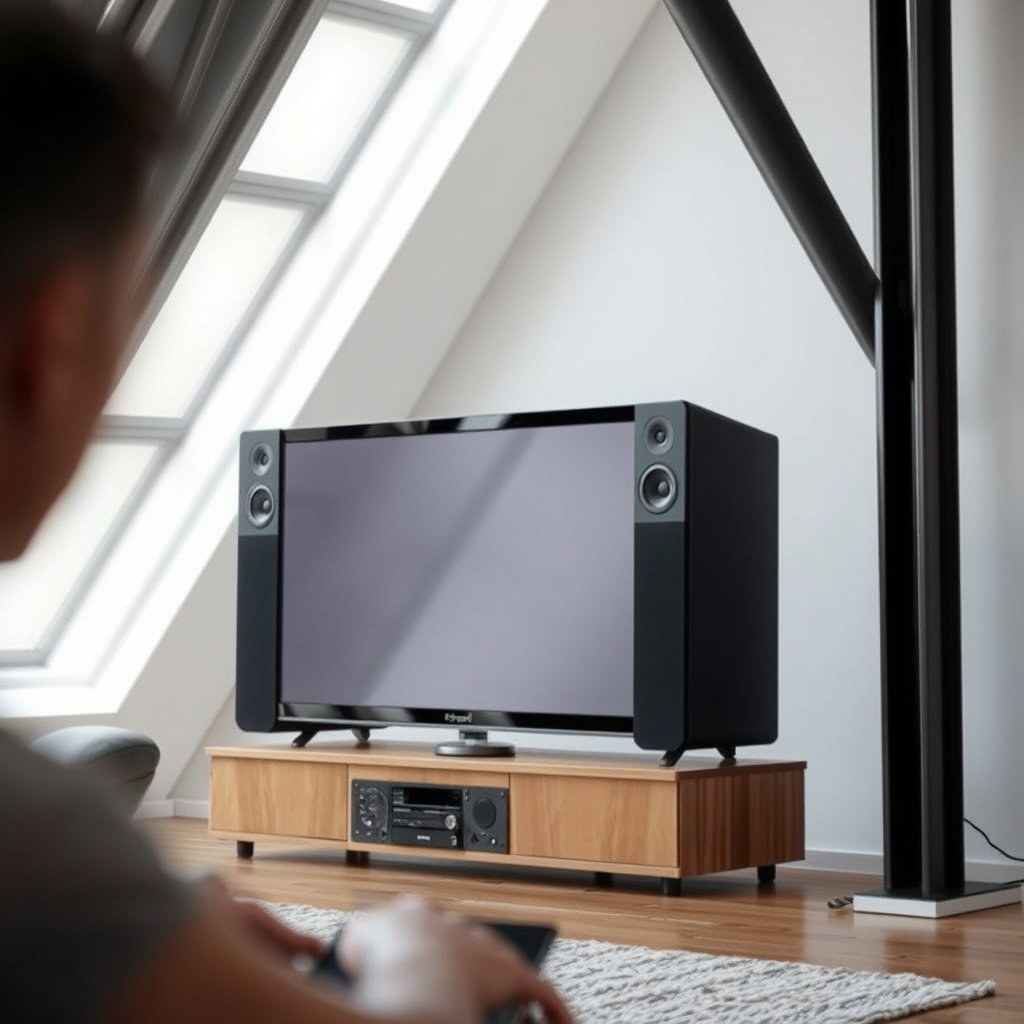
When considering the addition of wireless rear speakers, it’s crucial to understand the various types available on the market. The most common types are Bluetooth and Wi-Fi speakers.
Bluetooth Speakers are typically more affordable and easier to set up. They work by pairing with your existing audio system or a Bluetooth-enabled device, providing decent sound quality for smaller rooms. However, their range is limited, often up to 30 feet, making them suitable for casual listening rather than immersive experiences.
Wi-Fi Speakers, on the other hand, connect to your home network, offering superior sound quality and range. They allow for multi-room audio setups and can be controlled via smartphone apps. However, they tend to be more expensive than Bluetooth options and require a stable Wi-Fi network.
Before making a decision, consider the compatibility of these wireless speakers with your existing audio system. Ensure that the wireless transmitter you choose supports the type of wireless connection your speakers use.
Choosing the Right Wireless Speaker Kit

Selecting the right wireless speaker kit is essential for enhancing your audio experience. Here are some factors to consider:
1. Sound Quality: Look for kits that deliver high-definition audio. Brands known for their sound quality include Sonos, Bose, and Yamaha.
2. Range: Ensure the wireless kit can transmit signals across the distance of your room. Kits that offer a range of up to 300 feet are preferable for larger spaces.
3. Battery Life: If you’re considering battery-operated speakers, check the battery life. Some options provide up to 20 hours of playback, while others may need frequent recharging.
4. Connectivity Options: A good wireless speaker kit should offer various connectivity options, including optical, RCA, and AUX inputs, to accommodate different devices.
5. Installation: Some kits come with easy-to-follow installation instructions or even app-based setups. This can significantly reduce the setup time and complexity.
Setting Up the Wireless Transmitter
The next step is to set up your wireless transmitter. Here’s how to do it:
1. Connect the Transmitter: Start by connecting the transmitter to your audio system. This might involve plugging it into an optical port, RCA input, or AUX jack, depending on your system’s compatibility.
2. Power It Up: Ensure the transmitter is powered on, either through a power adapter or USB connection.
3. Optimal Placement: Position the transmitter in a central location relative to both your audio system and the wireless speakers. Avoid placing it near metal objects or devices that might cause interference, such as microwaves or cordless phones.
4. Check for Firmware Updates: Some transmitters may require firmware updates to function correctly. Check the manufacturer’s website for any available updates.
Top Wireless Speaker Kits (2024)
| # | Brand | Sound Quality | Range (ft) | Battery Life |
|---|---|---|---|---|
| 1 | Sonos | High | 300 | 20 hrs |
| 2 | Bose | Very High | 250 | 15 hrs |
| 3 | Yamaha | High | 200 | 14 hrs |
| 4 | Polk Audio | Medium | 150 | 12 hrs |
| 5 | JBL | High | 100 | 10 hrs |
| 6 | LG | Medium | 80 | 8 hrs |
Pairing Your Wireless Rear Speakers
Once your transmitter is installed, the next step is pairing your wireless rear speakers. Here’s how to do it:
1. Power On the Speakers: Turn on your wireless rear speakers and ensure they are in pairing mode. This is usually indicated by a blinking light.
2. Open the Transmitter App (if applicable): If your transmitter has an app, open it and select the option to add new speakers.
3. Search for Devices: The app or transmitter should start searching for the available speakers. When they appear, select them to initiate pairing.
4. Confirm Connection: After a successful pairing, you should receive a confirmation message, and the light on your speakers may stop blinking.
5. Troubleshoot: If the speakers do not pair, check that they are within range of the transmitter, and ensure that no other devices are interfering with the signal.
Positioning Your Rear Speakers
Proper positioning of your rear speakers is vital for achieving optimal sound quality. Here are some guidelines for placement based on room size and layout:
– Small Rooms: Place the speakers approximately 3-5 feet away from the main listening area and slightly above ear level for the best surround sound effect.
– Medium Rooms: Aim for a distance of 5-7 feet from the listening position, angling the speakers towards the center of the room.
– Large Rooms: For larger spaces, place the speakers 7-10 feet apart, and ensure they are positioned to create a balanced sound field.
Additionally, avoid placing speakers in corners or directly against walls, as this can lead to sound distortion.
Fine-Tuning Sound Settings
After the speakers are positioned, it’s time to fine-tune the sound settings for the best audio experience. Here are some tips:
1. Adjust Volume Levels: Balance the volume between your front and rear speakers. A common practice is to have the rear speakers set to about 75% of the front speakers’ volume.
2. Equalization Settings: Use your audio system’s equalizer to adjust frequencies. Boosting mid-range frequencies can enhance dialogue clarity in movies, while bass adjustments can enrich music playback.
3. Room Calibration: If your audio system has room calibration features, use them to automatically adjust settings based on your room’s acoustics.
4. Listening Tests: Conduct listening tests with various audio sources, such as movies, music, and games, to ensure all elements are balanced.
Testing Your Setup
Finally, it’s important to conduct sound tests to verify that everything is functioning correctly. Here’s how to do it:
1. Play Reference Tracks: Use high-quality audio tracks that you are familiar with to assess sound quality.
2. Check for Sync Issues: Watch a movie or play a game to ensure that the audio from your rear speakers is synced with the visuals.
3. Adjust as Necessary: Make any further adjustments to volume levels or equalization settings based on your testing experience.
4. Identify Issues: If you encounter any issues, such as dropouts or static, troubleshoot by ensuring all connections are secure and that there are no interference sources nearby.
By following these steps, you can easily enhance your home audio experience with wireless rear speakers. Remember to choose compatible equipment and take your time with setup for the best results. Ready to elevate your sound? Start shopping for your wireless speaker kit today!
Frequently Asked Questions
How do I determine if my existing sound system is compatible with wireless rear speakers?
To check compatibility, first look at your main audio receiver’s specifications to see if it supports wireless speaker connections. Most modern receivers have Bluetooth or Wi-Fi capabilities, but if yours doesn’t, you may need to purchase a wireless audio adapter to integrate the rear speakers effectively.
What are the best wireless rear speakers to add to my existing system?
The best wireless rear speakers for your system often depend on your audio requirements and budget. Some popular options include the Sonos One for its excellent sound quality and seamless integration, or the Bose Surround Speakers for their compact size and powerful audio output, both of which can enhance your home theater experience.
Why should I consider adding wireless rear speakers to my home audio system?
Adding wireless rear speakers can significantly improve your surround sound experience, creating a more immersive audio environment for movies and music. They eliminate the need for messy cables, making installation easier and allowing for greater flexibility in speaker placement within your room.
How can I set up wireless rear speakers with my existing home theater system?
To set up wireless rear speakers, start by connecting the wireless transmitter to your audio receiver, ensuring it is powered on. Then, follow the manufacturer’s instructions to pair the rear speakers with the transmitter, and adjust the settings on your receiver for optimal sound balance and surround sound configuration.
Which wireless technology is best for connecting rear speakers to my system, Bluetooth or Wi-Fi?
Wi-Fi is generally the better option for connecting wireless rear speakers due to its higher audio quality and range compared to Bluetooth. Wi-Fi can support multi-room audio and has less latency, making it ideal for a seamless home theater experience, whereas Bluetooth might be more suitable for simpler setups.
References
- Home cinema
https://en.wikipedia.org/wiki/Home_theater - https://www.sciencedirect.com/topics/engineering/speaker
https://www.sciencedirect.com/topics/engineering/speaker - Google Scholar Google Scholar
https://scholar.google.com/scholar?q=wireless+rear+speakers+audio+system - https://www.bbc.com/future/article/20210125-how-to-build-your-own-home-cinema
https://www.bbc.com/future/article/20210125-how-to-build-your-own-home-cinema - https://www.nytimes.com/2020/10/15/technology/personaltech/setting-up-home-audio.html
https://www.nytimes.com/2020/10/15/technology/personaltech/setting-up-home-audio.html - Google Scholar Google Scholar
https://scholar.google.com/scholar?q=adding+wireless+speakers+to+audio+system - Google Scholar Google Scholar
https://scholar.google.com/scholar?q=How+to+Add+Wireless+Rear+Speakers+to+an+Existing+System - How to Add Wireless Rear Speakers to an Existing System – Search results
https://en.wikipedia.org/wiki/Special:Search?search=How+to+Add+Wireless+Rear+Speakers+to+an+Existing+System - https://www.ncbi.nlm.nih.gov/search/research-articles/?term=How+to+Add+Wireless+Rear+Speakers+to+an+Existing+System
https://www.ncbi.nlm.nih.gov/search/research-articles/?term=How+to+Add+Wireless+Rear+Speakers+to+an+Existing+System