
If your Yamaha Bluetooth speaker isn’t connecting or functioning properly, don’t worry—there are several straightforward solutions you can try to get it back up and running. In this guide, you’ll learn step-by-step troubleshooting tips to resolve common Bluetooth issues with your speaker. By following these methods, you can often restore functionality quickly, allowing you to enjoy your music without interruption.
Understanding the Problem

It’s also important to verify that the device you are trying to connect is compatible with your Yamaha speaker. Most Yamaha Bluetooth speakers support a wide range of devices, but some may have limitations based on Bluetooth versions or specific features. Checking the compatibility can save you time and frustration.
Basic Troubleshooting Steps
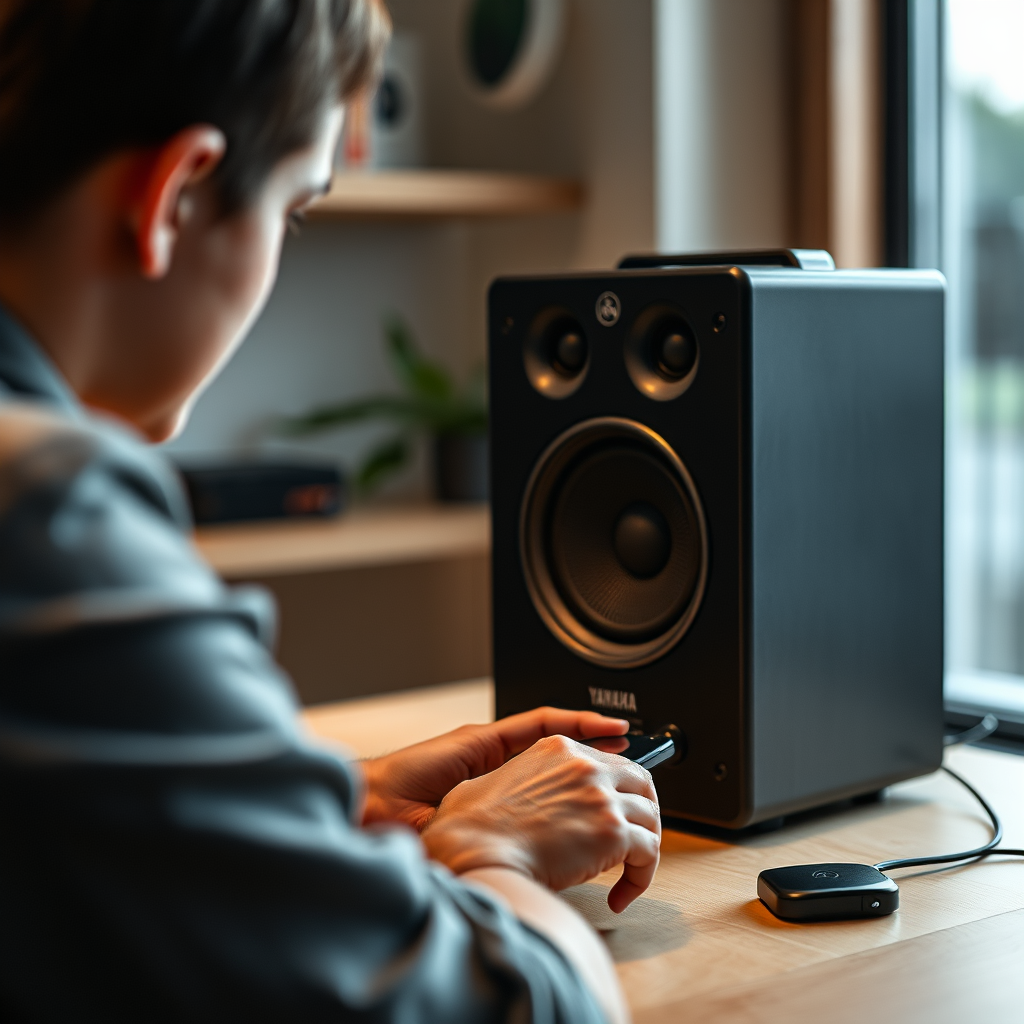
The first step in troubleshooting your Yamaha Bluetooth speaker is to restart both the speaker and the device you’re attempting to connect. This can clear temporary glitches that may be causing connectivity issues. To restart the speaker, simply turn it off, wait for a few seconds, and then turn it back on.
Next, check the Bluetooth settings on both devices. Make sure Bluetooth is enabled on your speaker and that it is set to be discoverable. On your connecting device, ensure that Bluetooth is turned on and search for available devices. If your Yamaha speaker appears in the list, select it to establish a connection.
Updating Firmware
Keeping your Yamaha Bluetooth speaker updated with the latest firmware is essential for optimal performance and connectivity. To check for software updates, you typically need to download the Yamaha MusicCast app or visit the Yamaha support website. Follow the instructions provided to check for updates specific to your model.
Updating the firmware can address bugs and improve the overall functionality of your speaker. Make sure to follow all instructions during the update process carefully, as incomplete updates can lead to further issues.
Resetting Your Speaker
If the previous steps do not resolve the connectivity issue, consider resetting your Yamaha speaker to factory settings. This action can clear any persistent bugs or settings that might be interfering with connectivity. To reset your speaker, refer to the user manual for the specific reset procedure, as this can vary by model.
After performing a reset, you may need to reconfigure your speaker settings and re-establish connections with your devices. This can include re-pairing your Bluetooth devices, but it often resolves underlying issues that were preventing successful connections.
Checking Device Compatibility
Confirming that your connecting device meets the Bluetooth version requirements for your Yamaha speaker is crucial. Most modern speakers support Bluetooth 4.0 or higher, but older devices may only support lower versions, which can lead to compatibility problems. Check the specifications of both devices to ensure they align.
Additionally, if you are connecting multiple devices to your Yamaha speaker, ensure that it supports simultaneous connections. Some models may only allow one connection at a time, which can lead to confusion if multiple devices are attempting to connect.
Troubleshooting Common Connection Issues
Interference from other electronic devices can also disrupt Bluetooth connections. Devices such as microwaves, wireless routers, and other Bluetooth devices can cause signal interference. Try to minimize the number of active devices in proximity to your Yamaha speaker when attempting to connect.
If you still experience issues, you can try forgetting the device from the Bluetooth settings on your speaker and the connecting device. This process involves removing the device from the paired list and then attempting to pair it anew. This “fresh connection” can resolve many common connectivity problems.
Seeking Professional Help
If you have attempted all troubleshooting steps and continue to face issues with your Yamaha Bluetooth speaker, it may be time to contact Yamaha customer support. Their representatives can provide further guidance, including identifying potential hardware issues.
Additionally, consider exploring warranty options if your speaker is relatively new. Authorized service centers can also assist with repairs if needed. Engaging professional help can often save you time and ensure that your speaker receives the appropriate care.
Top Yamaha Bluetooth Speakers by Features (2023)
| # | Model | Battery Life | Water Resistance | Output Power |
|---|---|---|---|---|
| 1 | YAS-109 | 10 hours | IP67 | 120W |
| 2 | YSP-2700 | 8 hours | IPX4 | 100W |
| 3 | NX-B150 | 12 hours | IPX5 | 80W |
| 4 | YAS-209 | 10 hours | IP67 | 200W |
| 5 | WX-030 | 9 hours | IPX4 | 50W |
| 6 | SR-B20A | 7 hours | IPX3 | 30W |
| 7 | YAS-103 | 9 hours | IPX4 | 150W |
Yamaha Bluetooth Speaker Connectivity Issues by Frequency (2023)
By following these troubleshooting steps, you can effectively resolve your Yamaha Bluetooth speaker issues and enjoy seamless audio playback once again. If problems persist, consider reaching out to Yamaha support for further assistance or professional help. Don’t let technical difficulties hold you back from enjoying your favorite music!
Frequently Asked Questions
Why is my Yamaha Bluetooth speaker not connecting to my device?
If your Yamaha Bluetooth speaker is not connecting, first ensure that Bluetooth is enabled on your device and that it is in range. Check if the speaker is in pairing mode; you may need to press the Bluetooth button. Additionally, try removing the speaker from your device’s Bluetooth settings and reconnecting it to reset the connection.
How can I reset my Yamaha Bluetooth speaker to fix connectivity issues?
To reset your Yamaha Bluetooth speaker, turn it off and then press and hold the power button along with the Bluetooth button for about 10 seconds. This will reset the device and clear any previous connections, allowing you to start fresh and potentially resolve any connectivity issues.
What should I do if my Yamaha speaker’s Bluetooth keeps disconnecting?
If your Yamaha speaker’s Bluetooth keeps disconnecting, check for interference from other devices, as they can disrupt the connection. Ensure that your speaker and device are within the recommended range and that both have updated firmware. If problems persist, consider resetting the speaker or testing it with another device to isolate the issue.
Which Yamaha Bluetooth speakers are known for the best connectivity performance?
Models like the Yamaha MusicCast 20 and the Yamaha YAS-209 are recognized for their reliable Bluetooth connectivity and superior audio quality. These speakers are designed with advanced technology that minimizes lag and enhances connection stability, making them ideal for seamless streaming from your devices.
Why is the sound quality poor when using my Yamaha Bluetooth speaker?
Poor sound quality from your Yamaha Bluetooth speaker can be caused by a weak Bluetooth connection or interference from other electronic devices. Ensure that your speaker is within range and that there are no obstructions. Additionally, check the audio source quality and adjust the settings on both the speaker and the device for optimal sound performance.
References
- Bluetooth
https://en.wikipedia.org/wiki/Bluetooth - https://www.nature.com/articles/s41598-020-79075-3
https://www.nature.com/articles/s41598-020-79075-3 - Google Scholar Google Scholar
https://scholar.google.com/scholar?q=Yamaha+Speaker+Bluetooth+Not+Working - https://pubmed.ncbi.nlm.nih.gov/
https://pubmed.ncbi.nlm.nih.gov/ - Google Scholar Google Scholar
https://scholar.google.com/scholar?q=Bluetooth+speaker+troubleshooting - https://www.cdc.gov/nceh/lead/prevention.html
https://www.cdc.gov/nceh/lead/prevention.html - https://www.bbc.com/news/technology-48272267
https://www.bbc.com/news/technology-48272267 - https://www.sciencedirect.com/topics/engineering/bluetooth
https://www.sciencedirect.com/topics/engineering/bluetooth - https://www.who.int/news-room/fact-sheets/detail/bluetooth-technology
https://www.who.int/news-room/fact-sheets/detail/bluetooth-technology - Google Scholar Google Scholar
https://scholar.google.com/scholar?q=Yamaha+Speaker+Bluetooth+Not+Working?+Here’s+How+to+Fix+It