
If you’re experiencing Bluetooth connection problems with your Denon device, the first step is to ensure that your device is within range and that Bluetooth is enabled. This guide will walk you through common troubleshooting steps to resolve these issues effectively. Denon devices, known for their high-quality audio performance, can occasionally face connectivity issues that may disrupt your listening experience. Understanding how to troubleshoot these problems will help you enjoy uninterrupted music playback and seamless connectivity.
Check Bluetooth Settings
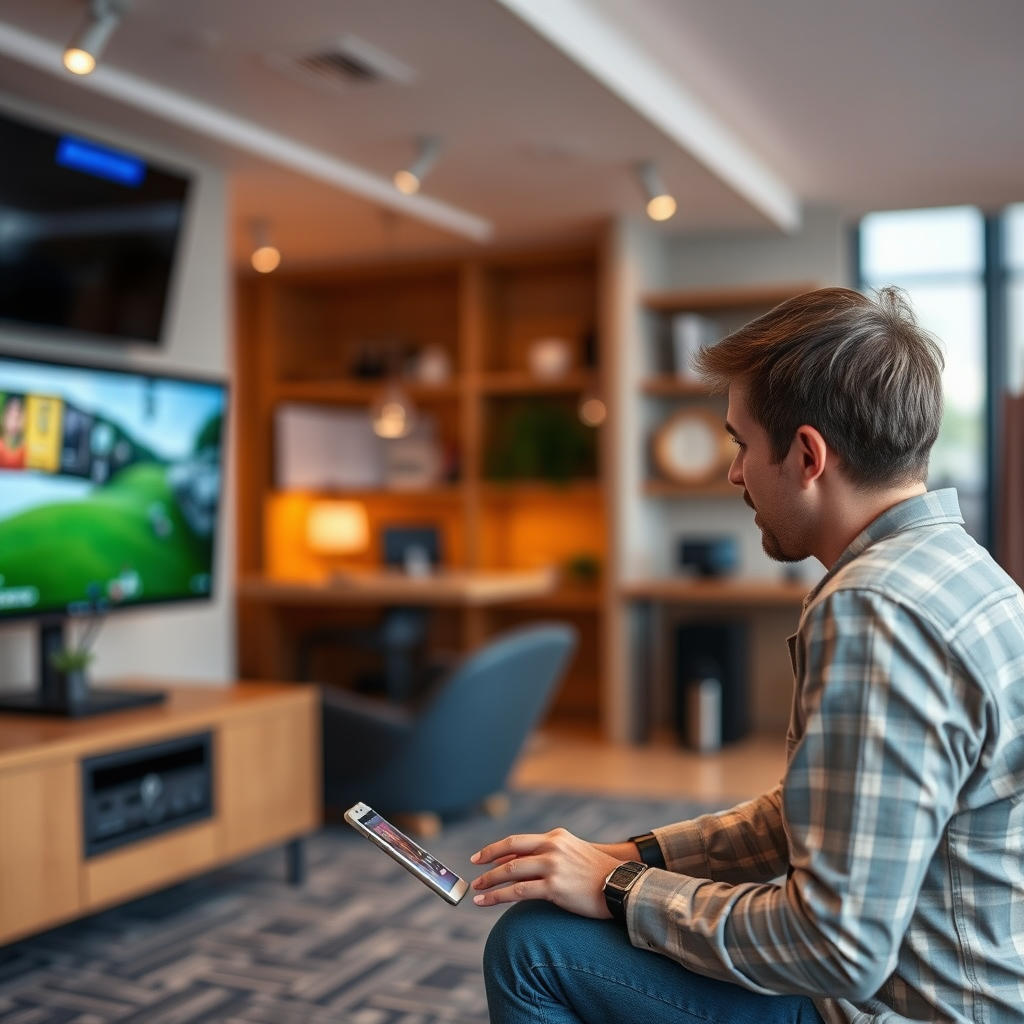
One of the most common reasons for Bluetooth connection issues is incorrect settings. Start by confirming that Bluetooth is enabled on both your Denon device and the device you’re trying to connect (such as a smartphone or tablet). On the Denon device, navigate to the settings menu and ensure Bluetooth is activated. For your connecting device, check the Bluetooth settings to verify it is turned on and discoverable.
Next, ensure that your Denon device is set to “pairing mode.” This mode allows new devices to connect to the Denon system. To enter pairing mode, typically, you will press and hold the Bluetooth button on the Denon device until you see a flashing LED indicator, signaling that it’s ready to pair. If the device is already paired with another device, you may need to disconnect or forget the existing connection before attempting to connect a new device.
Restart Devices
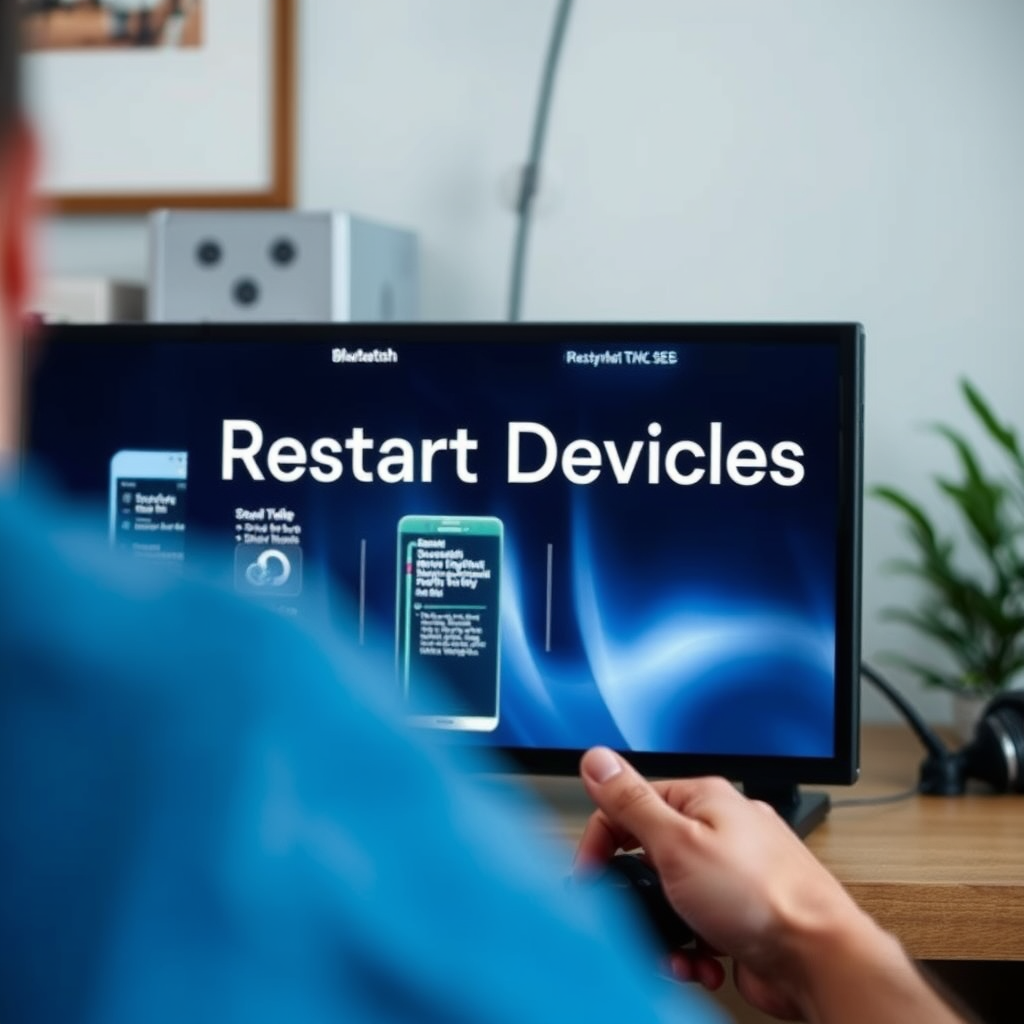
Restarting your devices can often resolve temporary glitches that affect Bluetooth connectivity. Begin by powering off both your Denon device and the connecting device. Wait for about 10 seconds before turning them back on. This simple action can refresh the system and clear any persistent issues, allowing for a more stable connection.
Additionally, if your Denon device has a reset button, consider using it as part of this process. A reset can help clear any cached Bluetooth settings that may be causing interference. After restarting, try reconnecting your devices and see if the issue persists.
Forget and Re-Pair Devices
If restarting does not resolve the issue, the next step is to reset the Bluetooth connection. On your connecting device, go to the Bluetooth settings and find the Denon device in the list of paired devices. Select it, and choose the option to “Forget” or “Remove” the device. This action will delete the existing pairing information, which may be corrupted or causing connectivity issues.
After forgetting the device, initiate the pairing process again. Ensure that your Denon device is still in pairing mode, then search for Bluetooth devices on your connecting device. Select the Denon device from the list, and follow any prompts to complete the pairing process. This fresh start often resolves connection problems that arise from previous pairing attempts.
Update Firmware
Outdated firmware can lead to various connectivity issues, including problems with Bluetooth functionality. To ensure your Denon device is operating with the latest features and improvements, regularly check for firmware updates. You can do this by visiting the official Denon website or using the Denon app if it is available for your device.
Once you locate the firmware update section, follow the instructions provided to download and install any available updates. This process may take a few minutes, but ensuring your device is up-to-date can significantly enhance performance and compatibility with newer devices.
Interference and Range Issues
Bluetooth operates over a short-range frequency, and various factors can interfere with the signal. Physical obstructions such as walls, furniture, and even other electronic devices can diminish the strength of the Bluetooth connection. Ensure that there is a clear line of sight between the Denon device and the connecting device to minimize interference.
Additionally, check for other electronics that may be emitting signals on the same frequency as Bluetooth, such as Wi-Fi routers, microwaves, or cordless phones. If you suspect interference, try moving the Denon device or the connecting device closer together to see if the connection improves. In some cases, relocating your devices to a different area can also help eliminate interference.
Factory Reset (if necessary)
If all else fails and you continue to experience Bluetooth connection problems, a factory reset may be necessary. This step will restore your Denon device to its original factory settings, erasing all custom configurations and paired devices. Before proceeding with a factory reset, consult the user manual for specific instructions on how to perform the reset safely.
To perform a factory reset, you typically need to press and hold a combination of buttons on the Denon device. After the reset, you will need to set up your device again, including re-establishing any Bluetooth connections. While this process can be time-consuming, it often resolves persistent issues that other troubleshooting methods cannot.
Contact Support
If you have followed all the troubleshooting steps and are still facing connectivity issues, it may be time to contact Denon customer support. Their team can provide additional assistance and advanced troubleshooting tailored to your specific device model and situation. They may have insights into known issues or specific fixes that can resolve your problem.
When contacting support, be prepared to provide details about your device model, the steps you have already taken, and any error messages you may have encountered. This information will help the support team assist you more effectively.
Top Denon Devices by Bluetooth Connectivity Features (2023)
| # | Device Model | Bluetooth Version | Range (m) | Audio Codec |
|---|---|---|---|---|
| 1 | Denon AVR-X6700H | 5.0 | 30 | AAC, SBC |
| 2 | Denon DRA-800H | 5.0 | 20 | AAC, SBC |
| 3 | Denon PMA-1600NE | 4.2 | 25 | AAC, SBC |
| 4 | Denon HEOS HomeCinema | 5.0 | 15 | SBC |
| 5 | Denon AVRX-8500H | 5.0 | 30 | AAC, SBC |
| 6 | Denon AVR-S960H | 5.0 | 25 | AAC, SBC |
| 7 | Denon DHT-S216 | 4.2 | 15 | SBC |
Bluetooth Connectivity Range of Denon Devices (2023)
By following these steps, you should be able to resolve any Bluetooth connection problems with your Denon device. If the issue persists, don’t hesitate to seek professional help or consult the manufacturer’s resources for more detailed guidance. Troubleshooting Bluetooth issues can be straightforward with the right approach and understanding of your device’s capabilities, ensuring that you can enjoy your audio experience without interruption.
Frequently Asked Questions
What are the common reasons for Denon Bluetooth connection problems?
Common reasons for Denon Bluetooth connection problems include device compatibility issues, outdated firmware, and interference from other wireless devices. Additionally, if the Bluetooth device is out of range or not properly paired, you may experience connection failures. Ensuring that both the Denon unit and the Bluetooth device are updated and within proximity can help resolve these issues.
How do I reset my Denon Bluetooth connection?
To reset your Denon Bluetooth connection, first, turn off the Denon device and unplug it from the power source. Wait for about 10 seconds, then plug it back in and power it on. After that, go to the Bluetooth settings on your device to clear any old pairings, and then try pairing it again to establish a fresh connection.
Why won’t my Denon receiver connect to my smartphone via Bluetooth?
Your Denon receiver might not connect to your smartphone due to several factors, including Bluetooth settings, device pairing limits, or software issues. Make sure Bluetooth is enabled on your smartphone, clear any previous pairings by forgetting the device, and ensure the Denon receiver is in pairing mode. If problems persist, consider restarting both devices and checking for firmware updates.
What is the best way to improve Bluetooth connectivity on my Denon device?
To improve Bluetooth connectivity on your Denon device, keep it updated with the latest firmware and ensure that it is placed away from other electronic devices that might cause interference. Additionally, make sure the Bluetooth device is within a 30-foot range and free from obstructions. Regularly checking for and clearing old connections can also enhance performance.
Which Denon models are known for better Bluetooth connectivity?
Models like the Denon AVR-X3700H and Denon DNP-800NE are known for better Bluetooth connectivity due to their advanced technologies and robust wireless capabilities. These models often feature improved antennas and support for higher-quality audio codecs, which can lead to a more stable connection. Checking reviews and specifications can help you select a Denon model that meets your Bluetooth needs.
References
- Bluetooth
https://en.wikipedia.org/wiki/Bluetooth - https://support.denon.com/app/answers/detail/a_id/10343/~/bluetooth-connection-problems
https://support.denon.com/app/answers/detail/a_id/10343/~/bluetooth-connection-problems - https://www.denon.com/en-us/support/faq/denon-bluetooth-connection-issues
https://www.denon.com/en-us/support/faq/denon-bluetooth-connection-issues - Google Scholar Google Scholar
https://scholar.google.com/scholar?q=Denon+Bluetooth+connection+problems - Google Scholar Google Scholar
https://scholar.google.com/scholar?q=Bluetooth+connection+issues+solutions - Google Scholar Google Scholar
https://scholar.google.com/scholar?q=troubleshooting+Bluetooth+audio+connections - Google Scholar Google Scholar
https://scholar.google.com/scholar?q=How+to+Solve+Denon+Bluetooth+Connection+Problems - How to Solve Denon Bluetooth Connection Problems – Search results
https://en.wikipedia.org/wiki/Special:Search?search=How+to+Solve+Denon+Bluetooth+Connection+Problems - https://www.ncbi.nlm.nih.gov/search/research-articles/?term=How+to+Solve+Denon+Bluetooth+Connection+Problems
https://www.ncbi.nlm.nih.gov/search/research-articles/?term=How+to+Solve+Denon+Bluetooth+Connection+Problems