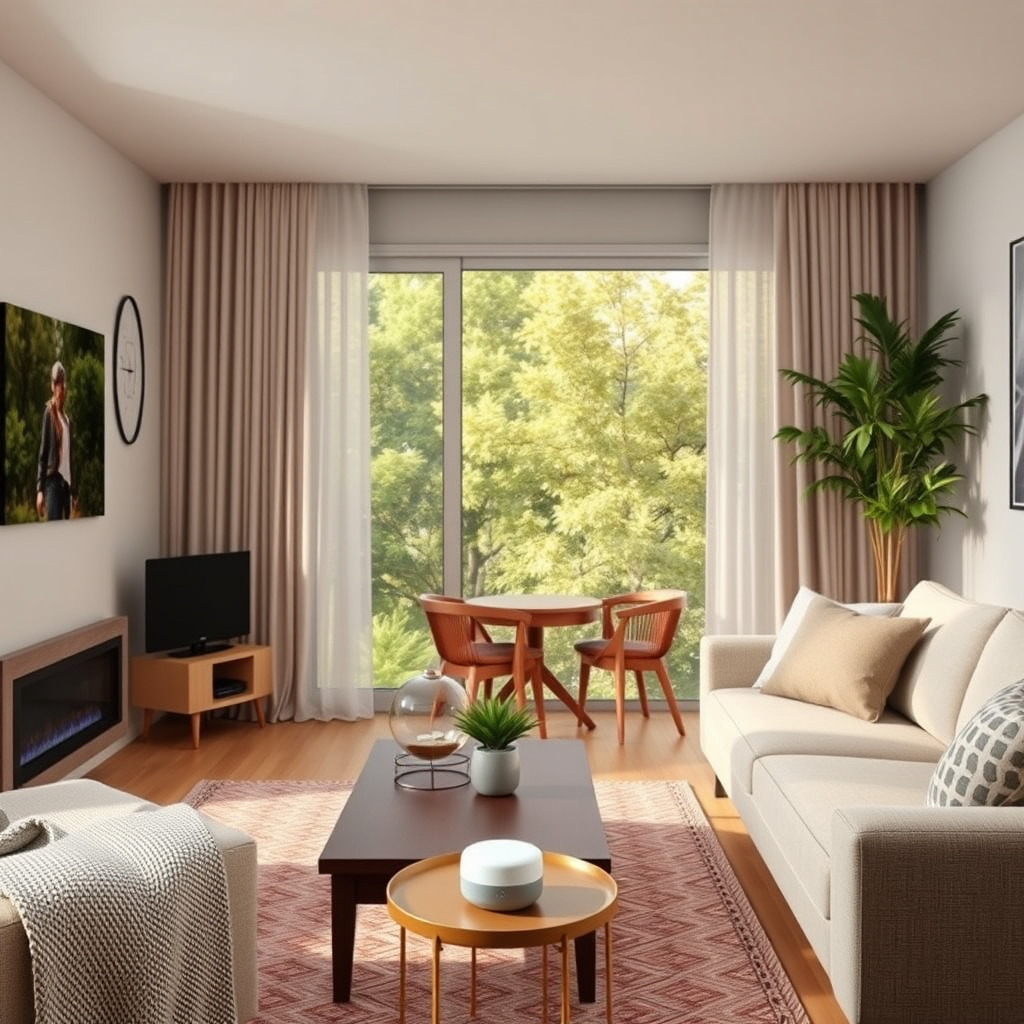

To set up wireless speakers with Google Home for multi-room audio, start by ensuring all your speakers are compatible with Google Assistant. Once confirmed, use the Google Home app to group your speakers and enjoy synchronized music throughout your home. This guide will walk you through the necessary steps to achieve an immersive audio experience.
Modern living spaces often call for multi-room audio systems that allow you to fill your home with music seamlessly. Google Home provides an intuitive platform for managing wireless speakers, ensuring you can enjoy your favorite tracks in any room with ease. By following the steps outlined in this guide, you can create a synchronized audio experience that enhances your daily activities, from entertaining guests to unwinding after a long day.
Understanding Compatible Wireless Speakers

Before diving into the setup process, it’s crucial to identify which wireless speakers are compatible with Google Home. The most popular brands that support Google Assistant include Sonos, Bose, JBL, and Google’s own Nest Audio.
Criteria for Compatibility:
– Google Assistant Integration: Ensure the speakers can respond to voice commands via Google Assistant.
– Wi-Fi Connectivity: All devices must connect to the same Wi-Fi network to communicate effectively.
– Multi-Room Functionality: Look for speakers that specifically state they support multi-room audio setups for the best experience.
By investing in compatible devices, you set a solid foundation for an interconnected audio experience that can be easily controlled through your smartphone or voice commands.
Preparing Your Google Home App
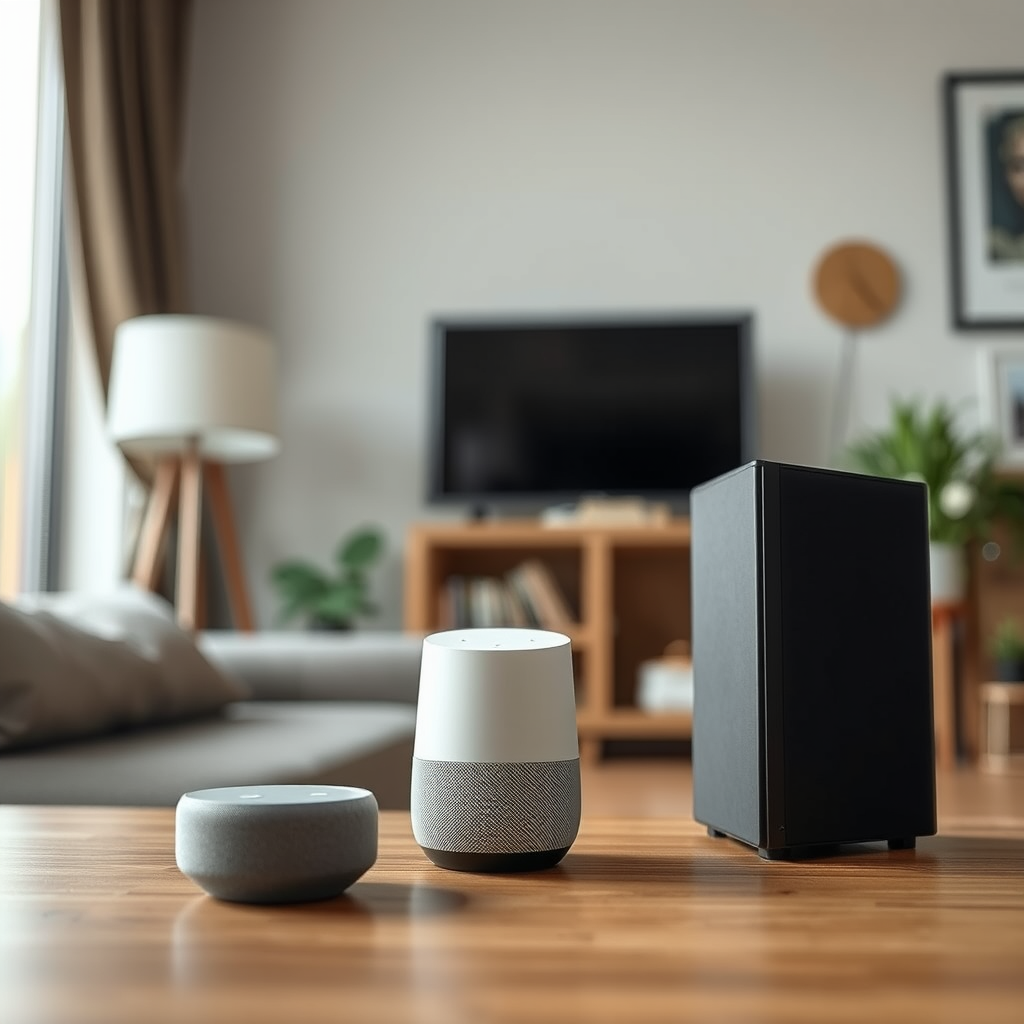
The next step involves preparing the Google Home app, which serves as the control hub for your audio devices.
– Download and Install: Ensure you have the Google Home app installed on your smartphone. It’s available on both iOS and Android platforms.
– Account Setup: If you do not have a Google account, you will need to create one. If you already have an account, simply log in. This account allows you to manage your devices and settings conveniently.
The Google Home app interface is user-friendly, making it easy to navigate through the various features, including device management and audio settings.
Adding Wireless Speakers to Your Google Home
Once your app is ready, it’s time to add your wireless speakers.
– Device Addition: Open the Google Home app and tap on the “+” icon to add a new device. Follow the prompts provided by the app.
– Power and Connection Check: Make sure your speakers are powered on and connected to the same Wi-Fi network as your smartphone. The app will search for available devices and guide you through the pairing process.
Upon successful connection, your speakers will be listed in the app, allowing you to manage them easily.
Top Wireless Speakers Compatible with Google Home (2024)
| # | Speaker Brand | Model | Price | Rating |
|---|---|---|---|---|
| 1 | Sonos | One SL | $199 | ★★★★☆ |
| 2 | Bose | SoundLink Revolve | $199 | ★★★★★ |
| 3 | JBL | Charge 5 | $179 | ★★★☆☆ |
| 4 | Nest Audio | $99 | ★★★★☆ | |
| 5 | Sonos | One | $199 | ★★★★☆ |
| 6 | Bose | Home Speaker 500 | $399 | ★★★★☆ |
Creating a Speaker Group for Multi-Room Audio
After adding your speakers, the next step is to create a speaker group for synchronized playback. This feature allows you to enjoy music throughout multiple rooms simultaneously.
– Navigate to the Devices Tab: Open the Google Home app and tap on the “Devices” tab located at the bottom of the screen.
– Select Your Speakers: From the list of available devices, select the speakers you want to group together.
– Create Group: Tap on “Create Group” and assign a name to your group, such as “Living Room” or “Whole House.” This name will be used in voice commands.
This grouping feature is particularly useful for parties or gatherings, where you may want to fill an entire space with music.
Customizing Your Audio Experience
To further enhance your audio experience, you can customize settings for each speaker in your group.
– Volume Control: Adjust the volume for each speaker individually to create a balanced sound throughout your space. You can do this through the app or via voice commands.
– Audio Settings: Explore the audio settings available in the app. You may find options for equalization, bass boost, and other sound enhancements that can be tailored to your room’s acoustics.
These customizations allow you to create a listening experience that suits your preferences, whether you are enjoying a quiet evening or hosting a lively event.
Using Voice Commands for Playback Control
One of the most convenient features of using Google Home with your wireless speakers is the ability to control playback through voice commands.
– Essential Commands: Familiarize yourself with key commands such as “Hey Google, play [song name]” or “Hey Google, pause the music.” These commands can be used to control playback across all grouped speakers.
– Volume Control: You can also adjust the volume using voice commands. For instance, saying “Hey Google, set the volume to 5” will adjust the volume to your desired level.
– Switching Audio Sources: If you want to switch from Spotify to YouTube Music, simply say, “Hey Google, play [song] on YouTube Music.” This flexibility allows for a seamless listening experience.
Voice commands not only make it easier to control your audio but also allow for a hands-free experience, enhancing the overall convenience of your setup.
Troubleshooting Common Issues
While setting up and using your wireless speakers with Google Home is generally straightforward, you may encounter some common issues.
– Connectivity Issues: Ensure all devices are connected to the same Wi-Fi network. If you experience disconnections, try rebooting your router or resetting your speakers.
– Playback Delays: If you notice a lag in audio playback, check the Wi-Fi signal strength in your area. You may need to reposition your router or consider a Wi-Fi extender for improved coverage.
– Google Assistant Not Responding: Make sure your speakers are powered on and that the Google Assistant is enabled in the settings. If problems persist, try restarting the app or your device.
By knowing how to troubleshoot these issues, you can ensure a seamless audio experience, allowing you to enjoy your music without interruptions.
Bar Chart: Multi-Room Audio Experience Ratings
User Ratings for Multi-Room Audio Experience (2024)
Summarizing the steps to set up your wireless speakers with Google Home for multi-room audio ensures that you can enjoy seamless music throughout your living space. By ensuring compatibility, preparing the Google Home app, adding devices, creating speaker groups, customizing audio settings, and troubleshooting common issues, you are well on your way to an enhanced audio experience. If you encounter issues, refer back to the troubleshooting section. Ready to enhance your audio experience? Start setting up your speakers today!
Frequently Asked Questions
How do I set up wireless speakers with Google Home for multi-room audio?
To set up wireless speakers with Google Home for multi-room audio, first ensure your speakers are compatible with Google Assistant. Open the Google Home app, tap on the “+” icon, and select “Set up device.” Choose “Works with Google” to link your wireless speakers, then create a speaker group by selecting the speakers you want to use together. Finally, name your group and enjoy synchronized audio throughout your home.
What types of wireless speakers work best with Google Home for multi-room audio?
The best wireless speakers for multi-room audio with Google Home include those from brands like Sonos, Bose, and JBL, as they offer seamless integration with Google Assistant. Look for speakers that support Chromecast or have the Google Assistant built-in for optimal performance. Additionally, ensure the speakers are connected to the same Wi-Fi network to facilitate smooth communication with your Google Home devices.
Why is my Google Home not recognizing my wireless speakers for multi-room setup?
If Google Home is not recognizing your wireless speakers, first check that the speakers are powered on and connected to the same Wi-Fi network as your Google Home device. Make sure the speakers are compatible with Google Assistant and have the latest firmware updates installed. If issues persist, try restarting your Google Home and the wireless speakers, then re-attempt the setup process through the Google Home app.
How can I adjust the volume of multiple wireless speakers using Google Home?
To adjust the volume of multiple wireless speakers using Google Home, simply use voice commands like “Hey Google, set the volume to 50% for [speaker group name].” You can also control the volume through the Google Home app by selecting the speaker group and adjusting the slider for your desired volume level. This feature allows for convenient and synchronized audio control across all speakers in your setup.
Which audio streaming services are compatible with Google Home for multi-room audio?
Google Home supports various audio streaming services for multi-room audio, including Spotify, YouTube Music, Pandora, and Google Play Music. To access these services, simply link your accounts through the Google Home app and choose your preferred service as the default. This compatibility ensures that you can easily enjoy your favorite music or podcasts throughout your home using your wireless speakers.
References
- https://www.lifewire.com/how-to-set-up-google-home-multi-room-audio-4176639
https://www.lifewire.com/how-to-set-up-google-home-multi-room-audio-4176639 - Google Scholar Google Scholar
https://scholar.google.com/scholar?q=Google+Home+multi-room+audio+setup - https://scholar.google.com/scholar?q=wireless+speakers+Google+Home+integration Google Scholar
https://scholar.google.com/scholar?q=wireless+speakers+Google+Home+integration - https://scholar.google.com/scholar?q=multi-room+audio+technologies Google Scholar
https://scholar.google.com/scholar?q=multi-room+audio+technologies - https://scholar.google.com/scholar?q=How+to+Set+Up+Wireless+Speakers+with+Google+Home+for+Multi-Room+Audio Google Scholar
https://scholar.google.com/scholar?q=How+to+Set+Up+Wireless+Speakers+with+Google+Home+for+Multi-Room+Audio - https://en.wikipedia.org/wiki/Special:Search?search=How+to+Set+Up+Wireless+Speakers+with+Google+Home+for+Multi-Room+Audio
https://en.wikipedia.org/wiki/Special:Search?search=How+to+Set+Up+Wireless+Speakers+with+Google+Home+for+Multi-Room+Audio - https://www.ncbi.nlm.nih.gov/search/research-articles/?term=How+to+Set+Up+Wireless+Speakers+with+Google+Home+for+Multi-Room+Audio
https://www.ncbi.nlm.nih.gov/search/research-articles/?term=How+to+Set+Up+Wireless+Speakers+with+Google+Home+for+Multi-Room+Audio