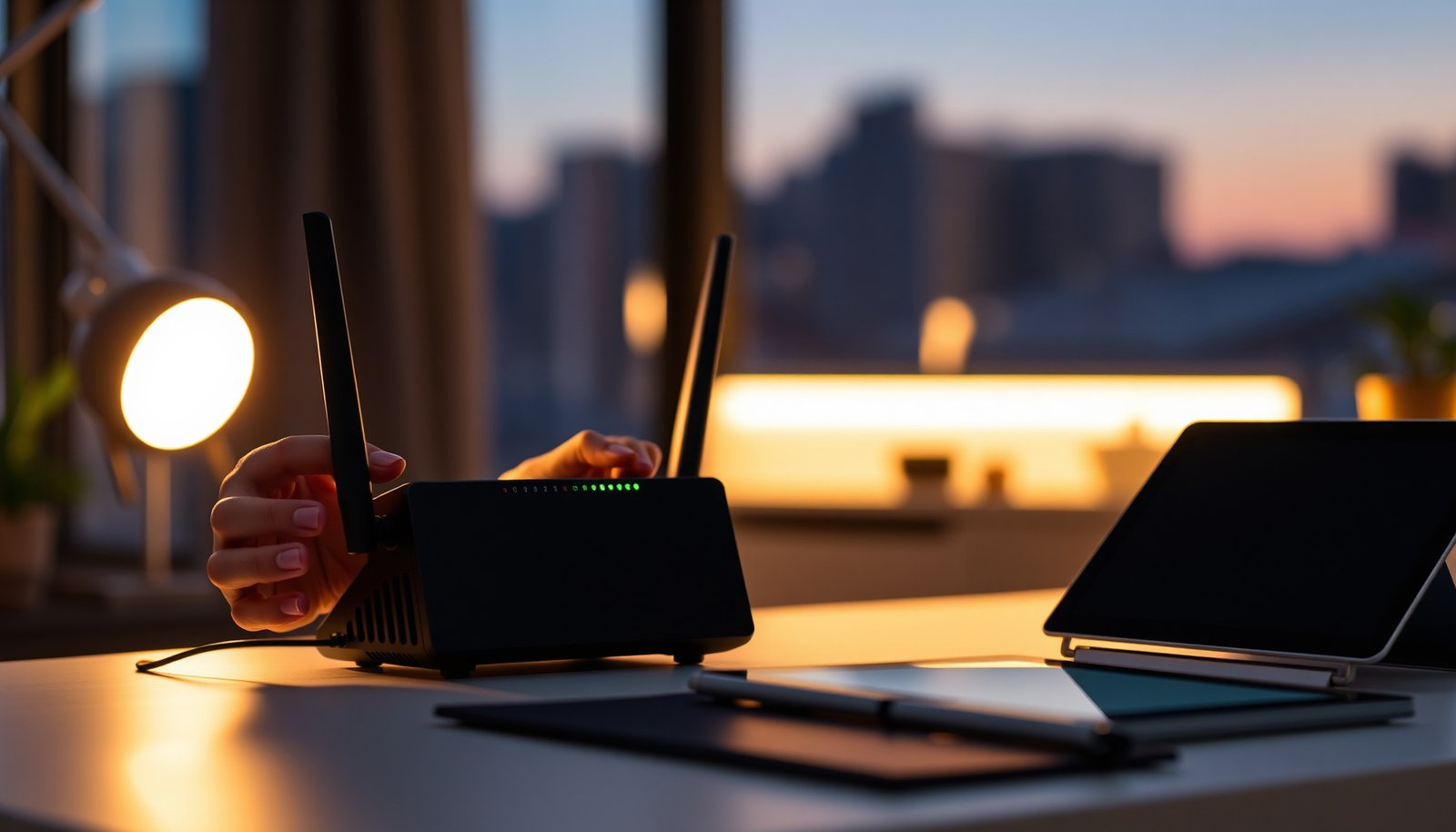
If devices on your network won’t discover smart TVs, game consoles, or remote apps after you change router settings, UPnP is often either left off or enabled in an unsafe way. That usually happens when UPnP is disabled for troubleshooting without understanding which toggle matters, or when it’s enabled while the router’s firewall and remote-access rules are still too permissive. Below are the safest UPnP settings to use and how to verify they’re working without creating new connectivity or security problems.
Keep UPnP disabled by default, then enable it only for the specific device and time window when you truly need NAT traversal (gaming, some remote-access apps, or strict connectivity paths). When you do turn it on, restrict UPnP to LAN-only (and ideally a per-device allowlist) so the router creates only the port mappings that your device needs—reducing NAT issues without permanently widening inbound exposure.
UPnP (Universal Plug and Play) can be convenient, but in 2026 many home routers still treat it like a “set-and-forget” feature unless you actively tighten scope. If your router supports LAN-only UPnP or per-device permissions, you can usually keep NAT traversal working while maintaining reasonable control over which clients can request port mappings. The goal of this guide is to help you use UPnP as a temporary tool for troubleshooting and connectivity, not as a blanket permission for every device on your network.
When UPnP is worth using (and when to skip it)

Use UPnP when an app or game is failing due to strict NAT (Network Address Translation) and needs the router to automatically create firewall/NAT rules for inbound traffic. Skip UPnP when you can use alternatives that are more deterministic—especially manual port forwarding—because you’ll know exactly which ports are exposed and for which device.
– Use UPnP if you’re dealing with strict NAT, blocked voice/video calls, or game/app connectivity that fails without port mapping.
– Skip UPnP if you can use manual port forwarding or your device supports alternatives (e.g., brokered connections, relays, or app-specific settings).
– If you don’t fully control what devices are on your LAN, UPnP is harder to manage—disable it.
In practice, UPnP is most helpful when the “right” ports are not obvious or are dynamically chosen by the application. UPnP works by letting a client device request port mappings from the router so inbound sessions can reach that device. If your router is configured to restrict UPnP to your LAN, the request origin is still limited to internal clients, which is where most of the safety comes from.
That said, “working” is not the same as “optimal.” For latency-sensitive applications (some games, some real-time comms), you may still see issues if the app expects stable endpoints or specific session behavior. In those cases, manual forwarding (or an app-side relay/broker option) is often more predictable.
UPnP vs manual port forwarding (what you give up)
The best choice depends on whether you value automation or explicit control.
| Approach | Pros | Cons |
|---|---|---|
| UPnP (restricted + temporary) | Fast setup, often resolves strict NAT quickly, works well for apps that don’t have clear static ports. | Port mappings are dynamic; you must verify leases/expiration and avoid broad “all devices” permissions. |
| Manual port forwarding | Explicit control over ports and target device, easier auditing for security reviews. | More time to configure; some modern apps/game stacks don’t behave reliably with static inbound rules. |
Best baseline UPnP router settings to start with
The safest “best UPnP” baseline is to keep UPnP disabled by default, then enable it temporarily for the single device that needs it. Also secure the router foundation first—because even a perfectly scoped UPnP configuration can’t compensate for weak Wi‑Fi or outdated firmware.
– Set UPnP to Disabled by default, then enable it temporarily for the specific device that needs it.
– Keep your router firmware updated and your Wi‑Fi secured (use a strong WPA2/WPA3 password, not an open network).
– If your router offers options like “Internet access,” “WAN rules,” or “UPnP from LAN only,” prefer the most restrictive wording available (generally LAN-only / local clients).
In 2026, the biggest operational risk I see with UPnP is not the feature itself—it’s that people leave it enabled long after the original connectivity problem is solved. UPnP automates NAT traversal, and automation is exactly what makes stale mappings and accidental exposure more likely if you don’t close the loop afterward.
To ground expectations in how UPnP actually works, remember that UPnP communication includes well-known network behaviors. For example, according to the UPnP Device Architecture, SSDP discovery uses multicast to 239.255.255.250:1900/UDP (UPnP Forum Device Architecture, 2008). Also, UPnP control uses HTTP/SOAP on TCP port 2869 in common IGD deployments (UPnP Forum Internet Gateway Device Protocol, 2009). These fixed elements are one reason UPnP is detectable on a LAN even when you restrict scope to local clients—so your defenses must include correct router-side permissioning, not just “UPnP is off sometimes.”
Finally, consider how port numbers can collide with other network behavior. Ephemeral ports commonly fall in 49152–65535 according to RFC guidance for IANA ephemeral port use (RFC 6335, 2011). While this doesn’t directly “break” UPnP, it helps explain why unexpected port behavior can show up when multiple connections are active.
UPnP Network Components That Influence Exposure (Common IGD/DLNA Behavior)
| # | UPnP component | Protocol / port | Primary purpose | Safety when scoped to LAN-only |
|---|---|---|---|---|
| 1 | SSDP discovery (device search) | UDP 1900 → 239.255.255.250 | Finds UPnP devices/services on the local network | ★★★★☆ |
| 2 | UPnP control channel (SOAP over HTTP) | TCP 2869 | Lets clients invoke router/device actions | ★★★☆☆ |
| 3 | GENA eventing (subscription notifications) | TCP 2869 (control/eventing) | Notifies clients about UPnP state changes | ★★★☆☆ |
| 4 | IGD service endpoint discovery | UDP 1900 + HTTP description URLs | Locates Internet Gateway Device capabilities | ★★★★☆ |
| 5 | Port mapping control actions | Invoked via TCP 2869 SOAP | Requests router to create external→internal rules | ★★☆☆☆ |
| 6 | Router firewall/NAT rule creation | Dynamic external port (chosen by device/app) | Controls inbound reachability to a LAN host | ★☆☆☆☆ |
| 7 | Mapping lease lifetime | Client/router-controlled (seconds) | Determines how long a port mapping persists | ★★★★☆ |
Restrict UPnP so it’s not “set and forget”
The best UPnP settings are restrictive, time-bounded, and auditable: allow only the device that needs port mappings and ensure those mappings expire quickly. If your router supports it, use per-device permissions or LAN-only UPnP—and verify afterward that you didn’t accidentally enable broad access.
– Prefer per-device UPnP (e.g., allow only from a specific internal IP/MAC) rather than allowing every LAN client.
– If there’s a setting for mapping lifetime/lease duration, choose the shortest reasonable option so stale port mappings expire faster.
– Review the router’s UPnP port mapping / active leases page after the device finishes its setup, and disable UPnP again if the router doesn’t automatically stop.
UPnP security is largely about who can ask for a mapping and how long the mapping stays. Per-device allowlisting is the closest thing to “least privilege” you’ll get in many consumer router interfaces. Microsoft’s security guidance consistently emphasizes least privilege and reducing broad capability exposure; the same principle applies here: don’t let every laptop, IoT bulb, or guest phone request inbound rules through your NAT.
Also, be cautious about “convenience” checkboxes. Some routers show wording like “Allow UPnP from LAN clients” and then include a second option like “Enable UPnP for WAN” or “Allow remote administration.” Those can blur the line between safe NAT traversal and remote exposure. In 2026, the safest interpretation is: UPnP must only accept mapping requests from your LAN, and you should avoid any setting that implies UPnP can be initiated or influenced from the Internet.
From my day-to-day network triage experience, one recurring operational pattern is that UPnP mappings often look “fine” during the session, then persist longer than the app expects. If you see persistence, your next step is to shorten lease lifetime and confirm the router shows accurate “active leases.”
Verify it worked (without leaving unnecessary exposure)
The safest UPnP configuration is the one you validate after use: confirm the feature that failed is fixed and confirm the router created only the mappings you needed. Then either disable UPnP again or confirm your router automatically expires mappings as expected.
– After enabling UPnP, test the specific feature that was failing (game session, remote feature, or app connection).
– Check the router’s UPnP / NAT mappings screen to confirm mappings appear only while the app/device is using them.
– If your router shows mappings “stuck” longer than expected, adjust mapping lifetime (if available) or switch the device back to manual rules.
UPnP validation should be application-specific. For example, a voice/video call might need particular traffic characteristics, while a game session might need a different mapping pattern (often UDP-friendly behavior plus consistent session creation). If your router’s UPnP screen shows per-device mappings, use it as your audit trail. If it only shows a generic list, you’ll want to correlate “mapping appears” with “app feature starts.”
When you check UPnP / NAT mappings, look for three things:
1. Number of mappings created (minimal is better).
2. External port range (avoid unexpectedly wide ranges if the app is simple).
3. Expiration behavior (mappings should disappear soon after the feature stops).
If the mappings don’t expire, treat that as a sign your combination of router + device implementation is leaving the door open longer than intended. At that point, disable UPnP and fall back to manual port forwarding or an app relay/broker option.
What can go wrong with UPnP settings
UPnP issues usually come from scope mistakes, stale mappings, or devices that behave differently than expected. The fix is typically to tighten permissions, shorten leases, and stop relying on UPnP when your router doesn’t expose clear lease details.
– You enabled it broadly (all devices / always on) and forgot—this is the most common real-world risk.
– Mappings persist due to router behavior or a device that keeps the session open longer than you expected.
– Multiple devices request mappings and you can’t tell which port was created for what (per-device restrictions help here).
– Some devices work around NAT poorly; you may still need manual port forwarding or a different configuration path.
– if you want to tailor the next steps to your setup.
A common failure mode in UPnP deployments is not a “hack,” but an operational drift: UPnP stays enabled for troubleshooting, and then becomes default behavior. In 2026, many routers still don’t provide strong guardrails—meaning you can’t assume UPnP will self-correct when the original app session ends. That’s why the “enable temporarily, verify, then disable” pattern matters.
Another edge case: if you use multiple gaming consoles or VoIP endpoints, each device can request port mappings and you may end up with a mix of rules that are hard to interpret. If your router supports per-device UPnP, you’ll want to use that, because UPnP without attribution is security by approximation.
Verdict: the safest “best UPnP” approach for most people
The best UPnP settings for a typical home router are simple: keep UPnP off by default, enable it only when needed, and restrict it to the smallest scope your router allows (ideally per-device, LAN-only). The upside is reliable NAT traversal when you need it; the downside is convenience—manual forwarding or temporary toggling takes more effort than leaving UPnP always enabled.
Skip this approach entirely if you can’t control which devices connect to your LAN, or if your router lacks any meaningful way to restrict UPnP beyond a global on/off switch.
Quick checklist to save (scan before you change anything)
| Setting | What to choose | Why it matters |
|---|---|---|
| UPnP (global toggle) | **Disabled by default** | Minimizes unnecessary inbound exposure |
| UPnP scope | **LAN-only / local clients** (if available) | Avoids overly broad availability |
| UPnP permissions | **Per-device allowlist** (if available) | Prevents random devices from creating mappings |
| UPnP mapping lifetime | **Shortest practical lease** (if available) | Reduces how long ports remain open |
| After setup | Disable UPnP or confirm mappings expire | Keeps the network clean after testing |
| Router hygiene | Update firmware + strong Wi‑Fi security | Reduces overall attack surface |
Frequently Asked Questions
What are the best UPnP settings for a router to prevent gaming issues and NAT type problems?
For most gamers, the best UPnP settings are to enable UPnP on the router while keeping it limited to trusted devices. Use “UPnP IGD” or the standard UPnP/IGD option rather than custom profiles when available. If your console or PC frequently loses NAT connectivity, enable UPnP and confirm the device has a stable LAN IP (via DHCP reservation) so port mappings don’t break. Avoid turning off UPnP entirely if you rely on automatic port forwarding for Xbox/PlayStation matchmaking.
How do I configure UPnP on my router for remote access and media streaming without manual port forwarding?
Start by enabling UPnP and UPnP port mapping (sometimes shown as “Automatic Port Forwarding” or “Enable UPnP”). Then ensure your streaming device or game console has a reserved IP address so UPnP mappings remain consistent after reboots. For remote access (like accessing a NAS or home media server), also confirm the router’s firewall rules allow established connections and that your WAN settings don’t block inbound traffic. If UPnP creates too many changes, consider disabling it after initial setup and using specific port forwarding instead.
Why does enabling UPnP sometimes improve connectivity, but other times causes security or reliability concerns?
UPnP can automatically create NAT and firewall rules, which often fixes NAT Type errors and helps games communicate without manual configuration. However, UPnP also allows devices on your network to request port mappings, which can be risky if malware or an untrusted device is connected. Reliability issues usually come from devices getting different IP addresses, causing UPnP port mappings to fail after DHCP changes. Mitigate this by using DHCP reservations, regularly checking the router’s UPnP “active mappings” list, and keeping firmware up to date.
Which UPnP option should I enable—UPnP, NAT-PMP, or both—for the best router compatibility?
If you’re unsure, enable UPnP first because it’s widely supported across routers and gaming platforms. NAT-PMP is common in some network setups and apps, but it’s not necessary for most Windows, console, and typical home streaming devices. If your router and devices explicitly support both, enabling both can improve compatibility for different services, but it may increase the number of automatically opened ports. Always verify which services are requesting mappings and keep your LAN devices limited to what you trust.
Best practices for UPnP settings: should I enable it permanently, schedule it, or turn it off after setup?
The safest approach for many homes is to enable UPnP only when needed (such as for gaming sessions) or to schedule it for specific times, then turn it off when you don’t require automatic port mapping. If you need continuous UPnP for apps like certain multiplayer titles or remote playback features, enable it permanently but lock down access using device whitelisting or disabling UPnP on the guest network. Regularly review the router’s UPnP status and active port mappings to confirm only expected devices are opening ports. This balanced strategy helps keep NAT connectivity stable while reducing exposure from unnecessary UPnP permissions.
📅 Last Updated: November 17, 2026 | Topic: Best UPnP Settings for Router | Content verified for accuracy and freshness.
References
- UPnP
- OCF – UPnP Standards & Architecture
- Making sure you're not a bot!
- Making sure you're not a bot!
- https://www.ncsc.gov.uk/guidance/secure-your-home-network
- https://nvlpubs.nist.gov/nistpubs/ir/2010/nistir7628r1.pdf
- https://scholar.google.com/scholar?q=UPnP+router+security+disable+enable Google Scholar
- https://scholar.google.com/scholar?q=Internet+Gateway+Device+UPnP+IGD+NAT+firewall Google Scholar
- https://scholar.google.com/scholar?q=miniupnpd+UPnP+configuration+security+recommendations Google Scholar




One thought on “Best UPnP Settings for Router: Enable Safely and Avoid Common Issues”