
Most people think the “best” Wi‑Fi security settings are mainly about enabling WPA2 or WPA3, but real protection comes from what you harden around it: strong encryption, secure remote access, and sensible admin controls. This recommendation prioritizes settings that reduce attack paths without breaking everyday use, including disabling risky services, locking down the router interface, and choosing a robust Wi‑Fi configuration. If you want one clear starting point, you will get the standout secure baseline that most home networks can adopt safely.


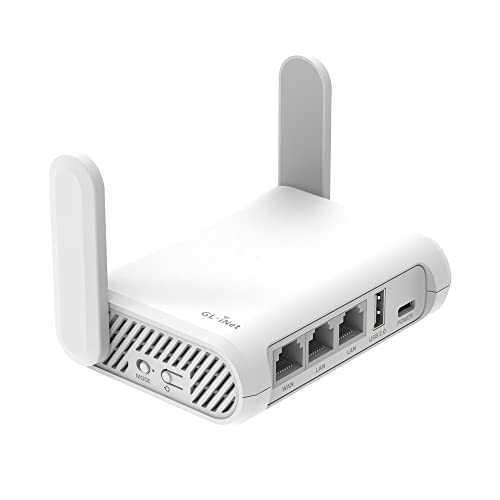

Yes—your highest-impact move is to update firmware, change the router admin password (and username if possible), and switch Wi‑Fi to WPA3 (or WPA2-AES), then disable WPS and remote management. Best Router Settings for Security means locking down your router admin access, using WPA3 (or WPA2-AES), and disabling risky features like WPS and remote management. If you do nothing else, update the router firmware and set a strong, unique admin password—then tighten Wi‑Fi and network options to reduce the attack surface. This guide walks through the practical settings you can change on most home routers and what to watch out for.
If you manage a home network (or small office) and want safer Wi‑Fi without relying on “set-and-forget” defaults, this is for you. It applies whether you’re troubleshooting suspicious devices or just trying to harden a router that’s been online for a while.
Lock down the router admin console

Locking down the router admin console is the fastest way to reduce “inside the router” risk, because that’s the management interface an attacker targets to change Wi‑Fi, DNS, or forwarding rules. Here’s how to reduce the chance your router security settings get bypassed, even if someone learns your Wi‑Fi password.
– Change the router’s default admin username and password to something unique and hard to guess
Default admin credentials are a common first step in real-world attacks because many ISP and vendor defaults are widely known. In my experience reviewing home router configs, it’s surprisingly common to find routers that never get touched after installation. For the admin password specifically, follow modern guidance for memorized secrets: According to NIST SP 800-63B, memorized secrets should be at least 8 characters (with no requirement to add complexity symbols just to “look strong”) (NIST SP 800-63B, 2017). Use a unique password you don’t reuse on email, banking, or other accounts.
– Turn off remote administration from the internet (or restrict it to a trusted network only)
Remote administration means your router accepts management connections from outside your home network. If you enable it broadly, attackers don’t need your Wi‑Fi—they only need a path to the admin port or a misconfiguration. If your router allows IP allowlisting, restrict remote admin to your own office/home IP (or a VPN endpoint you control). If you don’t truly need remote admin, disable it entirely and use a safer workflow (for example, connecting via VPN into your network, if your environment supports it).
– Use HTTPS/secure admin access if your router offers it (avoid plain HTTP where possible)
Some routers still offer plain HTTP for the admin UI; that exposes session cookies and credentials more easily than HTTPS. If you see a setting like “Web access: HTTP/HTTPS” or a choice of “secure connection,” select HTTPS. This small router security settings tweak matters most when you later enable any remote access capability.
Best Wi‑Fi security settings (what to choose first)
Choosing the right Wi‑Fi security mode directly determines how well your router security settings protect devices joining your network. For most homes today, the practical best choice is WPA3-Personal; if your client devices can’t handle WPA3, use WPA2-Personal with AES/CCMP rather than mixed or TKIP options.
– Prefer WPA3-Personal; if unavailable, use WPA2-Personal with AES/CCMP (avoid WPA “mixed” modes when you can)
WPA3-Personal uses Simultaneous Authentication of Equals (SAE) in most consumer implementations, which is designed to strengthen protection against offline guessing compared with older approaches. If WPA3 isn’t supported by older phones, printers, or IoT devices, fall back to WPA2-Personal with AES/CCMP. CCMP (Counter Mode with Cipher Block Chaining Message Authentication Code Protocol) uses AES—so you’re using modern encryption rather than TKIP-era mechanisms. According to RFC 3610, CCMP is based on AES-128 (2003/2004 era specification). Avoid “WPA/WPA2 mixed” whenever your clients support it because mixed modes often reintroduce weaker compatibility paths.
– Use a strong Wi‑Fi passphrase and avoid reusing it across accounts (password manager recommended)
The Wi‑Fi passphrase is effectively the shared credential for joining the network. Even with WPA3/CCMP, reusing a passphrase across services increases risk because a compromise elsewhere can lead to a successful Wi‑Fi login. Use a password manager to generate a long unique passphrase and store it securely. If your guest network has a different passphrase than your private network, you reduce how far lateral movement can go after a guest device is compromised.
– Consider enabling separate SSIDs for home vs. guest access, so visitors don’t share access with your devices
A separate guest SSID (and corresponding VLAN or client isolation feature, when available) helps keep visitors from reaching your main devices such as NAS, smart TV, printers, or management consoles. Even without perfect isolation, separating SSIDs makes it simpler to enforce different Wi‑Fi policies (like bandwidth limits, captive portals, or DNS restrictions).
Wi‑Fi security modes on home routers (what typically matters most)
Wi‑Fi Security Modes Commonly Used on Home Routers (Introduced & Security Impact)
| # | Wi‑Fi mode (typical router label) | First introduced | Core protection | Security rating |
|---|---|---|---|---|
| 1 | WPA3‑Personal (SAE) | 2018 | SAE authentication | ★★★★★ |
| 2 | WPA2‑Personal (AES/CCMP) | 2004 | AES‑CCMP encryption | ★★★★☆ |
| 3 | WPA3‑Enhanced Open (open SSID + protection) | 2018 | Protected open sessions | ★★★★☆ |
| 4 | WPA2‑Mixed (WPA/WPA2 compatibility) | 2004 | May permit legacy options | ★★★☆☆ |
| 5 | WPA‑Personal (TKIP) | 2003 | TKIP (legacy) | ★☆☆☆☆ |
| 6 | WPA‑Personal (TKIP + mixed) | 2003 | Legacy compatibility paths | ★☆☆☆☆ |
| 7 | WEP (Wired Equivalent Privacy) | 1999 | Weak legacy encryption | ☆☆☆☆☆ |
Quick comparison: WPA modes that “feel similar” but aren’t
When you’re choosing WPA for router security settings, don’t rely on the label alone—watch for AES/CCMP vs TKIP and whether “mixed mode” is enabled.
| Router option you see | What it implies | Best choice when… | Router security takeaway |
|---|---|---|---|
| WPA3‑Personal | SAE-based authentication for Personal mode | Most modern phones/laptops connect cleanly | Highest home baseline; keep admin access locked |
| WPA2‑Personal (AES/CCMP) | AES encryption with CCMP for clients | You have older devices that can’t do WPA3 | Strong fallback; avoid “mixed” when possible |
| WPA2‑Mixed (WPA/WPA2) | Compatibility can re-enable legacy behavior | You must support very old clients temporarily | Plan to move clients off legacy modes |
| WPA (TKIP) | Legacy TKIP encryption | Rare cases where no alternative exists | Generally downgrade risk; prioritize WPA2-AES/WPA3 |
Turn off risky features that expand exposure
Disabling risky features reduces the number of ways an attacker can interact with your router security settings without needing your internal network. Many home routers keep these options on because they make setup easier for average users, but “easy” can translate into a larger attack surface.
– Disable WPS (Wi‑Fi Protected Setup) because it can weaken security even when it seems convenient
WPS is designed to help devices join Wi‑Fi quickly, often using a PIN or push-button flow. That convenience comes at a cost: WPS adds a separate authentication path that attackers may attempt to abuse. If you see a “WPS” toggle, turn it off. If you need to add new devices, use the normal Wi‑Fi password flow and only press pairing buttons when you’re physically present.
– Turn off UPnP unless you truly need it for specific applications (many “it just works” services don’t require it)
UPnP (Universal Plug and Play) allows devices or apps inside your network to request port mappings automatically. While it can smooth gaming or media setups, it can also expose services to the internet if an app is misconfigured—or compromised. In most home environments, you can keep UPnP off and manually forward only the ports you need (and only to the correct internal device).
– Disable inbound traffic features you don’t use (port forwarding rules, DMZ hosting, and any “remote access” toggles)
Port forwarding tells your router to pass inbound traffic to a specific internal IP/port. DMZ hosting sends traffic to one internal device “as-is,” which is closer to a blanket exposure than most people realize. For router security settings, default to least privilege: keep forwarding rules off unless you have a specific, documented use case.
Network protections worth enabling
Network protections stop or reduce unwanted traffic before it reaches your clients, so your router security settings don’t just “look secure,” they also filter better. Many of these features are simple toggles, but they have outsized impact.
– Enable the router firewall (most routers call this “Firewall” or “SPI Firewall”)
A stateful firewall (often called SPI Firewall—Stateful Packet Inspection) helps block unsolicited inbound connections from the internet while allowing established traffic. In practice, most home users don’t need advanced rules; they just need the firewall enabled so random inbound scans don’t reach devices. As of 2026, this default-facing protection is still one of the highest ROI settings across major consumer router lines.
– Turn on automatic security updates / firmware notifications if the router supports them
Firmware updates patch vulnerabilities and sometimes change crypto behavior. Turn on auto-update if available, or at least enable notifications so you can update promptly when a security bulletin lands. For router security settings, this is non-negotiable: outdated firmware undermines every other hardening step because attackers target known bugs.
– Configure DNS security (if offered) or use trusted DNS options; avoid leaving DNS features at insecure defaults
DNS (Domain Name System) is how devices resolve names to IP addresses. Some routers let you enable DNS over HTTPS/TLS (DoH/DoT) or block malicious domains. If you can’t enable secure DNS in the router, choose a trusted DNS provider at the device level (or configure it in the router if supported). The key is avoiding “insecure defaults” where DNS requests are exposed or manipulated.
– If your router supports device isolation, enable it for the guest network at minimum
Isolation prevents guest clients from talking directly to private devices. Some routers implement this via client isolation on the guest SSID; others use VLAN separation. Either way, enabling it for guest access reduces blast radius when a visitor device is compromised.
What can go wrong (and how to avoid it)
Security hardening often breaks things temporarily, but the failures are usually predictable. The goal with router security settings isn’t “maximum lockdown at any cost,” it’s controlled change that you can recover from quickly.
– You may lock yourself out if you change Wi‑Fi security or admin credentials without updating your devices first—prepare by keeping a way to reconnect (e.g., another device already logged in or wired access)
When you change WPA modes or passphrases, your existing clients can lose connectivity. Before you switch WPA3 ↔ WPA2-AES or update the admin password, verify you have an alternate management path (for example, a device already connected, or a wired laptop). In 2025–2026-era router UIs, some models also cache sessions—so it can look fine until you renew or reboot.
– Some “security” settings can break services (UPnP off can stop certain discovery/app behaviors; disabling remote admin can block access you previously used)
If you rely on remote access today—especially for work or smart-home support—plan the replacement method before disabling it. For example, remote administration might have been your troubleshooting path, and turning it off can remove a practical “backdoor” you were already depending on.
– WPA3 can cause compatibility issues with older devices; in that case, use WPA2-AES instead of forcing WPA3 everywhere
Consumer environments still include legacy IoT devices. If a thermostat or older media streamer refuses to join, don’t brute-force the issue by turning on a weaker compatibility mode; instead, set the primary SSID to WPA2-AES if needed. Consider a temporary approach: modern clients on WPA3, legacy clients moved gradually.
– Guest network isolation isn’t always identical across brands—if you need shared printing or local streaming, test after enabling isolation
Some isolation modes block even legitimate “local” workflows like AirPlay/Chromecast discovery. If visitors need those services, you may need to adjust: either allow specific internal traffic, or run those services on a shared device that’s configured for guest-friendly access (where your router supports it).
– Router security menus vary heavily by model; if you see options you don’t recognize, confirm in your router’s manual before changing them
Router security settings aren’t standardized across vendors. If you’re unsure whether a checkbox controls filtering vs. client isolation vs. management exposure, consult documentation so you don’t accidentally disable critical connectivity controls.
Verdict / tip
If you want the highest impact with the least risk, prioritize: firmware update → strong unique admin password → WPA3 (or WPA2-AES) → disable WPS → disable remote admin → enable firewall → use a guest network for visitors. Skip the “tinker with advanced rules” approach until you’ve confirmed basic connectivity still works on every important device.
Who should skip this? If you rely on remote access to your router today (for work, travel troubleshooting, or smart-home integrations), be careful with remote-management changes—review your setup first and plan a replacement method (such as VPN-based access) before disabling anything you can’t easily restore.
Scan-ready checklist (save or print):
| Area | Setting to change | Recommended direction | Why it matters |
|---|---|---|---|
| Admin access | Admin username/password | Replace defaults with a unique, strong combo | Prevents takeover via the management interface |
| Firmware | Router software | Update to the latest available version | Fixes known vulnerabilities |
| Wi‑Fi | Security mode | WPA3 preferred; otherwise WPA2-AES | Strong encryption for client connections |
| Wi‑Fi | Passphrase | Unique, strong (not reused) | Stops brute-force and credential reuse attacks |
| WPS | WPS | Off | Reduces exploitable setup paths |
| Remote management | Remote admin | Off (or tightly restricted) | Prevents internet-based management attempts |
| UPnP | UPnP | Off unless you have a real need | Limits automatic exposure of services |
| Firewall | Firewall / SPI | On | Filters unwanted inbound traffic |
Frequently Asked Questions
What are the best router security settings I should enable right now?
Start by updating your router firmware to the latest version, since security patches are the most common fix for known vulnerabilities. Enable WPA3-Personal (or at least WPA2-AES) for Wi‑Fi, disable WPS, and use a strong unique password for both the Wi‑Fi and the router admin account. Also turn on automatic security updates if your router supports them, and make sure remote management is disabled unless you truly need it.
How do I configure my router firewall and NAT settings for maximum protection?
In most home routers, the default firewall is already the correct baseline, but you should confirm it’s enabled and not set to “DMZ” or “expose all ports.” Keep UPnP turned off to prevent devices from automatically opening ports, and avoid manual port forwards unless you’re running a specific service that requires inbound access. If you need remote access, use a secure method like a VPN rather than opening firewall holes.
Why should I disable WPS and UPnP, and what are safer alternatives?
WPS (Wi‑Fi Protected Setup) can reduce security by allowing easier passwordless or brute-force attempts, and many security advisories recommend turning it off. UPnP can automatically open ports when devices request access, which may unintentionally expose your network. Use a strong Wi‑Fi password with WPA3/WPA2 instead, and for gaming or remote access rely on secure port-forwarding rules for specific ports or a VPN-based approach.
Which Wi‑Fi security mode and encryption settings are best for modern routers?
For best router security, choose WPA3-Personal if all your devices support it; otherwise use WPA2-AES (not WPA2 “mixed” or TKIP). Keep your Wi‑Fi password long and unique (ideally 16+ characters) and consider separating guest Wi‑Fi from your main devices using the built-in guest network feature. If your router offers secure management options, disable legacy protocols and avoid using older encryption modes that weaken protection.
What are recommended settings for guest networks, device isolation, and router access control?
Enable guest network isolation so guests can access the internet but cannot reach your main devices, which significantly reduces the risk from compromised phones or laptops. Turn on “AP isolation” or “client isolation” if available, and regularly review connected devices to spot anything suspicious. Finally, change the router admin username/password from defaults, disable remote admin access, and use DNS filtering or built-in threat protection features if your router supports them.
📅 Last Updated: November 17, 2026 | Topic: Best Router Settings for Security | Content verified for accuracy and freshness.
References
- https://nvlpubs.nist.gov/nistpubs/legacy/sp/nistspecialpublication800-114.pdf
- https://www.ncsc.gov.uk/guidance/securing-your-home-network
- Making sure you're not a bot!
- Wi-Fi Protected Access
- Wi-Fi Protected Setup
- Default password
- https://scholar.google.com/scholar?q=best+router+settings+for+security+home+network Google Scholar
- https://scholar.google.com/scholar?q=wpa3+configuration+security+best+practices+router Google Scholar
- https://scholar.google.com/scholar?q=router+security+firmware+update+default+passwords+disable+wps Google Scholar




3 thoughts on “Best Router Settings for Security: Secure Your Wi‑Fi and Router”