
To connect a projector to a surround sound system, start by identifying the audio output options on your projector and the input options on your surround sound receiver. This ensures compatibility and allows you to create a seamless audio-visual experience. In this guide, we will go through the necessary steps for connecting your equipment, choosing the right cables, configuring settings, and troubleshooting any potential issues that may arise.



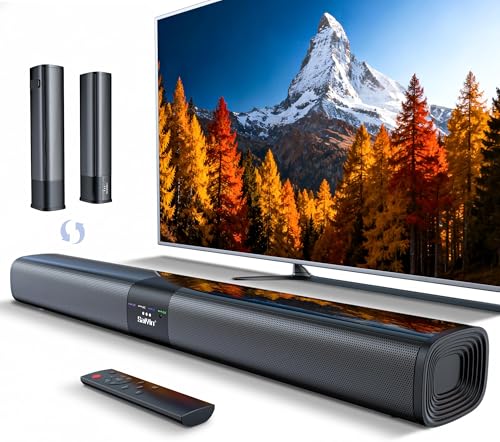
Understanding Your Equipment
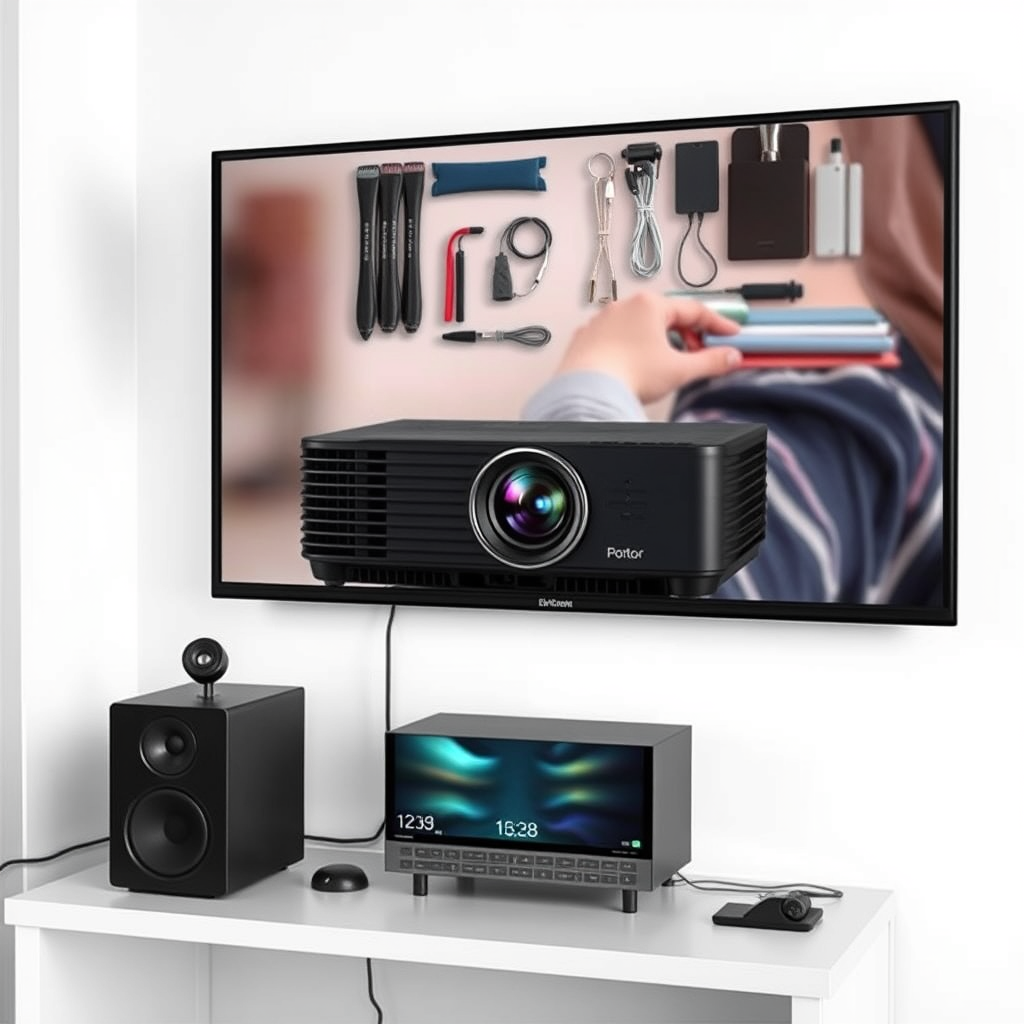
Before diving into the connection process, it’s essential to familiarize yourself with the types of ports available on both your projector and surround sound system. Most modern projectors come equipped with HDMI ports, which can transmit both high-definition video and audio through a single cable. However, some older models might offer other connection types like RCA (red, white, and yellow cables) or even VGA.
On the other side, your surround sound system may feature various input options, including HDMI, optical (TOSLINK), RCA, and even 3.5mm auxiliary inputs. Take a moment to review the user manuals for both devices or inspect the ports directly to understand what connections are available. Matching these ports correctly is crucial for ensuring a successful setup.
Choosing the Right Cables
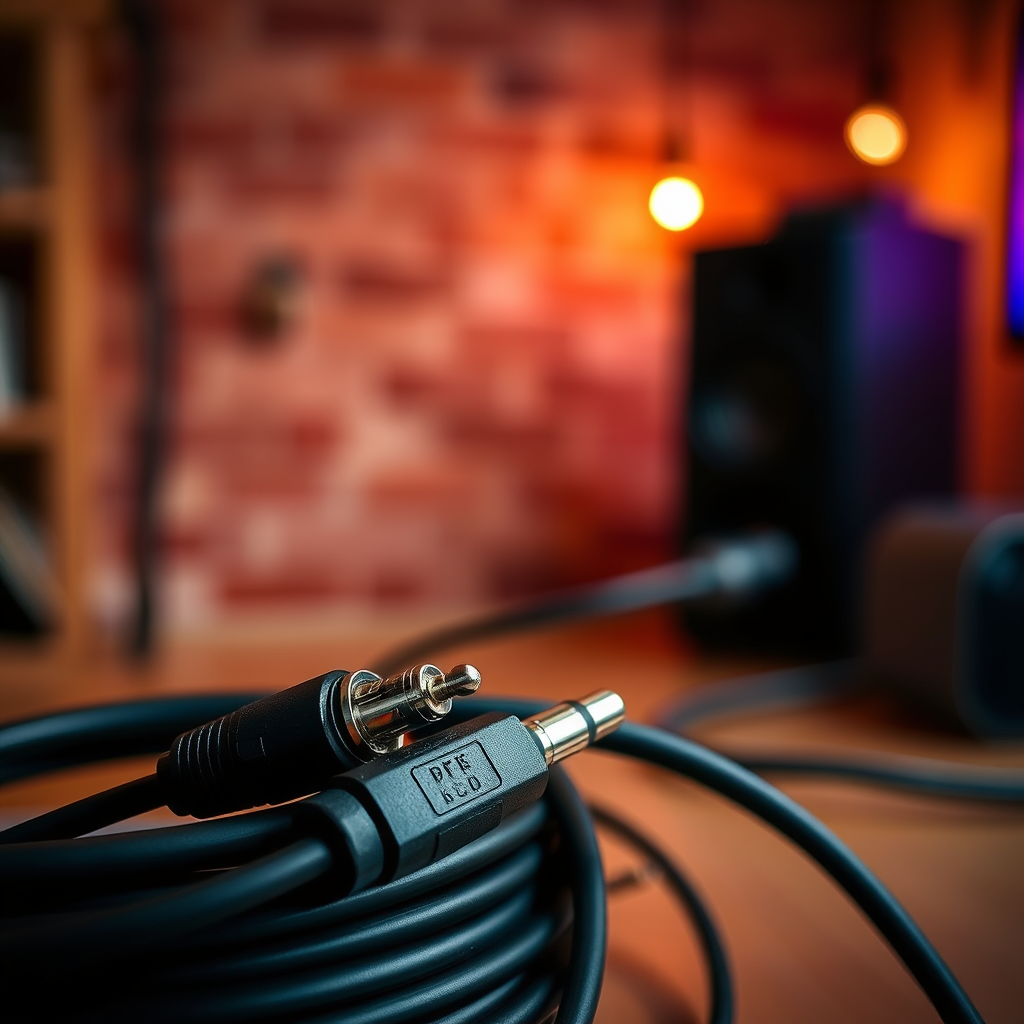
Once you know what types of connections you have, it’s time to select the appropriate cables. For the simplest and most efficient connection, HDMI cables are your best bet. Not only do they carry high-quality video signals, but they also transmit audio, making them ideal for connecting your projector to your surround sound system with minimal fuss.
If your projector lacks HDMI audio output, don’t worry! You can still make it work using optical or RCA cables. Optical cables are great for transmitting high-quality audio, while RCA cables can be used if your surround sound receiver has these inputs. Just keep in mind that using multiple cables for audio and video can complicate your setup, so do your best to stick with a single cable type whenever possible.
Connecting the Projector to the Surround Sound System
Now that you have your cables ready, it’s time to make the actual connections. Start by connecting one end of your chosen cable (HDMI, optical, or RCA) to the corresponding output port on your projector. Then, connect the other end to the appropriate input port on your surround sound receiver.
For instance, if you are using an HDMI cable, plug one end into the HDMI OUT port of the projector and the other into an HDMI IN port on the surround sound receiver. If you’re using RCA cables, you’ll need to match the colors of the cables to the corresponding ports: red for right audio, white for left audio, and yellow for video (if applicable).
After you’ve made the physical connections, it’s crucial to ensure that the projector’s audio output settings are configured correctly. This typically involves going into the projector’s menu and selecting the appropriate audio output option to match your connection type.
Configuring Audio Settings
With your devices physically connected, it’s time to configure the audio settings for optimal performance. Access the audio settings on your projector, which can usually be found in the settings or setup menu. Look for options related to audio output, and ensure that the correct output mode is selected—this might be labeled as HDMI audio, optical audio, or something similar depending on your specific equipment.
Next, head over to your surround sound system. Many receivers have their own settings that allow you to adjust the audio profiles and sound modes (like stereo, surround, or movie mode). Experiment with these settings to find the best sound profile for your specific use case, whether you’re watching movies, playing games, or listening to music.
Remember to check the volume levels on both devices as well. Sometimes, the volume might be turned down or muted on one device, which can lead to confusion when you attempt to play audio.
Testing the Setup
Now that everything is set up and configured, it’s time for the fun part—testing your setup! Play a video or audio file to check for any sync issues or audio quality problems. Pay attention to the clarity of sound and whether the audio matches up well with the visuals on screen.
If you notice any lag or audio issues, try adjusting the volume levels on both the projector and surround sound system. Additionally, ensure that the surround sound system is set to the correct input source. Sometimes, receivers can mistakenly be set to a different input, leading to confusion.
Take your time to fine-tune the settings, and don’t hesitate to experiment with the sound profiles on your surround sound system until you find the best experience for your needs.
Troubleshooting Common Issues
Even with everything set up correctly, you might run into a few hiccups along the way. If you are not getting any sound or video, the first thing to do is check for loose connections. Ensure all cables are securely attached to both the projector and surround sound receiver.
If you still face issues, consult the user manuals for your specific equipment. These manuals often contain troubleshooting steps tailored to the specific model you own, which can be invaluable in resolving any problems. Common issues can include selecting the wrong input source on your surround sound system or misconfigured audio settings on the projector.
Additionally, if you’re experiencing issues with audio quality, consider updating the firmware on your projector or surround sound receiver, as manufacturers often release updates that can improve performance and fix bugs.
Your projector and surround sound system should now be successfully connected, providing you with an immersive audio-visual experience. If you encounter any issues, revisit the setup steps and ensure all connections are secure. Enjoy your movies or gaming with fantastic sound quality while creating unforgettable moments!
Frequently Asked Questions
What cables do I need to connect a projector to a surround sound system?
To connect a projector to a surround sound system, you typically need an HDMI cable, which carries both video and audio signals. If your projector doesn’t have an HDMI output, you may need to use an adapter to convert from VGA or composite video to HDMI. Additionally, you might require separate audio cables (like optical or RCA) if you are connecting the projector to a sound system that doesn’t support HDMI audio pass-through.
How do I set up my projector to work with a surround sound system?
To set up your projector with a surround sound system, start by connecting the projector to your audio receiver using the appropriate cables, such as HDMI. Ensure that the projector’s audio output settings are configured to send sound to the receiver. After that, connect your source device (like a Blu-ray player or streaming device) to the receiver, and finally, adjust the receiver’s settings to select the correct input for optimal audio performance.
Why is my projector not producing sound through my surround sound system?
If your projector is not producing sound through your surround sound system, first check the audio output settings on both the projector and the audio receiver. Ensure that the correct output source is selected on the receiver and that the projector’s audio settings are configured to output sound correctly. Additionally, confirm that all cables are securely connected and functioning, as a faulty cable can prevent audio transmission.
What is the best way to improve audio quality when connecting a projector to a surround sound system?
The best way to improve audio quality when connecting a projector to a surround sound system is by using high-quality HDMI cables that support audio return channel (ARC) functionality. Additionally, ensure that your audio settings on both the projector and receiver are optimized for surround sound. Consider utilizing external speakers or a soundbar specifically designed for home theater systems to enhance the overall audio experience.
Which surround sound systems are compatible with projectors?
Most modern surround sound systems, especially those with HDMI inputs, are compatible with projectors. Look for systems that support Dolby Digital and DTS encoding, as they provide a more immersive audio experience. Brands like Yamaha, Denon, and Onkyo offer excellent surround sound receivers that can easily connect to projectors. Always check the specifications for compatibility with the output options available on your projector to ensure seamless integration.
References
- https://en.wikipedia.org/wiki/Audio_video_receiver
- https://www.lifewire.com/how-to-connect-a-projector-to-surround-sound-1845606
- https://www.techhive.com/article/241537/how-to-set-up-a-home-theater-system.html
- https://www.cnet.com/home/theater/how-to-set-up-a-home-theater-system/
- HDMI Licensing Administrator, Inc.
- https://www.avsforum.com/threads/how-to-connect-your-projector-to-your-sound-system.3000129/
