
To resolve Klipsch HDMI ARC connection problems, start by ensuring that both your TV and Klipsch audio system are properly configured to use ARC. It’s essential to check your cables and settings to establish a stable connection. This article will guide you through step-by-step troubleshooting tips to help you enjoy seamless audio playback from your Klipsch system.


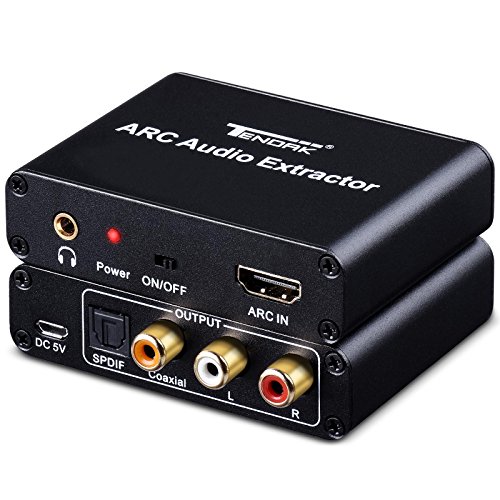

Understanding HDMI ARC
HDMI ARC (Audio Return Channel) allows sound to travel from your TV to your audio system through a single cable, significantly simplifying your home entertainment setup. With HDMI ARC, you no longer need to run multiple audio cables from your TV to your audio receiver. Instead, the audio signal can be sent back through the same HDMI cable that delivers video to your TV. This not only reduces clutter but also allows for easier control, as many systems can be operated with a single remote control, enhancing user convenience.
The technology works by utilizing the HDMI cable’s bidirectional capabilities, meaning that it can send audio signals in both directions. This feature is particularly beneficial when utilizing streaming services or built-in TV apps, as the audio can be played through your external speakers instead of the TV’s built-in speakers, resulting in a superior audio experience.
Checking Your Equipment
Before diving into troubleshooting, it’s crucial to ensure that both your TV and Klipsch system support HDMI ARC. Most modern TVs, particularly those manufactured in the last few years, come with HDMI ARC functionality, but it’s always worth verifying. This information can typically be found in the user manuals or specifications online.
Additionally, you should use high-speed HDMI cables that are explicitly compatible with ARC functionality. Not all HDMI cables are created equal; using a standard cable may result in poor performance or connection issues. Look for cables labeled as “High Speed with Ethernet” or “Premium High Speed” to ensure optimal audio transmission.
Configuring TV Settings
Once you’ve confirmed that both your TV and Klipsch audio system support HDMI ARC, the next step is to configure your TV settings.
1. Navigate to your TV’s audio settings: This is usually found in the main settings menu under “Audio” or “Sound.”
2. Enable HDMI ARC: Look for an option labeled “HDMI ARC” or “Audio Return Channel” and turn it on. This setting allows the TV to send audio signals back to the Klipsch system.
3. Set the audio output: Ensure the audio output is directed to the correct HDMI port that supports ARC. This port is typically labeled as “ARC” on the TV’s HDMI inputs.
By ensuring these settings are correctly configured, you can facilitate a smoother audio experience.
Configuring Klipsch System Settings
The next step involves configuring your Klipsch audio system:
1. Access the settings on your Klipsch audio system: This can usually be done through the remote control or on-screen menu.
2. Enable ARC mode: Similar to your TV, you will need to find the HDMI settings section and enable the ARC mode.
3. Select the HDMI ARC input: Set the audio input to the HDMI ARC option to ensure the system is ready to receive the audio signal from the TV.
These configurations are crucial as they directly affect how audio is processed and routed through your Klipsch system.
Top HDMI ARC Compatible Devices (2024)
| # | Device | Supports ARC | Max Audio Format | User Rating |
|---|---|---|---|---|
| 1 | Klipsch Reference R-41PM | Yes | Dolby Digital | ★★★★☆ |
| 2 | Samsung QN90A | Yes | DTS:X | ★★★★★ |
| 3 | LG OLED C1 | Yes | Dolby Atmos | ★★★★★ |
| 4 | Sony A80J | Yes | Dolby Digital Plus | ★★★☆☆ |
| 5 | Vizio M-Series | Yes | DTS-HD | ★★★★☆ |
| 6 | TCL 6-Series | Yes | Dolby Digital | ★★★★☆ |
| 7 | Hisense U8G | Yes | DTS:X | ★★★★☆ |
Troubleshooting Common Issues
Despite following all configuration steps, you may still encounter issues such as no sound or intermittent audio. Here are some troubleshooting steps to address common problems:
1. Check the HDMI cable: If there’s no sound, try disconnecting and reconnecting the HDMI cable. Ensure it’s firmly seated in both the TV and Klipsch system. If possible, test with another HDMI cable to rule out any defects.
2. Power cycle both devices: Restart both your TV and Klipsch system to refresh the connection. This simple step often resolves a myriad of connectivity issues.
3. Check for audio output settings: Make sure your TV is set to output audio through the HDMI ARC channel. Sometimes, TVs revert to internal speakers after powering off and on.
4. Inspect device compatibility: Ensure all devices connected to the HDMI chain (such as streaming boxes or gaming consoles) are also compatible with ARC functionality.
By systematically checking these areas, you can often identify and rectify the source of the problem.
Additional Tips for Optimization
For an even smoother experience, consider the following optimization tips:
1. Update firmware: Keeping the firmware on both your TV and Klipsch audio system updated can resolve bugs and improve performance. Manufacturers often release updates that enhance compatibility and functionality.
2. Experiment with HDMI ports: If available, try using a different HDMI port on your TV, as some models have multiple HDMI ports with varying functionalities. This can sometimes yield better results.
3. Use a soundbar as an alternative: If your Klipsch system continues to present issues, consider testing a soundbar that also supports HDMI ARC as a temporary solution.
4. Optimize room acoustics: Sometimes, the environment can affect sound quality. Ensure your Klipsch system is positioned optimally for the best audio experience, taking into account room acoustics and speaker placement.
When to Seek Professional Help
If problems persist after troubleshooting, it may be time to consult the user manuals or contact Klipsch customer support. They can provide specific guidance tailored to your device setup.
Additionally, consider whether your HDMI cables may be damaged or if there are compatibility issues with other devices. In some cases, it may be beneficial to consult a professional audio-visual technician for an in-depth assessment of your system.
By following these steps, you can effectively troubleshoot and resolve Klipsch HDMI ARC connection problems, ensuring optimal audio performance. Make sure to check all settings and connections to alleviate any issues. If you continue to face difficulties, don’t hesitate to reach out for professional assistance or consult the user manual.
Frequently Asked Questions
What are common reasons for Klipsch HDMI ARC connection problems?
Common reasons for Klipsch HDMI ARC connection problems include incorrect HDMI cable usage, settings misconfiguration, and compatibility issues with other devices. Ensure you are using a high-speed HDMI cable that supports ARC, and check that both your TV and Klipsch sound system are set to enable ARC in their respective audio settings.
How do I enable HDMI ARC on my Klipsch soundbar?
To enable HDMI ARC on your Klipsch soundbar, first connect the soundbar to your TV using an HDMI cable in the HDMI ARC port. Then, navigate to your TV’s audio settings and make sure that HDMI ARC is enabled. Lastly, ensure that the soundbar is set to the correct input for HDMI ARC to receive audio from the TV.
Why is my Klipsch soundbar not receiving audio through HDMI ARC?
If your Klipsch soundbar is not receiving audio through HDMI ARC, it may be due to a misconfigured setting or an incompatible device. Check that your TV’s audio output is set to HDMI ARC and that the soundbar is selected as the audio output device. Additionally, ensure all devices are updated with the latest firmware.
What settings should I check if my Klipsch HDMI ARC connection is not working?
If your Klipsch HDMI ARC connection is not working, check the audio output settings on your TV to ensure it is set to HDMI ARC. Also, verify that CEC (Consumer Electronics Control) is enabled on both the TV and soundbar, as this can affect the ARC functionality. Lastly, inspect the HDMI cables for any damage or loose connections.
Which HDMI cables are best for ensuring a stable Klipsch HDMI ARC connection?
For a stable Klipsch HDMI ARC connection, it is best to use high-speed HDMI cables that are certified for HDMI 2.0 or higher. These cables support the necessary bandwidth for ARC and can handle high-definition audio formats, ensuring optimal sound quality and a reliable connection between your devices.
References
- https://www.reddit.com/r/hometheater/comments/5h8x5v/hdmi_arc_connection_issues/
https://www.reddit.com/r/hometheater/comments/5h8x5v/hdmi_arc_connection_issues/ - https://www.audioholics.com/tweaks/hdmi-arc-issues
https://www.audioholics.com/tweaks/hdmi-arc-issues - Google Scholar Google Scholar
https://scholar.google.com/scholar?q=HDMI+ARC+connection+problems - Google Scholar Google Scholar
https://scholar.google.com/scholar?q=Klipsch+HDMI+issues - Google Scholar Google Scholar
https://scholar.google.com/scholar?q=how+to+fix+HDMI+ARC+connection+problems - Google Scholar Google Scholar
https://scholar.google.com/scholar?q=How+to+Solve+Klipsch+HDMI+ARC+Connection+Problems - How to Solve Klipsch HDMI ARC Connection Problems – Search results
https://en.wikipedia.org/wiki/Special:Search?search=How+to+Solve+Klipsch+HDMI+ARC+Connection+Problems - https://www.ncbi.nlm.nih.gov/search/research-articles/?term=How+to+Solve+Klipsch+HDMI+ARC+Connection+Problems
https://www.ncbi.nlm.nih.gov/search/research-articles/?term=How+to+Solve+Klipsch+HDMI+ARC+Connection+Problems
