
To fix Sonos multi-room audio cutting out, ensure all devices are updated, check your Wi-Fi signal strength, and adjust network settings. These steps will help you achieve a stable listening experience throughout your home. In this article, we’ll explore practical solutions to improve your Sonos system’s connectivity and performance.




Sonos systems rely heavily on network stability for seamless multi-room audio playback. Audio cutouts can be frustrating, especially when you are hosting guests or enjoying your favorite playlist. Addressing connectivity issues often involves a combination of software updates, network optimization, and hardware adjustments. Let’s delve into each of these areas to help you achieve uninterrupted audio streaming in your home.
Check for Software Updates

Ensuring that your Sonos app and all speakers are updated to the latest version is crucial for optimal performance. Sonos regularly releases software updates that not only introduce new features but also address existing bugs and performance issues. To check for updates:

1. Open the Sonos app on your smartphone or tablet.
2. Navigate to the “Settings” tab.
3. Select “System” and then “System Updates.”
Regular updates can improve the overall stability of your system, enhancing connectivity and reducing instances of audio cutting out. It’s advisable to enable automatic updates to ensure that your devices are always running the latest software.Optimize Wi-Fi Network
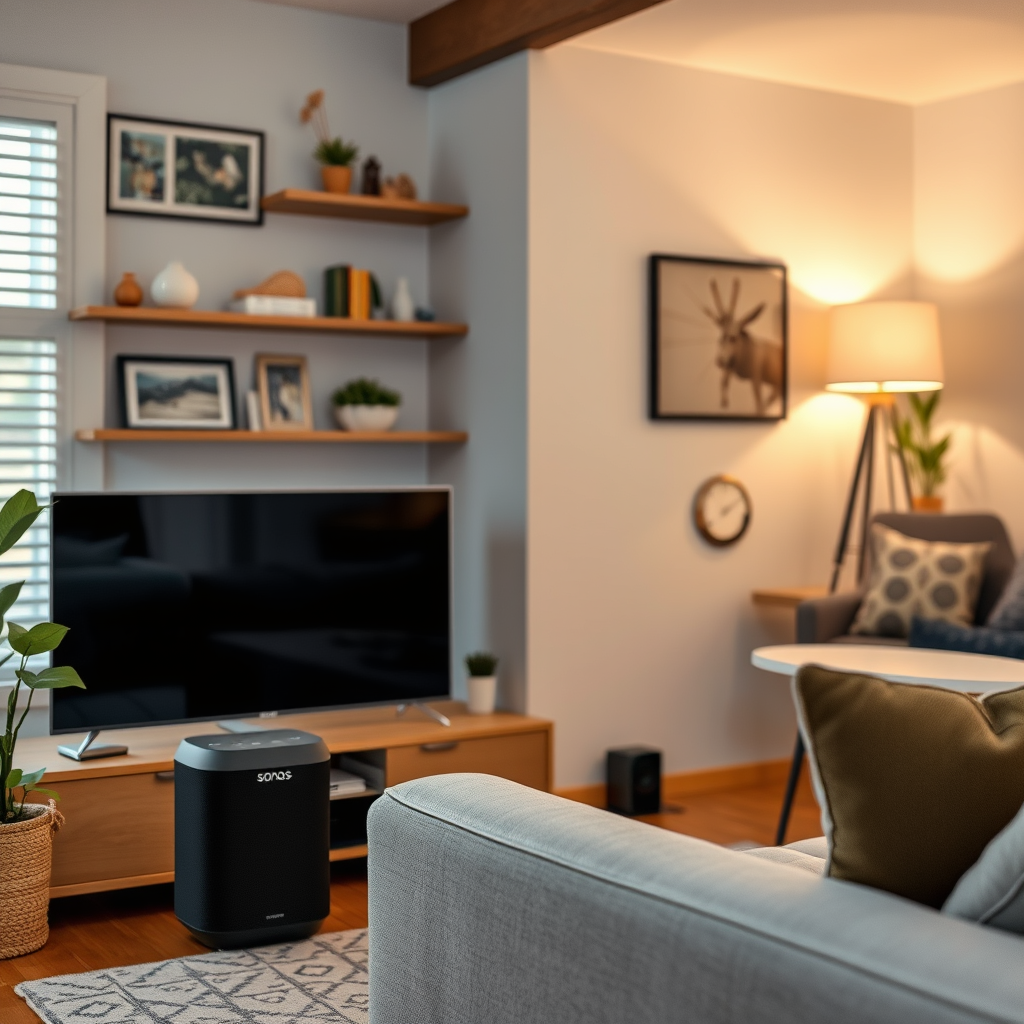
A robust Wi-Fi network is essential for a smooth Sonos experience. Using a dedicated 5GHz network for your Sonos system, if available, can significantly reduce interference and enhance streaming quality. The 5GHz band typically experiences less congestion compared to the 2.4GHz band, making it ideal for high-bandwidth applications like audio streaming.
In addition, consider implementing a Wi-Fi extender or a mesh Wi-Fi system to strengthen your signal throughout the house. A mesh network can help eliminate dead spots and provide consistent coverage, ensuring your Sonos speakers receive a strong signal in every room.
Reduce Interference
Wi-Fi signals can be disrupted by various household devices, leading to audio dropouts. Common sources of interference include microwaves, cordless phones, and even some Bluetooth devices. To minimize these disruptions, try the following:
– Place your router in a central location, ideally higher up and away from walls and obstructions.
– Keep a clear line of sight between your router and Sonos speakers whenever possible.
– Avoid placing your router near devices that are known to cause interference.
Identifying and mitigating these sources of interference can lead to a more stable streaming experience.
Top Factors Affecting Sonos Audio Performance
| # | Factor | Impact Level | Solution |
|---|---|---|---|
| 1 | Wi-Fi Signal Strength | High | Optimize Network |
| 2 | Network Interference | Medium | Reduce Sources |
| 3 | Device Updates | High | Check Regularly |
| 4 | Router Configuration | Medium | Adjust Settings |
| 5 | Speaker Placement | Medium | Optimize Location |
| 6 | Audio Settings | Low | Adjust in App |
| 7 | Firmware Updates | High | Ensure Latest |
Reboot Speakers and Router
Sometimes, the simplest solution is the most effective. Restarting your Sonos speakers and Wi-Fi router can refresh network connections and resolve temporary issues. To reboot your devices:
1. Unplug your Sonos speakers and Wi-Fi router from power.
2. Wait for at least 30 seconds before plugging them back in.
3. Allow a few moments for the devices to reboot fully.
Regularly rebooting your devices can help maintain better connectivity, reducing the likelihood of audio disruptions.
Adjust Network Settings
Proper configuration of your router’s settings can greatly enhance your Sonos system’s performance. One key aspect is the Quality of Service (QoS) settings, which prioritize audio streaming traffic over other types of data. Here’s how to adjust these settings:
1. Access your router’s settings through a web browser.
2. Navigate to the QoS settings.
3. Set Sonos as a high-priority device.
Additionally, ensure that your router’s firmware is updated to the latest version. This can improve performance and security, further stabilizing your network connection.
Use Ethernet for Stability
If you continue to experience dropouts, consider connecting your Sonos speaker directly to your router using an Ethernet cable. A wired connection can significantly reduce audio dropouts and improve overall streaming quality by providing a stable, uninterrupted signal. This solution is particularly useful if your Wi-Fi signal is weak or inconsistent in certain areas of your home.
Using Ethernet is a straightforward way to enhance the reliability of your Sonos system, especially for those who have multiple speakers or a large home where Wi-Fi may struggle to reach all areas effectively.
Contact Sonos Support
If you’ve implemented all the above solutions and still experience audio cutting out, it may be time to reach out to Sonos customer support. They can provide specialized assistance tailored to your specific setup and issues. The support team can guide you through advanced troubleshooting steps or identify if there may be hardware problems with your speakers.
Keeping your system running smoothly is important, and getting expert advice can save you time and frustration in resolving persistent issues.
Audio Dropout Frequency in Various Conditions
By following these tips, you can significantly reduce or eliminate the cutting out of audio in your Sonos multi-room setup. Take the time to implement these solutions, and enjoy seamless music streaming throughout your home. If issues persist, don’t hesitate to seek professional help from Sonos support for a thorough diagnosis. With the right approach, you can reclaim your listening experience and enjoy high-quality audio in every corner of your home.
Frequently Asked Questions
What are the common reasons for Sonos multi-room audio cutting out?
Sonos multi-room audio can cut out for several reasons, including Wi-Fi interference, network congestion, outdated software, or hardware issues. Ensuring that your Sonos system is connected to a strong and stable Wi-Fi network can help mitigate these interruptions. Additionally, checking for any physical obstructions or electronic devices that may interfere with the signal is crucial.
How can I improve the stability of my Sonos multi-room audio?
To improve the stability of your Sonos multi-room audio, consider using a dedicated Wi-Fi network for your Sonos system, or switch to a wired Ethernet connection where possible. Regularly updating your Sonos software and ensuring all devices are on the same network can also enhance performance. Lastly, using a Wi-Fi extender or mesh network can significantly help with coverage in larger homes.
Why does my Sonos speaker drop the connection in multi-room setups?
A Sonos speaker may drop the connection in multi-room setups due to weak Wi-Fi signals, network congestion from multiple devices, or interference from other electronic appliances. To troubleshoot, try repositioning your router for better coverage, reducing the number of devices using the network, or using Sonos’ Boost to create a dedicated network for your speakers.
What is the best way to reset my Sonos system to fix audio cutting out?
The best way to reset your Sonos system is to perform a factory reset on the affected speaker. To do this, unplug the speaker, hold down the Connect button while plugging it back in, and wait for the LED to flash orange and white. This process can resolve persistent issues, but remember to reconfigure the speaker in the Sonos app afterward.
Which troubleshooting steps should I take if my Sonos multi-room audio keeps cutting out?
If your Sonos multi-room audio keeps cutting out, start by checking your Wi-Fi network strength and ensuring no other devices are hogging bandwidth. Next, update your Sonos app and firmware, and restart your router. If issues persist, consider relocating your speakers for better connectivity or using a Sonos Boost for a more stable connection.
References
- Sonos
https://en.wikipedia.org/wiki/Sonos - https://www.sciencedirect.com/topics/computer-science/multi-room-audio
https://www.sciencedirect.com/topics/computer-science/multi-room-audio - https://www.bbc.com/news/technology-53481597
https://www.bbc.com/news/technology-53481597 - https://www.nytimes.com/2020/01/23/technology/personaltech/sonos-multi-room-audio.html
https://www.nytimes.com/2020/01/23/technology/personaltech/sonos-multi-room-audio.html - https://www.theguardian.com/technology/2021/jan/26/sonos-multi-room-audio-speakers
https://www.theguardian.com/technology/2021/jan/26/sonos-multi-room-audio-speakers - Google Scholar Google Scholar
https://scholar.google.com/scholar?q=Sonos+Multi-Room+Audio+Cutting+Out - Google Scholar Google Scholar
https://scholar.google.com/scholar?q=how+to+fix+sonos+audio+issues - Google Scholar Google Scholar
https://scholar.google.com/scholar?q=sonos+network+issues+solutions - https://www.pubmed.ncbi.nlm.nih.gov/26773510/
https://www.pubmed.ncbi.nlm.nih.gov/26773510/ - https://www.nature.com/articles/s41598-020-71587-2
https://www.nature.com/articles/s41598-020-71587-2
