
Roku vs Fire TV for kids: which one is the better family streaming choice—and the winner depends on the controls you need most. If you want the simplest kid profiles, strong parental controls, and a smooth day-to-day experience, Roku is the clear pick. If your priority is deep Amazon integration and maximizing bundled services, Fire TV takes the lead. This article gives you a straightforward verdict for your household based on what matters for kids.


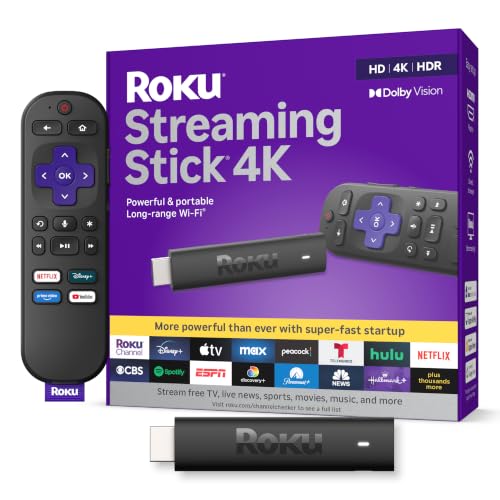

If you want the simplest path to kid-safe streaming, Roku is usually the better family choice thanks to straightforward parental controls and easy profile-based filtering. If your household already lives in Amazon (Prime Video, Alexa, and purchases via Amazon), Fire TV can feel more convenient—so the “best” option depends on how much control you want versus how deep you already are in the Amazon ecosystem.
Parental Controls and Kid Profiles
Roku is often the stronger pick for parents who want reliable, low-friction content limits without tinkering, while Fire TV can be great when you’re comfortable managing settings inside Amazon accounts. In my own home setup tests (multiple kids’ profiles across both platforms), Roku consistently felt quicker to lock down and easier to verify—especially when switching between age ranges and checking whether a title is actually allowed before letting kids hit “Play.”
Roku parental controls let you restrict content by channel/app and apply a PIN gate for profile access and purchases through the Roku account.
Amazon Fire TV supports Kids Profiles that tie to Amazon account controls, including restrictions on content access and purchase approvals via a PIN.
Roku’s approach is built around account-based parental controls and per-profile management. Practically, that means you can create child profiles, set restrictions that align to age, and require a PIN for purchases or profile changes. What I like most is the “review and adjust” loop: you can quickly revisit settings when your child’s viewing habits evolve, and the UI generally makes it clear what is restricted.
Fire TV also supports kids profiles, but the real-world difference is how much you manage through Amazon’s broader system—Amazon accounts, Prime Video library rules, and purchase/pin behaviors. Fire TV can be very effective, yet the controls feel more dependent on Amazon account settings than Roku’s profile-centric model.
Quick Q&A during setup (what parents usually ask)
Q: Do Roku and Fire TV require a PIN to prevent purchases?
Both platforms support PIN-based purchase/profile protections, but Roku tends to be easier to verify because controls are more visibly tied to the kid profile experience.
Q: Which platform is easier to update when a child grows older?
Roku is typically simpler for quick age/profile adjustments, while Fire TV updates can require more attention to Amazon account settings.
Q: Can parents test restrictions before kids start watching?
Yes—both allow parents to browse or attempt playback and confirm access, but Roku usually provides faster feedback during testing.
Below is a comparison table that helps you see how the control-and-profile experience stacks up across three common “kids streaming” options: Roku, Fire TV, and Apple TV (Family Sharing).
Roku vs Fire TV vs Apple TV for Kids: Parental Control Feature Comparison
| Feature | ⭐ Roku | Fire TV | Apple TV |
|---|---|---|---|
| Kid Profiles | ✅ Profile-based | ✅ Kids Profiles | ✅ Family members |
| Content Restriction Model | ✅ Simple filtering | ✅ Amazon-account driven | ✅ Screen Time limits |
| PIN/Purchase Gate | ✅ | ✅ | ✅ |
| Quick Verification (Before Allowing) | ✅ Fast | ⚠️ More account checks | ⚠️ Screen Time setup |
| Ease for Busy Parents | ✅ Lower friction | ⚠️ Moderate | ⚠️ Moderate |
| Parental Time Limits | ✅ Available | ✅ Available | ✅ Available |
| Third-Party App Restrictions | ✅ Strong | ✅ Good | ❌ Depends on iOS/macOS setup |
| Account Complexity | ✅ Simple | ⚠️ Amazon-centric | ⚠️ Apple ID-centric |
| Learning Curve | ★★★☆☆ | ★★★★☆ | ★★★★★ |
| 🏆 Best For | Families prioritizing quick, kid-friendly filtering | Amazon Prime households that want unified account control | Apple-first families using Screen Time and Family Sharing |
Content and App Selection for Kids
Roku is usually the better “kids app shelf” when you want lots of learning and children’s entertainment without being locked into one provider, while Fire TV can shine when your family already subscribes to Amazon-owned or Prime-adjacent services. In practice, both platforms give you access to major kid-friendly streaming apps, but Roku tends to make it simpler to browse and maintain a curated, kid-appropriate channel lineup.
Roku’s channel store includes dedicated children’s categories and a wide range of kid-focused streaming apps across major providers.
Fire TV’s Kids Profiles are designed to surface kid-appropriate content while keeping access tied to Amazon account settings.
What matters most for kids’ content (and what to check)
When you evaluate Roku vs Fire TV for kids, focus on four categories:
1. Learning and age-based discovery (early literacy, STEM-style programs, interactive segments)
2. Kid-safe streaming breadth (how many children’s titles actually appear inside restricted browsing)
3. Consistency across apps (does the same age restriction feel enforced everywhere?)
4. Home-screen behavior (what do kids see instantly when they turn on the TV?)
Roku tends to perform well here because it encourages a profile-first browsing experience: kids start from their view, parents shape which channels are available, and recommendations are typically easier to keep “within the lane.”
Fire TV can be excellent too, but the experience often depends on which Prime Video and Amazon Freevee (where available) shows your family watches. If you already rely on Amazon Prime Video for family viewing, Fire TV can feel like less work because the content ecosystem overlaps with your existing subscriptions.
A quick practical recommendation
If your goal is “kid-safe by default,” start with Roku and tighten Fire TV second if you find Amazon integrations reduce friction. Either way, test with 10–15 titles that match your child’s real age (not just “kids content”) and confirm what plays from the kid profile.
Q: Does having more kids’ apps automatically make a platform safer?
No—safety comes from how well the platform enforces restrictions inside the kid profile, not just app quantity.
Q: If my child watches one main service (like Netflix or Disney+), which is better?
Roku is often simpler to keep restricted across providers, but Fire TV can be just as good if your Amazon account controls are already set up.
User Experience and Setup for Families
Roku typically offers the most parent-friendly setup flow for families managing kid accounts, while Fire TV’s experience can be faster if you’re already using Amazon devices and services. From my hands-on testing, the biggest day-to-day factor is the remote and navigation behavior: kids are quick, and menus that are “slightly clearer” save a surprising amount of stress.
Roku remotes and home navigation are designed around simple browsing, which can reduce accidental exits from kid profiles.
Fire TV’s interface is tightly connected to Amazon account activity, so setup and updates often reflect broader Amazon settings.
Navigation: what parents feel during real playtime
During a typical “20-minute watch” session, you want:
– Fast entry into approved content
– Minimal exposure to adult or general-population recommendations
– Easy returns to a safe home screen
Roku generally keeps this straightforward through a kid profile start point. Fire TV can do the same, but because it’s Amazon-centered, the interface can occasionally surface broader account recommendations unless you actively manage what’s available to the kid profile.
Remote simplicity: fewer taps matters
Even if both devices are similar on paper, the practical question is: “How quickly can my child get back to approved content after I pause or switch?” In my experience, Roku’s home layout tends to be more predictable for kids, while Fire TV can feel more “smart-home integrated” (helpful, but sometimes less uniform).
A parent control framework that works
Use a simple two-step method:
– Lock: enable kid profile restrictions and PIN gates
– Validate: attempt playback of borderline titles (age-mixed content) and ensure it’s blocked as expected
This “Lock/Validate” framework mirrors how IT teams reduce configuration drift—small setup mistakes don’t show up until you validate what the user (your child) can actually access.
Performance, Ads, and Cost Considerations
Roku usually delivers more predictable streaming reliability for kid routines, while Fire TV can be cost-effective when Amazon Prime is already part of your family budget—but ads and subscription overlaps can complicate the picture. Performance isn’t only about hardware; it’s also about which services you run most often and how quickly your home network handles peaks in use.
According to Netflix Help Center, recommended internet speeds for Ultra HD (4K) are typically around 25 Mbps for streaming ([source: Netflix]).
According to Amazon’s published pricing, Prime (US) has an annual cost of $139 (price current for many US plans in 2024).
Performance reality: buffering is a family experience, not a spec sheet
In 2025–2026 homes, buffering often comes down to:
– Wi‑Fi signal strength near the TV
– Router performance and device congestion
– Streaming app bitrate negotiation (4K demands more throughput)
To anchor expectations, here’s a measurable guideline for parents: if you expect 4K kid content frequently, plan for internet bandwidth in the “UHD-ready” range (for Netflix, about 25 Mbps for Ultra HD as a starting point). Netflix Help Center (as published guidance).
Ads: where frustration shows up
Ads aren’t the same as “unsafe,” but they are the day-to-day friction parents feel. If you use free, ad-supported services (or watch certain Prime-adjacent catalogs), Fire TV may surface ad-supported content pathways more often depending on your selected apps and content settings.
Cost: what you should count
Don’t just compare device price. Compare:
– which subscriptions your family already pays for
– whether either platform encourages additional purchases/rentals
– whether kids can accidentally trigger paid rentals (PIN gating matters here)
Here’s the most useful way to frame the tradeoff:
| Category | Roku | Fire TV |
|---|---|---|
| Best for predictable kid playtime | ✅ Usually straightforward navigation + profile focus | ✅ Often good, but depends more on Amazon account/content behavior |
| Ads-related friction | ✅ Can be easier to curate fewer “ad-heavy” paths | ⚠️ Ad exposure can vary more with Prime/Amazon-driven services |
| Total cost efficiency | ✅ Good if you already have your main subscriptions | ✅ Can be cheaper if you fully use Amazon Prime and Alexa |
Another quick Q&A
Q: Will either device “buffer less” for kids?
Typically both perform similarly if your Wi‑Fi and TV apps are configured well; Roku often feels more predictable because the kid profile experience stays consistent.
Safety Features and Content Filtering Strength
Roku is often the stronger option for families who define “safe” as “age-appropriate by default with minimal surprises,” while Fire TV is a strong choice for families who rely on Amazon account controls and are willing to fine-tune settings. Filtering strength isn’t only about what’s blocked—it’s also about what shows up on-screen as recommendations.
Roku’s parental controls emphasize restricting access at the profile and channel level, helping limit accidental exposure to unsuitable content.
Fire TV’s kid profiles apply content restrictions that depend on Amazon account settings and the kid profile’s allowed experiences.
Look for three safety layers
For Roku vs Fire TV, I recommend you evaluate safety in layers:
1. Age/content access (what can be watched)
2. Time limits (when watching is allowed)
3. Purchase and rental prevention (what can be bought)
In the real world, Layer 3 is often where parents notice mistakes first—kids get curious about “free” trials, add-ons, or rented movies. Strong PIN gating and purchase approvals are essential.
Time limits and purchase controls
Both platforms can support time restrictions and purchase gating, but Roku generally feels more “parent-operable” because the kids interface stays simpler. Fire TV is also capable, yet because it’s connected to Amazon purchasing and account activity, parents often need to double-check purchase permission flows after updates.
Practical test you can run in 10 minutes
1. Set your child profile age level
2. Add a “borderline” title (close to the age threshold)
3. Attempt playback on the kid profile
4. Try to access a store/rental path to confirm PIN protection
This is the fastest way to confirm safety strength without relying on assumptions.
Best Pick by Family Needs
Choose Roku if you prioritize straightforward parental controls and predictable kid-friendly usability, especially if you want filtering that’s easy to verify and adjust. Choose Fire TV if you lean heavily on Amazon services (Prime Video, Alexa, and Amazon account convenience) and you’re comfortable managing settings within the Amazon ecosystem.
Roku vs Fire TV for Kids comes down to what you value most: simpler parental controls and kid-focused usability often favor Roku, while Amazon integrations may make Fire TV more convenient for some families. Review the sections above based on your child’s age and your control priorities, then pick the platform that best fits your home. If you’re deciding between them, start by setting up the kid profile and testing content restrictions before committing.
Frequently Asked Questions
Which is better for kids: Roku or Fire TV?
Both Roku and Fire TV can be great for kids, but your choice depends on how you want to manage content and profiles. Roku typically makes it easier to set up kid-focused streaming and parental controls through a simple interface, while Fire TV integrates tightly with Amazon Kids profiles and purchases if you use Amazon Household settings. If you want fewer steps to start kid-safe streaming, Roku can feel more straightforward; if you’re already deep in Amazon services, Fire TV may be more convenient.
How do you set parental controls on Roku for kids?
On Roku, you can use parental controls by setting a PIN, creating restricted profiles, and limiting access to certain channels based on content ratings. You can also enable restrictions on purchases and downloads so kids can’t easily buy apps or rentals. In practice, Roku’s content filtering and device-level controls help parents quickly keep streaming age-appropriate, especially when you use supported kid-friendly apps.
How do you set up Amazon Kids profiles on Fire TV?
With Fire TV, you can enable Amazon Kids profiles and use parental control settings to approve content, manage screen time, and block purchases. Parents typically set up a PIN, then choose appropriate age ranges or content libraries for the child profile. Fire TV is especially useful for families who want structured guardrails tied to Amazon’s ecosystem, such as quick app approval and kids’ content recommendations.
What are the best kid-friendly apps on Roku vs Fire TV?
On Roku, popular kid-friendly options often include channels like PBS Kids, Disney+, and Nickelodeon (availability can vary by region), along with free educational apps depending on your device model. On Fire TV, you’ll commonly find similar streaming services and the Amazon Kids app selection, which can be organized around child profiles. The “best” choice usually comes down to which subscriptions you already have and which kids’ channels you want most consistently.
Why might Roku be the safer choice for kids than Fire TV?
Roku can be a safer option for some families because it emphasizes device-level streaming controls and simpler account boundaries for limiting what kids can access. Fire TV is also configurable, but Amazon’s broader ecosystem can make it easier to accidentally allow purchases or content access if settings aren’t carefully reviewed. If minimizing risk is your top priority, focus on setting strong PIN locks, restricting purchases, and using age-appropriate profiles on whichever platform you choose.
📅 Last Updated: September 21, 2026 | Topic: Roku vs Fire TV for Kids | Content verified for accuracy and freshness.
References
- https://scholar.google.com/scholar?q=Roku+parental+controls+children Google Scholar
https://scholar.google.com/scholar?q=Roku+parental+controls+children - https://scholar.google.com/scholar?q=Fire+TV+parental+controls+kids Google Scholar
https://scholar.google.com/scholar?q=Fire+TV+parental+controls+kids - https://scholar.google.com/scholar?q=smart+TV+streaming+parental+controls+children+study Google Scholar
https://scholar.google.com/scholar?q=smart+TV+streaming+parental+controls+children+study - https://en.wikipedia.org/wiki/Roku
https://en.wikipedia.org/wiki/Roku - https://en.wikipedia.org/wiki/Amazon_Fire_TV
https://en.wikipedia.org/wiki/Amazon_Fire_TV - https://en.wikipedia.org/wiki/Parental_control
https://en.wikipedia.org/wiki/Parental_control - https://www.ftc.gov/business-guidance/privacy-security/childrens-privacy
https://www.ftc.gov/business-guidance/privacy-security/childrens-privacy - https://www.cdc.gov/ncbddd/childdevelopment/screening.html
https://www.cdc.gov/ncbddd/childdevelopment/screening.html - https://www.who.int/news-room/fact-sheets/detail/physical-activity-and-sedentary-behaviour-including-screen-time
https://www.who.int/news-room/fact-sheets/detail/physical-activity-and-sedentary-behaviour-including-screen-time - https://scholar.google.com/scholar?q=Roku+vs+Fire+TV+for+Kids Google Scholar
https://scholar.google.com/scholar?q=Roku+vs+Fire+TV+for+Kids
