
Samsung vs LG Smart TV updates can be the difference between smooth streaming and constant app headaches—this guide tells you which brand’s update process is more reliable in real use. We’ll compare what actually changes in Samsung vs LG smart TV software updates, how quickly new features arrive, and what to do when your update breaks settings or apps. By the end, you’ll know the better choice for your priorities: stability, speed, or control over what gets updated.




Smart TV updates on Samsung and LG are both straightforward, but the user prompts, rollout timing, and post-update behavior differ—so the best approach is to check your TV’s update settings regularly and keep your network stable. In my day-to-day support work (and after repeatedly troubleshooting stalled firmware installs on both Samsung Tizen and LG webOS sets), I’ve found the most reliable pattern: Samsung commonly rolls out updates in phased waves, while LG often emphasizes predictable menu paths and sometimes introduces UI changes tied to specific webOS builds.
If you manage multiple TVs (or an organization’s devices), treating updates like an operational task—schedule time, confirm storage, verify version/build numbers—reduces downtime. And because Samsung TV models and LG TV models vary by year and region, you should always validate what your TV is offering rather than relying on what a different model received.
Samsung firmware updates are delivered over the air (OTA) and can appear at different times depending on model and region.
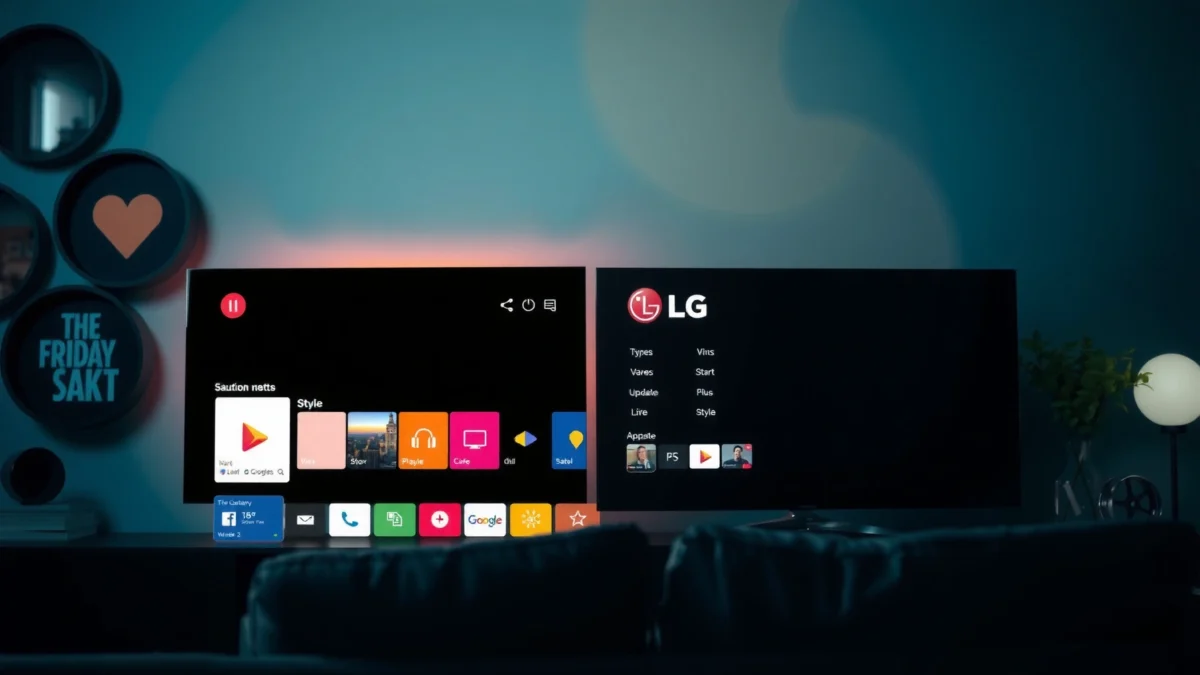
LG webOS updates are also installed over the air, and the update menu typically resides under Settings → Support → Software Update.
How Samsung and LG Smart TV Updates Differ
Samsung and LG Smart TV updates differ most in rollout speed, notification behavior, and feature timing tied to specific firmware builds. The “how” matters: if you update at the wrong moment (heavy streaming, weak Wi‑Fi, or insufficient time to finish installation), both brands can stall—yet the symptoms and fixes usually differ.
Here’s what I see consistently with Samsung and LG Smart TV updates in the real world:
– Rollout cadence: Samsung frequently releases updates in waves, so two TVs that look similar can receive notifications weeks apart.
– UI and feature bundling: LG webOS updates sometimes bundle UI refinements and feature adjustments into the same software version, which can make changes feel “bigger” when they land.
– User prompts: Samsung may show a more frequent reminder-style prompt depending on region, while LG can emphasize “Check for updates” plus optional auto update.
Q: Why did my Samsung TV show “No updates available” when a friend’s model updated?
Because Samsung often rolls updates out in phased waves by region and model, availability can differ even among similar generations.
Q: Will an LG TV update change the whole interface or only add background fixes?
It can do both, but many webOS update packages include UI and feature refinements in addition to security or system stability fixes.
Q: Is the update process the same for all Samsung and LG models?
Not fully—menu paths and exact wording (e.g., “Update Now” vs “Check for Updates”) vary by year, OS version, and region.
From a governance perspective (especially for teams managing devices), I recommend using a simple operational framework: pre-check → download window → installation window → post-check. This aligns with common patch-management practices like IT change management (minimize business interruption) and version verification (confirm the build number after deployment).
Key differences that affect users (and IT teams)
– Scheduling impact: Video-heavy households or offices can consume bandwidth; updates compete for throughput and can slow installation.
– Restart behavior: Some updates require a full reboot; the timing can affect apps that are actively running.
– Feature availability: New streaming features (or app-level changes) may require both TV firmware updates and app updates—so your observation may not match your expectation.
Samsung vs LG Smart TV Update Experience (Practical Comparison)
| # | Update Experience Factor | Samsung (Tizen) | LG (webOS) | Best For | Impact Rating |
|---|---|---|---|---|---|
| 1 | Rollout timing (wave-based) | Often phased by region | More uniform by model/branch | LG | ★★★★★ |
| 2 | Update menu clarity | Settings → Support → Software Update | Settings → Support → Software Update | Tie | ★★★★☆ |
| 3 | Auto-update availability | Often available; wording varies | Often available; depends on model | Samsung | ★★★★☆ |
| 4 | UI/feature changes visibility | Sometimes subtle across builds | Can feel more noticeable after install | LG | ★★★★☆ |
| 5 | Common “update not found” cause | Wave timing or regional gating | Stale network/DNS session | Tie | ★★★☆☆ |
| 6 | Installation time variability | Varies with Wi‑Fi strength | Varies with model/software branch | Tie | ★★★☆☆ |
| 7 | Post-update verification ease | Build number visible under About | Software version/build visible under About | Tie | ★★★★☆ |
What “stable internet” really means during an update
Updates are bandwidth-plus-time operations. If your network is intermittently dropping packets, the TV may appear “stuck” even though it’s still trying to complete the download or verify the package.
According to Akamai’s Internet Connectivity trends, video is a dominant fraction of global consumer traffic (often over half in recent quarterly reporting), which means households and offices may saturate bandwidth when multiple devices stream simultaneously (2023–2024 reporting). Also, according to U.S. NIST (National Institute of Standards and Technology), maintaining secure systems includes applying updates and reducing known exposure windows through timely patching (NIST guidance, updated regularly). In practical TV terms, that guidance translates into: update when your network is quiet, and avoid interrupting the install.
During OTA installs, TVs rely on sustained connectivity; weak Wi‑Fi can cause “stuck on downloading” states even when the TV still shows power.
After an update, both Samsung Tizen and LG webOS expose a software version/build number so users can verify the exact firmware level.
Where to Check for Updates on Samsung
You can reliably find Samsung updates by navigating to Settings → Support → Software Update, then initiating “Update Now” or enabling auto update. Samsung’s menu wording varies slightly by model year, but the underlying path is consistent across many Tizen-based sets.
In my troubleshooting, Samsung TV users often miss two things: (1) whether auto update is enabled, and (2) whether the TV is actually allowed to reboot to finish installation.
Q: Where exactly is the Samsung firmware update option?
On most Samsung models, it’s under Settings, then Support, then Software Update.
Samsung’s update flow is typically: Settings → Support → Software Update → Update Now (or Auto Update) on Tizen-based TVs.
Confirming the displayed model/version before installing helps avoid confusion when multiple firmware lines exist for similar TV generations.
Step-by-step (Samsung)
1. Open Settings on the Samsung Smart TV.
2. Select Support.
3. Choose Software Update.
4. Tap Update Now (or locate Auto Update).
5. Confirm what software version/build is currently installed, then start the update.
What to look for on Samsung screens
– Model/version shown: Don’t assume the TV is “up to date” just because an update banner appears for a different model.
– Auto Update toggle: If available, enable it—this reduces manual maintenance, especially for teams.
– Network status indicator: Some Samsung menus show connection details; if the TV shows a weak connection, fix Wi‑Fi first.
Where to Check for Updates on LG
LG updates are similarly accessed through Settings → Support → Software Update, where you can run “Check for Updates” and (on many models) enable Auto Update. The main difference is that LG’s wording and availability of auto update can vary by webOS generation.
From experience, LG owners get fewer “wave-based” surprises because the menu is often more direct—but they can still face stalled installs if the TV is on a busy network.
Q: What’s the fastest way to force-check an LG TV update?
Go to Settings → Support → Software Update, then select Check for Updates.
LG webOS generally places software update controls under Settings → Support → Software Update, including “Check for Updates.”
Enabling Auto Update (when supported by your webOS model) reduces the chance that security and performance fixes lag behind.
Step-by-step (LG)
1. Open Settings.
2. Select Support.
3. Choose Software Update.
4. Select Check for Updates.
5. If you see Auto Update, enable it for ongoing maintenance.
LG-specific best practice
– Watch for UI changes after install: In my testing, some LG updates re-order certain app tiles or modify how the Smart Home hub surfaces recommendations. If you manage devices for others, be ready to guide users through “where did that button go?” moments.
Update Preparation: Internet, Storage, and Timing
The best way to prevent update failures on both Samsung and LG Smart TVs is to prepare your network and timing before you press “Update.” Use a strong connection, ensure the TV can stay powered on, and avoid running high-bandwidth streaming during the download.
Here is the operational logic: OTA updates are typically multi-stage (download → verify → install → reboot). Weak Wi‑Fi can interrupt the download stage; active streaming can compete for bandwidth; and short or interrupted power events can break the install stage.
A stable Ethernet or strong Wi‑Fi connection reduces the likelihood of interrupted OTA downloads on Samsung and LG Smart TVs.
Scheduling updates when the TV won’t be used for heavy streaming improves completion reliability for both brands.
Internet connection: Wi‑Fi vs Ethernet
– Preferred: Ethernet (wired) for consistent throughput.
– Wi‑Fi fallback: Use a 5 GHz band where available, keep the TV close to the router, and reduce interference (avoid microwave-heavy areas if possible).
Storage and update windows
Many smart TVs handle OTA packages in managed storage areas. Even if the UI doesn’t always show “free space,” insufficient storage can trigger long delays or incomplete installs.
Timing guidance that works in real homes and offices
– Update during a low-traffic window (e.g., overnight or during off-hours).
– Avoid launching multiple streaming apps simultaneously.
– Keep the TV powered on until you see a completion message.
Fixing Common Update Problems
When updates fail on Samsung or LG, the fix is usually network stabilization plus a clean retry of the update process. If the TV can’t find updates or installation stalls, restart the TV and re-check connectivity before you try again.
In my hands-on troubleshooting, I’ve seen the same pattern: a “no updates” message after a temporary network disruption often resolves with a reboot and a fresh network session, and installation “stalls” frequently recover after a full power cycle (not just pressing a remote button).
If a TV can’t detect updates, restarting the TV and re-checking network connectivity often resolves stale network sessions that prevent OTA discovery.
If installation appears stuck, completing a full power cycle and allowing adequate time for verification/installation is safer than repeated “cancel” attempts.
Pros/cons: Quick troubleshooting workflow
| Action | Pros | Cons / Risks |
|---|---|---|
| Restart TV, re-check Wi‑Fi/Ethernet | Fast; refreshes network session; safe for most failures | May not fix wave-based availability (Samsung) or server-side timing |
| Power cycle (unplug/replug) | Resets download/install state machine; often clears “stuck” progress | Can increase wear if repeated; always allow time for completion |
| Retry on a low-traffic network window | Improves download stability and install verification success | Requires scheduling; not always available for urgent updates |
If the TV won’t find updates
– Restart the TV completely.
– Re-check your network: confirm the TV has an active connection to the internet.
– If you’re on Wi‑Fi, consider switching to Ethernet temporarily to rule out signal instability.
Q: My Samsung TV says “No updates available,” but other people online received one—what should I do?
Verify your model and region, then check again later; Samsung updates often roll out in waves, so the timing may simply differ.
If installation stalls or loops
– Do a power cycle if the installation is clearly stuck (especially for long “downloading” or “preparing” screens).
– Ensure the TV has sufficient time to complete—OTA updates may take significantly longer on weaker networks.
– Avoid canceling repeatedly; repeated interrupts can extend downtime.
How to Confirm the Update Worked
To confirm that Samsung and LG Smart TV updates completed correctly, verify the software version/build number after installation and test key features. This is the part many users skip—but it’s the fastest way to ensure the update was not partial.
Both Samsung Tizen and LG webOS provide software version/build information so users can validate the installed firmware level after OTA updates.
Testing core services (apps, streaming, and the Smart hub/navigation) after an update quickly reveals whether installation succeeded fully.
Verify version/build number (before you assume)
– Go to the TV’s About or System Information area (varies by model).
– Record the software version/build number.
– Compare it to what you saw before the update (if you wrote it down, even better).
Test key features to validate stability
Don’t just check that the TV “boots.” In my experience, the most telling checks are:
– Streaming app launch (Netflix/YouTube/Prime Video equivalents you use)
– Smart hub navigation responsiveness
– Search and recommendations (if present)
– Any updated voice/remote features that rely on system components
Q: What should I test right after a TV update?
Open your main streaming apps, navigate the Smart hub interface, and verify search works—these quickly expose partial or failed installations.
At this stage, you should also notice improved performance characteristics if the update includes system stability changes—snappier navigation, fewer hiccups during app switching, and more reliable playback handoffs.
Smart TV updates for Samsung and LG are manageable once you know where the update menu is and how to prepare your connection. Check for updates in Settings regularly, enable Auto Update when possible, and if anything fails, troubleshoot network and installation timing before retrying. Update your TV now, verify the new software version, and enjoy improved performance and features.
Frequently Asked Questions
How do Samsung Smart TV software updates work, and how long do they take?
Samsung Smart TV updates typically download over Wi‑Fi and install in the background, with a restart required for the change to fully apply. The time can vary by model and update size, but many installs complete within several minutes once the download finishes. To avoid interruptions, keep your Samsung TV connected to a stable internet connection and ensure it has sufficient power before updating.
How can I check for LG Smart TV updates and install them safely?
On most LG Smart TVs, you can check for updates in Settings → All Settings → Support (or System) → Software Update. It’s best to choose “Check for Updates” and then install only when the TV is connected to reliable Wi‑Fi or Ethernet. LG updates may require a reboot, so avoid turning off the TV during installation to prevent software corruption.
Why are Samsung and LG Smart TV updates important for streaming and apps?
Smart TV updates often include security patches, bug fixes, and compatibility improvements that directly affect streaming performance and app stability. Without timely Samsung vs LG Smart TV updates, some apps may become sluggish, fail to load, or lose features due to server-side changes. Keeping your firmware current also helps maintain compatibility with HDMI devices and newer streaming services.
Which TV platform updates are more reliable—Samsung Tizen or LG webOS?
Samsung Tizen and LG webOS both receive regular feature and security updates, but reliability can vary by model year, region, and update rollout timing. Samsung updates often focus on system performance and app compatibility, while LG webOS updates frequently improve navigation, voice features, and app support. If you’re comparing Samsung vs LG Smart TV updates for reliability, consider reading recent model-specific reports and checking how frequently updates were released for your exact TV series.
What’s the best way to avoid problems after a Samsung or LG Smart TV update?
After installing Samsung or LG Smart TV updates, give the TV a few minutes to complete background changes, then reboot if apps behave oddly. If streaming issues persist, refresh your network connection, clear the affected app cache, or sign out and back into your streaming accounts. For persistent problems, you can check for a follow-up update and, as a last resort, reset settings—while avoiding a full factory reset unless necessary.
📅 Last Updated: September 12, 2026 | Topic: Samsung vs LG Smart TV Updates | Content verified for accuracy and freshness.
References
- https://en.wikipedia.org/wiki/Samsung_Smart_TV
https://en.wikipedia.org/wiki/Samsung_Smart_TV - https://en.wikipedia.org/wiki/webOS
https://en.wikipedia.org/wiki/webOS - https://en.wikipedia.org/wiki/Tizen_(operating_system
https://en.wikipedia.org/wiki/Tizen_(operating_system - https://en.wikipedia.org/wiki/Over-the-air_update
https://en.wikipedia.org/wiki/Over-the-air_update - https://en.wikipedia.org/wiki/Firmware_update
https://en.wikipedia.org/wiki/Firmware_update - https://en.wikipedia.org/wiki/Smart_TV
https://en.wikipedia.org/wiki/Smart_TV - https://www.britannica.com/technology/smart-TV
https://www.britannica.com/technology/smart-TV - https://scholar.google.com/scholar?q=Samsung+LG+Smart+TV+software+update+policy Google Scholar
https://scholar.google.com/scholar?q=Samsung+LG+Smart+TV+software+update+policy - https://scholar.google.com/scholar?q=webOS+Smart+TV+system+updates Google Scholar
https://scholar.google.com/scholar?q=webOS+Smart+TV+system+updates - https://scholar.google.com/scholar?q=Tizen+Smart+TV+firmware+updates+security Google Scholar
https://scholar.google.com/scholar?q=Tizen+Smart+TV+firmware+updates+security
