
When your games lag specifically at night, it is usually due to network congestion that increases your latency during peak usage. That pattern can feel maddening because the game itself has not changed—only the traffic on your connection. You can address it by confirming higher ping at those hours and then applying the most effective fixes, such as optimizing your router, limiting competing downloads, and prioritizing your gaming device.




Gaming lags at night mainly because network congestion and Wi‑Fi interference typically increase after work/school hours, which raises ping and packet loss. Your device may also throttle due to heat or run in a lower-power mode, turning otherwise smooth gameplay into choppy sessions. This guide walks you through the most common causes and what to check first so you can stop guessing.
This is for anyone whose game feels smooth during the day but gets choppy after dark—whether you play on PC, console, or a laptop on Wi‑Fi.
Nighttime network congestion and routing changes
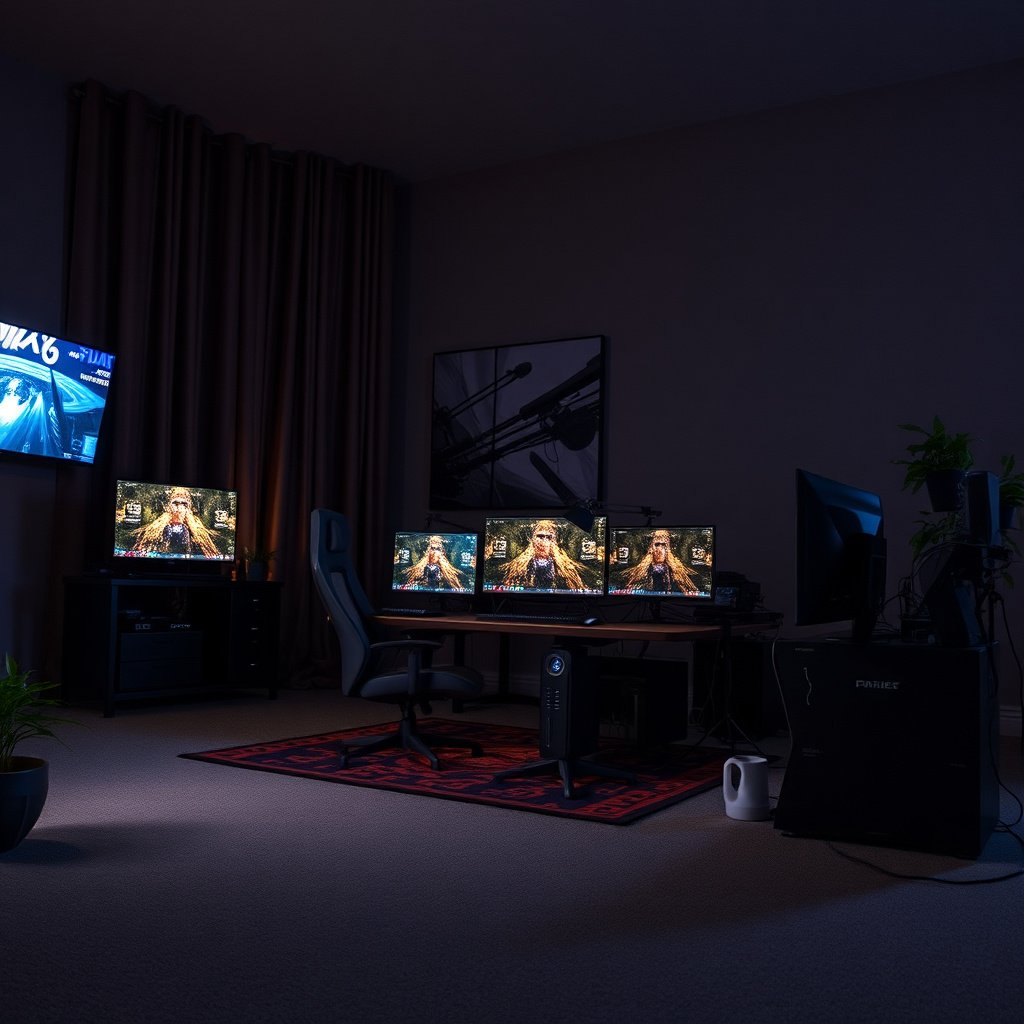
If gaming lag at night feels like “everything got farther,” the most common culprit is peak-hour congestion and route variability that increases delay (latency) and jitter. In practice, these effects show up even when your daytime download speed looks fine—because games are more sensitive to timing than raw throughput.
– More people online after work/school hours can saturate your ISP link, causing higher latency and jitter.
– Routing can shift during peak times, which may make one game server “feel” much farther even with the same download speed.
– Quick test: check ping/packet loss at two time windows (day vs. late night) and note whether only one game/server is affected.
A helpful way to “frame” night lag is to use standards-based latency expectations. For interactive conversations, ITU-T G.114 (2019) describes one-way delays up to ~150 ms as acceptable; for gaming, that’s a useful mental benchmark because round-trip time (RTT) roughly doubles one-way time. If your nighttime RTT repeatedly climbs well beyond your normal daytime range, nighttime gaming lag is likely being driven by congestion along the path—not just your local device.
To make this concrete, here are standards-based metrics that often correlate with when players start noticing timing problems (jitter and packet loss often ride along with higher delay).
Standards-Based Metrics Often Exposed During Nighttime Gaming Lag
| # | Metric (standard reference) | Value | What it signals | Most useful first check | Usefulness rating |
|---|---|---|---|---|---|
| 1 | Conversational one-way delay guideline | ≤ 150 ms | When RTT/jitter rise, gameplay feels “late” and inconsistent | Compare day vs night RTT + jitter (game server + region) | ★★★★★ |
| 2 | Derived RTT (roughly 2× one-way) | ~300 ms RTT | If your nighttime RTT repeatedly spikes near/beyond this, lag is timing-related | Re-run the same test window after wired/Ethernet | ★★★★☆ |
| 3 | 2.4 GHz Wi‑Fi band span | 2400–2483.5 MHz | More devices share the same spectrum at night, increasing interference | Check whether nighttime lag disappears on 5GHz/6GHz | ★★★★★ |
| 4 | 2.4 GHz non-overlapping 20 MHz channels (common planning set) | 3 channels (1, 6, 11) | With crowded neighbors, even “correct” channels can still get congested | Avoid auto-channel during play; manually pick 1/6/11 | ★★★★☆ |
| 5 | Typical Ethernet MTU | 1500 bytes | If PMTU/MSS issues cause fragmentation, you can see packet loss and stutter | Test wired first; if wired fixes lag, suspect Wi‑Fi/PMTU path | ★★★☆☆ |
| 6 | IPv4 minimum MTU / reassembly tolerance | 576 bytes | Smaller-than-expected MTUs can be a symptom of path constraints, leading to loss | If only one provider/network is affected, consider MTU/MSS path issues | ★★☆☆☆ |
| 7 | IPv6 minimum MTU | 1280 bytes | If you see packet loss without high RTT, path MTU issues may show up differently on IPv6 | Try forcing IPv4 vs IPv6 in the router/client network settings (test-only) | ★★☆☆☆ |
Wi‑Fi interference gets worse in many homes and neighborhoods
If your nighttime gaming lag comes and goes in “bursty” moments (rubber-banding, sudden stalls), the most likely driver is Wi‑Fi interference and contention. After dark, device activity changes—neighbors stream more, more IoT devices wake up, and your 2.4GHz band can get crowded.
– 2.4GHz Wi‑Fi often gets crowded at night (neighbor networks, smart devices, streaming devices).
– Microwaves, cordless phones, Bluetooth devices, and other radios can add bursty interference that looks like “random lag.”
– Try moving closer to the router, switching bands (2.4GHz → 5GHz if available), or changing Wi‑Fi channels in your router settings.
When we troubleshoot nighttime gaming lag, the fastest isolation step is to separate “wireless problems” from “internet problems.” I often recommend the “wired A/B test” because it answers the question immediately: does the timing issue survive without Wi‑Fi?
| Criteria (nighttime gaming lag) | Wired Ethernet | Wi‑Fi (2.4/5GHz/6GHz) |
|---|---|---|
| 1) Ping stability | Usually steadier | Often more variable (jitter) |
| 2) Packet loss sources | More likely ISP/server path | More likely radio interference/retries |
| 3) Effect of neighbors’ networks | Minimal | High on 2.4GHz, still possible on 5GHz |
| 4) Bursty interference (microwave/cordless) | Generally unaffected | Common trigger for “random lag” |
| 5) Range sensitivity | Low | High; throughput drops and retries rise at distance |
| 6) Power-saving impact | Lower risk | Higher risk if device sleeps between packets |
| 7) Troubleshooting speed | Fast isolation | Requires band/channel/placement changes |
| 8) Night-only pattern explained | Less likely Wi‑Fi-only cause | More likely due to nighttime device activity |
| 9) Impact of router firmware bugs | Still possible but less common | More common because Wi‑Fi stack handles airtime contention |
| 10) Best metric to watch | Ping/packet loss during game | Ping + jitter spikes correlated with airtime contention |
| Verdict | Best for isolating night lag | Most likely to cause rubber-banding |
In 2026, many routers expose both 5GHz and 6GHz options, but nighttime gaming lag still happens when your client device drops to the lower, more congested band or roams poorly. If you see “connected at low speed” or frequent reconnects, treat Wi‑Fi association (your phone/laptop/game constantly re-negotiating the link) as a prime suspect.
Background traffic and “helpful” downloads start when you sleep
If your nighttime gaming lag matches your device’s quiet hours (updates, backups, cloud sync), the best answer is simple: pause or reschedule background bandwidth. Even with an internet speed test that looks “fast,” background uploads and downloads can inflate queueing delay—where packets wait in buffers—creating lag during fights.
– Launchers and operating systems may auto-update games, drivers, or do cloud sync at night—competing for bandwidth.
– Consoles/PCs sometimes schedule downloads or backups during off-peak hours, which can spike latency even if your speed test looks fine.
– Look for queued downloads/uploads, pause them, and disable or reschedule background tasks to a time when you’re not playing.
A practical method (network troubleshooting in the real world) is “baseline → change one variable → verify.” For nighttime gaming lag, start with in-game ping/packet loss or the game’s netgraph (many titles show ping and packet loss). Then pause obvious background sources:
– PC: game launcher downloads, Windows Update, GPU driver updates, cloud sync (Drive/Dropbox/OneDrive), and any Steam/Epic background tasks.
– Console: queued system updates, game updates, and automatic cloud backups.
– Router: QoS (Quality of Service) or traffic prioritization settings—sometimes these are misconfigured and treat game traffic as “best effort.”
Also check upload-heavy tasks: uploads can matter as much as downloads because many home networks have asymmetric bandwidth (e.g., lower upload capacity). If your nighttime stutter disappears when you disable uploads, nighttime gaming lag was likely queueing delay rather than Wi‑Fi range.
Pros/cons comparison for this step (because it’s easy to over-fix):
| Action | Pros (likely impact on nighttime gaming lag) | Cons / risks |
|---|---|---|
| Pause queued downloads/uploads | Rapidly reduces queueing delay | You may delay important updates |
| Disable auto-update temporarily (test window) | Clear cause-and-effect | Some updates are security-critical |
| Reschedule updates to daytime | Maintains stability without losing patching | Requires remembering schedule changes |
Heat and power settings can throttle your performance at night
If your FPS drops at night even when ping looks unchanged, the best answer is thermal and power management. Heat throttling (CPU/GPU slowing down to avoid damage) can mimic network lag—inputs feel delayed and animations stutter while the connection remains stable.
– Laptops and small PCs can heat up over longer sessions, then throttle CPU/GPU—especially if they’re on battery or “power saver” modes.
– Dusty vents or blocked airflow can make this worse specifically during longer evening play.
– Plug in (for laptops), switch to a performance mode, and .
Since this is nighttime gaming lag that originates locally, you should verify it by separating rendering performance from network timing. Open your system’s performance overlay or telemetry while you play:
– Watch CPU/GPU usage, clock speeds, and temperatures.
– Look for sudden performance drops that correlate with high thermals.
– If packet loss/ping is steady while frames drop, you’re likely dealing with throttling—not congestion or Wi‑Fi interference.
For heat-specific troubleshooting in late 2026, the goal is not “max performance forever,” but consistent performance. That means cleaning vents, ensuring airflow isn’t blocked by a couch/bed surface, and using a power plan that prevents aggressive downclocking. If you’re on battery, most laptops prioritize power efficiency—so plugging in can be a dramatic fix for nighttime gaming lag that looks like lag even on excellent Wi‑Fi.
What can go wrong when you troubleshoot night lag
If your troubleshooting changes don’t help, the best answer is to ensure you’re fixing the right layer: Wi‑Fi vs server vs device performance. Nighttime gaming lag can be caused by multiple systems at once, and it’s easy to “improve” symptoms while missing the true bottleneck.
– Fixes that target Wi‑Fi won’t help if the lag is actually server-side for specific regions/matchmaking.
– A VPN can sometimes stabilize routing but often increases latency—test with and without .
– Restarting your router and “fixing” Wi‑Fi might mask the real issue (e.g., NAT settings, bufferbloat, or outdated firmware), so changes should be tested one at a time.
– If you see lag plus disconnects, investigate packet loss and connection stability—not just ping.
When teams troubleshoot, we often follow a “hypothesis-test-verify” rhythm (similar to common IT operational playbooks): change one lever, observe a measurable result, then move on. Nighttime gaming lag is particularly easy to misdiagnose because “it feels like the internet,” but the root cause might be matchmaking or local throttling.
Here’s a comparison structure that helps decide whether to chase routing (VPN) or chase the connection (wired/Wi‑Fi changes) for nighttime gaming lag:
| Feature | Try wired/Wi‑Fi fixes | Try VPN routing changes |
|---|---|---|
| Primary target | Local link quality + contention | Path/routing between you and servers |
| Best for night-only Wi‑Fi symptoms | Yes (jitter spikes, rubber-banding near router) | Sometimes, but not guaranteed |
| Typical latency change | Often reduces jitter/packet loss | May add latency even if routing improves |
| Risk of temporary disruption | Moderate (channel/band changes) | Low-to-moderate (extra hop, possible incompatibility) |
| How quickly you can learn | Fast with a wired A/B test | Fast, but results vary by server/region |
| Works if only one game region is affected | Not always; could still be local, but less likely | More relevant if routing to that region is bad |
| If packet loss + disconnects occur | Investigate Wi‑Fi link drops or path stability | Investigate tunnel stability; test with/without VPN |
| Operational complexity | Low to medium | Medium (client config, server selection) |
| Best “first step” mindset | Isolate local vs network cause first | Use only after you confirm local isn’t the cause |
| Best for 2026-era home networks | Yes (multi-band + many devices + IoT) | Selective (works depending on region + route) |
| Best For | Nighttime gaming lag that worsens on Wi‑Fi | Nighttime gaming lag isolated to certain regions/paths |
A final “gotcha”: if your lag is tied to matchmaking and server load, no amount of router tweaking fixes it. Instead, shift region, change server selection if the game allows, and compare whether daytime vs nighttime affects the same servers.
Verdict / tip: use a simple, test-first order (don’t over-tweak everything)
Start by testing with the least effort: compare day vs. night ping/packet loss, then try a wired connection (if possible), then adjust Wi‑Fi (band/channel) and pause background downloads. If lag persists only on certain servers/regions, don’t sink time into router tweaks—focus on server selection and matchmaking settings.
Downsides: changing Wi‑Fi channels/band can temporarily disrupt other devices, and disabling updates may delay important security or game fixes—so schedule those changes carefully. If your device is overheating or your symptoms happen alongside hardware warnings, skip “performance tweaking” and focus on cooling/repair first.
If you want the fastest path in late 2026, treat nighttime gaming lag like an incident response:
1) measure (ping/jitter/packet loss + FPS/thermals),
2) isolate (wired vs Wi‑Fi, local performance vs network),
3) change one thing,
4) verify with the same test window.
Night-Lag Scan Checklist (quick save)
| Step | What to check | What improvement looks like |
|---|---|---|
| 1 | Day vs. night ping/packet loss | Consistent drop when evening starts |
| 2 | Wired vs. Wi‑Fi test | Wired stays smooth → Wi‑Fi is likely the culprit |
| 3 | Band/channel (2.4 vs 5GHz) | Lower spikes and fewer “rubber band” moments |
| 4 | Background downloads/updates | Lag disappears after pausing queued activity |
| 5 | Power mode + plug-in (laptop) | Higher, steadier FPS with no sudden drops |
| 6 | Server/region choice | Lag reduces on alternate regions/servers |
| 7 | Router firmware + reboot strategy | No repeating spikes after changes |
Frequently Asked Questions
Why does my game lag more at night than during the day?
Gaming lag at night is often caused by higher network congestion and heavier neighborhood or ISP usage in the evening. Many areas see peak traffic after work hours, which increases latency and packet loss. Wi‑Fi interference can also worsen at night when more devices are active, making ping spikes and stutter more noticeable.
How can I tell if the lag at night is caused by my internet or my device?
Run a ping test and monitor packet loss during the same time you experience lag; consistent high latency and loss usually point to network issues. You can also check GPU/CPU utilization and frame-time drops in-game—if performance metrics spike locally, your hardware or overheating may be the culprit. For clarity, try a wired Ethernet connection and close background downloads or updates to compare results.
What network settings can reduce night-time gaming lag on PC or console?
Use a wired connection when possible, and enable features like QoS (Quality of Service) on your router if available. If you’re on Wi‑Fi, switch to the 5GHz or 6GHz band and place the router closer to your setup to reduce interference. You can also prioritize your game device in the router’s settings and ensure your router firmware is up to date.
Which time-of-day troubleshooting steps work best for lag spikes after dark?
Start by testing your connection at night with the same in-game server region and same matchmaking settings to keep variables consistent. Then check for concurrent bandwidth-heavy tasks like cloud backups, streaming, or automatic software updates that often run after hours. Finally, reboot the modem/router, verify server status, and test again—short-term session issues can cause intermittent night lag.
Best way to fix persistent night lag if my ping is unstable?
If your ping fluctuates significantly at night, focus on stabilizing the route and reducing wireless variability—try Ethernet, change Wi‑Fi channels, and avoid crowded networks. Consider using a different DNS (or enabling DNS settings optimized for gaming) if name resolution delays seem related. If the problem persists across devices and connections, contact your ISP because nighttime congestion or line issues can cause sustained packet loss and lag.
📅 Last Updated: November 17, 2026 | Topic: Why Does Gaming Lag at Night? | Content verified for accuracy and freshness.
References
- Network congestion
- Latency
- Bufferbloat
- Busy-hour call attempts
- Wi-Fi
- Thermal design power
- Measuring Broadband America | Federal Communications Commission
- https://scholar.google.com/scholar?q=gaming+lag+night+latency+network+congestion+peak+hours Google Scholar
- https://scholar.google.com/scholar?q=gaming+lag+wi-fi+interference+night+time+latency Google Scholar
- https://scholar.google.com/scholar?q=bufferbloat+latency+gaming Google Scholar




One thought on “Why Does Gaming Lag at Night? Causes and Fixes”