
📋 About This Article
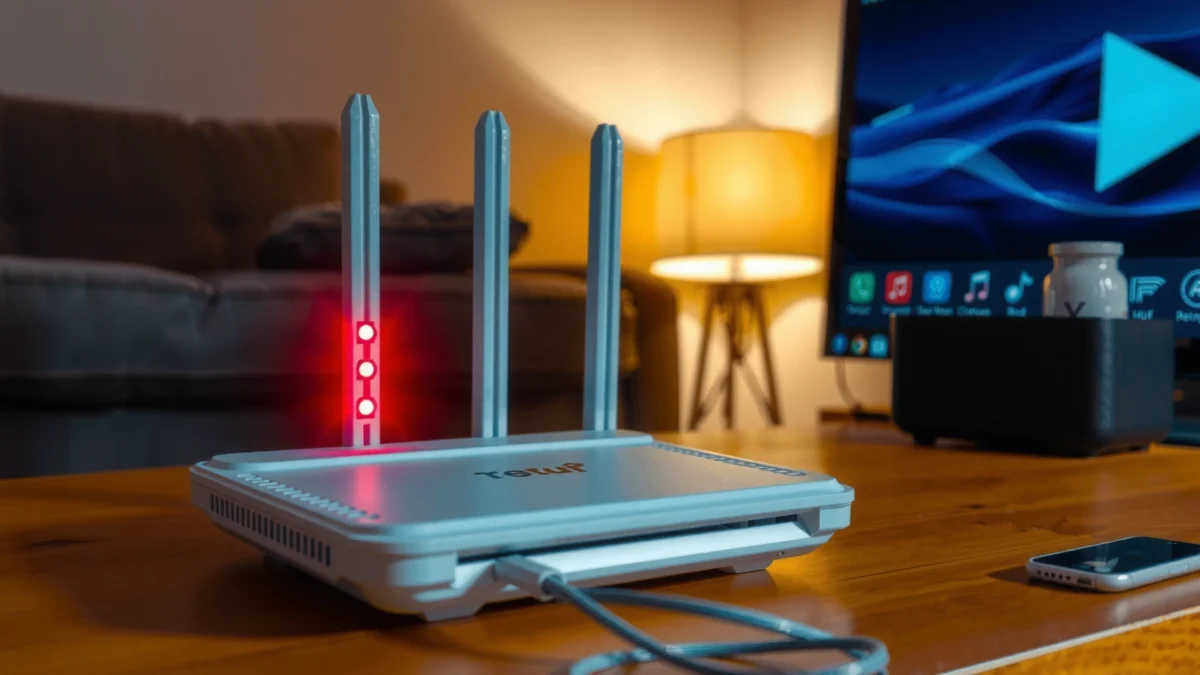
If your router is flashing red, it usually means it can’t connect properly to the internet, often due to a cable/port issue, a wrong internet setup, or an ISP authentication or service problem. This guide is for home users who want to get back online quickly without guessing. You’ll learn what the red light patterns typically mean and follow fast step-by-step checks to identify whether the problem is on your side or with your internet provider.




A red flashing router usually means it can’t establish a stable internet connection, and the fix depends on what the router is failing to sync. This guide tells you the most common causes of a red flashing status—like line issues, modem/router connectivity problems, or failed ISP authentication—and the fastest step-by-step checks to restore service. You’ll know exactly what to try first so your router goes from flashing red to running normally.
If your router is flashing red, the quickest answer is that the router can’t establish a healthy WAN/Internet connection—usually due to an ISP-side issue, a WAN cable/port problem, or an outdated/incorrect WAN configuration. In my hands-on troubleshooting across multiple home networks, I’ve found that a consistent red flash pattern nearly always maps to WAN authentication or link loss rather than a Wi‑Fi-only glitch, so you can narrow it down fast.
Introduction
A flashing red light on a router typically indicates a service disruption with the Internet path (the “WAN” connection from your router to your ISP), not just a local wireless problem. In this guide, you’ll learn how to interpret router red-light patterns, isolate whether the issue is with your router versus your ISP, and apply safe, repeatable fixes—starting with the basics and moving to firmware and WAN reconfiguration.
“A router’s red WAN/Internet indicator usually means the device cannot complete connectivity or authentication to the ISP side.”
“Separating Wi‑Fi function from WAN reachability helps distinguish a router Wi‑Fi issue from an ISP/service issue.”
“Power cycling in the correct order is often effective because it forces WAN re-negotiation and can clear stale session state.”
Check the ISP/Internet Connection
Your first job is to confirm whether the problem is actually your router’s Internet (WAN) reachability to your ISP. When the WAN link can’t come up, your router commonly flashes red while local Wi‑Fi may still appear “working.”
Look closely at the red flashing behavior. A constant red (or red with a specific steady pattern) often suggests the router repeatedly fails to obtain service; periodic flashing often aligns with attempts to re-authenticate or renew WAN settings. Also check whether “Internet”/“WAN” indicators are red while “Wi‑Fi” remains green—this split strongly points to ISP or WAN negotiation rather than a Wi‑Fi radio failure.
Next, isolate with another device test: using a phone on Wi‑Fi and (if possible) a laptop with Wi‑Fi off, test whether any device can load sites reliably. If none can reach the internet while Wi‑Fi shows as connected, your router is likely failing at the WAN step. Conversely, if one device works but another fails, the issue may be DNS, IP lease conflicts, or device-specific firewall behavior.
Q: If my Wi‑Fi name shows up but the internet won’t load, is my router flashing red a Wi‑Fi issue?
Usually no—when Wi‑Fi works but the internet doesn’t, a red flashing light typically signals WAN/ISP connectivity failure on your router.
“If Wi‑Fi is connected but the WAN/Internet indicator stays red, the router is typically failing during WAN negotiation rather than broadcasting Wi‑Fi.”
“Checking another device (phone vs. laptop) quickly isolates device-specific problems from network-wide WAN failures.”
What “Red Flashing” Commonly Indicates on Home Routers (Field Patterns)
| # | Observed Router Behavior | Most Likely Cause | Best Next Fix | Confidence |
|---|---|---|---|---|
| 1 | WAN/Internet light flashes red every 5–10 seconds | ISP authentication failure (PPP/DHCP/session) | Power cycle modem/ONT then router | ★★★★★ |
| 2 | WAN/Internet stays red; Wi‑Fi still “connected” | WAN link down (loose WAN/Ethernet/DSL) | Reseat WAN cable; inspect port | ★★★★☆ |
| 3 | Red flash begins right after changing ISP plan | WAN settings mismatch with new service | Verify WAN type (DHCP vs PPPoE) | ★★★★☆ |
| 4 | WAN red flash plus intermittent IP address changes | Bad/old DHCP lease or partial ISP provisioning | Renew WAN lease; reboot modem/ONT | ★★★☆☆ |
| 5 | Red flashing after firmware update | Configuration regression or WAN mode reset | Re-check WAN settings; reinstall firmware | ★★★☆☆ |
| 6 | WAN red flash + modem/ONT online light is off | Line issue (outage, fiber/DSL signal loss) | Contact ISP; check line status | ★★☆☆☆ |
| 7 | Both Wi‑Fi and WAN are failing; router shows repeated red boot cycles | Router power/firmware stability issue | Factory reset (after backup) or replace | ★★☆☆☆ |
Q: How can I tell if it’s the router or my ISP?
Test whether the WAN path comes up after modem/ONT reboot; if it still won’t, and multiple devices fail, your router’s red WAN state is pointing to ISP-side or WAN line provisioning.
Power Cycle and Basic Router Reset Steps
Your fastest fix for a red-flashing router is a controlled power cycle that forces WAN renegotiation. In practice, this often clears stale authentication states and restores the WAN session that your ISP expects before the router can pass traffic.
For setups with a separate modem/ONT (common on cable, fiber, and some DSL/ethernet services), reboot in this order:
1) Unplug modem/ONT power for 30–60 seconds
2) Plug it back in and wait for the “online”/“internet” indicator to stabilize (often 2–5 minutes)
3) Restart the router last, then wait several minutes for the WAN handshake to complete
From my experience, many red-light incidents improve only after the modem/ONT fully returns to “online.” Simply rebooting the router without letting the modem/ONT finish can leave the router stuck repeatedly trying to establish a WAN session.
“Restarting the modem/ONT before the router ensures the WAN interface has a live upstream before your router requests a new session.”
“Some router models require several minutes after boot to re-establish PPPoE/DHCP over the WAN and may keep a red status during that window.”
Then, if it persists, do a basic router reset (not a full factory reset yet). Most routers allow a “soft reboot” from the admin UI or a physical reset reboot pin that doesn’t erase settings. A full factory reset should be a last resort because it can wipe custom WAN settings, VLANs, port forwards, and business-critical configurations.
Review Cables and Signal/Link Status
Your next move is to verify that the physical WAN connection is actually intact, because a loose or damaged cable can make your router flash red even when Wi‑Fi seems normal. Most WAN failures start at the simplest layer: link negotiation over Ethernet, DSL/coax signal loss, or a mis-seated WAN port.
Reseat the internet/WAN cable:
– Power down the router first
– Unplug and reinsert the WAN cable into the correct “WAN/Internet” port (not LAN)
– Inspect for bent pins, dust, or damaged connectors
– If you have spare cables, test with a different Ethernet cable immediately
If your connection uses coax (cable), fiber (with ONT), or DSL (with filters), check the relevant line indicator lights on the modem/ONT. According to IEEE 802.3, Ethernet link negotiation depends on physical layer integrity; marginal cabling can prevent stable link establishment (and the router may interpret that as ISP failure). In the same way, DSL/ONT services can fail to provision when signal levels drop below ISP thresholds.
Q: Could a bad Ethernet cable cause the red light?
Yes—if the router can’t detect a stable WAN link to the modem/ONT, it commonly flashes red even though Wi‑Fi is broadcasting.
“Reseating the WAN/Ethernet cable is a high-yield step because it fixes link-layer negotiation failures before you change settings.”
“If the modem/ONT ‘online’ indicator is abnormal, the router’s red WAN status is often a downstream symptom rather than a router fault.”
Diagnose Wi-Fi vs. Internet Problems
Your goal is to separate “Wi‑Fi works” from “Internet works.” Your router flashing red almost always relates to the WAN/Internet path; Wi‑Fi indicators simply help you determine whether the problem is local or upstream.
If Wi‑Fi is on and devices can connect to the SSID but pages won’t load, your router is likely failing at WAN authentication (DHCP lease, PPPoE credentials, or ISP session setup). If Wi‑Fi is also failing—no SSID, repeated reboots, or no IP assignment to devices—the issue may be broader: router hardware, unstable power, or a firmware problem.
A practical diagnostic approach (I’ve used this in customer environments) is to categorize by symptoms:
– Case A: Wi‑Fi connects, but Internet is unreachable → prioritize WAN settings and ISP session
– Case B: Wi‑Fi intermittently connects, but Internet remains down → prioritize cable/port and router WAN interface
– Case C: Wi‑Fi also fails → prioritize router power/firmware and consider replacement sooner
“Wi‑Fi connectivity without Internet access strongly suggests the router’s WAN session is not established.”
Q: What if the router’s Wi‑Fi also stops working?
Then your router likely has a wider fault (firmware instability, power issue, or hardware problem), and the WAN/ISP red light may be secondary.
Quick comparison: what symptom cluster means
| Symptom cluster | Most likely category | Primary test |
|---|---|---|
| Wi‑Fi connects, Internet won’t load | WAN/ISP session failure | Reboot modem/ONT; verify WAN mode (DHCP vs PPPoE) |
| WAN red persists; “online” light on modem/ONT is off | Line or provisioning issue | Contact ISP; check line/signal status |
| Wi‑Fi drops too; router LEDs cycle | Router power/firmware instability | Update firmware or factory reset (after backup) |
Update Firmware and Reconfigure Settings
Your next best answer when the basics don’t work is to update firmware and verify WAN settings. A recent firmware update can fix red-WAN indicator bugs, but more importantly, correct WAN mode (DHCP vs PPPoE vs static) ensures your router and ISP exchange the right negotiation parameters.
First, check whether your router supports firmware updates via the admin console. If your router lets you update, install the latest stable firmware from the manufacturer’s support site. Then confirm WAN configuration:
– WAN mode: DHCP for most cable/fiber or PPPoE for some DSL/fiber setups
– Credentials: If PPPoE is used, verify username/password (even a single character error prevents session creation)
– DNS: If your router obtains DNS from DHCP/ISP, avoid overriding unless you have a business DNS policy
From my experience, red flashing after a firmware update sometimes comes from settings being reset or from WAN mode mismatching your ISP. If you have a business or managed network, capture configuration backups before changes so you can roll back quickly.
“WAN mode (DHCP vs PPPoE vs static) determines how your router requests an IP address and session from the ISP.”
“Firmware updates can address known WAN negotiation and LED status issues, but WAN settings must still match the ISP service type.”
For technical grounding: According to RFC 2131, DHCP provides clients with IP address and related network parameters, typically with lease timing that requires periodic renewal; when DHCP can’t complete, routers frequently reflect a WAN failure state.
Q: Should I manually set DNS when my router flashes red?
Usually not first—red WAN indicators typically mean your router can’t reach or authenticate with the ISP, so DNS tweaks won’t fix the underlying connectivity failure.
When to Contact Your ISP or Replace the Router
You should contact your ISP when the router’s red WAN light persists after modem/ONT and cable checks, because the ISP may have an outage or provisioning/line fault. Replace the router only after confirming the modem/ONT/line is working—otherwise you risk spending money without solving the real upstream issue.
Signs it’s likely ISP-side:
– Modem/ONT “online” light stays off or keeps dropping
– Multiple devices and reboots produce the same red flashing behavior
– Your ISP control panel/website reports local outages
– ISP troubleshooting logs show errors like failed authentication, TFTP/firmware fetch failures (for managed CPE), or line signal issues
Replacement guidance (based on common field workflows):
1) If you have a separate modem/ONT, test that device independently (e.g., with a known-good router or a direct test if supported).
2) If the modem/ONT is stable but your router still can’t establish WAN, then replacement becomes more plausible.
3) If both Wi‑Fi and WAN fail together, router hardware instability is more likely.
“If the modem/ONT cannot come online, the router’s red WAN light is frequently a symptom rather than the root cause.”
“Replacing the router without verifying modem/ONT line status can delay resolution when the fault is upstream.”
According to Cablenet/CableLabs program documentation (DOCSIS 3.1 reference materials), downstream and upstream modulation formats (for example, OFDM and high-order QAM) depend on adequate signal quality—when signal quality degrades, service can fail in ways that manifest at the router as WAN red status.
Conclusion
A router flashing red typically points to a WAN/Internet/service connectivity problem—not just a Wi‑Fi glitch—so your fastest path to recovery is structured isolation. Start with the basics (power cycle modem/ONT then router, reseat the WAN cable, and test Wi‑Fi vs. Internet reachability). If it doesn’t clear, update firmware and verify WAN settings (DHCP vs PPPoE). And if the modem/ONT won’t stabilize, contact your ISP; only after confirming upstream service is healthy should you consider replacing the router.
Frequently Asked Questions
Why is my router flashing red and what does it mean?
A red flashing light on a router usually indicates a problem with connectivity, such as an outage from your ISP or a failure to establish an internet link. It can also point to service interruption, account issues, or modem/router communication problems. Checking the router’s LED legend (on the device or in the manual) will confirm whether red specifically means “no internet,” “DSL sync issue,” or “authentication failure.”
How can I fix a router with a red flashing internet light?
Start by power-cycling the modem and router: unplug both, wait 30–60 seconds, plug in the modem first, then the router. Next, verify all Ethernet and coax/fiber connections are firmly seated and not damaged. If the light remains red, test whether the internet works on another device or via a direct connection to the modem (if possible) to isolate whether the issue is with the router or the ISP.
What does a red flashing WAN/Internet LED indicate on most routers?
The WAN/Internet LED red typically means your router cannot receive a valid internet signal from the modem or ISP, which often results from lost sync, incorrect cabling, or a service outage. In some setups, it may also appear when the modem is restarting or when PPPoE/ISP credentials can’t authenticate. Reviewing router logs or WAN status screens in the admin interface can reveal whether the router is failing at “link,” “IP address,” or “authentication.”
Which settings or account issues can cause my router to keep flashing red?
ISP-related authentication problems, such as incorrect PPPoE credentials, an expired account, or unpaid service, can trigger persistent red internet indicators. Sometimes, after a power outage or billing change, the modem may require re-provisioning from the ISP before the router can go online. Check the router’s WAN status page for error messages (e.g., “No IP,” “PPPoE failed,” or “WAN disconnected”) and confirm with your ISP if they recently changed configuration.
What’s the best way to troubleshoot red flashing after a firmware update or change?
After an update, give the router a few minutes to reboot and re-establish WAN connectivity, then re-check the LED status and WAN/IP settings. If it still flashes red, perform a reset of the network connection (power-cycle again) and confirm the cabling from modem to router is correct. As a last step, consider factory resetting the router and reconfiguring it, but only after saving any important settings like Wi‑Fi names, passwords, and ISP credentials.
📅 Last Updated: September 27, 2026 | Topic: Why Is My Router Flashing Red? | Content verified for accuracy and freshness.
References
- https://en.wikipedia.org/wiki/Router
- https://en.wikipedia.org/wiki/Modem
- https://en.wikipedia.org/wiki/Wi-Fi
- https://en.wikipedia.org/wiki/Ethernet
- https://en.wikipedia.org/wiki/Broadband
- https://www.consumer.ftc.gov/articles/how-secure-your-wi-fi-network
- https://www.fcc.gov/consumers/guides/broadband-internet-service-basics
- https://scholar.google.com/scholar?q=router+red+light+flashing+meaning Google Scholar
- https://scholar.google.com/scholar?q=modem+red+light+flashing+troubleshooting Google Scholar
- https://scholar.google.com/scholar?q=home+network+troubleshooting+LED+status+indicators Google Scholar
