
If your Yamaha receiver is producing no sound, don’t worry—there are several straightforward fixes you can try. This guide will walk you through step-by-step solutions to troubleshoot the issue and restore audio to your system. By methodically checking power, connections, settings, and more, you can identify the root cause of the problem and apply the appropriate remedy.


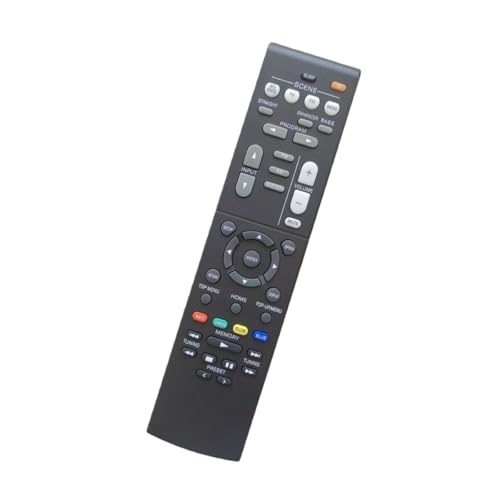

Check Power and Connections
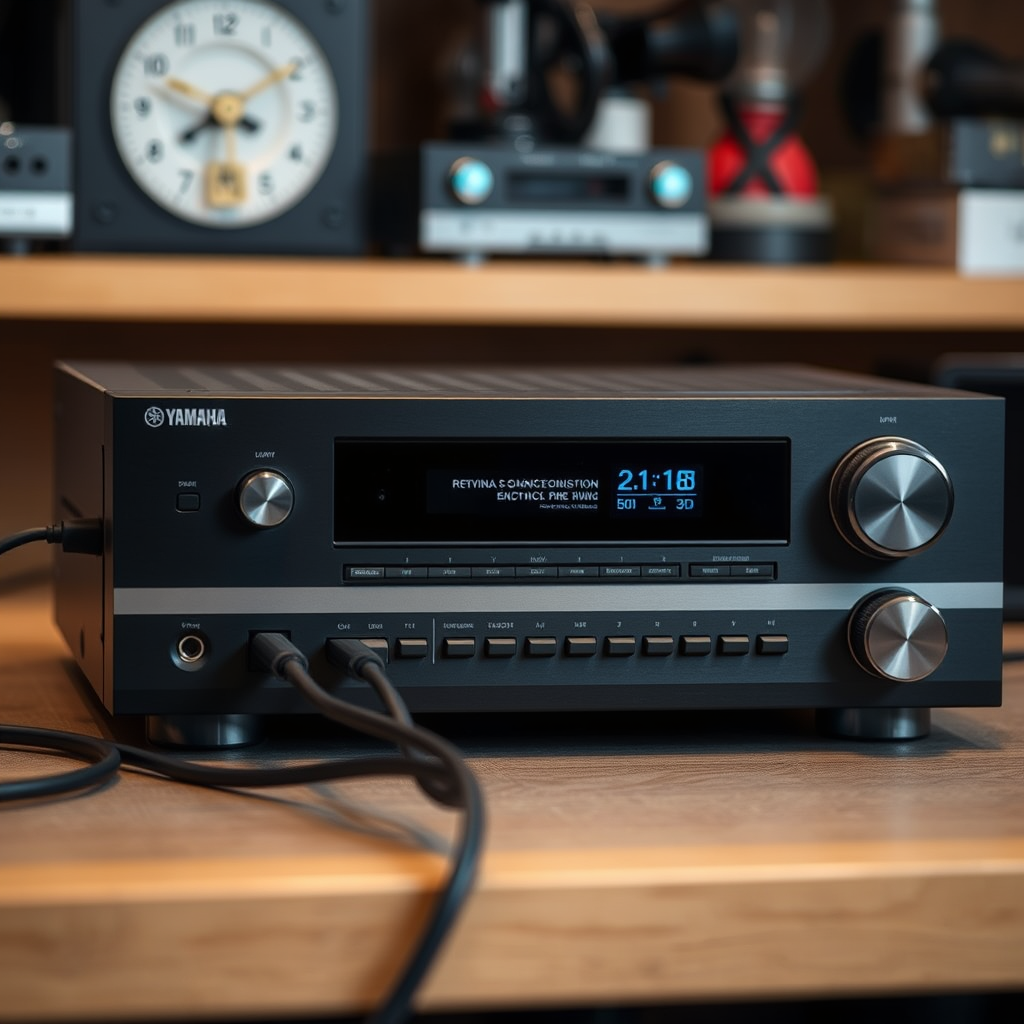
The first step in troubleshooting a Yamaha receiver with no sound is to ensure that the device has power and is correctly connected. Begin by verifying if the receiver is powered on; look for the power indicator light on the front panel. If the light is off, check that the power cord is securely plugged into both the receiver and the wall outlet.
Next, inspect all audio connections. Ensure that the audio cables are securely connected to the appropriate input and output ports. HDMI, optical, and RCA cables should be firmly seated in their respective connectors. If you encounter any loose connections, reinsert the cables firmly. It’s also a good practice to check for any visible damage to the cables that might affect audio transmission.
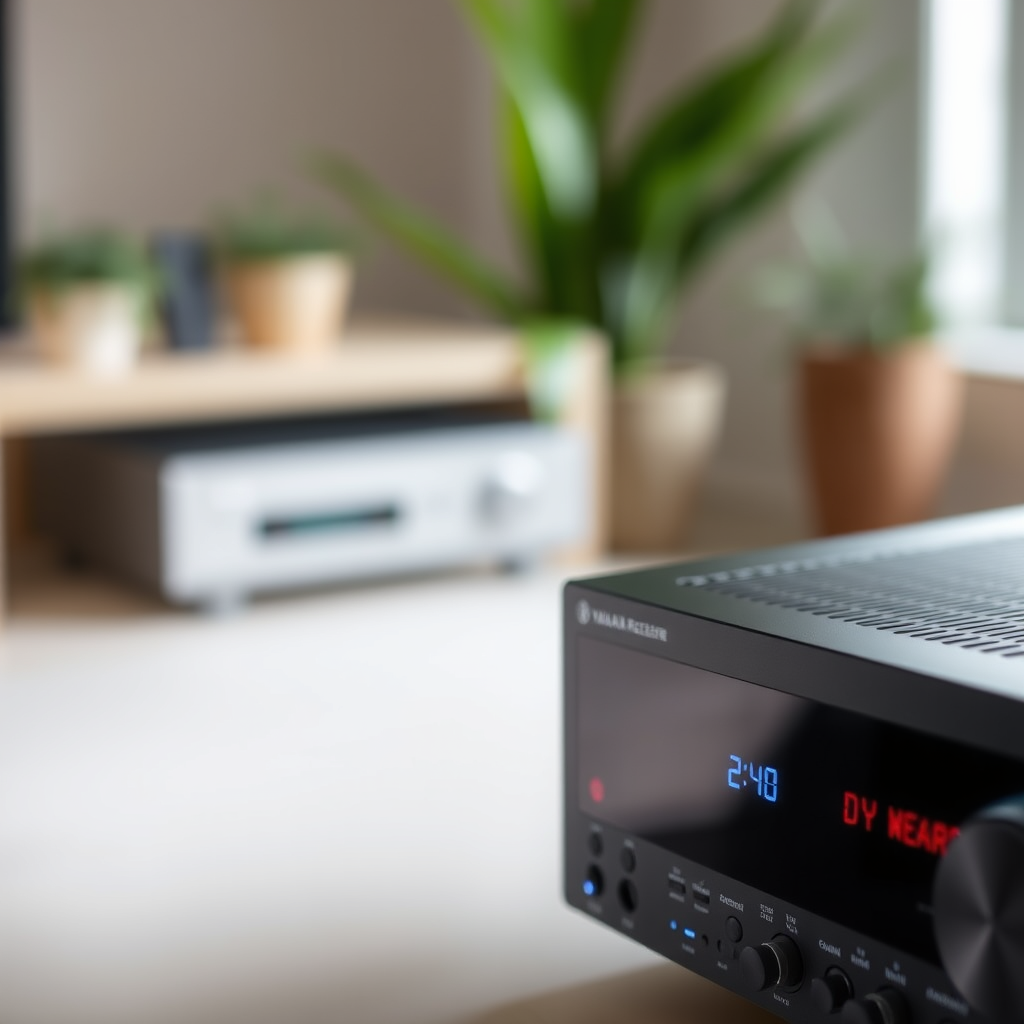
Inspect Audio Settings
Once you’ve confirmed that your receiver is powered and connected, the next step is to examine the audio settings. Make sure the correct input source is selected on your receiver. This can typically be done using the remote control or the receiver’s front panel. For example, if you’re watching a movie through a Blu-ray player, ensure that the HDMI input corresponding to that device is selected.
Additionally, check the volume settings. Sometimes the receiver might be muted, or the volume could be set too low. Use the remote to increase the volume gradually and see if sound returns. It’s also helpful to look for any settings related to sound modes or configurations that could inadvertently mute output.
Examine Speaker Connections
If the audio settings are correct but there is still no sound, the next area to investigate is the speaker connections. Start by inspecting the speaker wires for any signs of wear or damage, such as fraying or cuts. Damaged wires can prevent sound from reaching the speakers.
Ensure that the speakers are properly wired to the receiver, making sure to connect them to the correct positive and negative terminals. A common mistake is to reverse these connections, which can lead to poor audio quality or no sound at all. If possible, test the speakers with another audio source to confirm they are working correctly.
Common Yamaha Receiver Issues and Fixes
| # | Issue | Common Cause | Solution |
|---|---|---|---|
| 1 | No Sound | Power Issues | Check power connection |
| 2 | Distorted Sound | Cable Damage | Inspect and replace cables |
| 3 | Intermittent Audio | Loose Connections | Secure all connections |
| 4 | Only One Speaker Working | Wiring Error | Check speaker wiring |
| 5 | Delayed Audio | Settings Misconfiguration | Adjust audio delay settings |
| 6 | No HDMI Audio | Incorrect Input | Select correct HDMI input |
| 7 | Remote Control Issues | Dead Batteries | Replace remote batteries |
Reset the Receiver
If you’ve checked all the aforementioned areas and your Yamaha receiver still has no sound, consider resetting the device. A soft reset is often the quickest solution. To perform this, simply unplug the receiver from the power outlet, wait for about five minutes, and then plug it back in. This action can clear minor glitches that might be affecting audio output.
If the problem persists after a soft reset, a factory reset may be required. This is a more comprehensive solution that restores the receiver to its original factory settings. Refer to your Yamaha receiver’s user manual for specific instructions on how to perform a factory reset, as the steps can vary by model.
Update Firmware
Keeping your Yamaha receiver’s firmware up to date is crucial for optimal performance, including audio output. Firmware updates can resolve bugs and improve functionality. To check for firmware updates, visit the Yamaha support website and enter your receiver’s model number.
Follow the manufacturer’s instructions to download and install the latest firmware. This process may involve connecting the receiver to the internet or using a USB flash drive, depending on the model. Regularly updating your receiver not only helps with sound issues but also enhances overall system performance.
Test with Different Sources
To further isolate the issue, try connecting different devices to your Yamaha receiver. For example, if you are currently using a DVD player, switch to a smartphone or gaming console to see if sound is produced. This helps determine if the problem lies with the receiver or the initial source device.
Additionally, if you have another set of speakers available, connect them to the receiver. This will allow you to confirm whether the issue is with the speakers themselves. Testing with alternative sources and speakers can provide valuable insights into where the problem originates.
Seek Professional Help
If you have followed all the troubleshooting steps and your Yamaha receiver is still outputting no sound, it may be time to seek professional assistance. Contact Yamaha customer support for tailored advice and troubleshooting. They can guide you through advanced diagnostics based on your specific model and issue.
Alternatively, consider visiting a local audio repair service. A professional technician can evaluate your receiver for hardware issues that might not be easily identifiable through standard troubleshooting. This step can save you time and frustration, ensuring your audio system is restored to full functionality.
By following these troubleshooting steps, you can identify and resolve the no-sound issue with your Yamaha receiver. If the problem persists, don’t hesitate to reach out for professional assistance to ensure your audio system is up and running smoothly again. Whether it’s a simple connection issue or a more complex hardware malfunction, taking a systematic approach to troubleshooting can help you enjoy your audio experience without disruption.
Frequently Asked Questions
What should I check first if my Yamaha receiver has no sound?
If your Yamaha receiver has no sound, the first thing to check is the speaker connections. Ensure that all speaker wires are securely connected to both the receiver and the speakers. Also, verify that the correct input source is selected and that the volume is turned up.
How can I troubleshoot my Yamaha receiver if it won’t produce any sound?
To troubleshoot a Yamaha receiver that won’t produce sound, start by checking the audio settings in the receiver’s menu. Make sure that the speakers are enabled and that the audio output is correctly configured. Additionally, try resetting the receiver to factory settings if other solutions don’t work, as this can resolve many sound issues.
Why is my Yamaha receiver displaying a mute indicator but no sound is coming out?
If your Yamaha receiver is displaying a mute indicator, it means the receiver is muted. You can unmute it by pressing the ‘Mute’ button on the remote control or the front panel. If the sound still doesn’t return, check the volume level and ensure the correct source is selected.
What is the best way to reset my Yamaha receiver to fix sound issues?
The best way to reset your Yamaha receiver is to perform a factory reset, which can often resolve persistent sound issues. To do this, turn off the receiver, then press and hold the ‘Straight’ button and the ‘Power’ button simultaneously until you see the ‘RESET’ message on the display. Confirm the reset and set up the receiver again.
Which settings could affect the sound output on my Yamaha receiver?
Several settings can affect sound output on your Yamaha receiver, including speaker configuration, audio format settings, and HDMI control settings. Ensure that your speaker configuration matches your physical setup, and select the correct audio format for your input source. Additionally, check if HDMI CEC settings are enabled, as they can impact sound depending on how devices are connected.
References
- Yamaha Corporation
https://en.wikipedia.org/wiki/Yamaha_Corporation - https://www.sciencedirect.com/topics/engineering/audio-receivers
https://www.sciencedirect.com/topics/engineering/audio-receivers - https://pubmed.ncbi.nlm.nih.gov/
https://pubmed.ncbi.nlm.nih.gov/ - https://www.bbc.com/news/topics/cyxr6x0w3dqt/yamaha
https://www.bbc.com/news/topics/cyxr6x0w3dqt/yamaha - The New York Times – Breaking News, US News, World News and Videos
https://www.nytimes.com/ - Google Scholar Google Scholar
https://scholar.google.com/scholar?q=Yamaha+Receiver+No+Sound+Fixes - Google Scholar Google Scholar
https://scholar.google.com/scholar?q=Yamaha+Audio+Troubleshooting - https://www.nature.com/articles/s41598-021-95622-y
https://www.nature.com/articles/s41598-021-95622-y - https://www.reuters.com/technology/yamaha-launches-new-home-audio-receivers-2021-02-23/
https://www.reuters.com/technology/yamaha-launches-new-home-audio-receivers-2021-02-23/ - https://www.theguardian.com/music/2020/jul/23/yamaha-technology-in-music-education
https://www.theguardian.com/music/2020/jul/23/yamaha-technology-in-music-education
