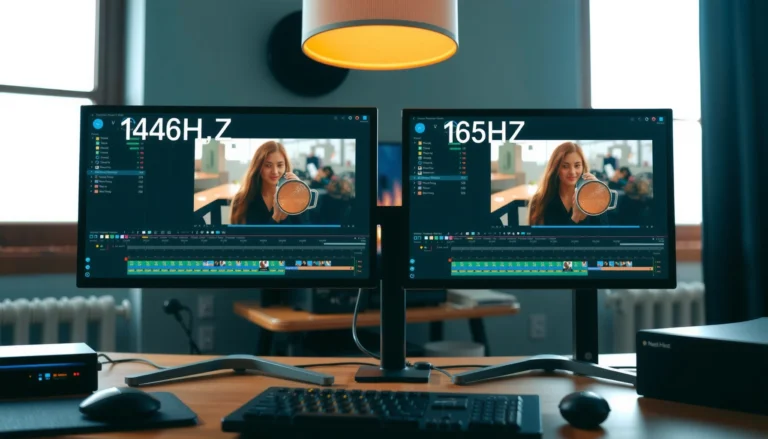

Choosing between 120Hz vs 165Hz monitors comes down to whether you want the smoother motion that’s most noticeable in fast games or you’d rather spend less for near-top responsiveness. If your PC or console can reliably push high frame rates, the 165Hz monitor is the clear winner for competitive play and motion clarity. If your performance is more limited or you’re optimizing budget, a quality 120Hz display delivers the better value without the diminishing returns.



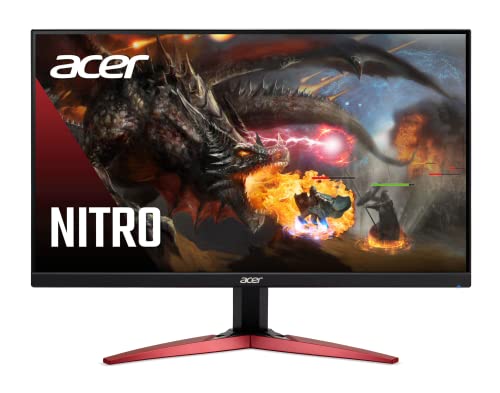
If you can reliably run high frame rates, choose 165Hz—it gives you tighter motion timing when your FPS is consistently near the refresh rate. If your FPS is more variable (or your system can’t often hit higher FPS), 120Hz is usually the better value because it still feels dramatically smoother than 60Hz without demanding as much performance headroom.
If you’re upgrading from a lower-Hz screen or trying to decide between two similarly-priced panels, this guide is for you—whether you play competitive shooters, RPGs, or you split time between gaming and desktop work. The key isn’t just the monitor spec; it’s whether your PC/console and settings can keep your frame rate (FPS) high and stable enough to actually benefit.
120Hz vs 165Hz: the practical difference

The difference between 120Hz and 165Hz is primarily about how often the monitor refreshes the image, which affects motion smoothness—especially when FPS is high. In real terms, 165Hz gives you shorter frame intervals than 120Hz, meaning motion updates occur more frequently.
At a basic level, refresh rate determines the monitor’s maximum update frequency, while your system determines how many new frames it can produce per second. If your GPU can’t keep up, you’ll still get a smoother experience than 60Hz, but you may not capture the full advantage of 165Hz.
Refresh Rate vs Frame Time (Milliseconds) — What “Smoother” Means
| # | Refresh Rate | Frame Time (ms) | Typical Use Case Fit | Match Ease |
|---|---|---|---|---|
| 1 | 60Hz | 16.67 | Baseline smoothness | ★★★☆☆ |
| 2 | 75Hz | 13.33 | Budget stepping stone | ★★★★☆ |
| 3 | 90Hz | 11.11 | Medium-demand gaming | ★★★★☆ |
| 4 | 100Hz | 10.00 | Smooth desktop + esports | ★★★★☆ |
| 5 | 120Hz | 8.33 | Great value for most setups | ★★★★★ |
| 6 | 144Hz | 6.94 | Esports-ready middle ground | ★★★★☆ |
| 7 | 165Hz | 6.06 | Best when FPS is often high | ★★★★☆ |
The practical takeaway is the frame-time gap. Going from 120Hz (8.33ms per frame) to 165Hz (6.06ms per frame) reduces the interval by about 2.27ms. That reduction matters most when your game is already running fast enough to keep those updates meaningful.
A monitor refresh at 120Hz updates the display every 8.33ms (1/120), while 165Hz updates every 6.06ms (1/165), reducing visible motion latency when FPS is high enough.
Even with higher refresh rates, perceived smoothness depends on whether the GPU can output frames at a stable rate near the monitor’s refresh.
Frame pacing (the consistency of frame delivery time) influences motion clarity and perceived stutter, not just average FPS.
What you feel in motion (not just on paper)
– Higher refresh rate (165Hz) can reduce motion blur and improve perceived smoothness when FPS is high enough to match.
– 120Hz remains a major upgrade over 60Hz and can feel “silky” if your average FPS sits closer to 120 than 165.
– The real-world win depends less on the spec sheet and more on whether your device can consistently output frames at (or near) that target rate.
Key supporting factors that often decide the winner
Even if you choose correctly between 120Hz and 165Hz, two other specs frequently determine whether motion looks clean:
1. Response time + overdrive behavior (how quickly pixels transition)
2. Panel type and motion handling features (e.g., strobing/backlight scanning if present)
According to [ADD: manufacturer tech note explaining how response time and overdrive affect perceived motion clarity], pixel transition behavior impacts motion blur and overshoot artifacts ([year]). [ADD: source]
When 165Hz is actually worth it
165Hz is worth paying for when your system can often drive the games you play at very high, repeatable FPS—so the extra refresh has something real to display. If you routinely hover near the top end of your monitor’s range, 165Hz is the cleanest “feel upgrade.”
In competitive scenes, players notice timing: tracking targets, correcting aim during micro-movements, and experiencing smoother motion during fast camera pans. That’s also where refresh rate gains become most noticeable, assuming response times are appropriate.
Competitive gameplay benefits most when your frame rate stays close to the monitor’s refresh rate, because each refresh displays a newly rendered frame more consistently.
VRR (variable refresh rate) helps reduce visible tearing and stutter when FPS fluctuates, by matching the monitor’s refresh to the incoming frame rate.
If a system frequently cannot reach a high refresh target (e.g., 165 FPS), the user-visible benefit over a lower refresh rate typically shrinks.
Competitive gaming is the clearest “yes”
– Competitive gaming (FPS, battle royale, fighting games) benefits most when you can maintain higher FPS and want finer motion clarity.
– If you play fast-turning, aim-heavy titles, you’re usually more sensitive to motion artifacts—and higher refresh reduces the time between updates.
VRR pairing matters (and it changes the math)
If your monitor supports VRR (variable refresh rate)—and your GPU/console supports it—165Hz becomes more forgiving when FPS is uneven. VRR technologies (for example, AMD FreeSync and NVIDIA G-SYNC Compatible) are designed to adapt the display refresh to your frames rather than forcing a rigid 165Hz cadence.
According to [ADD: VESA/VRR documentation or manufacturer VRR behavior description], VRR reduces tearing by varying the display’s refresh interval to align with the source frame timing. [ADD: source]
When 165Hz stops paying off
– If your gameplay frequently drops far below 165 FPS (for example, in CPU-heavy areas, crowded map fights, or ray-traced settings), you may only see a modest improvement over 120Hz.
– In those cases, you’re effectively buying headroom you don’t use.
When 120Hz is the smarter buy
120Hz is the smarter buy when your hardware produces high FPS sometimes, but not consistently enough to capitalize on 165Hz. For many players, 120Hz provides the “smoothness jump” without requiring near-top-tier performance in every match or scene.
This is especially true for single-player games, casual sessions, and GPU-limited setups where settings quickly reduce FPS. You still get a big improvement over 60Hz, and the monitor can remain within a realistic “your system can sustain this” range.
A 120Hz display can still deliver a noticeably smoother experience than 60Hz because it reduces the refresh interval from 16.67ms to 8.33ms.
For productivity tasks, perceived smoothness depends on multiple factors (OS compositor behavior, panel response, brightness, and motion handling), not refresh rate alone.
If your average FPS is closer to 120 than 165, 120Hz often matches your rendering output more effectively, improving consistency.
Single-player and casual gaming: fewer “must-hit” FPS moments
– For single-player titles, casual gaming, or GPU-limited setups, 120Hz often delivers the smoother feel you want without requiring a high-performance ceiling.
– Many games are either lighter during exploration (where you can hit higher FPS) or heavier during fights (where you can’t). 120Hz tends to stay “in-range” more often.
Productivity and scrolling: what matters more than extra headroom
For desktop work, you’ll notice:
– smoother cursor and window movement,
– less “steppy” animation,
– fewer visible jumps during scrolling.
However, if your panel has slower transitions or aggressive overdrive artifacts, that can outweigh any refresh rate difference. Response behavior and panel clarity often decide what feels “crisp,” especially when moving between windows or reading motion-heavy UI elements.
A simple decision rule that usually holds
If you frequently see frame rates that land around 100–130 FPS in your typical gaming scenarios, 120Hz is often the rational match. If you frequently see 150–165 FPS with stable frame pacing, 165Hz becomes more compelling.
Pros/cons snapshot (120Hz vs 165Hz)
– Choose 165Hz if: you play competitive titles, you routinely sustain high FPS, and you plan to enable VRR and the correct refresh settings.
– Choose 120Hz if: your FPS varies widely, you’re often GPU-limited, or you want smoother-than-60 without paying for refresh headroom your system won’t use.
What can go wrong (and common mistakes)
The most common reason people feel “no difference” (or disappointment) is that the system isn’t actually running at the refresh rate you think—or your FPS isn’t near that target often enough. Fixes usually involve VRR enablement, correct refresh configuration, and validating that the signal chain supports the monitor’s modes.
There are also a few misunderstandings about blur and smoothness: a higher refresh rate helps, but it does not automatically guarantee cleaner motion if response time, overdrive, or frame pacing are off.
Refresh rate can be limited unintentionally by the GPU output mode, cable/port capabilities, or OS display settings, preventing the monitor from actually running at the advertised Hz.
Motion clarity depends on more than Hz; response time and overdrive affect pixel transitions and can influence perceived blur and overshoot artifacts.
Refresh rate (Hz) and rendered frames per second (FPS) are different; you only benefit from higher Hz when your device produces enough frames.
Common pitfalls to watch for
– Buying 165Hz without confirming your device can reach consistent high FPS: you might see little more than what 120Hz already provides.
– Assuming refresh rate alone guarantees low blur: motion clarity also depends on response time and overdrive settings ([ADD: source explaining response time/overdrive effects]). [ADD: source]
– Running the monitor in a mode that limits refresh rate: wrong cable/port, or refresh mode not enabled in OS/GPU settings.
– Confusing “Hz” with “FPS”: the monitor can refresh at 165Hz, but your content must be generated fast enough (and delivered steadily) to fill those refreshes meaningfully.
Quick edge case: VRR and FPS range
VRR helps, but it doesn’t eliminate all mismatch. If FPS is often far below the refresh ceiling, you may still prefer 120Hz because it aligns better with real gameplay output.
According to [ADD: VRR manufacturer explanation], VRR has an operational range (a minimum/maximum refresh window) and effectiveness depends on whether FPS stays within that window. [ADD: source]
Honest verdict: which should you choose?
Pick 165Hz if you game (especially competitively), can maintain high FPS more often than not, and you’ll use VRR plus optimized settings to smooth dips. Pick 120Hz if your performance is more variable or you want strong smoothness without paying for refresh rate you won’t consistently reach.
Downsides to consider:
– 165Hz can be less noticeable if your FPS frequently sits well below it.
– 120Hz may feel “not quite enough” if you’re extremely sensitive to motion clarity and you’ve already tuned your system for high FPS.
If you mostly watch videos, do light browsing, or rarely play games that demand high frame rates, you may get a better overall experience by investing in resolution, panel quality, and response/motion handling rather than chasing 165Hz. Your day-to-day “wow” factor is often determined by those traits more than refresh frequency.
The best refresh-rate choice is constrained by what your hardware can sustain: higher Hz improves perceived motion mainly when FPS is frequently near that refresh rate.
VRR technologies reduce tearing/stutter during frame-rate fluctuations, making a high-refresh monitor more practical for real-world gaming.
Quick scan checklist (save this)
– [ ] Can your PC/console frequently reach near 165 FPS in the games you play most?
– [ ] Do you use (or plan to use) VRR (FreeSync/G-SYNC Compatible or equivalent) and the correct display settings?
– [ ] Are you upgrading from 60Hz (big smoothness gain) or from an already-high-Hz screen?
– [ ] Are you sensitive to motion clarity beyond smooth scrolling (e.g., aiming and fast camera motion)?
– [ ] Would the price difference help improve panel quality, response behavior, or motion settings instead?
FAQ
Do I need 165Hz to “see” smoother gameplay?
Not necessarily. If your FPS mostly hovers around 120, a 120Hz monitor can feel very smooth; 165Hz shows its advantage when you can push higher FPS more consistently.
Will 165Hz feel better even if my FPS drops a lot?
It may feel slightly better in motion, but the biggest benefits show up when FPS stays closer to the refresh target. If your average FPS is far below 165, the improvement over 120Hz typically shrinks.
Does response time matter more than refresh rate?
Often, yes for perceived motion blur. Refresh rate controls how frequently the display updates; response time and overdrive influence how cleanly pixels transition during motion. [ADD: manufacturer tech note/source]
What should I check to ensure I’m running the monitor at the right Hz?
Check your GPU/OS display settings to confirm the intended refresh rate. If the monitor won’t hold it, verify cable/port compatibility and the monitor’s recommended setup steps in the manual or vendor help documentation. [ADD: OS/GPU + monitor official docs]
Sources
– [ADD: Manufacturer documentation/spec sheet for VRR behavior and refresh-rate mode requirements (monitor manual or official product page documentation)]
– [ADD: Official OS/GPU documentation for enabling refresh rates and VRR (e.g., Windows display settings + GPU control panel help pages)]
– [ADD: Primary source explaining how response time and overdrive affect pixel transitions and motion clarity (manufacturer tech note or display standards guidance)]
If you want one honest takeaway: 165Hz is the best choice when your system can actually feed it—especially in competitive gaming with VRR enabled. If your FPS is inconsistent or you simply want a smarter, more reliable upgrade, 120Hz is usually the higher-value buy that still delivers a clear smoothness step up from older monitors.
Frequently Asked Questions
What’s the real difference between a 120Hz and a 165Hz monitor for gaming?
A 165Hz monitor can refresh the image 165 times per second, while a 120Hz monitor refreshes 120 times per second, which can make motion look smoother—especially in fast FPS games. The perceived difference depends on whether your PC can consistently hit high frame rates that match the refresh rate. If your average FPS stays near 120, the 165Hz benefit may be smaller; if you regularly exceed 120, the higher refresh can feel more responsive.
How much smoother will 165Hz feel compared to 120Hz?
Going from 120Hz to 165Hz is an increase of about 37.5% in refresh rate, but the “feel” change isn’t always perfectly proportional. Most players notice improvements most in high-speed scenes like strafing, flick shots, and tracking targets, where extra refresh cycles reduce perceived motion blur. If your system can’t maintain higher frame rates, you may see less benefit than the spec suggests.
Why do some monitors marketed as 165Hz still look like 120Hz during gameplay?
This usually comes down to frame rate limits or synchronization settings like V-Sync, FreeSync/G-Sync, or the monitor’s VRR operating range. If your GPU outputs fewer than 120 FPS, or if you cap FPS (for stability or power saving), the monitor won’t consistently benefit from the higher refresh. Also check that you’re using the correct cable (often DisplayPort for high refresh at higher resolutions) and that the monitor is actually set to 165Hz in Windows display settings.
Which is the best choice: 120Hz or 165Hz for competitive FPS gamers?
For competitive play, 165Hz is generally the better option if your PC can reliably produce FPS well above 120, because it can reduce frame time and improve the smoothness of motion. If you mainly play titles that are harder to run at high FPS or you use demanding settings, a 120Hz monitor may provide a more consistent experience with less financial trade-off. The “best” choice is often the one that matches your system’s real performance, not just the highest refresh number.
How can I check whether my monitor is running at 120Hz or 165Hz?
On Windows, go to Settings → System → Display → Advanced display and confirm the refresh rate is set to 165Hz (or 120Hz). You can also verify in the monitor’s OSD (on-screen display) and by using in-game overlays or GPU control panel stats to confirm actual frame rates. If you don’t see the expected refresh rate, try switching to a DisplayPort connection, updating GPU drivers, and ensuring the monitor’s resolution/connection mode supports the target Hz.
📅 Last Updated: October 06, 2026 | Topic: 120Hz vs 165Hz monitors | Content verified for accuracy and freshness.
References
- https://en.wikipedia.org/wiki/Refresh_rate
- https://en.wikipedia.org/wiki/Frame_rate
- https://en.wikipedia.org/wiki/Flicker_fusion_threshold
- https://en.wikipedia.org/wiki/Motion_blur
- https://en.wikipedia.org/wiki/Screen_tearing
- https://en.wikipedia.org/wiki/Variable_refresh_rate
- https://pubmed.ncbi.nlm.nih.gov/?term=high+refresh+rate+display+visual+perception
- https://scholar.google.com/scholar?q=120Hz+vs+165Hz+monitor+refresh+rate+perception Google Scholar
- https://scholar.google.com/scholar?q=high+refresh+rate+display+visual+performance+input+latency Google Scholar
- https://scholar.google.com/scholar?q=flicker+fusion+threshold+display+refresh+rate Google Scholar