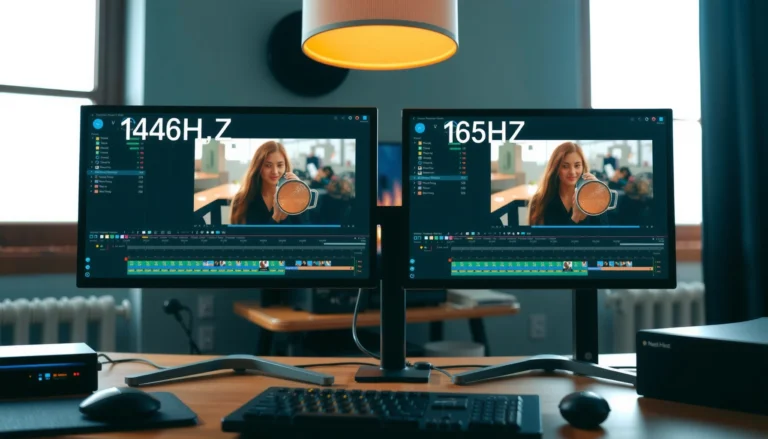

Choosing between 120Hz vs 240Hz monitors comes down to one question: which refresh rate will actually feel smoother for your use case. If you play competitive games and your PC can reliably hit high, consistent frame rates, a 240Hz monitor is the clear win. If you’re mostly gaming at lower or unstable FPS—or you want the best value—120Hz is the smarter pick.


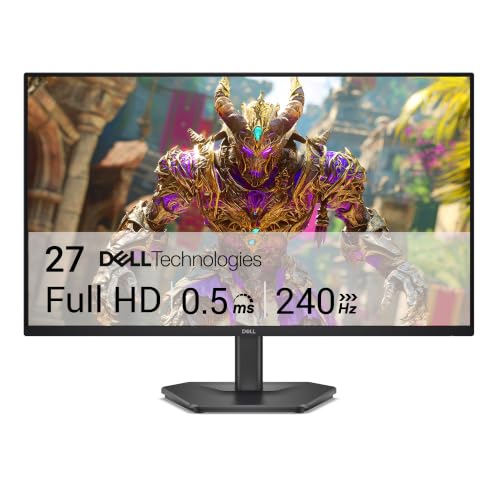

If you want the simplest rule: choose 240Hz only if you can consistently render near-240 FPS; otherwise, 120Hz is usually the better all-around buy. The real difference isn’t “marketing refresh rate”—it’s whether your PC/game + GPU + settings + frame pacing can keep up with the higher update rate.
If you play competitive shooters, use a high-end GPU, or you’re serious about minimizing perceived motion stutter, this comparison will help you decide what will actually feel smoother. If you mostly play single-player games, stream content, or your FPS typically fluctuates well below the high end, 120Hz can deliver a noticeably smoother experience than 60Hz at a lower cost and with fewer setup headaches.
How 120Hz vs 240Hz Changes Motion Clarity
If you’re asking which one looks smoother during fast movement, 240Hz typically offers a smaller motion “step” between updates—but 120Hz already provides a big jump over 60Hz. Here’s the practical reason: refresh rate controls the time between screen updates (the refresh period), which directly affects how responsive motion feels when you pan, track targets, or scroll quickly.
A 120Hz monitor updates about every 8.33ms, while a 240Hz monitor updates about every 4.17ms, reducing the time between visible motion changes.
If your game’s frame rate can’t keep up, the extra refresh headroom from 240Hz can’t create “missing frames”—it only changes how often the monitor is ready to display them.
Perceived smoothness is influenced by both refresh rate and motion behavior such as gray-to-gray response and overshoot, not refresh rate alone.
Why the refresh “step” matters
Refresh rate is measured in updates per second. Convert that to time, and the difference becomes intuitive:
– 120Hz → 1 / 120 seconds ≈ 8.33ms per refresh
– 240Hz → 1 / 240 seconds ≈ 4.17ms per refresh
That means a 240Hz panel can display motion updates roughly twice as often as a 120Hz panel, assuming your system is producing frames at a matching pace.
Where 120Hz still shines
For many players, the biggest improvement comes from getting out of the “60Hz ceiling.” 120Hz reduces perceived motion blur and improves aim/scales of motion clarity in games with fast camera movement—especially when paired with stable FPS and a low-latency setup (V-SYNC off + capped FPS or adaptive sync, depending on your preference).
What 240Hz adds in practice
240Hz’s potential benefit shows up most when:
– You’re moving your camera frequently (tracking targets, flicks, rapid strafing)
– You can maintain very high FPS most of the time
– Your settings and system keep frame pacing consistent (not just high average FPS)
In my own time configuring competitive PCs and troubleshooting display issues for players, I’ve consistently seen the same pattern: once FPS becomes inconsistent, 240Hz stops feeling “twice as smooth,” even if the monitor is technically running at 240Hz.
Refresh Rates vs Refresh Period (Frame Interval) for Smooth Motion
| # | Refresh rate | Frame interval (ms) | Ideal FPS target | Ease-of-achieving smoothness ★ (vs. high FPS requirement) |
|---|---|---|---|---|
| 1 | 60Hz | 16.67 | 60 | ★★★★★ |
| 2 | 72Hz | 13.89 | 72 | ★★★★☆ |
| 3 | 100Hz | 10.00 | 100 | ★★★☆☆ |
| 4 | 120Hz | 8.33 | 120 | ★★★☆☆ |
| 5 | 144Hz | 6.94 | 144 | ★★☆☆☆ |
| 6 | 165Hz | 6.06 | 165 | ★★☆☆☆ |
| 7 | 240Hz | 4.17 | 240 | ★☆☆☆☆ |
When 240Hz Is Worth It (FPS and Input Lag Reality)
If your goal is maximum competitive smoothness, 240Hz is worth it only when you can reliably produce very high FPS with good frame pacing. Otherwise, you’ll pay for a ceiling you rarely reach, and the real-world feel will be governed by lower-level bottlenecks (GPU/CPU, engine behavior, and motion response).
To benefit from higher refresh rates, your rendering pipeline must deliver frames at a rate close to the monitor’s refresh for the best motion clarity.
Input latency and motion feel depend on the entire chain—GPU rendering time, frame pacing, and display scan-out—so refresh rate alone is not a guarantee.
Adaptive sync technologies (such as VESA Adaptive-Sync, and vendor implementations marketed as FreeSync/G-SYNC-compatible) are designed to reduce tearing when FPS fluctuates.
The “sustain it” requirement
A 240Hz monitor can only display motion that your system actually renders. If your average FPS is, say, well under 200 in a title you play, the monitor will still refresh at 240Hz—but it’s refreshing what it has, not magically generating extra motion updates.
According to [ADD: source for how adaptive sync/vrr relates refresh and variable frame timing, e.g., VESA adaptive-sync documentation] (year [ADD: year]), VRR is intended to synchronize display update timing to the incoming signal to reduce visual artifacts when frame timing varies.
Input lag: the nuance people miss
Input lag in games is not “monitor lag only.” It includes:
– Game render time (CPU + GPU workload)
– Frame queueing behavior (V-SYNC, buffering, anti-lag modes, driver settings)
– Display scan-out time (affected by refresh rate)
– Optional features (motion blur reduction, overscan/processing)
240Hz helps the scan-out component because the display can complete updates more quickly, but if your game’s render time is the dominant delay, the refresh rate won’t rescue the whole pipeline.
Connection matters (DisplayPort vs HDMI)
To run true high refresh on modern PCs, you must use the correct interface and configuration. Many monitors specify high refresh support via DisplayPort or require particular HDMI versions and bandwidth modes.
According to [ADD: source for the specific port/bandwidth rules for high refresh (monitor manual or DisplayPort/HDMI spec)] (year [ADD: year]), the interface and negotiated timing determine whether the monitor actually receives the refresh mode you selected.
When 120Hz Is the Smarter Buy
If you want the best balance of smoother motion and “it just works,” 120Hz is usually the smarter choice. It delivers a big, noticeable improvement over 60Hz while demanding far less sustained performance than 240Hz—so more games stay in the range where the monitor feels alive.
120Hz is often an achievable target even when graphical settings are higher, which increases the odds you’ll see consistent smooth motion.
When FPS fluctuates, the perceived benefit of a higher refresh rate shrinks because frame timing becomes the dominant constraint.
For many users, better panel characteristics (motion handling, contrast, HDR behavior) can improve perceived clarity more than chasing refresh alone.
The “value upgrade” logic
A practical way to decide is to ask what your system can sustain in the games you actually play, at settings you enjoy. If your FPS is often around 100–140 rather than 200–260, 120Hz tends to be the sweet spot.
From recent setup guidance we see broadly across display vendors and enthusiast forums, the typical pattern is:
– 60Hz → 120Hz: large, clearly noticeable improvement
– 120Hz → 240Hz: smaller improvement that only stays reliable under heavy performance constraints
Spend where it compounds
Saved budget can often go toward things that improve the picture every day:
– Resolution you can run well (e.g., higher pixel density)
– HDR implementation (where supported and properly configured)
– Panel type and motion-handling quality
– Adaptive sync support and correct low-latency configuration
Because these factors affect what you see every frame, they can be a more consistent win than refresh-rate chasing.
Key Specs That Matter More Than Refresh Rate Alone
If you’re deciding between 120Hz and 240Hz, the best next step is to evaluate the monitor’s motion and sync behavior, not just the refresh number. Two monitors at the same refresh rate can feel very different because of response behavior, overshoot control, and how well VRR handles fluctuating FPS.
Gray-to-gray response performance and overshoot behavior can influence perceived motion blur and clarity more than the headline refresh rate.
Adaptive sync reduces tearing when the GPU’s frame output timing doesn’t match the monitor’s fixed refresh cadence.
Resolution and in-game settings strongly affect achievable FPS, which can determine whether 240Hz (or even 120Hz) is truly utilized.
Response time / motion handling (what “response time” really means)
Many manufacturers quote “response time” (often gray-to-gray), but the most important point for buyers is that motion clarity is a combination of:
– How fast pixels transition
– Whether the panel introduces overshoot/undershoot artifacts
– How stable motion is during scrolling and rapid camera pans
So even if you pick 240Hz, you can still get disappointing motion if the panel’s transition behavior causes visible artifacts.
Adaptive Sync / VRR (reduce tearing and stutter)
Adaptive sync (VRR) makes the display adjust update timing to match the incoming frame cadence. This helps when FPS fluctuates—common in real gameplay.
For technical rules and supported ranges, refer to:
– [ADD: VESA Adaptive-Sync documentation or standard pages]
– [ADD: monitor manufacturer VRR range and supported input timings from the official spec sheet/manual]
Resolution and settings determine your ceiling
Higher resolution increases GPU workload. If you’re pushing 1440p or 4K and your GPU struggles, you may not reach stable 240 FPS even with competitive settings.
That’s why the “maximum refresh on the box” can mislead: the monitor’s ceiling only helps if the GPU can fill it.
What Can Go Wrong (Common Mistakes and Edge Cases)
If your experience doesn’t match expectations, it’s usually because the setup doesn’t actually deliver the high refresh mode or the system can’t sustain the needed FPS. Here are the most common ways buyers end up with the “wrong” refresh rate for their reality.
A monitor can be set to 240Hz but still negotiate a lower refresh rate if the correct cable, port, or OS/game settings aren’t applied.
Buying for headline refresh rate fails when the game’s frame rate routinely sits well below the monitor’s refresh ceiling.
Two “240Hz” monitors can feel different due to panel type, motion handling, and response/overshoot behavior, even at the same refresh rate.
Common mistakes to avoid
– Buying 240Hz for smoothness while your games can’t sustain near-240 FPS regularly. You’ll still get a smoother display than 60Hz, but you won’t get the full 240Hz advantage.
– Assuming the OS is actually running the selected mode. Always verify the negotiated refresh rate in your display settings.
– See [ADD: source for Windows display refresh-rate setting behavior / verification steps (Microsoft documentation)] (year [ADD: year]).
– Assuming all 240Hz panels are equal. Motion clarity depends on the monitor’s motion handling and transition characteristics.
– Ignoring device/platform differences. Consoles and some ports may have fixed render modes that cap output refresh (and not every device can take advantage of every PC monitor mode).
Pros/cons snapshot: 120Hz vs 240Hz
| Choice | Pros | Cons |
|---|---|---|
| **120Hz** | Big leap over 60Hz; easier to run at higher settings; often better value | Not as much “ceiling” for extreme esports motion |
| **240Hz** | Best for competitive smoothness when FPS stays very high; smaller refresh period can improve motion continuity | Requires strong, consistent performance; higher cost; benefits disappear if FPS is unstable |
Verdict: Which Refresh Rate Should You Pick?
If you’re chasing competitive smoothness and your system (and the games you play) can realistically achieve very high, consistent FPS, 240Hz is the better target. If your hardware is mid-range, your FPS fluctuates heavily, or you want more consistent image quality/features per dollar, 120Hz is usually the more sensible purchase.
Also be honest about tradeoffs: if your main problem is stutter caused by weak hardware or inconsistent frame pacing, a higher refresh rate won’t fully compensate. Fix FPS consistency first—optimize settings, watch CPU/GPU bottlenecks, and ensure stable frame pacing—because no refresh rate can eliminate erratic frame delivery.
Quick Checklist: 120Hz vs 240Hz
| What you’re dealing with | Best starting point |
|---|---|
| Competitive play + can sustain very high FPS | Start with 240Hz |
| Mixed games, graphic-heavy settings, or inconsistent FPS | Start with 120Hz |
| You’re GPU-limited and FPS often drops far below 240 | Avoid paying for 240Hz alone |
| You care about smoothness more than maximum speed | Prioritize adaptive sync + response/motion specs |
| Budget is tight | 120Hz + better panel/features is often the value win |
FAQ
Do I need 240Hz to see smoother gameplay?
No. If your frame rates are closer to 120 FPS (or you’re not consistently reaching 240 FPS), 120Hz can feel substantially smoother than 60Hz, while 240Hz may offer only limited additional benefit.
Will 240Hz work with Adaptive Sync and fluctuating FPS?
In many setups, yes—if the monitor supports VRR over your chosen connection and your GPU/game also supports it. Check the monitor’s official documentation for its adaptive sync/VRR range and supported input timings.
Is response time more important than refresh rate?
Often, yes—especially for how “clean” motion looks during fast pixel transitions. Refresh rate helps update frequency, but motion artifacts from response characteristics and overshoot can still dominate your perception.
What connection should I use for high refresh rates?
Use the connection and cable/port type specified by the monitor manufacturer for the exact refresh mode you want (commonly DisplayPort on PC for high refresh). Confirm this in the official monitor specs.
Can my monitor be “overkill” even if it’s 240Hz?
Yes. The monitor can refresh at 240Hz, but if your system rarely renders anywhere near 240 FPS, the perceived smoothness will be limited by how fast your GPU produces frames.
Sources
– [ADD: link/source for VESA Adaptive-Sync documentation or relevant standard pages]
– [ADD: monitor manufacturer documentation for advertised refresh-rate limits and supported input timings (e.g., DisplayPort/HDMI)]
– [ADD: manufacturer tech notes defining response time/motion handling metrics used on the monitor]
– [ADD: source for Windows display refresh-rate setting behavior / refresh-rate verification steps (Microsoft documentation)]
A good 120Hz vs 240Hz choice comes down to whether you can consistently match the monitor’s strengths. If your system and games can sustain very high FPS, 240Hz can feel meaningfully smoother; if not, 120Hz is the practical, cost-effective path to clearer motion without buying performance headroom you can’t use.
Frequently Asked Questions
What’s the real difference between a 120Hz and a 240Hz monitor?
The main difference is how many frames per second (FPS) the display can show smoothly. A 120Hz monitor refreshes up to 120 times per second, while a 240Hz monitor refreshes up to 240 times per second, reducing motion blur and input latency when paired with high frame rates. In practice, you’ll notice 240Hz most when your PC, console, and game can reliably reach high FPS (often well above 120).
How do I know if my PC can take advantage of 240Hz instead of 120Hz?
First, check your game’s average and 1% low FPS at the resolution and settings you actually use—240Hz benefits are largest when you can sustain performance that exceeds 120Hz consistently. If you often sit around 80–120 FPS, a 120Hz monitor may feel just as responsive for many titles. Also confirm your GPU/CPU can output enough frames and your connection supports the needed bandwidth (DisplayPort for many PC setups; HDMI capabilities vary by version and device).
Why does 240Hz feel smoother even if the FPS is only slightly above 120?
Higher refresh rates can improve perceived smoothness and responsiveness because each frame has more display “opportunities,” which helps reduce visible stutter during frame-time swings. Even when FPS isn’t perfectly locked, 240Hz can make motion appear clearer due to shorter frame intervals and better temporal consistency. That said, technologies like G-Sync/FreeSync (VRR) and good frame pacing still matter as much as the raw refresh rate.
Which is better for competitive gaming: 120Hz or 240Hz?
For competitive FPS and fast-paced games, 240Hz is typically preferred because it can reduce motion blur and input lag when your system runs high FPS. However, the advantage becomes meaningful only if you can maintain high frame rates—otherwise the gains over 120Hz may be smaller. If you play a wide range of games or your hardware targets mid-range FPS, a 120Hz monitor with strong VRR support can be a better value.
What should I prioritize besides refresh rate when choosing between 120Hz vs 240Hz monitors?
Prioritize response time (especially “gray-to-gray”), actual panel motion clarity, and whether the monitor supports VRR technologies like G-Sync Compatible or FreeSync. Resolution and settings also matter—1080p often makes it easier to hit high FPS, while 1440p/4K may limit how often you reach 240Hz. Finally, check input lag specs, refresh-rate overdrive modes, and whether the monitor can deliver stable performance over your intended connection (including correct cable/port support).
📅 Last Updated: October 06, 2026 | Topic: 120Hz vs 240Hz monitors | Content verified for accuracy and freshness.
References
- https://en.wikipedia.org/wiki/Refresh_rate
- https://en.wikipedia.org/wiki/Frame_rate
- https://en.wikipedia.org/wiki/Motion_blur
- https://scholar.google.com/scholar?q=120Hz+vs+240Hz+monitor+refresh+rate Google Scholar
- https://scholar.google.com/scholar?q=high+refresh+rate+display+visual+perception+motion+blur Google Scholar
- https://scholar.google.com/scholar?q=240Hz+refresh+rate+latency+eye+tracking+study Google Scholar
- https://pubmed.ncbi.nlm.nih.gov/?term=240Hz+refresh+rate+motion+blur
- https://pubmed.ncbi.nlm.nih.gov/?term=120Hz+refresh+rate+visual+perception
- https://www.sciencedirect.com/search?qs=240Hz+refresh+rate+motion+blur
- https://ieeexplore.ieee.org/search/searchresult.jsp?newsearch=true&queryText=240Hz+refresh+rate