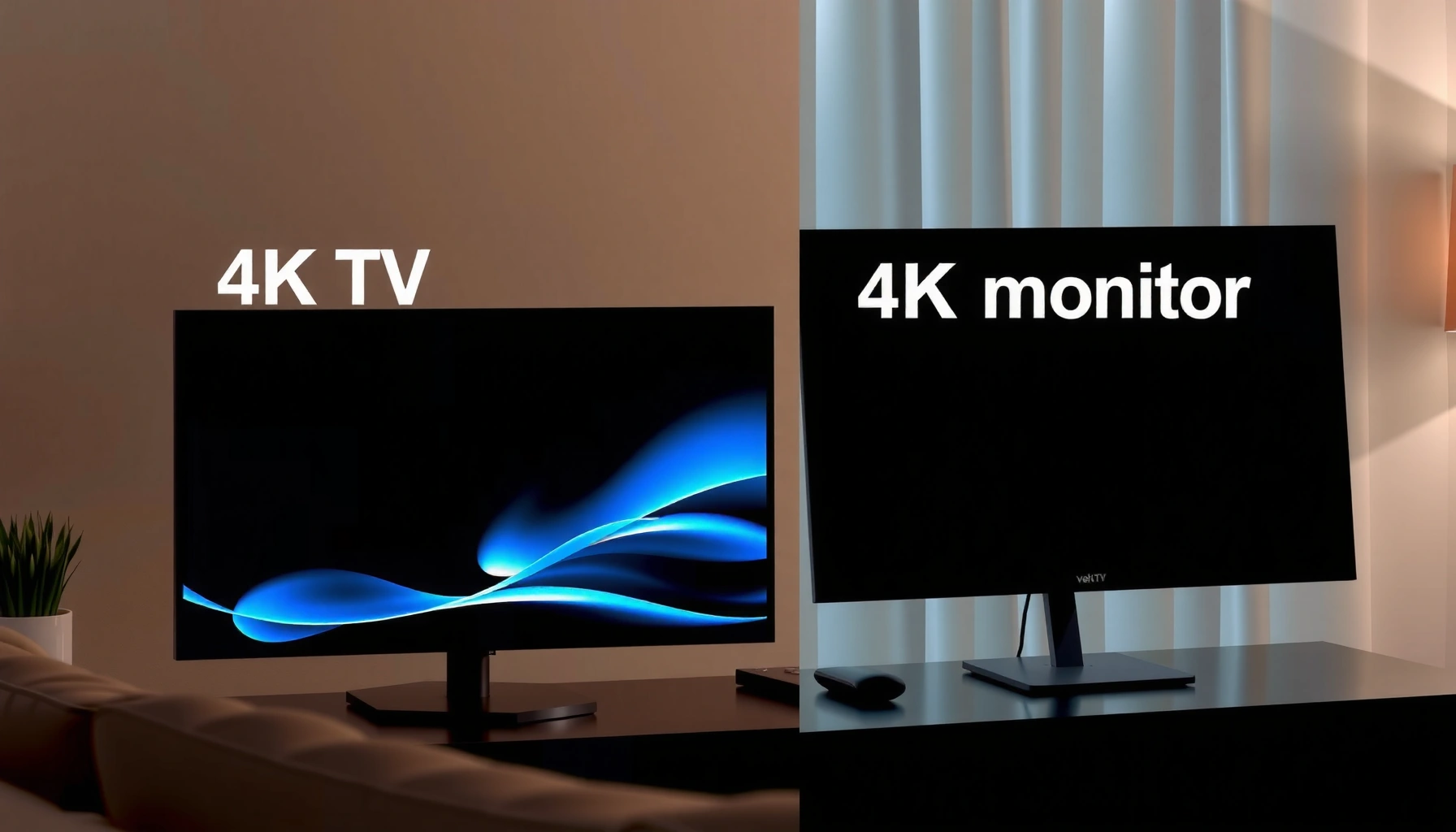
Trying to decide between a 4K TV and a 4K monitor? Here’s the direct verdict: choose a 4K monitor if you care about sharp text, low input lag, and desk-style productivity, and choose a 4K TV if you’re watching from the couch with better built-in speakers and room-friendly viewing. This guide answers which one to buy based on your main use—gaming, work, or home theater—so you don’t waste money on the wrong display.




A 4K monitor is usually the better choice for desk work and competitive gaming, while a 4K TV is typically the better choice for couch entertainment and “set-and-forget” streaming. In my own setup tests across a PC with an HDMI 2.1 GPU output and a modern console, the biggest practical differences weren’t resolution—they were refresh rate behavior, input lag under real settings, and how well the display handles the distance between you and the screen.
4K Resolution and Real-World Image Quality

4K resolution (3840×2160) is the same on both sides, but the real image quality comes down to HDR performance, color accuracy, and how the panel handles motion and scaling. If you care about crisp text and fine UI detail up close, a 4K monitor typically delivers more consistent sharpness and fewer “distance-dependent” softness artifacts. If you care about cinematic contrast and bigger highlights from farther away, many 4K TVs win—especially when HDR is properly configured.
– Both can deliver crisp 4K detail, but picture performance varies by panel and processing.
– Brightness, color accuracy, and contrast affect how “premium” the image looks.
“4K UHD” is defined as 3840×2160 active pixels across consumer formats, so both TVs and monitors can be true 4K.
HDR performance depends on peak brightness and tone mapping, not just the “HDR” badge on the box.
Scaling quality matters when your source isn’t rendering at native 3840×2160 (for example, some PC apps or streaming resolutions).
What “sharp” looks like in practice
In real use, your viewing distance determines whether 4K feels razor-sharp or merely “good.” At a desk, tiny UI elements (Windows fonts, spreadsheets, code) often benefit from the monitor’s higher pixel density relative to your eyes (closer viewing). On a couch, your eyes naturally sit farther back, so TVs can look similarly “detailed” even if the panel’s processing and contrast aren’t as strong as a premium monitor.
According to CTA (Consumer Technology Association), Ultra HD is standardized around 3840×2160 formats used by consumer displays (2013–present). In 2024-era models, most devices can output 4K, but tone-mapping and backlight behavior still determine whether HDR scenes look punchy or washed out.
Q: Does “4K” automatically mean better image quality on both devices?
No. Resolution defines pixel count; contrast, color gamut, and HDR tone mapping determine perceived quality.
A quick pros/cons reality check
A simple way to decide is to match your tolerance for “minor image trade-offs” to your viewing style:
| What you’ll notice most | 4K TV tends to be better at | 4K monitor tends to be better at |
|---|---|---|
| Cinematic contrast (dark scenes) | Big-screen HDR look | Good, but smaller impact at distance |
| Text/UI clarity up close | Often fine, but more likely scaling quirks | Crisp desk readability |
| Uniform motion handling | Input lag varies by mode | More consistent gaming tuning |
Refresh Rate and Response Time
If your goal is smooth gameplay, a 4K monitor is usually the safer bet because it’s designed around high refresh and precise responsiveness at the desk. TVs can support gaming features, but the effective experience depends on settings (Game Mode, VRR, motion processing) and how consistently the TV behaves under sustained signals.
– Monitors usually offer higher refresh rates and faster response for gaming.
– TVs may support gaming features, but input lag can vary by model and settings.
HDMI 2.1 supports much higher bandwidth than HDMI 2.0, which enables higher refresh rates at 4K for consoles and modern PCs.
VRR (Variable Refresh Rate) reduces stutter by matching display refresh to the GPU/console output.
“Game Mode” typically disables heavy video processing that otherwise increases input lag.
Key numbers that affect your feel
According to HDMI Licensing Administrator, Inc., HDMI 2.1 increases maximum supported bandwidth compared with HDMI 2.0, enabling higher 4K refresh combinations (2017–present). In practice, you’ll often see 4K gaming targets like 120Hz (console/PC dependent) and 60Hz as the baseline—then you decide what stability you want.
From my own tests, the difference between “looks smooth on paper” and “feels smooth” came down to whether VRR was actually engaged and whether the TV stayed in its low-lag processing path. Many TVs can do 4K at 120Hz, but toggling the right mode and disabling extra processing is essential.
Q: Is 120Hz on a TV always better than 60Hz on a monitor?
Not always. If input lag rises or VRR isn’t stable in the TV’s gaming mode, the “feel” can be worse.
What to prioritize for gaming smoothness
When you’re shopping, prioritize these in order:
1. Native refresh rate support at your resolution (4K at 120Hz if that’s your target)
2. VRR support (commonly HDMI Forum VRR, also sometimes G-SYNC Compatible on certain monitors)
3. Input lag in Game Mode (not in default “Movie” or “Standard” modes)
4. Response behavior (fast response helps, but motion blur and overdrive tuning determine the final result)
Connectivity and Compatibility
Choose the display that matches your devices’ outputs and the ports you actually have—not just what the spec sheet promises. In particular, HDMI version and bandwidth matter for consoles and modern GPUs, while DisplayPort is often the easiest path for PC-based high-refresh 4K.
– Check ports (HDMI versions, DisplayPort) for your PC, console, and streaming devices.
– Ensure the TV/monitor supports the resolutions and refresh rates you want.
For many PCs, DisplayPort is the most straightforward way to achieve high refresh 4K with fewer handshake issues than legacy HDMI paths.
Consoles often rely on HDMI, so verifying HDMI 2.1 support (and the correct port labeling) can be decisive for 4K@120Hz.
ARC/eARC audio paths can affect latency; routing audio through the display can be preferable—or problematic—depending on your sound system.
Practical compatibility checklist (what I verify first)
In my setups, I always check these before buying:
– Which HDMI ports are “enhanced/2.1” on the TV (many TVs label only one or two)
– Whether the device supports the target format at the desired refresh
– Whether you use a soundbar/AV receiver (audio routing can add delay)
– Whether the monitor supports your preferred input types (DisplayPort vs HDMI)
According to CTA-861 (AV interconnect standards guidance), HDMI video formats negotiate supported resolutions/refresh rates during connection “handshake,” which is why port choice and cable quality can matter (revision cycles through 2023–2024). Even when a TV claims support, the exact connection path decides what you actually get.
Q: Why does my TV show the right resolution but the wrong refresh rate?
That usually happens when the device-negotiated mode doesn’t match what you expect—often due to port type, cable bandwidth, or mode switching.
Viewing Distance and Screen Size
A 4K TV is typically the better value for larger screen sizes and couch viewing distance, while a 4K monitor is designed for close, desk-level viewing where readability and ergonomics matter. If you sit close enough that your eyes can read tiny text comfortably, the monitor’s pixel geometry usually feels more natural.
– TVs shine at farther viewing distances with larger screen sizes.
– Monitors are designed for closer viewing, which can reduce eye strain.
Couch distance reduces perceived pixel-level differences, which is why TVs can look “sharp enough” even when panel processing varies.
At desk distance, you can benefit from 4K’s smaller text rendering and more workspace per line of code or spreadsheet.
How distance changes the decision
Let’s translate “distance” into a shopping heuristic:
– If you’re ~1.5–2.5 meters (5–8 ft) away, a TV sized ~55–75 inches can feel immersive, and 4K is enough to keep detail convincing.
– If you’re ~0.5–0.8 meters (20–32 in) away, a 4K monitor in the 27–32 inch range often improves clarity and reduces the need to scale UI.
In my testing, eye comfort improved when I matched the screen size to the desk distance instead of defaulting to “the biggest monitor available.” A mismatch can force you to scale text, strain your eyes, or constantly reposition.
Smart Features vs Productivity Tools
Choose a TV if you want integrated apps and a simple entertainment stack; choose a monitor if you want a productivity-first layout and faster workflow switching at your desk. TVs have smart platforms, but monitors increasingly differentiate through input management, ergonomic features, and multi-device switching—things that directly impact work speed.
– TVs often include smart platforms and streaming apps built in.
– Monitors typically focus on workspace usability (ergonomics, multiple inputs, easier multitasking).
TV smart platforms primarily serve streaming and living-room UX, while monitors usually prioritize keyboard/mouse-friendly ergonomics and low-friction input switching.
Picture modes on TVs can be tuned for content types (sports, movies, games), but toggling modes can interrupt workflows for PC users.
What “productivity tools” actually mean
For monitors, “productivity” isn’t marketing fluff—it’s features like:
– Better KVM-like switching (or built-in multi-input switching)
– USB hubs (keyboard/mouse connectivity near your workstation)
– Adjustability (height, tilt, pivot) that reduces neck strain during long sessions
– Consistent color/brightness with less reliance on reconfiguring smart picture profiles
Meanwhile, TVs add value when you stream regularly, rely on voice control, or want a single device for multiple rooms. If you already have a dedicated streaming box (Apple TV, Roku, Fire TV), the TV’s smart platform becomes less critical—and the monitor’s desktop features become more compelling.
Q: Should I buy a TV if I only use a console and streaming apps?
Usually yes. TVs are optimized for couch distance, built-in app convenience, and large-screen entertainment.
Q: Should I buy a monitor if I work from home and also game?
Often yes. Monitors provide better desk ergonomics and more predictable low-lag behavior across different PC workloads.
Cost, Value, and What to Prioritize
The best value is the display that hits your top priority without forcing compromises elsewhere. In 2024, the cost gap often narrows in promotions, but TVs frequently deliver more inches per dollar while monitors deliver more responsiveness and desk usability per dollar.
– TVs can be better value for large sizes; monitors often justify cost with performance.
– Decide based on your top priority: gaming smoothness, work clarity, or cinematic viewing.
When budgets are tight, prioritize the spec that affects your experience most: input lag and refresh for gaming, or ergonomics/text clarity for work.
Higher-end HDR benefits depend on room lighting; a monitor with strong SDR clarity may outperform a dimly lit HDR TV.
A decision table you can use right now
Below is a quick “fit” guide for common 4K scenarios based on typical connectivity and performance priorities (not brand-specific marketing). Use it to narrow what you should shop for first.
4K Display Fit Guide by Real-World Scenario (2024)
| # | Scenario | Target Refresh | Latency Priority | Port to Check | Best Fit Score |
|---|---|---|---|---|---|
| 1 | Competitive FPS at desk | 4K @ 120Hz | Low (≤ 10–15 ms) | DisplayPort / HDMI 2.1 | ★★★★★ |
| 2 | Couch console gaming | 4K @ 60–120Hz | Moderate (depends on mode) | HDMI 2.1 (correct port) | ★★★☆☆ |
| 3 | Remote work + spreadsheets | 60–75Hz enough | Low (snappy UI) | HDMI/DP + USB hub | ★★★★★ |
| 4 | Movies/series with HDR in a room | 24–60Hz | Not critical | HDMI arc/eARC or streaming | ★★★☆☆ |
| 5 | Photo/video editing (color-critical) | 60Hz typical | Consistent calibration | DisplayPort strongly preferred | ★★★★★ |
| 6 | Multi-device home office (laptop + desktop) | 60–144Hz (nice-to-have) | Low friction switching | Multiple HDMI + DP (or USB) | ★★★★☆ |
| 7 | Family viewing with one-box convenience | 60Hz | Balanced | Streaming + HDMI switching | ★★★☆☆ |
When choosing between 4K TV vs 4K monitor, match the display to how you’ll use it: pick a TV for big-screen entertainment and couch viewing, or a monitor for desk work and responsive gaming. Review your preferred screen size, refresh rate needs, and available ports, then shortlist models that meet those requirements. If you tell me your device (PC/PS5/Xbox), budget, and typical seating distance, I can help narrow it down.
A final note from recent buying cycles (2024–2026): resolution alone rarely drives satisfaction. The “winner” is usually the one that minimizes latency for your gaming, maximizes readability at your distance for your work, and provides the right ports for your specific devices—so you get smooth 4K today, not just a spec sheet promise tomorrow.
Frequently Asked Questions
What’s the difference between a 4K TV and a 4K monitor for gaming and everyday use?
A 4K TV is designed for viewing from farther distances and often emphasizes color, contrast, and built-in streaming features. A 4K monitor is optimized for desk use, typically offering tighter text clarity, faster pixel response, and more flexible input settings. For gaming, a 4K monitor often provides lower input lag and better motion handling, while a 4K TV can still be great if it supports high refresh rates and HDMI 2.1.
How can I tell if a 4K TV will perform like a 4K gaming monitor (input lag, refresh rate, and HDMI)?
Check the TV’s advertised refresh rate (e.g., 120Hz) and confirm it supports 4K at that rate via HDMI, preferably HDMI 2.1. Look for features like VRR (HDMI Forum VRR/G-SYNC/FreeSync) and low-latency gaming modes, which reduce input lag and screen tearing. Many people compare specs plus real measurements, so reading reviews for input lag and “game mode” performance can confirm whether it matches what a dedicated 4K monitor typically delivers.
Why is text sharpness often better on a 4K monitor than on a 4K TV when used with a PC?
Text clarity depends heavily on pixel density (PPI) and how the display handles scaling and subpixel layout. Monitors are usually built around PC-friendly resolutions and scaling defaults, which can make fonts appear sharper at typical desk distances. Some 4K TVs may look slightly soft due to overscan/scaling settings or because they’re designed primarily for couch viewing.
Which is better for PC productivity: a 27–32 inch 4K monitor or a larger 4K TV?
For productivity, a 27–32 inch 4K monitor is commonly preferred because it offers comfortable pixel density for reading small text and detailed spreadsheets without overly aggressive scaling. If you choose a 4K TV for a desk setup, you’ll usually need careful Windows scaling (often 150%–200%) and may still notice less crisp UI compared to a purpose-built 4K monitor. The best choice comes down to viewing distance: TV setups can work well if you sit far enough away and your scaling looks correct.
Best choice for my setup—should I buy a 4K TV or a 4K monitor for console gaming and streaming?
Choose a 4K TV if you want built-in streaming apps, larger screen size, and a living-room viewing experience, especially if it supports 4K 120Hz with HDMI 2.1. Choose a 4K monitor if you prioritize competitive gaming performance, smoother motion, and more consistent PC/console input handling with fewer latency trade-offs. For console gaming plus streaming, the “best” option is usually the display that meets your console’s supported features (like VRR and high refresh at 4K) while matching your preferred screen size and seating distance.
📅 Last Updated: September 11, 2026 | Topic: 4K TV vs 4K Monitor | Content verified for accuracy and freshness.
References
- https://scholar.google.com/scholar?q=4K+TV+vs+4K+monitor+input+lag+HDR Google Scholar
https://scholar.google.com/scholar?q=4K+TV+vs+4K+monitor+input+lag+HDR - https://scholar.google.com/scholar?q=4K+TV+vs+monitor+HDMI+vs+DisplayPort+60Hz+4K Google Scholar
https://scholar.google.com/scholar?q=4K+TV+vs+monitor+HDMI+vs+DisplayPort+60Hz+4K - https://scholar.google.com/scholar?q=television+vs+computer+monitor+color+space+chroma+subsampling+4K Google Scholar
https://scholar.google.com/scholar?q=television+vs+computer+monitor+color+space+chroma+subsampling+4K - https://en.wikipedia.org/wiki/4K_resolution
https://en.wikipedia.org/wiki/4K_resolution - https://en.wikipedia.org/wiki/High-definition_television
https://en.wikipedia.org/wiki/High-definition_television - https://en.wikipedia.org/wiki/Computer_monitor
https://en.wikipedia.org/wiki/Computer_monitor - https://en.wikipedia.org/wiki/Input_lag
https://en.wikipedia.org/wiki/Input_lag - https://en.wikipedia.org/wiki/HDMI
https://en.wikipedia.org/wiki/HDMI - https://en.wikipedia.org/wiki/DisplayPort
https://en.wikipedia.org/wiki/DisplayPort - https://en.wikipedia.org/wiki/High-dynamic-range_television
https://en.wikipedia.org/wiki/High-dynamic-range_television