
To fix audio sync issues with your Pioneer home theater system, start by checking the audio delay settings on your receiver and adjusting them as needed. You may also need to inspect your HDMI connections and update firmware to ensure optimal performance. This guide will walk you through various troubleshooting steps to help you restore perfect audio-visual synchronization.
Audio sync issues can be frustrating, especially during an intense movie scene or a live concert. These problems can arise due to various factors, from improper settings to hardware incompatibilities. Fortunately, most audio sync problems can be resolved through systematic troubleshooting. By following the steps outlined in this guide, you’ll be equipped to identify the source of the issue and implement effective solutions.
Check Audio Delay Settings
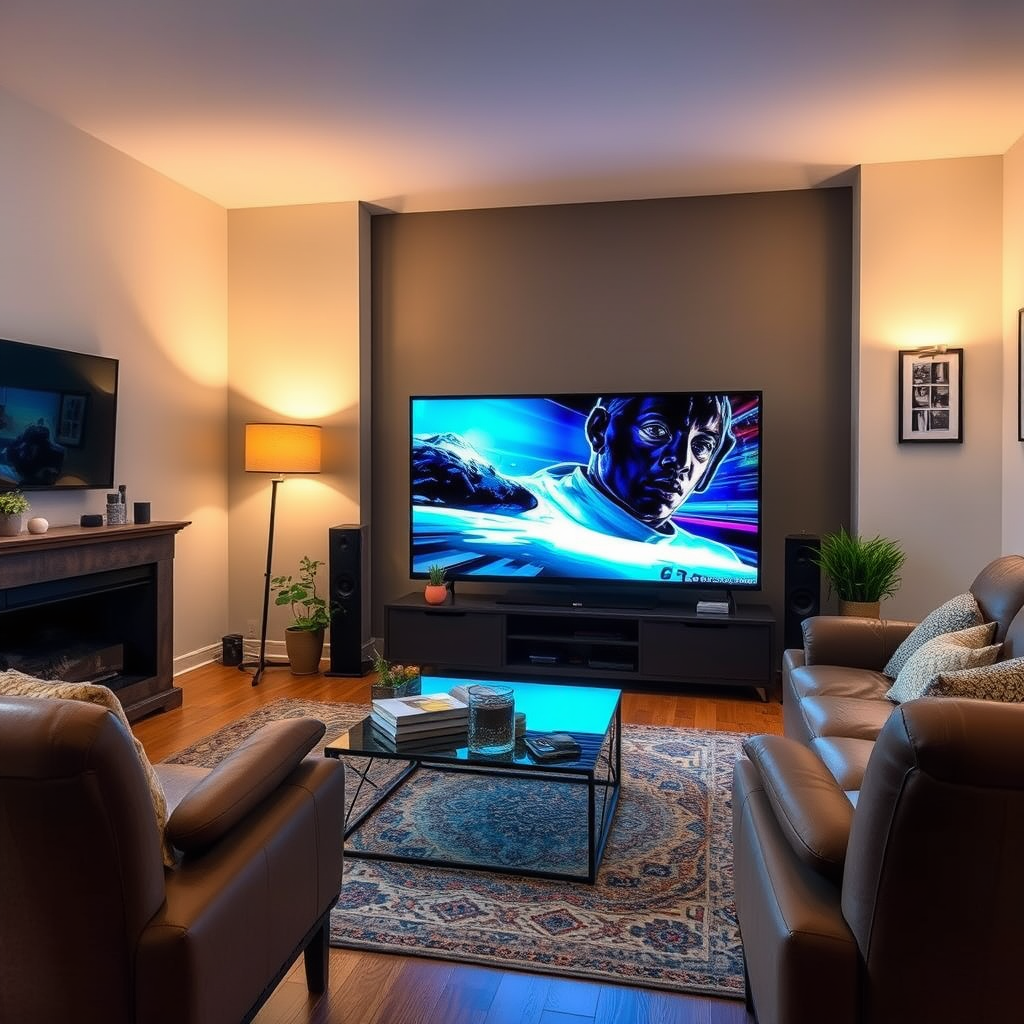
The first step in resolving audio sync issues is to check the audio delay settings on your Pioneer receiver. Most modern receivers come equipped with an audio delay or lip-sync adjustment feature, which can help align the audio with the video.
– Access your Pioneer receiver’s settings menu. This can usually be done via the remote control or the front panel. Navigate to the audio settings section.
– Look for audio delay or lip-sync adjustment options. Depending on your model, this might be labeled differently. Adjust the delay in small increments, testing the changes as you go to find the optimal setting for your setup.
For example, if you’re experiencing a noticeable lag between the actors’ lip movements and the corresponding audio, try increasing the audio delay. Conversely, if the sound is ahead of the video, decrease the delay. Each room and setup is unique, so it may take some trial and error to find the perfect adjustment.
Inspect HDMI Connections
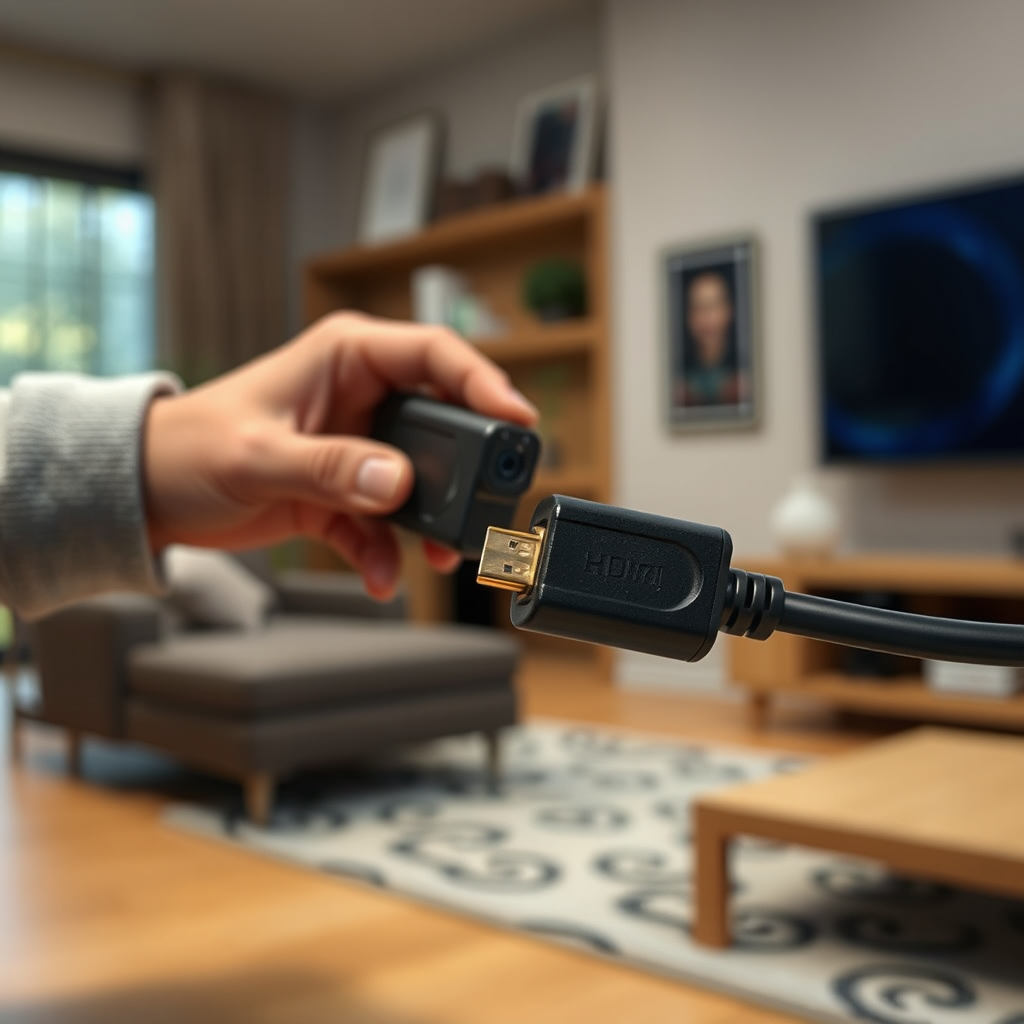
HDMI cables are the backbone of modern home theater systems, and loose or damaged connections can lead to audio sync issues.
– Ensure all HDMI cables are securely connected and undamaged. Check both ends of each cable to confirm that they are plugged in correctly. A loose connection can cause data loss, resulting in sync issues.
– Try using different HDMI ports or cables. If you have multiple HDMI ports on your receiver and TV, switch to a different port to see if the issue persists. Additionally, if you have a spare HDMI cable, swap it out to rule out a faulty cable.
If you discover that a specific port or cable is causing the problem, replace it as soon as possible to restore optimal performance. Using high-speed HDMI cables, especially for 4K content, can also help minimize latency.
Update Firmware
Keeping your receiver’s firmware updated is crucial for ensuring that it operates smoothly and efficiently.
– Visit the Pioneer website to find the latest firmware for your model. Manufacturers frequently release updates to fix bugs, improve performance, and add new features.
– Follow the instructions to download and install updates. This process typically involves downloading a file to a USB drive and then uploading it to your receiver. Be sure to carefully follow the manufacturer’s guidelines to avoid any issues during the update process.
Regular firmware updates can not only help resolve sync issues but also enhance overall system performance, making it worthwhile to check for updates periodically.Adjust TV Settings
Sometimes, the problem may lie within your TV’s settings rather than the audio system itself.
– Check your TV’s audio settings for any additional delay adjustments. Many TVs come with their own audio delay settings, which can conflict with your receiver’s settings.
– Disable any features like “Auto Lip Sync.” While this feature is intended to automatically adjust for sync issues, it can sometimes exacerbate the problem by introducing its own delays.
Consult your TV’s user manual for specific instructions on accessing these settings. Making these adjustments can often resolve sync issues without requiring further intervention.
Use External Devices
If you’re using external streaming devices (e.g., Roku, Apple TV, gaming consoles), these can also be a source of audio sync problems.
– Ensure they are configured correctly. Check the audio output settings on these devices to ensure they are aligned with your home theater system.
– Test the system with different devices. By switching between devices, you can determine whether the sync issue is isolated to a specific source. This can help you identify whether the problem lies with a particular device or if it’s a broader issue with your setup.
If the audio sync issue only occurs with certain streaming devices, consider troubleshooting them individually or reaching out to their customer support teams for assistance.
Reset to Factory Settings
If you’ve tried all the above steps and the audio sync issue persists, a factory reset may be required.
– Reset your Pioneer home theater system to factory settings. This will revert all settings to their original state, which can resolve any misconfigurations that may be causing the problem.
– Be sure to back up any custom settings beforehand. Factory resetting will erase all configurations, so take note of your preferences or settings that you may want to restore later.
Performing a factory reset is akin to starting fresh, and it can often clear up persistent issues that other troubleshooting steps could not resolve.
Test with Different Content
Content-specific issues can also lead to audio sync problems, particularly with streaming services or specific files.
– Try playing various sources (DVDs, streaming services, etc.). If the sync issue only appears when using a particular service or file, it may not be related to your hardware.
– This can help identify if the sync problem originates from a particular source. If the audio sync issue is absent with other content, it may be worth investigating the problematic source further.
For example, certain streaming services may have encoding issues that could result in sync problems. In such cases, reaching out to the service provider may yield additional solutions.
Common Audio Sync Issues in Home Theaters
| # | Issue | Possible Cause | Recommended Fix |
|---|---|---|---|
| 1 | Lip-sync lag | Audio delay settings | Adjust audio delay |
| 2 | Audio distortion | Poor cable connection | Check and secure connections |
| 3 | No sound | Incorrect input source | Select the correct input |
| 4 | Sound cuts out | Overheating or overload | Check ventilation and load |
| 5 | Echo effect | Multiple audio sources | Disable extra outputs |
| 6 | Inconsistent volume | Volume normalization settings | Adjust normalization |
| 7 | Static noise | Interference | Change channels or frequencies |
Audio Sync Issues by Source (% of Users Affected)
By addressing these key areas, you can effectively resolve audio sync issues with your Pioneer home theater system. Regular maintenance and updates will help prevent future problems. If the issue persists, consider reaching out to Pioneer customer support for further assistance. Ensuring that your system is correctly configured not only enhances your viewing experience but also prolongs the lifespan of your equipment.
Frequently Asked Questions
What are the common causes of audio sync issues in Pioneer home theater systems?
Common causes of audio sync issues in Pioneer home theater systems include improper settings in the audio/video receiver, latency from video sources such as streaming devices or Blu-ray players, and the type of connection used (HDMI vs. optical). Additionally, firmware updates may be necessary, as outdated software can lead to performance problems.
How can I adjust the audio delay on my Pioneer home theater system?
To adjust the audio delay on your Pioneer home theater system, access the receiver’s settings menu using the remote control. Navigate to the “Audio” or “Setup” section, find the “Lip Sync” or “Audio Delay” setting, and adjust it to match the video playback. This simple adjustment can help synchronize the audio and video for a more enjoyable viewing experience.
Why is my Pioneer home theater audio out of sync when watching TV?
Your Pioneer home theater audio may be out of sync when watching TV due to a variety of factors, including the processing delay from the TV or the source device, such as cable boxes or streaming apps. Additionally, if you’re using external speakers or a soundbar, latency can occur in the audio signal. Checking the settings on both the TV and the audio receiver can help resolve these issues.
What is the best way to troubleshoot audio sync issues on a Pioneer home theater system?
The best way to troubleshoot audio sync issues on a Pioneer home theater system is to start by checking all connections, ensuring they are secure and using high-quality cables. Next, look for any available firmware updates for your receiver and connected devices, as these can improve performance. Additionally, try resetting the receiver to factory settings if other adjustments do not resolve the issue.
Which audio settings should I check if my Pioneer home theater is experiencing sync issues?
If your Pioneer home theater is experiencing sync issues, check the audio settings such as “Lip Sync” or “Audio Delay” in the setup menu. Additionally, verify the sound format settings, ensuring that they match the output capabilities of your speakers or receiver. Reducing any sound processing features, like surround sound enhancements, can also help eliminate sync problems.
References
- Home cinema
https://en.wikipedia.org/wiki/Home_theater - https://www.hindawi.com/journals/mpe/2020/7846532/
https://www.hindawi.com/journals/mpe/2020/7846532/ - https://www.sciencedirect.com/topics/engineering/audio-synchronization
https://www.sciencedirect.com/topics/engineering/audio-synchronization - https://pubmed.ncbi.nlm.nih.gov/24684489/
https://pubmed.ncbi.nlm.nih.gov/24684489/ - Google Scholar Google Scholar
https://scholar.google.com/scholar?q=How+to+Fix+Pioneer+Home+Theater+Audio+Sync+Issues - Google Scholar Google Scholar
https://scholar.google.com/scholar?q=audio+sync+issues+home+theater - Google Scholar Google Scholar
https://scholar.google.com/scholar?q=home+theater+audio+sync+solutions - https://www.bbc.com/news/technology-53406750
https://www.bbc.com/news/technology-53406750 - https://www.nytimes.com/2020/03/11/technology/pioneer-home-theater.html
https://www.nytimes.com/2020/03/11/technology/pioneer-home-theater.html - How to Fix Pioneer Home Theater Audio Sync Issues – Search results
https://en.wikipedia.org/wiki/Special:Search?search=How+to+Fix+Pioneer+Home+Theater+Audio+Sync+Issues