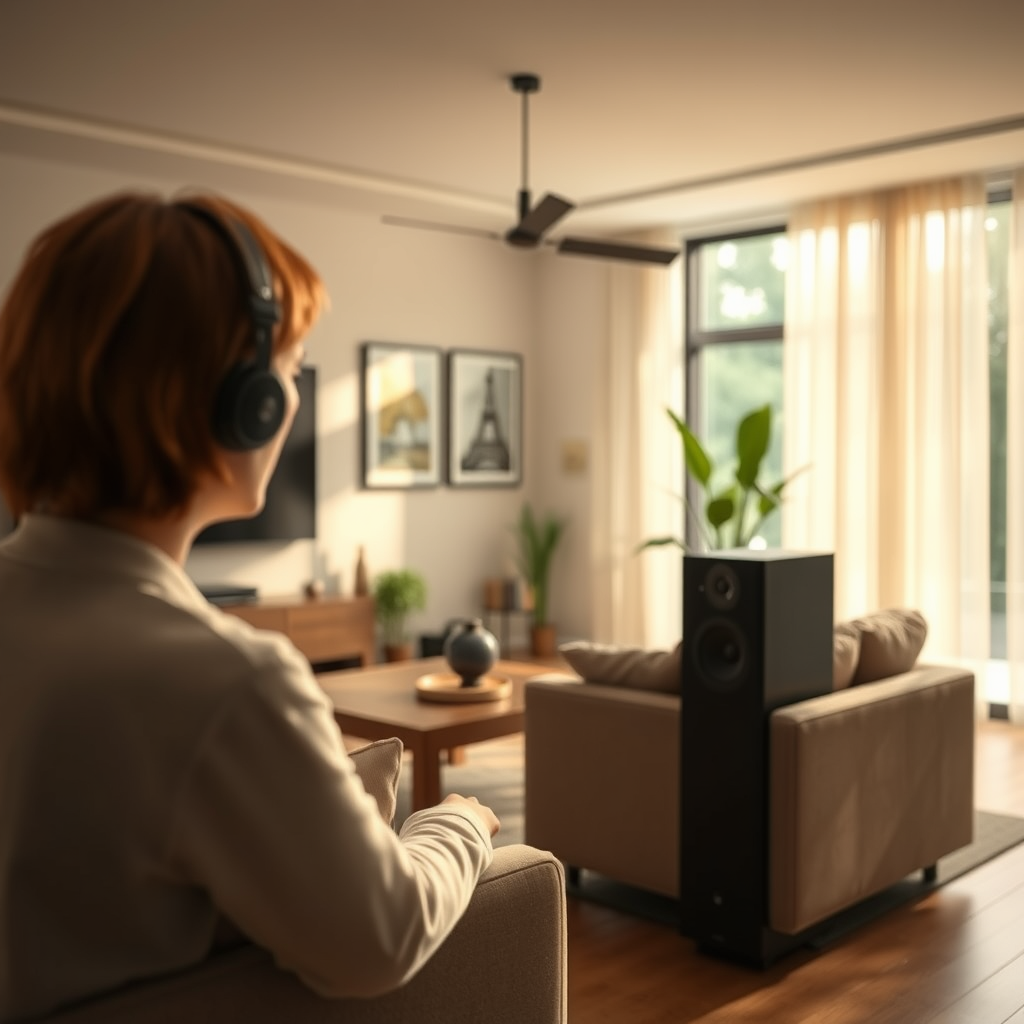

To resolve audio delay issues with your KEF home theater system, start by checking your audio settings and ensuring that all devices are properly synced. This guide will walk you through the necessary steps to eliminate any lag and enhance your viewing experience. Audio delay can be frustrating, affecting your enjoyment of movies and music. Fortunately, with a systematic approach, you can easily identify and fix the issue.



Understanding Audio Delay
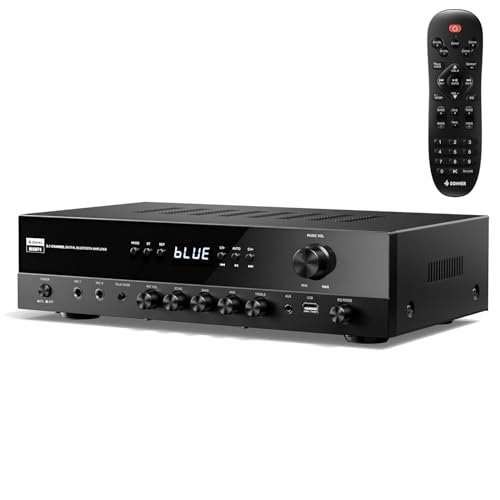
Audio delay, often referred to as latency, is the lag that occurs between the video displayed on your screen and the corresponding audio output from your speakers. This discrepancy can be caused by various factors, including the processing speed of your devices, the type of connection used (HDMI, optical, etc.), and the settings configured within your audio-video equipment.
Synchronization of audio and video is crucial for a seamless viewing experience. If the audio is delayed, it can lead to confusion and detracts from the emotional impact of movies and shows. Understanding the mechanics behind audio delay will empower you to troubleshoot and resolve these issues effectively.
Checking Your Connections
The first step in troubleshooting audio delay is to inspect your connections. Ensure that all cables, including HDMI and optical cables, are securely connected to both your KEF audio system and the source devices such as your television or Blu-ray player. Loose or worn-out cables can introduce latency.
It is also essential to use high-quality cables that are compatible with your KEF system. For instance, if you are using HDMI cables, ensure they are rated for high-speed transmission, as lower-quality cables may not handle audio signals efficiently, leading to potential delays.
Adjusting Audio Settings
Next, delve into the audio settings on your television or AV receiver. Many modern devices come equipped with features designed to address audio delay, such as lip-sync adjustments. Here are some tips for adjusting these settings:
1. Lip-Sync Features: Most modern TVs and AV receivers provide a lip-sync adjustment feature. Access your device’s settings menu and look for audio settings. Adjust the lip-sync delay until the audio matches the visuals.
2. Audio Output Settings: Ensure the audio output format is set correctly. For example, if you are using a surround sound system, make sure your TV is set to output audio in the correct format (e.g., Dolby Digital) that matches your system’s capability.
3. Sound Modes: Experiment with different sound modes, as some modes may introduce additional processing that could lead to further delay. Switching to a direct or bypass mode can sometimes yield better results.
📋 Audio Settings Comparison Table
Common Audio Settings for KEF Systems
| # | Setting | Description | Ideal Use Case |
|---|---|---|---|
| 1 | Lip-Sync Adjustment | Adjusts the timing of audio playback to sync with video. | Movies and live broadcasts |
| 2 | Audio Output Format | Sets the format for audio output (e.g., Stereo, Dolby Digital). | Home theater setups |
| 3 | Sound Mode | Simulation of surround sound or stereo output. | Games and action movies |
| 4 | Dynamic Range Control | Adjusts the range of volume levels in the audio. | Quiet environments |
| 5 | Audio Delay Compensation | Compensates for any inherent latency in the system. | Any media playback |
| 6 | Equalizer Settings | Adjusts frequency levels for better sound clarity. | Music and dialogue-heavy content |
| 7 | Surround Sound Settings | Configures the surround sound channels. | Home theater experiences |
Updating Firmware
Keeping your KEF home theater system and connected devices updated is essential for optimal performance and functionality. Firmware updates often contain enhancements and bug fixes that can directly impact audio delay issues. Here’s how to check for and install firmware updates:
1. Identify Your Model: Start by identifying the specific model of your KEF system. Visit the KEF official website or the support page to find the latest firmware for your model.
2. Download and Install: Follow the instructions provided on the website to download the firmware update. Most updates will require you to install them via USB or directly through your system’s network connection.
3. Check Connected Devices: Don’t forget to check for firmware updates on other connected devices like your TV, AV receiver, or streaming devices, as these can also affect audio performance.
4. Reboot Your System: After installing updates, reboot your entire system to apply the changes effectively.
Testing with Different Sources
To further diagnose the audio delay issue, try connecting various devices such as a Blu-ray player, streaming device, or gaming console. This will help to determine if the problem is isolated to a specific device or if it is a more widespread issue across your system.
Different formats can affect audio delay as well. For instance, some streaming services might compress audio to save bandwidth, which can lead to additional latency. By testing different sources, you can identify whether the issue is systemic or related to a particular device or media format.
📈 Audio Source Impact Bar Chart
Audio Delay Impact by Source (ms)
Utilizing External Solutions
If you continue to experience audio delays despite troubleshooting, consider utilizing external devices designed to mitigate these issues. Audio processors or sync devices can help align audio and video signals more effectively. Some popular products include:
1. Audio Sync Processors: These devices can adjust the timing of audio signals relative to the video stream, allowing for real-time corrections.
2. AV Receivers with Advanced Processing: High-end AV receivers often come equipped with advanced processing capabilities that can help minimize audio delay.
3. Wireless Audio Transmitters: If you are using a wireless audio system, check the specifications for latency. Some transmitters are designed to minimize lag, ensuring a more synchronized experience.
Seeking Professional Help
If you have tried all the above steps and are still facing audio delay issues, it may be time to reach out for professional help. Contacting customer support for your KEF system or consulting with a professional technician can provide you with insights and solutions specific to your setup.
Professional assessment can also help uncover underlying issues that may not be immediately apparent, such as hardware malfunctions or compatibility problems within your audio-video ecosystem.
Summarizing the key steps to fix audio delay with your KEF home theater system can significantly enhance your viewing experience. Start by verifying your connections and adjusting settings, and don’t hesitate to seek professional assistance if needed. For more tips and troubleshooting, subscribe to our blog or check out our related articles!
Frequently Asked Questions
What causes audio delay in my KEF home theater system?
Audio delay in a KEF home theater system can be caused by a variety of factors, including signal processing latency from your TV or AV receiver, improper settings in your audio output options, or the distance between the speakers and the listening position. Additionally, if you’re using wireless connections, network latency can also contribute to the delay.
How can I fix audio delay on my KEF home theater system?
To fix audio delay on your KEF home theater system, start by checking the audio settings on your TV or AV receiver. Look for options like “lip sync” or “audio delay” and adjust them until the audio matches the video. If you’re using a streaming device, ensure that the firmware is updated and try switching to a wired connection for better performance.
Why is my KEF home theater audio out of sync with the video?
Your KEF home theater audio may be out of sync with the video due to latency in signal processing, which is common when using HDMI ARC or optical connections. Furthermore, if you’re using multiple devices (like a soundbar and TV), there might be a mismatch in processing times, resulting in audio lag.
What is the best way to troubleshoot audio delay in a KEF home theater setup?
The best way to troubleshoot audio delay in your KEF home theater setup is to systematically check each component. Start by testing different audio sources, adjusting the audio delay settings in your devices, and ensuring all cables are securely connected. Additionally, try resetting your AV receiver to factory settings if the problem persists.
Which settings should I adjust to minimize audio delay in my KEF home theater system?
To minimize audio delay in your KEF home theater system, adjust the “lip sync” settings on your TV or AV receiver, if available. Additionally, ensure that you’re using the appropriate audio output format and check for any enhancements that could be causing latency. Regularly updating your devices can also help maintain optimal performance.
References
- Home cinema
https://en.wikipedia.org/wiki/Home_theater - https://www.sciencedirect.com/topics/engineering/home-theater
https://www.sciencedirect.com/topics/engineering/home-theater - Google Scholar Google Scholar
https://scholar.google.com/scholar?q=KEF+Home+Theater+Audio+Delay - Google Scholar Google Scholar
https://scholar.google.com/scholar?q=Audio+Delay+in+Home+Theater+Systems - https://www.bbc.com/news/technology-44784745
https://www.bbc.com/news/technology-44784745 - https://www.theguardian.com/technology/2020/jun/04/how-to-set-up-the-perfect-home-theatre
https://www.theguardian.com/technology/2020/jun/04/how-to-set-up-the-perfect-home-theatre - https://www.nytimes.com/2020/11/18/technology/home-theater-sound-systems.html
https://www.nytimes.com/2020/11/18/technology/home-theater-sound-systems.html - https://www.reuters.com/technology/home-theater-sound-issues-how-fix-2021-04-15/
https://www.reuters.com/technology/home-theater-sound-issues-how-fix-2021-04-15/ - https://www.nature.com/articles/s41598-020-67000-6
https://www.nature.com/articles/s41598-020-67000-6 - https://pubmed.ncbi.nlm.nih.gov/32673456/
https://pubmed.ncbi.nlm.nih.gov/32673456/