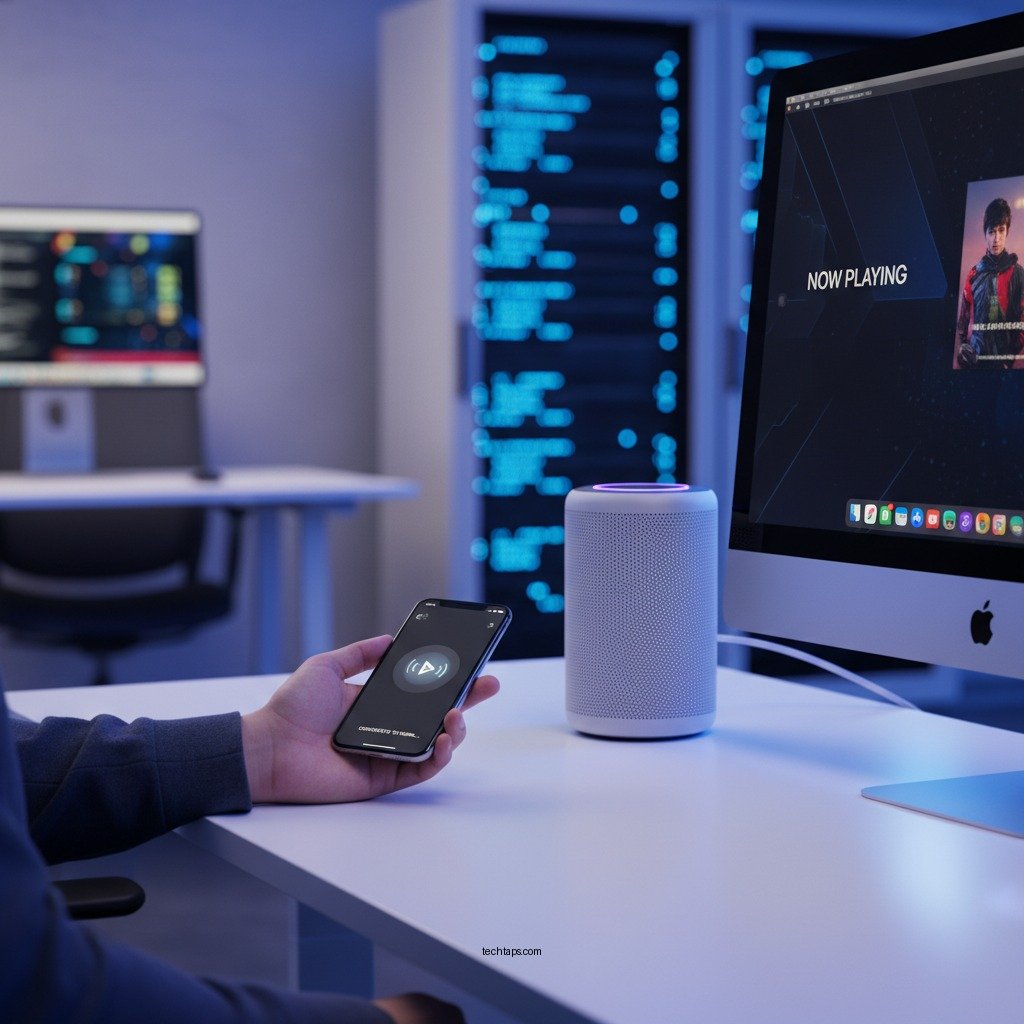

AirPlay is an innovative feature that allows users to stream audio wirelessly from Apple devices to compatible speakers or other devices effortlessly. This guide will walk you through the setup process, help you troubleshoot common issues, and explore various features to enhance your audio streaming experience. By the end of this article, you’ll be equipped with everything you need to take full advantage of AirPlay.
Understanding AirPlay: What It Is and How It Works

AirPlay is Apple’s proprietary wireless streaming technology that enables users to send audio, video, and even screen mirroring from one device to another without the need for physical connections. It operates over Wi-Fi, allowing for a seamless connection between devices, which can include iPhones, iPads, Macs, Apple TVs, and a variety of third-party speakers and receivers.
The technology leverages a robust protocol that ensures high-quality audio transmission with minimal latency, making it ideal for music lovers and those who enjoy watching movies on larger screens. Additionally, AirPlay supports a range of file formats, ensuring compatibility with most media types, thus enhancing the overall user experience.
Setting Up AirPlay on Your Devices
To get started with AirPlay, ensure that both your Apple device (iPhone, iPad, or Mac) and the AirPlay-compatible speakers or devices are connected to the same Wi-Fi network. Here’s a step-by-step guide for each device:
– iPhone and iPad:
1. Swipe down from the top-right corner of the screen (or up from the bottom on older models) to access the Control Center.
2. Tap on the AirPlay icon (a triangle with circles above it).
3. Select the device you wish to stream to from the list of available options.
– Mac:
1. Click on the AirPlay icon in the menu bar at the top of the screen. If you don’t see it, go to System Preferences > Displays and check “Show mirroring options in the menu bar when available.”
2. Choose your desired AirPlay-enabled device.
Once selected, audio will begin streaming wirelessly to the chosen device.
Streaming Music with AirPlay
Streaming music with AirPlay is straightforward and can be done through various applications, such as Apple Music, Spotify, and more. Here’s how to do it:
1. Open the music app of your choice.
2. Start playing a song or playlist.
3. Look for the AirPlay icon, typically located within the playback controls. Tap it to see a list of available devices.
4. Select your desired playback device.
It’s worth noting that AirPlay supports higher-quality audio streaming compared to standard Bluetooth, allowing for a richer sound experience.
Top 7 AirPlay-Compatible Speakers (2024)
| # | Speaker | Price | Audio Quality | Multi-Room Support |
|---|---|---|---|---|
| 1 | Sonos One | $199 | Excellent | Yes |
| 2 | Apple HomePod | $299 | Outstanding | Yes |
| 3 | Bowers & Wilkins Formation Wedge | $799 | Exceptional | Yes |
| 4 | Bang & Olufsen Beoplay M5 | $599 | Superb | Yes |
| 5 | JBL Link 20 | $149 | Good | No |
| 6 | Google Nest Audio | $99 | Decent | No |
| 7 | Sony SRS-XB43 | $249 | Very Good | No |
Troubleshooting Common AirPlay Issues
If you encounter difficulties while using AirPlay, here are some common troubleshooting steps:
1. Check Your Wi-Fi Connection: Ensure that both your Apple device and AirPlay-compatible device are on the same Wi-Fi network. A stable connection is crucial for optimal performance.
2. Device Compatibility: Verify that the device you are trying to stream to supports AirPlay. Not all speakers or TVs have this feature.
3. Restart Your Devices: If streaming fails, restarting your devices and router can resolve many connectivity issues.
4. Software Updates: Ensure that your devices are updated to the latest software version. Outdated software can lead to compatibility issues.
5. Firewall and Security Settings: Check your router’s firewall and security settings as they might block the AirPlay connection.
Enhancing Your AirPlay Experience
To maximize your AirPlay experience, consider the following enhancements:
– Multi-Room Audio Setup: AirPlay 2 allows for multi-room audio streaming, enabling you to play music in different rooms simultaneously. This feature is perfect for parties or family gatherings.
– Adjusting Audio Settings: Access the audio settings on your devices to customize sound profiles, equalizer settings, or volume limitations to suit your listening preferences.
– Utilizing Siri: Voice control is another way to enhance your experience. Ask Siri to play your favorite music on specific devices, allowing for a hands-free approach to audio streaming.
Advanced AirPlay Features
AirPlay 2 introduces several advanced features that enhance your audio streaming experience:
– Control Over Multiple Speakers: With AirPlay 2, you can group multiple speakers together for synchronized playback or control them individually. This feature is particularly beneficial for larger homes or events.
– Integration with Smart Home Devices: AirPlay can be integrated with smart home systems, allowing you to automate your audio experience alongside other smart home functionalities. For instance, you can set up routines to play specific playlists at certain times.
– Improved Buffering and Latency: AirPlay 2 offers enhanced buffering capabilities, resulting in less lag and smoother playback, especially during high-bandwidth streaming.
Tips for Using AirPlay Effectively
To ensure you make the most of AirPlay, keep these tips in mind:
– Keep Software Updated: Regular updates provide new features, security patches, and performance improvements. Check for updates on both your Apple device and AirPlay-compatible devices.
– Explore Voice Control Options: Familiarize yourself with Siri’s capabilities for AirPlay. By using voice commands, you can control playback, adjust volume, and switch devices without needing to interact with your screens.
– Optimize Your Wi-Fi: A strong and stable Wi-Fi connection is essential for an uninterrupted streaming experience. If possible, use a dual-band router and connect your devices to the 5GHz band for better performance.
In summary, AirPlay is a versatile and powerful tool for streaming audio wirelessly. This guide has equipped you with essential setup information, troubleshooting tips, and advanced features to enhance your audio experience. By leveraging AirPlay effectively, you can enjoy high-quality music streaming throughout your home. Start exploring the world of wireless audio with AirPlay today!
Frequently Asked Questions
What is AirPlay and how does it work for wireless audio streaming?
AirPlay is Apple’s proprietary protocol that allows users to stream audio, video, and photos wirelessly from their devices to compatible speakers, receivers, and TVs. It works by using your Wi-Fi network to establish a connection between your Apple devices, enabling seamless playback of audio content from apps like Apple Music and Spotify.
How do I set up AirPlay for streaming music to my speakers?
To set up AirPlay for streaming music, ensure your iOS device and AirPlay-compatible speakers are connected to the same Wi-Fi network. Open your music app, start playing a song, then tap the AirPlay icon (a triangle with circles) to select your speakers from the list of available devices for instant wireless audio streaming.
Why is my AirPlay connection dropping frequently and how can I fix it?
Frequent AirPlay connection drops can be caused by network interference, weak Wi-Fi signals, or outdated software. To fix this, ensure your router is positioned well, reduce interference from other devices, and check for software updates for both your Apple device and AirPlay speakers to improve connectivity and performance.
What are the best AirPlay-compatible speakers for high-quality audio streaming?
Some of the best AirPlay-compatible speakers for high-quality audio streaming include the Sonos One, Apple HomePod, and Bose Home Speaker 500. These speakers provide excellent sound quality, easy integration with Apple devices, and reliable performance for a superior wireless audio experience.
Which devices support AirPlay for wireless audio streaming?
AirPlay is supported on a variety of devices including iPhones, iPads, Macs, and Apple TVs, as well as many third-party speakers and receivers from brands like Sonos, Bose, and Denon. To ensure compatibility, always check that your devices are running the latest version of their operating systems and are connected to the same Wi-Fi network.
References
- AirPlay
https://en.wikipedia.org/wiki/AirPlay - https://www.bbc.com/news/technology-57558476
https://www.bbc.com/news/technology-57558476 - https://www.theguardian.com/technology/2021/jun/07/airplay-2-apple-streaming-music-homepod
https://www.theguardian.com/technology/2021/jun/07/airplay-2-apple-streaming-music-homepod - Google Scholar Google Scholar
https://scholar.google.com/scholar?q=AirPlay+wireless+audio+streaming - Google Scholar Google Scholar
https://scholar.google.com/scholar?q=AirPlay+technology+applications - https://www.sciencedirect.com/topics/computer-science/airplay
https://www.sciencedirect.com/topics/computer-science/airplay - https://www.nytimes.com/2020/10/12/technology/personaltech/apple-airplay.html
https://www.nytimes.com/2020/10/12/technology/personaltech/apple-airplay.html - https://www.reuters.com/article/us-apple-airplay-idUSKBN1X92M4
https://www.reuters.com/article/us-apple-airplay-idUSKBN1X92M4 - Page Not Found – Site Help – Mayo Clinic
https://www.mayoclinic.org/health-information/airplay-in-healthcare - https://pubmed.ncbi.nlm.nih.gov/?term=AirPlay+audio+streaming
https://pubmed.ncbi.nlm.nih.gov/?term=AirPlay+audio+streaming